Considering a DIY surveillance camera system? This guide breaks down the benefits, drawbacks, and essential steps to building your own robust security solution. Discover if a do-it-yourself approach is the right fit for your property and budget, offering enhanced control and potential cost savings.
What is a DIY Surveillance Camera System?
A DIY surveillance camera system refers to a security setup that you, the homeowner or business owner, design, purchase, and install yourself, rather than relying on professional security companies. This approach empowers individuals to take direct control over their security infrastructure, selecting components that best suit their specific needs and budget. It encompasses everything from choosing the cameras and recording devices to configuring the network and ensuring proper functionality. In essence, it's about building your own eyes and ears for enhanced property monitoring.
Why Choose a DIY Surveillance Camera System?
The allure of a DIY surveillance camera system stems from several compelling advantages, particularly in the current landscape where individuals are increasingly seeking more control and cost-effectiveness in their security measures. As of 2025, the market for smart home security continues to expand, with a significant portion of consumers opting for solutions they can manage themselves.
One of the primary drivers is cost savings. Professional installation services can add a substantial amount to the overall price of a security system. By undertaking the installation yourself, you eliminate these labor costs, which can often represent 30-50% of the total expense. This allows you to allocate more of your budget towards higher-quality cameras or more advanced features.
Customization and flexibility are also paramount. Off-the-shelf professional systems may come with limitations in terms of camera placement, types of cameras, or recording capabilities. A DIY approach allows you to tailor the system precisely to your property's layout and your specific security concerns. Whether you need wide-angle lenses for large areas, night vision for dark exteriors, or discreet cameras for indoor monitoring, you can select components that meet these exact requirements.
Control and ownership are significant benefits. With a DIY system, you are not tied to a specific provider's ecosystem or subscription plans for basic functionality. You have full control over your data, how it's stored, and who has access to it. This is particularly appealing for individuals concerned about privacy and data security, a growing sentiment in 2025 as data breaches become more common.
Furthermore, the learning experience itself can be rewarding. For tech-savvy individuals, building and configuring a surveillance system offers an opportunity to understand their home's network and security infrastructure better. This knowledge can be invaluable for troubleshooting and future upgrades.
Finally, the speed of deployment can be faster. Once you have your components, you can often set up a basic system within a weekend, whereas scheduling and waiting for a professional installer can sometimes take weeks. This immediate security upgrade can be crucial for those who need to secure their property quickly.
In summary, the decision to go DIY is driven by a desire for affordability, personalized security, complete control, and the satisfaction of building something yourself. These factors align with a growing consumer trend towards self-sufficiency and empowerment in managing personal and home security.
DIY vs. Professional Installation: A Comparison
Deciding between a DIY surveillance camera system and professional installation is a critical first step. Each approach has its unique set of pros and cons that cater to different user needs, budgets, and technical proficiencies. As of 2025, the market offers a wide array of options for both, making the choice more nuanced than ever.
| Feature | DIY Surveillance Camera System | Professional Installation |
|---|---|---|
| Cost | Lower upfront hardware costs, no labor fees. Potential for long-term savings by avoiding monthly subscriptions for basic features. | Higher upfront costs due to labor, equipment markups, and potential consultation fees. Often involves recurring monthly fees for monitoring and cloud storage. |
| Installation Time | Can range from a few hours to a weekend, depending on complexity and user's skill level. Immediate deployment possible. | Requires scheduling appointments, which can take days or weeks. Installation itself can take several hours to a full day. |
| Customization & Flexibility | High. Users can select specific camera types, brands, storage solutions, and integrate with existing smart home devices. Complete control over system design. | Limited. Typically restricted to the provider's product catalog and pre-defined packages. Customization may incur additional fees. |
| Technical Expertise Required | Moderate to high. Requires understanding of networking, wiring (for wired systems), software configuration, and basic troubleshooting. | Minimal to none. Professionals handle all technical aspects, including setup, configuration, and testing. |
| System Maintenance & Troubleshooting | User is responsible for all maintenance, updates, and troubleshooting. Requires self-reliance. | Often included in service contracts or available as a paid service. Technicians handle issues. |
| Control Over Data & Privacy | High. Users can choose local storage (NVR/DVR) or secure cloud options, maintaining greater control over their data. | Varies by provider. Data is often stored on company servers, with varying levels of access and privacy policies. Users may be dependent on provider's security measures. |
| Scalability | Generally good. Users can add more cameras or upgrade components as needed, provided the core system supports it. | Can be complex and costly to scale, often requiring service calls and additional equipment packages. |
| Warranty & Support | Relies on individual component warranties. Manufacturer support is available, but no unified system support. | Typically offers a comprehensive warranty on hardware and installation. Dedicated customer support for the entire system. |
| Learning Curve | Steeper. Users must learn about different technologies and how to integrate them. | Minimal. Users primarily learn how to operate the system through provided interfaces. |
| Average Cost (Initial) | $200 - $1500+ (depending on number of cameras and features) | $500 - $3000+ (depending on system size and features, excluding monthly fees) |
| Average Monthly Cost | $0 - $20 (for optional cloud storage or advanced features) | $20 - $100+ (for monitoring, cloud storage, and support) |
For individuals comfortable with technology and seeking maximum control and cost-efficiency, a DIY system is often the superior choice. Those who prioritize convenience, have limited technical skills, or desire a fully managed service might find professional installation more suitable. The best option depends entirely on your personal circumstances and priorities.
Key Components of a DIY Surveillance System
Building a robust DIY surveillance camera system involves understanding and selecting several key components. Each piece plays a crucial role in the overall functionality, from capturing footage to storing and accessing it. As of 2025, the technology offers a wide range of options to suit various needs and budgets.
1. Surveillance Cameras
These are the eyes of your system. They come in various types, each suited for different environments and purposes:
- Dome Cameras: Discreet and vandal-resistant, often used indoors or under eaves.
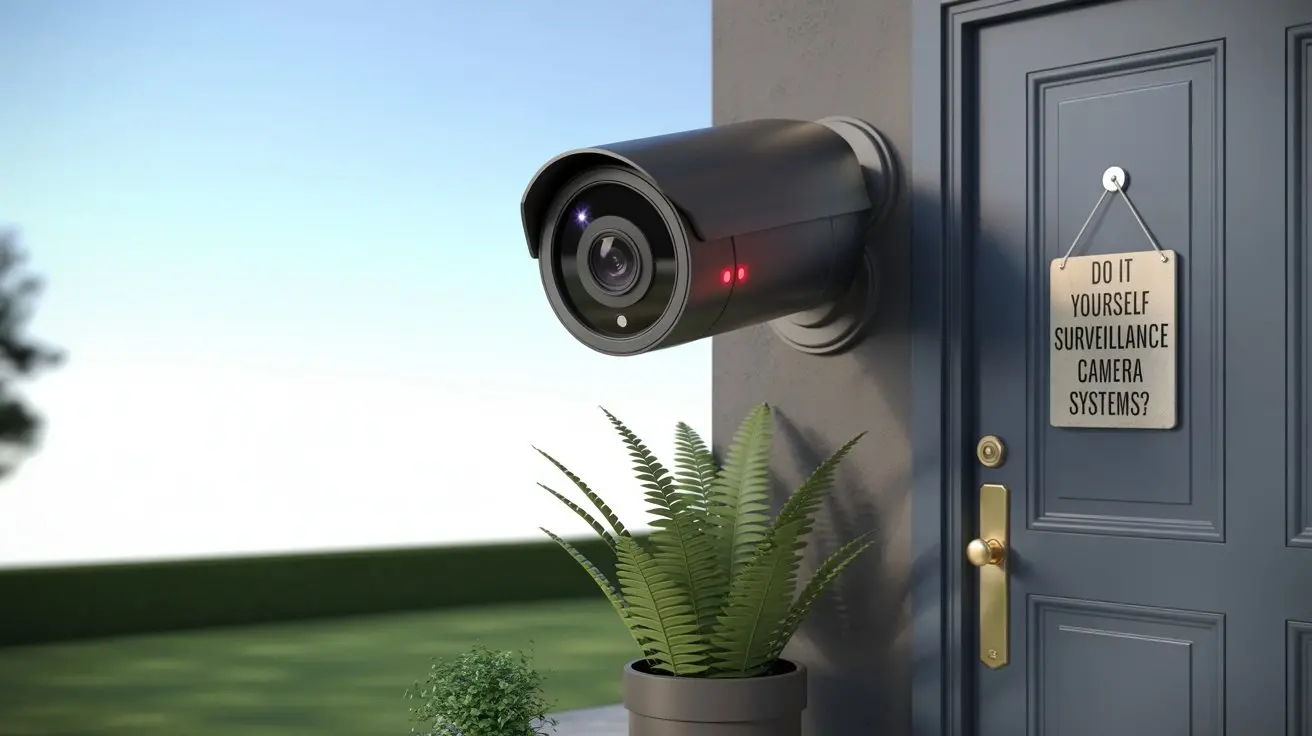
- Bullet Cameras: More visible and often weather-resistant, ideal for outdoor perimeter monitoring.
- Turret Cameras: A hybrid, offering better night vision than domes and more discreet than bullets.
- PTZ (Pan-Tilt-Zoom) Cameras: Offer remote control to move the camera's view, ideal for covering large areas.
- Wireless vs. Wired: Wireless cameras offer easier installation but can be subject to interference and battery life issues. Wired cameras (PoE - Power over Ethernet) are more reliable but require running cables.
- Resolution: Look for at least 1080p (Full HD), with 2K or 4K (8MP) offering significantly more detail, crucial for identifying faces or license plates.
- Night Vision: Infrared (IR) LEDs are standard for low-light conditions. Check the effective range.
- Field of View (FoV): Wider FoV covers more area but with less detail at a distance.
2. Recording Device
This component captures and stores the video feeds from your cameras. The primary options are:
- Network Video Recorder (NVR): Used with IP cameras. NVRs are essentially mini-computers that manage and record video streams over a network. They offer more advanced features and higher resolutions.
- Digital Video Recorder (DVR): Used with analog or older coaxial cable cameras. DVRs convert analog signals to digital for recording. Less common in new DIY setups but still viable for upgrading older systems.
- Cloud Storage: Many modern cameras offer direct cloud recording, eliminating the need for a physical recorder. This is convenient but often involves recurring subscription fees and reliance on internet connectivity.
- On-board Storage (SD Card): Some cameras have an SD card slot for local recording, useful as a backup or for single-camera setups. Limited capacity.
3. Hard Drive (for NVR/DVR)
If you opt for an NVR or DVR, you'll need a hard drive to store the footage. The size of the drive depends on the number of cameras, their resolution, frame rate, and how long you want to retain footage. Surveillance-specific hard drives are designed for 24/7 operation and are more reliable than standard desktop drives.
4. Power Supply
- Power Adapters: Standard wall adapters for individual cameras or recorders.
- PoE Switch/Injector: For wired IP cameras, Power over Ethernet technology allows a single Ethernet cable to provide both data and power, simplifying installation.
5. Cabling and Connectors
- Ethernet Cables (Cat5e/Cat6): For IP cameras connecting to an NVR or PoE switch.
- Coaxial Cables: For analog cameras connecting to a DVR.
- BNC Connectors: Used with coaxial cables.
- RJ45 Connectors: Used with Ethernet cables.
6. Network Infrastructure
- Router: Essential for connecting your system to the internet, enabling remote viewing.
- Modem: Connects your home network to your Internet Service Provider (ISP).
- Network Switch (optional): If you have many wired cameras, a switch provides more Ethernet ports for your NVR or router.
7. Monitor and Mouse (for NVR/DVR setup)
While not always necessary for ongoing operation (especially with app-based management), a monitor and mouse are typically required for the initial setup and configuration of NVRs and DVRs.
Selecting the right combination of these components is key to building a DIY surveillance system that is effective, reliable, and meets your specific security needs.
Planning Your DIY Surveillance System
A well-planned DIY surveillance camera system is the foundation for effective security. Rushing into purchasing components without a clear strategy can lead to wasted money, an incomplete system, or performance issues. As of 2025, the planning phase is more critical than ever, with increasing options and complexities.
1. Assess Your Security Needs
Before buying anything, clearly define what you want to achieve. Ask yourself:
- What areas need monitoring? (e.g., front door, back yard, garage, interior rooms, driveway, perimeter)
- What are the primary threats? (e.g., package theft, vandalism, break-ins, monitoring children/pets, deterring loiterers)
- What level of detail is required? (e.g., general presence detection, facial recognition, license plate reading)
- Do you need audio recording? (Note: Laws regarding audio recording vary significantly by region.)
- What are your lighting conditions? (e.g., well-lit areas, dark alleys, consistent indoor lighting)
2. Map Your Property
Sketch a simple floor plan or aerial view of your property. Mark the areas you identified in step 1. This visual aid will help you determine:
- The optimal placement for each camera to cover blind spots.
- The best type of camera for each location (e.g., wide-angle for a large yard, PTZ for a long driveway).
- Potential obstructions (trees, buildings) that might affect camera views or Wi-Fi signals.
3. Determine Camera Count and Types
Based on your map and needs, decide how many cameras you need and what kind:
- Entry Points: Front door, back door, ground-floor windows.
- Vulnerable Areas: Driveways, side yards, garages, gates.
- High-Traffic Areas: Common areas inside if monitoring is desired.
- Consider camera features: Resolution (1080p minimum, 2K/4K recommended), night vision range, field of view, weather resistance (IP rating), and vandal resistance.
4. Choose Your Recording Solution
This is a crucial decision that impacts cost, accessibility, and data privacy:
- NVR/DVR: Best for comprehensive local recording, offering continuous or motion-triggered recording without monthly fees for basic functionality. Requires physical installation and maintenance.
- Cloud Storage: Convenient for remote access and off-site backups. However, it usually involves recurring subscription costs and is dependent on your internet speed and reliability. Check the provider's data security policies.
- Hybrid Approach: Some systems allow for both local NVR/DVR recording and optional cloud backup for critical events.
Storage Capacity: Estimate how much storage you need. Factors include the number of cameras, resolution, frame rate, and desired retention period (e.g., 7 days, 30 days). Online calculators can help with this.
5. Plan Your Power and Network Infrastructure
- Wired vs. Wireless:
- Wired (PoE): Most reliable for IP cameras. Plan cable routes from your NVR/PoE switch to each camera location. This often requires drilling holes and running cables through walls, attics, or conduits.
- Wireless: Easier installation but requires a strong Wi-Fi signal at each camera location and reliable power sources (either AC adapters or batteries). Consider Wi-Fi extenders if needed.
- Router Capacity: Ensure your router can handle the number of connected devices and the bandwidth required for multiple camera streams, especially if using high-resolution cameras.
- Power Sources: Identify power outlets for cameras or NVR/DVR, or plan for running power cables if needed.
6. Budget Allocation
Create a realistic budget. Factor in:
- Cameras
- NVR/DVR and Hard Drive
- Cables, connectors, mounting hardware
- PoE switch (if applicable)
- Tools (drill, screwdrivers, ladder, etc.)
- Potential Wi-Fi extenders or network upgrades
- Optional cloud subscription fees
7. Consider Future Expansion
Think about whether you might want to add more cameras later. Choose an NVR/DVR with spare channels or a system that easily supports expansion.
Thorough planning minimizes surprises, ensures you purchase the right components, and sets you up for a successful DIY surveillance system installation. It’s an investment of time that pays off significantly in the long run.
Step-by-Step Installation Guide
Installing a DIY surveillance camera system can seem daunting, but by breaking it down into manageable steps, it becomes a achievable project for most homeowners. This guide outlines the typical process for a wired IP camera system using an NVR, which is a common and reliable choice as of 2025.
Step 1: Gather Your Tools and Components
Ensure you have all your purchased components (cameras, NVR, hard drive, cables, connectors, power supplies, PoE switch) and the necessary tools:
- Drill with various bits
- Screwdriver set
- Wire strippers and crimpers (if terminating your own Ethernet cables)
- Ladder
- Cable fishing tools (optional but helpful)
- Safety glasses
- Network cable tester (recommended)
- Monitor and USB mouse for NVR setup
- Your router and modem
Step 2: Install the Hard Drive in the NVR
This is often the first step for NVR-based systems:
- Disconnect power from the NVR.
- Open the NVR casing (usually by unscrewing the top or side panel).
- Carefully connect the SATA data and power cables from the NVR's motherboard to the hard drive.
- Mount the hard drive into the designated bay within the NVR.
- Replace the NVR casing and secure it.
Step 3: Connect the NVR to Your Network and Power
This step allows the NVR to communicate with your router and the internet:
- Connect an Ethernet cable from the NVR's LAN/WAN port to a free port on your router or PoE switch.
- Connect the NVR's power adapter to a power outlet and to the NVR.
- Connect a monitor (via HDMI or VGA) and a USB mouse to the NVR.
- Power on the NVR. It will boot up and display its initial setup screen on the monitor.
Step 4: Configure the NVR
Follow the on-screen prompts for initial NVR setup:
- Language and Time Zone: Select your preferences.
- Password: Create a strong, unique password for the NVR administrator account.
- Network Settings: Usually set to DHCP to automatically obtain an IP address from your router.
- Hard Drive Initialization: The NVR will detect the hard drive and prompt you to format it. This is essential for recording.
- Firmware Update (Optional): Check for and install any available firmware updates for the NVR.
Step 5: Mount the Cameras
This is the most physically demanding part:
- Determine exact mounting locations: Based on your planning, drill pilot holes for mounting screws.
- Run Cables: If using wired cameras, carefully run the Ethernet cables from the camera location back to where your PoE switch or NVR will be located. This might involve drilling through exterior walls, running cables through attics, basements, or using conduit for protection.
- Mount Cameras: Secure the camera mounts to the wall or ceiling.
- Connect Cables: Connect the Ethernet cable to the camera's port. If the camera has a separate power connector (less common with PoE), connect that too.
- Adjust Camera Angle: Position the camera to cover the desired area. You'll fine-tune this later.
For wireless cameras: Mount the cameras and ensure they have a strong Wi-Fi signal and a nearby power source.
Step 6: Connect Cameras to the PoE Switch/NVR
If using a PoE switch:
- Connect each camera's Ethernet cable to a PoE port on the switch.
- Connect the PoE switch to your router using another Ethernet cable.
- Ensure the PoE switch is powered on.
If your NVR has built-in PoE ports, connect the cameras directly to those ports.
Step 7: Add Cameras to the NVR
Once cameras are powered and connected to the network:
- On the NVR interface, navigate to the camera management or IP search section.
- The NVR should scan the network and detect the connected cameras.
- Select the cameras you want to add and enter their default passwords (check camera manuals).
- The NVR will establish a connection, and you should see live video feeds from each camera on the monitor.
Step 8: Fine-Tune Camera Views and Settings
This is where you ensure optimal coverage:
- Adjust the physical angle of each camera for the best view.
- On the NVR, configure motion detection zones, sensitivity, and recording schedules (continuous, motion-only, or scheduled).
- Set up recording quality (resolution, frame rate) for each camera to balance detail with storage needs.
Step 9: Configure Remote Access
Most NVRs and camera systems offer mobile apps or web interfaces for remote viewing:
- Follow the NVR manufacturer's instructions to enable remote access. This often involves creating an account with the manufacturer's service or configuring port forwarding on your router (less common and more complex now).
- Download the corresponding mobile app on your smartphone or tablet.
- Log in using your NVR account credentials to view live feeds and recorded footage from anywhere.
Step 10: Test and Troubleshoot
Thoroughly test your system:
- Walk through monitored areas to ensure motion detection is working as expected.
- Check recording quality and playback.
- Test remote access from outside your home network.
- Verify that all cameras are stable and have good connections.
Address any issues with camera connections, network stability, or software settings.
By following these steps, you can successfully install and configure your DIY surveillance camera system, enhancing your property's security.
Choosing the Right Cameras
The cameras are the most visible and critical component of any surveillance system. Selecting the right ones for your DIY setup involves understanding various types, features, and specifications to ensure they meet your specific needs and environmental conditions. As of 2025, the market offers a vast array of options, from basic to highly advanced.
Camera Types by Form Factor:
- Bullet Cameras: These are typically long, cylindrical cameras, often mounted on walls or ceilings. They are highly visible, which can act as a deterrent. Many are designed for outdoor use with robust weatherproofing (IP66/IP67 ratings) and IR night vision. They are a popular choice for perimeter security and monitoring entry points.
- Dome Cameras: Characterized by their semi-spherical shape, often mounted on ceilings or walls. They are generally more discreet than bullet cameras and can be more resistant to tampering or vandalism due to their enclosed design. Many dome cameras have a "vandal-proof" rating (IK rating). They are suitable for both indoor and outdoor applications, though outdoor models need proper weatherproofing.
- Turret Cameras (Eyeball Cameras): A hybrid between bullet and dome cameras, these have a ball-and-socket design within a dome housing, allowing for greater adjustment flexibility. They are often less obtrusive than bullet cameras but offer similar directional mounting capabilities. Their IR LEDs are typically positioned around the lens, reducing IR reflection issues that can plague dome cameras in wet conditions.
- PTZ (Pan-Tilt-Zoom) Cameras: These are the most advanced and versatile cameras, allowing for remote control of their movement (pan left/right, tilt up/down) and zoom capabilities. They can cover very large areas and track subjects. While excellent for wide-area surveillance, they are significantly more expensive and complex, often requiring more robust network infrastructure.
- Pinhole/Covert Cameras: Extremely small cameras designed for discreet surveillance. Their use is often subject to legal restrictions, so it's crucial to be aware of local laws regarding privacy.
Key Features to Consider:
- Resolution: This determines the image clarity and detail.
- 1080p (Full HD, 2MP): The minimum standard for most modern systems. Offers good detail for general surveillance.
- 2K (3MP) / 4MP: Provides noticeably sharper images than 1080p, better for identifying faces or objects at a moderate distance.
- 4K (8MP): Offers the highest level of detail, ideal for large areas where you need to zoom in significantly without losing clarity, such as monitoring a driveway or parking lot.
- Night Vision (Infrared - IR): Essential for low-light or no-light conditions.
- Range: Measured in meters or feet (e.g., 30m/100ft). Ensure the range is sufficient for the area you need to cover at night.
- Smart IR: Adjusts IR intensity to prevent overexposure of nearby objects.
- Color Night Vision: Some advanced cameras use ambient light or sensitive sensors to produce color images even in very low light, offering better detail than black and white IR.
- Field of View (FoV): The angle the camera can see.
- Wide-angle lenses (e.g., 90-120 degrees): Cover more area, good for large spaces like yards or rooms. May sacrifice detail at longer distances.
- Narrower lenses (e.g., 40-60 degrees): Focus on a more specific area, providing better detail for longer ranges, like monitoring a specific doorway or driveway.
- Varifocal lenses: Allow manual adjustment of the FoV and focus, offering flexibility during installation.
- Weather Resistance (IP Rating): For outdoor cameras, an IP (Ingress Protection) rating is crucial.
- IP66: Dust-tight and protected against powerful water jets.
- IP67: Dust-tight and protected against temporary immersion in water.
- IP68: Dust-tight and protected against continuous immersion in water (less common for typical surveillance).
- Vandal Resistance (IK Rating): For cameras in accessible locations, an IK rating indicates resistance to physical impact. IK10 is the highest rating.
- Wired vs. Wireless:
- Wired (IP/PoE): Generally more reliable, secure, and offer higher bandwidth for better video quality. Power over Ethernet (PoE) simplifies installation by running a single cable for both data and power.
- Wireless (Wi-Fi): Easier to install as they don't require Ethernet cables running to the camera location. However, they rely on a strong Wi-Fi signal, can be susceptible to interference, and require a separate power source (AC adapter or battery). Battery-powered cameras require frequent recharging or replacement.
- Audio: Some cameras have built-in microphones for audio recording. Be aware of local laws regarding audio surveillance.
- WDR (Wide Dynamic Range) / HDR (High Dynamic Range): Helps cameras capture clear images in scenes with both very bright and very dark areas simultaneously (e.g., a bright window in a dimly lit room).
- On-board Storage (SD Card Slot): Useful for backup recording or as a standalone solution for a single camera. Limited capacity.
Compatibility:
Ensure the cameras you choose are compatible with your chosen NVR or recording system. For IP cameras, this often means supporting standard protocols like ONVIF (Open Network Video Interface Forum). This standard ensures interoperability between devices from different manufacturers.
By carefully considering these factors, you can select cameras that provide the clarity, reliability, and features needed for an effective DIY surveillance system.
Storage Options for DIY Systems
Choosing how and where to store your surveillance footage is a critical decision for any DIY system. It impacts cost, accessibility, data security, and retention capabilities. As of 2025, several robust options are available, each with its own set of advantages and disadvantages.
1. Local Storage: NVR/DVR with Hard Drive
This is the traditional and often most cost-effective method for comprehensive local recording.
- How it works: An NVR (for IP cameras) or DVR (for analog cameras) is a dedicated recording device that connects to your cameras and stores footage on an internal hard drive.
- Pros:
- No recurring fees: Once you purchase the NVR/DVR and hard drive, there are no mandatory monthly subscription costs for basic recording and playback.
- High capacity: You can install large surveillance-grade hard drives (e.g., 4TB, 8TB, 16TB+) to store weeks or months of footage.
- Data privacy: Footage remains on your local network, giving you full control over your data and minimizing risks associated with third-party cloud breaches.
- Reliability: Less dependent on internet connectivity for recording.
- Cons:
- Upfront cost: Requires purchasing the NVR/DVR unit and hard drive(s).
- Physical security: The NVR/DVR itself needs to be secured to prevent theft or tampering.
- Maintenance: Requires occasional firmware updates and potential hard drive replacement over time.
- Remote access setup: May require some network configuration (port forwarding, though many modern NVRs simplify this with P2P or cloud services).
- Considerations:
- NVR/DVR Channels: Ensure the device has enough channels (ports) for your current and future camera needs.
- Hard Drive Size: Calculate storage needs based on camera resolution, frame rate, and desired retention period. Surveillance-specific HDDs are recommended for 24/7 operation.
2. Cloud Storage
Many modern cameras and some NVR systems offer cloud-based storage solutions.
- How it works: Video footage is uploaded directly from the camera or NVR to a remote server managed by a service provider.
- Pros:
- Off-site backup: Footage is protected from local theft or damage to your recording device.
- Accessibility: Easy access to footage from any internet-connected device, anywhere in the world.
- No local hardware: Eliminates the need for an NVR/DVR and physical hard drives for recording.
- Automatic updates: The service provider handles server maintenance and updates.
- Cons:
- Recurring costs: Most cloud storage services require monthly or annual subscription fees, which can add up significantly over time.
- Internet dependency: Requires a stable and fast internet connection for uploading footage. If your internet goes down, recording may stop or be delayed.
- Data privacy concerns: You are entrusting your sensitive video data to a third party. Review their privacy policies and security measures carefully.
- Limited retention: Free tiers often offer very short recording history (e.g., 24 hours), with longer retention periods requiring higher subscription tiers.
- Considerations:
- Bandwidth requirements: Uploading high-resolution video streams can consume significant bandwidth.
- Subscription tiers: Understand the storage limits, number of cameras supported, and features included in each tier.
3. On-board Storage (SD Card)
Some cameras have a built-in slot for a microSD card.
- How it works: The camera records directly to the inserted microSD card.
- Pros:
- Simple and inexpensive: Good for single-camera setups or as a backup.
- No external recorder needed: Reduces hardware complexity.
- Cons:
- Limited capacity: MicroSD cards typically range from 32GB to 512GB, which can fill up quickly, especially with high-resolution cameras.
- Durability: SD cards can be prone to failure over time, especially in extreme temperatures.
- Physical access required: To retrieve footage, you often need physical access to the camera or remote access to the camera's interface.
- Not ideal for multi-camera systems: Managing multiple SD cards is impractical.
4. Hybrid Solutions
Many modern systems offer a combination of local and cloud storage. For example, an NVR can record continuously to its hard drive, while also uploading motion-triggered events or critical footage to the cloud. This provides the best of both worlds: robust local storage and off-site backup for important events.
When choosing your storage solution, weigh the initial investment against ongoing costs, your comfort level with data privacy, and your need for remote accessibility. For most comprehensive DIY systems, an NVR/DVR with a large surveillance-grade hard drive remains a popular and practical choice in 2025.
Networking and Connectivity
A robust network is the backbone of any modern DIY surveillance camera system, especially for IP-based setups. Proper networking ensures smooth video streaming, reliable remote access, and overall system stability. As of 2025, understanding these principles is crucial for a successful installation.
1. Your Home Network Essentials
- Modem: This device connects your home to your Internet Service Provider (ISP). It translates the signal from your ISP into a format your router can understand.
- Router: This is the central hub of your home network. It assigns IP addresses to all connected devices (computers, phones, cameras, NVR) and manages traffic between them and the internet. For a surveillance system, a good quality router with sufficient processing power and bandwidth is essential.
- Internet Connection Speed:
- Upload Speed is Key for Remote Access: While download speed is important for browsing, your internet's *upload speed* is critical for streaming live video from your cameras to your phone or computer when you're away from home. For multiple HD cameras, you'll want an upload speed of at least 5-10 Mbps, and ideally more (20+ Mbps) for 4K cameras or multiple streams.
- Download Speed: Affects how quickly you can view live feeds and download recorded footage remotely.
2. Wired vs. Wireless Connectivity for Cameras
- Wired (Ethernet/PoE):
- Reliability: Offers the most stable and consistent connection, unaffected by Wi-Fi interference.
- Bandwidth: Provides higher bandwidth, crucial for high-resolution (4K) video streams and multiple camera feeds without degradation.
- Power over Ethernet (PoE): A major advantage for IP cameras. A single Ethernet cable carries both data and power, simplifying installation and reducing the need for separate power outlets near each camera. This requires a PoE-enabled switch or NVR.
- Installation: Requires running cables, which can be labor-intensive.
- Wireless (Wi-Fi):
- Ease of Installation: Significantly easier to set up, especially in existing homes where running cables is difficult.
- Power Source: Requires a nearby AC power outlet or battery backup. Battery-powered Wi-Fi cameras offer the ultimate in placement flexibility but require frequent charging/replacement.
- Signal Strength: Performance is heavily dependent on the strength and stability of your Wi-Fi signal at the camera's location. Walls, distance, and other electronic devices can cause interference.
- Bandwidth Limitations: Wi-Fi bandwidth can be shared among multiple devices, potentially impacting video quality for cameras, especially in congested wireless environments.
3. Network Attached Storage (NAS) and NVRs
- NVR (Network Video Recorder): A dedicated device designed specifically for managing and recording IP camera streams. They often have built-in PoE ports and are optimized for video surveillance.
- NAS (Network Attached Storage): A versatile storage device that can be configured with surveillance software (like Synology Surveillance Station or QNAP Surveillance Station Pro) to act as an NVR. NAS devices offer more general-purpose storage and other functionalities but might require more configuration for surveillance.
4. Network Segmentation and VLANs (Advanced)
For enhanced security and performance, especially in larger or more complex networks, consider network segmentation:
- Virtual Local Area Networks (VLANs): You can create a separate VLAN for your surveillance cameras and NVR. This isolates them from your main home network, preventing potential security threats from spreading from your general devices to your cameras, and vice-versa. It can also dedicate bandwidth to your cameras, ensuring smoother streaming. This is an advanced setup typically requiring a managed network switch and router.
5. Remote Access Configuration
To view your cameras when you're away from home:
- Manufacturer's Cloud Service (P2P): Most modern NVRs and cameras use a peer-to-peer (P2P) or cloud relay service. You create an account with the manufacturer, link your device, and access it through their app or web portal. This is the easiest method and usually requires no router configuration.
- Port Forwarding (Manual Configuration): This involves configuring your router to direct incoming traffic from the internet on specific ports to your NVR's IP address. This offers direct access but is more complex, less secure if not done correctly, and can be blocked by some ISPs.
- VPN (Virtual Private Network): Setting up a VPN server on your router or a dedicated device allows you to securely connect to your home network remotely, then access your NVR as if you were at home. This is the most secure method but requires more technical expertise.
6. Network Security Best Practices
- Strong Passwords: Use strong, unique passwords for your router, NVR, and each camera. Avoid default credentials.
- Firmware Updates: Regularly update the firmware on your router, NVR, and cameras to patch security vulnerabilities.
- Disable Unused Services: Turn off any features or services on your router or NVR that you don't use (e.g., UPnP if not necessary, Telnet).
- Encryption: Ensure your Wi-Fi network uses WPA2 or WPA3 encryption. Check if your camera system supports encrypted video streams.
A well-planned network ensures your DIY surveillance system is not only functional but also secure and accessible when you need it most.
Advanced Features and Integrations
Beyond basic recording and live viewing, modern DIY surveillance systems can offer a wealth of advanced features and integrate with other smart home devices, significantly enhancing their utility and security capabilities. As of 2025, these integrations are becoming more common and accessible.
1. Smart Motion Detection and Analytics
Traditional motion detection triggers recordings based on any movement. Advanced systems offer more intelligence:
- Person/Vehicle Detection: Cameras or NVRs can differentiate between people, animals, and vehicles, reducing false alarms from swaying trees or passing cars. This allows for more targeted alerts and recordings.
- Line Crossing Detection: Set up virtual tripwires. An alert is triggered when a person or object crosses a predefined line in a specific direction.
- Intrusion Detection (Zone Guard): Define specific zones within the camera's view. Alerts are generated if someone enters or stays within these zones for too long.
- Facial Recognition: Some high-end systems can identify known individuals, triggering different alerts or actions based on who is detected.
- License Plate Recognition (LPR): Specialized cameras can read and log license plates, useful for businesses or secure private areas.
2. Two-Way Audio
Many modern cameras include built-in microphones and speakers. This allows you to:
- Listen in on what's happening in the camera's vicinity.
- Note: Be aware of local laws regarding audio recording.
- Communicate remotely: Speak through the camera's speaker via the mobile app, useful for deterring intruders, speaking to delivery personnel, or communicating with family members.
3. Smart Home Integration
Connecting your surveillance system to other smart devices can create powerful automated security scenarios:
- Voice Assistants (Alexa, Google Assistant):
- "Alexa, show me the front door camera."
- "Hey Google, display the backyard camera feed."
- This allows for quick, hands-free access to live camera views.
- Smart Lighting:
- When motion is detected by a camera (especially at night), trigger smart lights to turn on, acting as a deterrent and providing better illumination for the camera.
- Integrate with systems like Philips Hue, LIFX, etc.
- Smart Locks:
- Receive an alert when a camera detects someone at the door, then remotely unlock the door for a trusted visitor if needed.
- Log who entered when a door is unlocked in conjunction with camera footage.
- Smart Doorbells:
- Many smart doorbells (like Ring, Nest Doorbell) have built-in cameras. Integrate them with your broader system to have a unified view of your property's entrances.
- Automation Platforms (IFTTT, Home Assistant, SmartThings):
- These platforms allow for complex custom automations. Examples:
- If camera detects a person after sunset, turn on porch light and send a notification.
- If smoke detector triggers, start recording from all cameras.
- If you leave home (geofencing), arm the system and ensure cameras are recording.
4. Power over Ethernet (PoE) Advantages
While discussed in networking, PoE is an advanced feature that simplifies installation and improves reliability for wired systems. It allows a single Ethernet cable to provide both data and power to IP cameras, eliminating the need for separate power outlets near each camera and making installations cleaner and more robust.
5. Cybersecurity Features
As surveillance systems become more connected, cybersecurity is paramount:
- End-to-End Encryption: Ensures that video streams are encrypted from the camera to the recording device and to your remote viewing device, making them unreadable to unauthorized parties.
- Two-Factor Authentication (2FA): Adds an extra layer of security to your account login for remote access.
- Secure Network Protocols: Support for modern, secure network protocols for data transmission.
6. High Dynamic Range (HDR) / Wide Dynamic Range (WDR)
These technologies help cameras produce clearer images in challenging lighting conditions, such as scenes with both bright sunlight and deep shadows. They balance the exposure to reveal details in both the highlights and the shadows, which is crucial for identifying faces or objects in high-contrast environments.
Integrating these advanced features can transform a basic surveillance setup into a sophisticated, intelligent security and automation hub, offering greater peace of mind and enhanced control over your property.
Troubleshooting Common DIY Issues
Even with careful planning and installation, DIY surveillance systems can encounter issues. Being prepared to troubleshoot common problems will save you time and frustration. Here are some frequent challenges and their solutions, relevant for 2025 technology.
1. Camera Offline / No Video Feed
- Check Power:
- Wired: Ensure the Ethernet cable is securely plugged into both the camera and the PoE switch/NVR. If using PoE, check if the PoE port is active (indicator light). Try a different PoE port or cable. If the camera has a separate power adapter, verify it's plugged in and functional.
- Wireless: Check the camera's power adapter. For battery-powered cameras, check battery levels and recharge if necessary.
- Check Network Connection:
- Wired: Ensure the camera's IP address is correct and accessible on the network. Ping the camera's IP address from a computer on the same network.
- Wireless: Verify the camera is connected to the correct Wi-Fi network and has a strong signal. Reboot your router and the camera.
- NVR/DVR Settings:
- Go to the NVR/DVR's camera management section. Ensure the camera is added correctly and its status is "Online." Re-add the camera if necessary.
- Check if the camera's IP address has changed (if not set to static).
- Firmware Issues: Sometimes a firmware glitch can cause a camera to go offline. Rebooting the camera or NVR might resolve this. Check for firmware updates.
2. Poor Image Quality (Blurry, Pixelated, Lagging)
- Network Bandwidth:
- Wired: If multiple high-resolution cameras are streaming, your network might be saturated. Ensure your router and PoE switch can handle the total bandwidth. Consider reducing the frame rate or resolution for some cameras if necessary.
- Wireless: Wi-Fi interference or weak signal is a common cause. Move the camera closer to the router, use a Wi-Fi extender, or switch to a wired connection if possible.
- Camera Lens:
- Clean the camera lens with a microfiber cloth. Smudges or dirt can significantly degrade image quality.
- Ensure the protective film has been removed from new cameras.
- Lighting Conditions:
- Poor lighting can lead to grainy images. Ensure adequate lighting, or check if the camera's IR night vision is functioning correctly.
- For cameras with WDR/HDR, ensure these settings are enabled if you have high-contrast lighting.
- Camera Settings:
- Check the camera's resolution and frame rate settings. Ensure they are appropriate for your network and storage capacity.
3. Motion Detection Not Working or False Alarms
- Sensitivity Settings:
- Too Low: Not enough sensitivity to detect motion. Increase the sensitivity level.
- Too High: Too sensitive, triggering on minor movements like shadows, insects, or rain. Decrease sensitivity.
- Motion Detection Zones:
- Adjust the motion detection zones to exclude areas where false triggers are common (e.g., trees swaying, busy street).
- Ensure the zones are properly configured to cover the desired detection areas.
- Camera Placement:
- Cameras pointed directly at bright light sources (sun, headlights) can cause issues.
- Avoid pointing cameras at areas with constant movement that you don't need to monitor (e.g., a public sidewalk).
- Smart Detection Features:
- If your system has person/vehicle detection, ensure it's enabled and configured correctly. This significantly reduces false alarms.
4. Remote Access Issues
- Internet Connection:
- Verify your home internet is working. Check your router's status.
- Ensure your ISP hasn't blocked the necessary ports (if using port forwarding).
- NVR/DVR Settings:
- Check the NVR/DVR's network settings. Ensure it has a valid IP address and is connected to the router.
- If using a P2P service, ensure the NVR is logged into the service and shows an "Online" status.
- If using port forwarding, double-check the port numbers and the NVR's static IP address.
- Router Settings:
- If using port forwarding, ensure the rules are correctly set up on your router.
- Some routers have security features that