Does Blink Camera Have Audio?
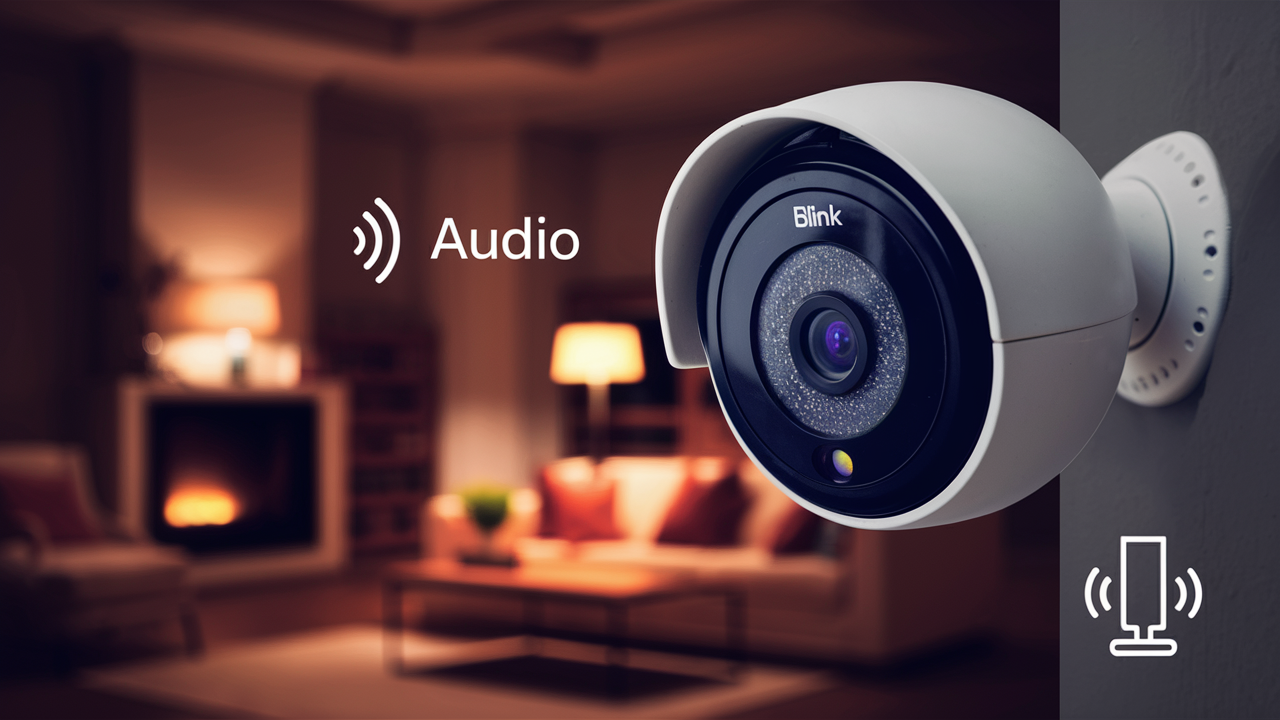
Yes, most Blink cameras do have audio capabilities, offering both two-way talk and audio recording. This guide clarifies which Blink models support audio, how to enable it, and its practical applications for enhanced home security and monitoring in 2025-26.
Understanding Blink Camera Audio Features
When considering a home security system, audio capabilities are a significant factor for many users. The ability to not only see but also hear what's happening around your property adds a crucial layer of awareness and interaction. Blink, a popular brand in the smart home security space, offers varying levels of audio functionality across its product line. Understanding these features is key to making an informed decision and maximizing the utility of your Blink cameras. In 2025, the demand for integrated audio in surveillance devices continues to rise, driven by advancements in smart home technology and a greater emphasis on comprehensive security solutions.
Blink cameras generally offer two primary audio features: **two-way talk** and **audio recording**. Two-way talk allows you to communicate in real-time with individuals near the camera, similar to a walkie-talkie or video call. This is invaluable for greeting visitors, deterring potential intruders, or communicating with family members. Audio recording, on the other hand, captures the ambient sound from the camera's environment. This can be used for evidence, to understand events more fully, or simply to monitor activity. The presence and functionality of these features can differ between Blink camera models, and sometimes even depend on specific settings within the Blink app.
It's important to note that the implementation of audio features can also be influenced by privacy regulations and user preferences. Many users opt to disable audio recording for privacy reasons, while others find it essential for security. Blink provides granular control over these settings, allowing users to tailor their camera's functionality to their specific needs and legal requirements. As smart home ecosystems become more interconnected, the role of audio in security cameras is evolving, and Blink is keeping pace with these developments to offer a robust and user-friendly experience.
Blink Models Featuring Audio Capabilities
Blink has expanded its product line considerably, and understanding which models come equipped with audio is crucial for potential buyers. While older or more basic models might lack these features, the majority of Blink's current offerings include at least one form of audio functionality. This section will detail the primary Blink cameras that support audio, distinguishing between two-way talk and audio recording capabilities.
Blink Outdoor and Indoor Cameras
The Blink Outdoor and Blink Indoor cameras (both 3rd Gen and newer) are designed with comprehensive audio features. These cameras are equipped with built-in microphones and speakers, enabling both two-way talk and audio recording. This means you can not only hear what's happening around your home but also speak to people through the camera using the Blink app. For instance, you could instruct a delivery person where to leave a package or warn off an unwanted visitor. The audio recording feature captures ambient sound, which can be reviewed along with video footage.
Blink Mini and Mini 2
The compact Blink Mini and its successor, the Blink Mini 2, are highly popular for their affordability and ease of use. Both models feature two-way audio. This allows for real-time voice communication directly from the Blink app. You can hear sounds picked up by the camera and speak through it. For example, if you have a Blink Mini in your entryway, you can see and speak to someone at your door even when you're not home. While the Mini cameras do capture audio for the two-way talk feature, the ability to continuously record ambient audio is a setting that needs to be enabled and managed within the app, often tied to motion detection events or live view sessions.
Blink Video Doorbell
As expected for a video doorbell, the Blink Video Doorbell is fully equipped with audio features. It offers crystal-clear two-way audio, allowing you to have conversations with visitors at your doorstep. This is a fundamental fdoorbell cameradoorbell camera, enabling you to screen visitors, provide instructions, or engage in immediate communication. The Blink Video Doorbell also records audio, which is essential for reviewing interactions that occur at your front door.
Blink XT Series (Legacy)
Older models like the Blink XT and Blink XT2 cameras had more limited audio capabilities. The XT2, for instance, did support two-way talk, but its audio recording functionality was often tied to specific event triggers rather than continuous ambient recording. For users with these older systems, it's important to check the specific model specifications and app settings, as their audio features might be less robust compared to the latest generation of Blink devices. Many users upgrading from these older systems find the enhanced audio features in newer models to be a significant improvement.
Blink Sync Module 2 and 3
It's important to clarify that the Blink Sync Module (versions 2 and 3) does not have built-in microphones or speakers. Its role is to manage and connect your Blink cameras to your home Wi-Fi network and the cloud. Therefore, the Sync Module itself does not contribute to or enable audio features; these are handled by the individual camera units. The Sync Module 2 is required for local storage via a USB drive for many Blink cameras, and the Sync Module 3 offers enhanced connectivity and cloud storage options.
In summary, for the most comprehensive audio experience, including both two-way talk and robust audio recording options, the Blink Outdoor, Indoor, Mini 2, and Video Doorbell are the recommended choices. Always refer to the product packaging or Blink's official website for the most up-to-date specifications for any particular model you are considering.
Enabling Audio on Your Blink Camera: A Step-by-Step Guide
Once you have a Blink camera model that supports audio, the next step is to ensure these features are enabled and configured correctly within the Blink app. The process is generally straightforward, but it's essential to navigate the app's settings accurately. This guide will walk you through the typical steps to activate and manage audio on your Blink cameras in 2025.
Step 1: Download and Install the Blink App
If you haven't already, download the latest version of the Blink Home Monitor app from your device's app store (iOS App Store or Google Play Store). Create an account or log in to your existing one.
Step 2: Add Your Blink Camera
Ensure your Blink camera is properly set up and connected to your Wi-Fi network via a Blink Sync Module (if applicable). Follow the in-app instructions to add your camera to your account.
Step 3: Access Camera Settings
In the Blink app, you will see a list of your connected devices. Tap on the specific camera for which you want to enable audio. This will open the camera's individual settings menu.
Step 4: Locate Audio Settings
Within the camera's settings, look for options related to "Audio," "Microphone," or "Two-Way Talk." The exact wording may vary slightly depending on your app version and camera model.
Enabling Two-Way Talk
For models with two-way talk (like the Blink Mini, Outdoor, Indoor, and Video Doorbell), you will typically find a toggle switch labeled "Two-Way Audio" or similar. Ensure this switch is turned ON (usually indicated by a color change, often green or blue). Once enabled, you will see a microphone icon in the Live View screen of that camera, allowing you to speak through the camera.
Enabling Audio Recording
The option to enable audio recording might be separate from the two-way talk setting. Look for an option such as "Record Audio" or "Audio Recording." Toggle this ON. You may also find settings related to when audio is recorded, such as:
- Record Audio on Motion Detection: This setting will only record audio when the camera detects motion and starts recording a clip.
- Record Audio During Live View: This setting ensures audio is captured whenever you are actively viewing a live stream from the camera.
- Always Record Audio: Some advanced setups or specific models might offer an option for continuous audio recording, though this is less common due to privacy and storage concerns.
For many Blink cameras, enabling audio recording is often linked to the motion detection recording feature. When motion is detected and a video clip is saved, the audio associated with that clip will also be saved if the "Record Audio" setting is enabled.
Step 5: Save Changes
After making your desired adjustments to the audio settings, ensure you save them. The Blink app usually saves changes automatically, but it's good practice to look for a "Save" or "Done" button.
Step 6: Test Your Audio
To confirm that audio is working correctly, perform a test.
- For Two-Way Talk: Start a Live View session. Tap and hold the microphone icon, speak clearly, and listen for your voice to play through the camera's speaker. Have someone near the camera confirm they can hear you.
- For Audio Recording: Trigger a motion event or start a Live View session and speak. Then, review the recorded clip in the app to confirm that the audio was captured and can be played back.
Important Considerations:
- App Updates: Ensure your Blink app is always updated to the latest version to access all features and bug fixes.
- Firmware Updates: Blink cameras also receive firmware updates. These are usually automatic but can sometimes be initiated manually through the app.
- Privacy Settings: Be mindful of local privacy laws regarding audio recording. Blink provides these controls to help you comply.
- Blink Subscription Plan: While enabling audio features doesn't require a subscription, cloud storage for recorded clips (including audio) is part of the Blink Subscription Plan. Without a plan, you can use local storage with a Sync Module 2 if supported by your camera.
By following these steps, you can effectively enable and utilize the audio capabilities of your Blink cameras, enhancing your home security and communication options.
Two-Way Talk: Communicating Through Your Blink Camera
Two-way talk is one of the most engaging and practical features of modern smart cameras, and Blink integrates this capability into many of its devices. This feature transforms your security camera from a passive observer into an active communication tool, offering a range of benefits for home security, convenience, and interaction. In 2025, as remote communication becomes even more integrated into daily life, two-way talk on security cameras is increasingly seen as a standard, not a luxury.
How Two-Way Talk Works
At its core, two-way talk utilizes the built-in microphone and speaker on your Blink camera. When you activate this feature through the Blink app, your smartphone or tablet acts as one end of the conversation, and the camera acts as the other.
- Listening: The microphone on the Blink camera picks up ambient sound from its surroundings. This audio is then streamed to your device through the Blink app, allowing you to hear what's happening in real-time.
- Speaking: When you want to speak, you tap and hold a microphone icon within the app. Your voice is captured by your device's microphone, transmitted over the internet to your Blink camera, and then played aloud through the camera's speaker.
This process creates a near real-time, two-way conversation. The quality of the audio and the responsiveness of the communication depend on factors like your internet connection speed (both at home and on your mobile device) and the camera's hardware.
Practical Applications of Two-Way Talk
The utility of two-way talk extends far beyond simple monitoring. Here are some key applications:
- Visitor Communication: See and speak to visitors at your door or gate, even if you're not home. This is perfect for directing delivery drivers, greeting guests, or screening unexpected visitors. For instance, a Blink Video Doorbell user can tell a delivery person to leave a package in a specific spot.
- Deterring Intruders: If your camera detects motion in a sensitive area, you can use two-way talk to immediately address the situation. Speaking to a potential intruder can often be enough to scare them away, acting as a proactive security measure. Imagine hearing a noise outside and being able to say, "I see you, and I'm calling the police."
- Communicating with Family and Pets: Check in on children or pets when you're away. You can call out to your dog to stop barking or tell your kids to come inside. This adds a personal touch to your home security system.
- Assisting Visitors: If a friend or family member is visiting and needs directions or assistance upon arrival, you can guide them remotely through the camera.
- Remote Assistance: In some scenarios, you might be able to offer remote assistance to someone at your property, such as guiding a repair person.
Technical Aspects and Best Practices
For optimal performance of two-way talk:
- Stable Internet Connection: Both your home Wi-Fi and your mobile device's internet connection (Wi-Fi or cellular data) need to be stable and have sufficient bandwidth.
- App Permissions: Ensure the Blink app has permission to access your device's microphone and speakers.
- Camera Placement: Position cameras in areas where you anticipate needing communication. For doorbells, this is obvious; for other cameras, consider entry points or common areas.
- Volume Levels: Adjust the speaker volume on the camera and the listening volume on your app to ensure clear communication.
Blink Models Supporting Two-Way Talk
As previously mentioned, the following Blink cameras are equipped with two-way talk:
- Blink Outdoor (3rd Gen and newer)
- Blink Indoor (3rd Gen and newer)
- Blink Mini
- Blink Mini 2
- Blink Video Doorbell
The legacy Blink XT2 also offered two-way talk, though its implementation might differ slightly from newer models.
Two-way talk is a powerful feature that significantly enhances the functionality of your Blink security system. It provides an added layer of security, convenience, and peace of mind by allowing you to interact with your environment remotely.
Audio Recording: Features, Settings, and Privacy Considerations
Beyond real-time communication, the ability of Blink cameras to record audio is another critical feature that enhances their utility for security and monitoring. Understanding how audio recording works, how to manage its settings, and the important privacy implications is paramount for responsible use. In 2025, with increasing awareness of data privacy, users are more discerning about how their devices collect and store information.
How Audio Recording Works on Blink Cameras
When audio recording is enabled on a Blink camera, it captures the ambient sound from the camera's environment. This captured audio is typically synchronized with the video footage.
- Event-Based Recording: For most Blink cameras, audio recording is primarily tied to motion detection events. When motion is detected and the camera begins recording a video clip, the audio from that event is also recorded and saved with the clip.
- Live View Recording: Some Blink cameras and app configurations allow for audio recording during Live View sessions. This means that if you are actively watching a live stream and choose to record it, the audio will be captured as well.
- Storage: Recorded audio, along with video, is stored either locally (if using a Sync Module 2 with a USB drive) or in the Blink cloud (requires a Blink Subscription Plan).
Configuring Audio Recording Settings
The Blink app provides controls to manage audio recording. These settings are usually found within the individual camera's settings menu:
- Navigate to the camera settings in the Blink app.
- Look for an option like "Record Audio" or "Audio Recording."
- Toggle this setting ON to enable audio recording.
- You may have further options to specify when audio is recorded, such as:
- Record Audio on Motion Detection: This is the most common setting, ensuring audio is captured only when motion is detected.
- Record Audio During Live View: This option allows you to capture audio when you initiate a Live View session and decide to record it.
It's crucial to review these settings to ensure they align with your needs and privacy preferences. For example, if you only want to record audio when motion is detected, ensure that setting is selected.
Privacy Considerations and Legal Compliance
Audio recording by security cameras raises significant privacy concerns, both for the camera owner and for individuals captured by the audio. In 2025, legal frameworks around audio and video surveillance are becoming more stringent in many regions.
- Consent: In many jurisdictions, it is illegal to record audio conversations without the consent of at least one party involved (and sometimes all parties). If you are recording audio in areas where people have a reasonable expectation of privacy, you must ensure you have the necessary consent. This might involve posting clear signage indicating that audio is being recorded.
- Expectation of Privacy: Areas like inside a home, private offices, or bathrooms generally carry a high expectation of privacy. Recording audio in these locations without explicit consent can have legal repercussions. Outdoor areas might have a lower expectation of privacy, but laws still vary.
- Data Security: Blink stores recorded data securely in the cloud or locally. However, it's essential to use strong passwords for your Blink account and secure your home Wi-Fi network to prevent unauthorized access to your camera feeds and recordings.
- Blink's Privacy Policy: Familiarize yourself with Blink's privacy policy to understand how they handle your data and recordings.
- Disabling Audio: If you have concerns about privacy or simply don't need audio recording, you can easily disable it through the Blink app. This is a recommended step for areas where privacy is a primary concern, or if you are unsure about local regulations.
Benefits of Audio Recording
Despite privacy concerns, audio recording offers substantial benefits for security:
- Enhanced Evidence: Audio can provide crucial context to video footage. Hearing a dog bark, a car alarm, or a specific phrase can be vital for understanding an event and providing evidence to authorities.
- Improved Incident Analysis: For security professionals or homeowners reviewing footage, audio can help identify the nature of a disturbance, such as distinguishing between a natural sound and a human-made one.
- Verification of Events: Audio can confirm the presence of activity that might be missed by video alone, especially in low-light conditions or if the camera's field of view is partially obstructed.
Balancing the benefits of audio recording with privacy obligations is key. Blink provides the tools to manage these features, empowering users to make informed decisions about their home security setup. Always prioritize legal compliance and respect for privacy when using any surveillance technology.
Troubleshooting Common Blink Camera Audio Problems
While Blink cameras are generally reliable, users may occasionally encounter issues with audio features, whether it's with two-way talk or audio recording. These problems can stem from various factors, including app settings, network connectivity, or hardware malfunctions. This section provides a troubleshooting guide to help resolve common audio issues in 2025.
1. No Audio During Live View or Recordings
Symptom: You can see video but cannot hear any sound, or recordings lack audio.
Possible Causes & Solutions:
- Audio Recording Disabled: The most common cause. Go to the camera's settings in the Blink app and ensure "Record Audio" is toggled ON. Check if it's set to record only on motion or also during Live View, depending on your needs.
- App Permissions: The Blink app may not have permission to access your device's microphone. Check your phone's app settings and grant the Blink app microphone access.
- Volume Settings: On your mobile device, ensure your media volume is turned up. For two-way talk, check if the camera's speaker volume is adequately set (though Blink doesn't offer granular speaker volume control for the camera itself, the app's output volume matters).
- Network Issues: A weak or unstable Wi-Fi connection for the camera or your mobile device can disrupt audio streaming. Ensure both have strong signals. Try restarting your router and modem.
- Camera Firmware/App Outdated: Ensure both your Blink app and camera firmware are up-to-date. Outdated versions can cause compatibility issues.
- Hardware Defect: In rare cases, the microphone or speaker on the camera might be faulty. If other troubleshooting steps fail, contact Blink support.
2. Two-Way Talk Not Working (Cannot Speak or Hear)
Symptom: You can see video, but you can't speak through the camera, or you can't hear the person/sound near the camera.
Possible Causes & Solutions:
- Two-Way Audio Disabled: In the camera's settings, verify that "Two-Way Audio" is enabled.
- Microphone Icon Not Active: During Live View, ensure you are tapping and holding the microphone icon to speak. If the icon is greyed out, it might indicate a permissions issue or that the feature is not supported by that specific camera model or setup.
- Internet Latency: High latency (delay) in your internet connection can make two-way talk feel choppy or non-responsive. Test your internet speed.
- App/Device Microphone Issue: Ensure your phone's microphone is working correctly by testing it with another app.
- Interference: Other devices or applications using your microphone simultaneously could interfere. Close unnecessary apps.
- Camera Speaker Issue: If you can't hear the camera's audio, it could be a speaker problem. Ensure the camera is not physically obstructed.
- Sync Module Connection: For cameras requiring a Sync Module, ensure it's properly connected and functioning.
3. Distorted or Garbled Audio
Symptom: The audio captured or transmitted is unclear, crackly, or distorted.
Possible Causes & Solutions:
- Network Congestion: If your internet connection is heavily used by multiple devices, it can lead to audio distortion. Try reducing network traffic.
- Distance from Wi-Fi: A weak Wi-Fi signal can impact audio quality. Move the camera closer to the router or consider a Wi-Fi extender.
- Environmental Noise: Excessive background noise near the camera can overpower clear audio.
- Hardware Issues: Microphone or speaker damage can cause distortion. Check for physical damage to the camera.
- Software Glitches: Sometimes, a simple restart of the camera and the Blink app can resolve temporary glitches causing distortion.
4. Audio Only Works Sometimes
Symptom: Audio works intermittently, either for recording or two-way talk.
Possible Causes & Solutions:
- Intermittent Network Connectivity: The most likely culprit. Your Wi-Fi signal might be dropping out periodically. Check your router and internet service.
- Battery Levels (for battery-powered cameras): Low battery levels on wireless Blink cameras can sometimes affect performance, including audio. Ensure batteries are charged or replaced.
- Power Issues (for wired cameras): Ensure the camera has a stable power supply.
- App Performance: If your mobile device is running low on resources (memory, battery), the Blink app might not perform optimally. Close other apps and restart your device.
- Blink Server Issues: Occasionally, Blink's servers might experience temporary issues that affect service. Check Blink's status page or social media for reported outages.
General Troubleshooting Steps
If the specific solutions above don't resolve your audio problem, try these general steps:
- Restart the Camera: For wired cameras, unplug the power adapter, wait 10 seconds, and plug it back in. For battery-powered cameras, remove and reinsert the batteries.
- Restart the Sync Module: Unplug the Sync Module, wait 10 seconds, and plug it back in.
- Log Out and Log Back In: Log out of the Blink app and then log back in.
- Reinstall the Blink App: Uninstall the Blink app from your device and then reinstall it from the app store.
- Reset the Camera: As a last resort, you might consider resetting the camera to its factory default settings and setting it up again. This process varies by camera model; consult Blink's support documentation.
If you continue to experience audio problems after trying these troubleshooting steps, it's advisable to contact Blink's customer support for further assistance. Providing them with details about your camera model, app version, and the specific issue you're facing will help them diagnose the problem more effectively.
The Practical Benefits of Audio on Blink Cameras in 2025-26
In the evolving landscape of home security and smart home technology in 2025-26, the inclusion of audio capabilities on devices like Blink cameras offers a significant leap in functionality and user benefit. It moves beyond simple visual monitoring to provide a richer, more interactive, and ultimately more effective security solution. The benefits are manifold, impacting everything from immediate security responses to everyday convenience.
Enhanced Security and Deterrence
Perhaps the most critical benefit of audio on Blink cameras is its role in enhancing security.
- Active Deterrence: The ability to speak through the camera (two-way talk) acts as a powerful deterrent. If a potential intruder is detected, a sudden voice from the camera can startle them and make them abandon their attempt, knowing they've been seen and heard. This proactive measure can prevent incidents before they escalate.
- Incident Verification: Audio recording provides crucial context to video footage. Hearing sounds like breaking glass, car alarms, or specific verbal interactions can help homeowners and authorities understand the nature and severity of an event much more clearly than video alone. This is vital for evidence collection and post-incident analysis.
- Monitoring Vulnerable Areas: Placing cameras with audio in areas like driveways, backyards, or near entry points allows for comprehensive monitoring. Hearing unusual noises can alert users to potential threats they might not otherwise be aware of.
Improved Communication and Convenience
Beyond security, audio features offer substantial convenience for daily life.
- Visitor Management: For the Blink Video Doorbell and cameras placed near entrances, two-way audio allows for seamless communication with visitors. This includes directing delivery drivers, granting access to trusted individuals, or simply having a conversation with a guest, all without needing to be physically present at the door.
- Remote Interaction with Family and Pets: Users can check in on children returning from school, communicate with pets, or even offer remote guidance to family members. This fosters a sense of connection and allows for quick interventions if needed.
- Package Delivery Coordination: In an era of frequent deliveries, audio features are invaluable for coordinating with delivery personnel, ensuring packages are left in safe locations or providing specific instructions.
Greater Situational Awareness
Audio contributes significantly to a user's overall situational awareness.
- Understanding Context: Hearing ambient sounds can provide clues about what's happening even when the visual feed isn't perfectly clear. For example, hearing a child crying might prompt a closer look or a check-in, even if the child isn't fully visible on camera.
- Alerting to Non-Visual Events: Audio can alert users to events that don't necessarily involve visual movement within the camera's frame, such as a car pulling into the driveway or a gate opening.
Integration with Smart Home Ecosystems
As smart home ecosystems become more sophisticated in 2025-26, cameras with audio capabilities are better positioned for integration.
- Voice Assistant Compatibility: While Blink's direct integration with voice assistants for audio playback might be limited, the presence of audio means these cameras can be part of broader smart home routines triggered by sound or used in conjunction with other devices that respond to audio cues.
- Data Richness: Audio adds another layer of data that can be leveraged by AI and analytics platforms for more sophisticated home monitoring and automation.
Cost-Effectiveness and Value
Blink cameras, known for their affordability, offer these advanced audio features at a competitive price point.
- All-in-One Solution: For many users, a Blink camera with audio provides a cost-effective alternative to purchasing separate audio monitoring devices or more expensive, feature-rich security systems.
- Subscription Benefits: When paired with a Blink Subscription Plan, the ability to store and review audio recordings enhances the overall value proposition, providing a comprehensive security record.
In conclusion, the practical benefits of audio on Blink cameras in 2025-26 are extensive. They significantly bolster security through deterrence and detailed evidence, enhance daily convenience through improved communication, and provide greater situational awareness. As smart home technology continues to advance, these audio features are becoming increasingly indispensable for a truly connected and secure living environment.
Blink's Audio Features in Comparison to Other Smart Cameras
When evaluating smart home security cameras, audio capabilities are a key differentiator. Blink, as a popular brand, offers a solid set of audio features, but how do they stack up against competitors in the crowded market of 2025-26? This comparison will highlight Blink's strengths and potential areas where other brands might offer more advanced or specialized audio functionalities.
Blink's Audio Strengths
Blink's primary audio strengths lie in its accessibility and core functionality across its popular models:
- Ubiquitous Two-Way Talk: Most of Blink's current lineup, including the budget-friendly Mini series and the versatile Outdoor/Indoor cameras, features two-way talk. This makes real-time communication a standard feature rather than a premium add-on for many users.
- Ease of Use: The Blink app is generally intuitive, making it simple to enable and use two-way talk and manage audio recording settings.
- Affordability: Blink offers these audio features at a lower price point compared to many premium brands, making them an attractive option for budget-conscious consumers.
- Integrated Solution: For users already invested in the Blink ecosystem, the audio features seamlessly integrate with their existing cameras and the Blink app.
Areas Where Blink May Differ from Competitors
While Blink provides essential audio features, some competitors offer more advanced or specialized audio functionalities:
- Audio Quality and Clarity: Premium brands like Google Nest Cam, Arlo, and Eufy often boast superior audio codecs and hardware, resulting in clearer, more natural-sounding two-way conversations and crisper audio recordings. Blink's audio is generally functional but might not match the high-fidelity experience of some competitors.
- Advanced Audio Detection: Some competitors offer sophisticated audio detection beyond simple motion. For example, certain cameras can distinguish between different types of sounds like glass breaking, smoke alarms, or even specific voices. Blink's audio detection is primarily tied to general sound detection for motion alerts or ambient recording.
- Noise Cancellation: High-end cameras often incorporate advanced noise cancellation technology to filter out background noise (wind, traffic, etc.) during two-way talk and recordings, ensuring clearer communication. Blink's noise cancellation capabilities are typically more basic.
- Customizable Audio Alerts: Certain brands allow users to set up custom audio alerts for specific sounds, providing more granular control over notifications.
- Local Storage Options for Audio: While Blink offers local storage via Sync Module 2, the integration and ease of access for audio recordings might be more robust on some competitor platforms that offer more flexible local storage solutions or dedicated audio recording management.
- Microphone Sensitivity and Range: Some professional-grade or higher-tier cameras may have more sensitive microphones with a wider pickup range, allowing them to capture fainter sounds or conversations from further away.
- AI-Powered Audio Analysis: The cutting edge in 2025-26 sees AI analyzing audio patterns for threat detection or anomaly identification. While Blink focuses on core functionality, some competitors are investing heavily in AI-driven audio analytics for enhanced security insights.
Comparison Table (Illustrative - Features Vary by Specific Model)
Here's a simplified comparison table, keeping in mind that features can vary significantly between specific models within each brand.
| Feature | Blink (Typical Models) | Google Nest Cam | Arlo (Premium Models) | Eufy (Selected Models) |
|---|---|---|---|---|
| Two-Way Talk | Yes (Standard) | Yes (Excellent quality) | Yes (High quality) | Yes (Good quality) |
| Audio Recording | Yes (Event-based, Live View) | Yes (Event-based, continuous with subscription) | Yes (Event-based) | Yes (Event-based, some continuous options) |
| Audio Quality | Good, functional | Excellent, clear | Very Good | Good to Very Good |
| Advanced Audio Detection (e.g., glass break) | Limited/No | Yes (Glass break, smoke alarm) | Limited/No | Yes (Selected models) |
| Noise Cancellation | Basic | Advanced | Good | Good |
| Subscription Required for Cloud Storage | Yes (Blink Subscription Plan) | Yes (Google Nest Aware) | Yes (Arlo Secure) | Often optional (local storage available) |
| Price Point | Budget-friendly | Mid-range to Premium | Premium | Mid-range |
Conclusion on Comparison
Blink excels at providing essential, reliable audio features like two-way talk and audio recording at an accessible price point. They are an excellent choice for users who need core audio functionality without the highest fidelity or advanced detection capabilities.
For users prioritizing the absolute best audio quality, advanced sound detection features (like glass break alerts), or more sophisticated noise cancellation, competitors like Google Nest Cam or higher-tier Arlo models might offer a more compelling solution, albeit at a higher cost. Eufy often strikes a balance, offering good audio quality and some advanced features, often with more flexible local storage options.
Ultimately, the "best" audio features depend on individual needs and budget. Blink remains a strong contender for users seeking reliable and functional audio integrated into an affordable smart security system.
Conclusion
In summary, the question "Does Blink Camera Have Audio?" is answered with a resounding yes for most of its current models. Blink cameras offer crucial audio features like two-way talk and audio recording, significantly enhancing their utility for home security and everyday convenience. From the compact Blink Mini to the robust Blink Outdoor and Video Doorbell, these capabilities allow for real-time communication, effective deterrence, and richer incident analysis.
Enabling these features is straightforward through the Blink app, though users must be mindful of privacy settings and local regulations. While Blink provides solid audio performance and accessibility, it's worth noting that premium competitors may offer higher fidelity audio and more advanced detection capabilities. However, for a balance of cost-effectiveness, ease of use, and essential audio functionality, Blink cameras stand out as a highly capable choice in the 2025-26 smart home security market.
For optimal performance, ensure your Blink app and camera firmware are updated, your network connection is stable, and you have configured the audio settings to meet your specific security and privacy needs. By leveraging these features wisely, your Blink cameras become more than just visual monitors; they become active participants in your home's safety and connectivity.