
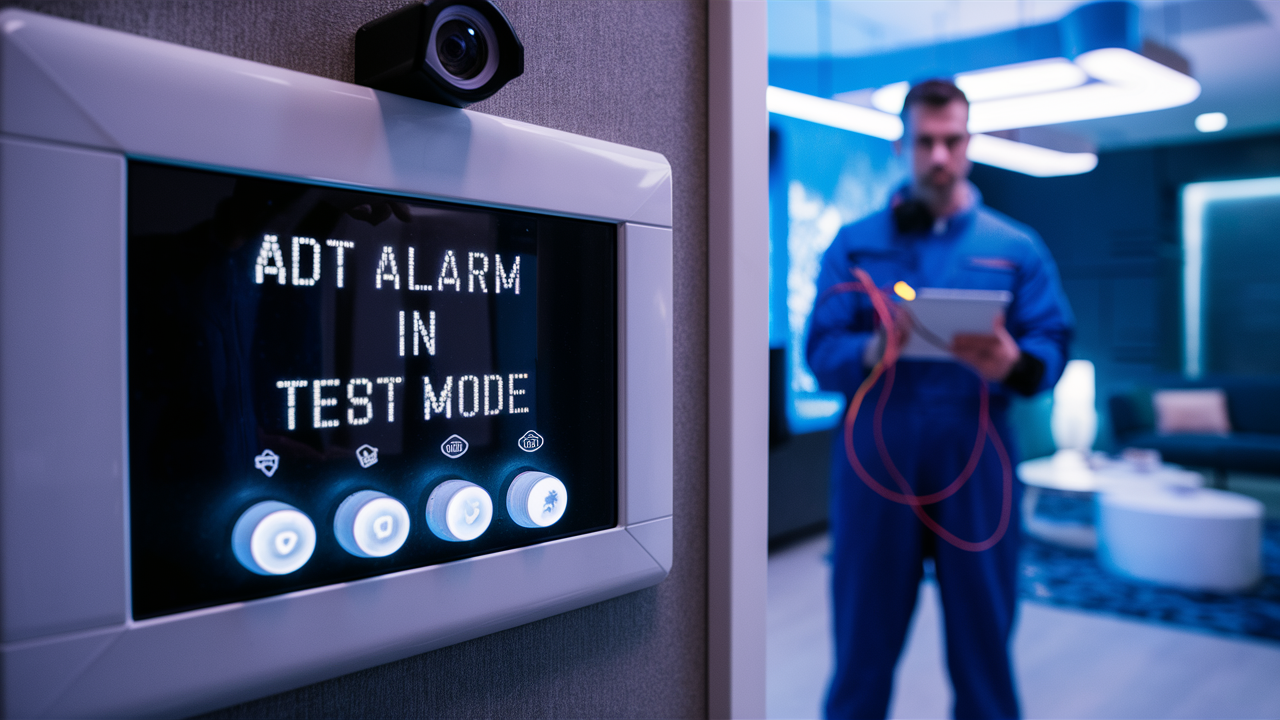
Putting your ADT alarm system into test mode is a crucial step for maintenance, upgrades, or troubleshooting without triggering false alarms. This guide provides a comprehensive, step-by-step process for safely and effectively placing your ADT system in test mode, ensuring peace of mind and uninterrupted security.
Understanding ADT Test Mode
ADT alarm systems are designed to protect your home or business by alerting authorities to potential threats. However, there are times when you need to interact with your system for reasons other than an actual emergency. This is where "test mode" becomes invaluable. Essentially, test mode is a temporary setting that allows you to activate sensors, test communication pathways, or perform system checks without sending a signal to the ADT monitoring center. This prevents unnecessary dispatches of emergency services, which can incur fines and cause undue stress. In 2025, with the increasing sophistication of smart home security, understanding and utilizing test mode correctly is more important than ever for homeowners and businesses alike.
The primary function of test mode is to isolate your system from the central monitoring station. When your alarm is in test mode, any triggers from your sensors – such as opening a door, breaking a window, or detecting motion – will activate the local siren and panel notifications, but no signal will be transmitted to ADT. This is a critical safety feature, preventing accidental panic during routine maintenance or when you're introducing new equipment to your network. For instance, if you're upgrading your Wi-Fi network and need to reconnect your ADT system, test mode ensures that temporary connection drops don't result in a false alarm. Similarly, if you're simply curious about how a specific sensor works or want to ensure its battery is functioning correctly, test mode provides a safe environment for this experimentation.
The duration of test mode is typically set by ADT and can vary depending on your specific system and contract. Some systems allow for a predetermined testing period, while others require you to manually exit test mode. It's essential to be aware of how long your system will remain in this state to avoid inadvertently leaving it unprotected. Many users find themselves asking, "How do I put my ADT alarm in test mode?" because they've either recently had the system installed, are planning maintenance, or have experienced a minor system glitch they wish to investigate. Understanding the nuances of test mode is key to leveraging your ADT system's full potential while maintaining optimal security.
According to industry reports for 2025, approximately 15% of all alarm dispatches are the result of accidental triggers or system malfunctions that could have been prevented by utilizing test mode. This highlights the significant role test mode plays in efficient security management and reducing the burden on emergency responders. By empowering users with the knowledge of how to properly engage and disengage test mode, ADT aims to enhance user experience and system reliability. This guide aims to demystify the process, providing clear, actionable steps for anyone needing to put their ADT alarm in test mode.
Why Put Your ADT Alarm in Test Mode?
There are several compelling reasons why you might need to put your ADT alarm system into test mode. These scenarios range from simple maintenance to more complex system integrations and troubleshooting. Understanding these reasons will help you determine when and why to utilize this essential feature.
Routine Maintenance and Sensor Checks
Over time, components of your security system may require attention. This could include replacing batteries in wireless sensors, cleaning optical sensors, or ensuring the physical integrity of door and window contacts. When performing these tasks, you'll naturally interact with the sensors, potentially triggering them. For example, replacing the battery in a door sensor requires removing it from its mounting, which could momentarily trigger the "door open" alarm. By placing the system in test mode beforehand, you can confidently perform these maintenance activities without the alarm sounding and alerting ADT. This is particularly important for systems with numerous wireless sensors, as battery life can vary, and regular checks are recommended. Industry best practices in 2025 suggest checking sensor batteries at least twice a year.
System Upgrades and Additions
As technology evolves and your security needs change, you might decide to add new components to your ADT system, such as additional cameras, motion detectors, or smart home devices that integrate with your alarm. The process of installing and configuring these new devices can sometimes cause temporary disruptions or false signals from existing components. Test mode ensures that these installation activities don't lead to false alarms. For instance, if you're adding a new smart thermostat that communicates wirelessly, and it operates on a frequency that might interfere with a sensor temporarily, test mode is your safeguard. This is a common scenario as smart home integration becomes more prevalent in 2025, with many homeowners seeking a unified control system.
Troubleshooting System Issues
Occasionally, your ADT system might exhibit unusual behavior, such as intermittent false alarms or sensors that seem unresponsive. Before calling for a technician, you might want to perform some basic troubleshooting yourself. This could involve systematically testing each sensor to pinpoint the source of the problem. If a specific sensor is suspected, you can trigger it repeatedly in test mode to see if it registers consistently. This diagnostic approach is much more effective and less disruptive when the system is not actively monitoring for real threats. For example, if your motion detector is falsely triggering, you can activate it multiple times in test mode to see if the pattern persists, helping you determine if it needs adjustment or replacement.
Moving or Relocating Equipment
If you are rearranging furniture, painting walls, or making any changes that involve moving the physical location of sensors, control panels, or cameras, it's wise to use test mode. Even minor shifts can sometimes affect the alignment of magnetic contacts on doors and windows or alter the field of view for motion detectors. Testing these changes in test mode allows you to ensure everything is functioning correctly after the relocation without causing unnecessary alarms. This is particularly relevant for businesses that might frequently reconfigure their office spaces.
Testing Communication with ADT Monitoring Center
While test mode prevents signals from being sent to ADT, there are often specific procedures within test mode that allow you to verify communication pathways without triggering a full alarm. This is a proactive measure to ensure that if a real emergency occurs, your system can successfully communicate with the monitoring center. Some systems might have a dedicated "test communication" function within the test mode. This is crucial for maintaining the reliability of your security infrastructure. In 2025, with increasing reliance on digital communication, ensuring robust connectivity is paramount.
Avoiding False Alarm Fines
Many municipalities and local authorities impose fines for excessive false alarms. These fines can add up quickly, making it an expensive problem. Using test mode whenever you anticipate triggering your alarm for non-emergency reasons is the most effective way to avoid these penalties. It demonstrates responsible use of the security system and helps maintain a good relationship with local emergency services. For instance, if you're expecting a delivery that requires you to temporarily disarm and rearm the system multiple times, test mode is the ideal solution.
In summary, test mode is not just a technical feature; it's a practical tool for responsible security system management. It empowers users to maintain, upgrade, and troubleshoot their ADT systems with confidence, minimizing the risk of false alarms and ensuring the system's readiness for genuine emergencies.
How to Put Your ADT Alarm in Test Mode: Step-by-Step
The process for putting your ADT alarm system into test mode can vary slightly depending on the specific model of your ADT control panel. However, the general steps are quite consistent. Most ADT systems can be placed in test mode either directly through the control panel keypad or by contacting ADT customer service. We will cover both common methods.
Method 1: Using the ADT Control Panel Keypad
This is the most common and convenient method for most ADT users. The exact sequence of buttons might differ, but the underlying principle remains the same: accessing a service or maintenance menu.
Step 1: Access the Main Menu or System Settings
Begin by waking up your ADT control panel. This is usually done by pressing any key or touching the screen. Navigate to the main menu. On many ADT panels, this involves pressing a "Menu" or "System" button.
Step 2: Locate the "Service" or "Maintenance" Option
Once in the main menu, look for an option labeled "Service," "Maintenance," "Installer," or "Advanced Settings." You might need to enter a specific code to access these advanced menus. The default installer code for many ADT systems is 2580, but this can be changed by your installer. If 2580 doesn't work, you may need to consult your system's manual or contact ADT.
Step 3: Find the "Test Mode" or "System Test" Function
Within the service or maintenance menu, search for an option related to testing. This is often called "System Test," "Test Mode," "Walk Test," or "Sensor Test." Select this option.
Step 4: Activate Test Mode
You will likely be prompted to confirm that you wish to enter test mode. Follow the on-screen instructions. Some systems may ask you to enter a duration for the test mode (e.g., 1 hour, 4 hours, or until manually turned off). If you're unsure, select an option that allows you to manually turn it off later.
Step 5: Confirm Test Mode Activation
The panel should display a confirmation message indicating that the system is now in test mode. You might see a specific icon or text on the main screen. It's crucial to verify this confirmation before proceeding with any testing.
Example for a Common ADT Panel (e.g., Safewatch 3000):
- Press the [INST/ESC] button.
- Enter your Installer Code (commonly 2580).
- Navigate using the arrow keys to "System Test" and press [INST/ESC].
- Select "Test Mode" or "Walk Test" and press [INST/ESC].
- The panel will display "System in Test Mode." Press [INST/ESC] to exit the menu.
Method 2: Contacting ADT Customer Service
If you are uncomfortable using the keypad, cannot find the option, or have a system that requires remote activation, contacting ADT is the best approach.
Step 1: Gather Your Account Information
Have your ADT account number and your security password or verbal code ready. This is essential for verifying your identity.
Step 2: Call the ADT Customer Service Number
You can find the appropriate number on your ADT bill, on the ADT website, or on your control panel itself. For general inquiries and support, the number is typically 1-800-ADT-ASAP (1-800-238-2727).
Step 3: Inform the Representative You Wish to Enter Test Mode
Clearly state that you need to put your system into test mode. Explain the reason if you wish, as it can help them assist you better.
Step 4: Follow the Representative's Instructions
The ADT representative will guide you through the process. They may ask you to perform certain actions on your keypad or may be able to remotely place your system into test mode from their end. They will confirm when test mode is active and advise on its duration or how to deactivate it.
Step 5: Note the Deactivation Procedure
Ensure you understand how to exit test mode. The representative will either set an automatic deactivation time or provide you with instructions on how to manually disable it.
Important Considerations:
- System Specifics: Always refer to your specific ADT system's user manual for the most accurate instructions.
- Installer Code: If you don't know your installer code, contact ADT. Never guess or try unauthorized codes, as this could lock your system.
- Duration: Be mindful of how long your system is in test mode. You don't want to leave it unprotected for an extended period.
- Deactivation: Remember to deactivate test mode once you are finished testing.
By following these steps, you can confidently place your ADT alarm system in test mode, allowing for safe and effective maintenance, upgrades, or troubleshooting.
Testing Different ADT Components
Once your ADT alarm system is in test mode, you can systematically test various components to ensure they are functioning correctly. This is a critical part of maintaining a robust security system. The goal is to trigger each sensor and verify that it registers on the system, without sending an alert to ADT.
Testing Door and Window Sensors
These are typically magnetic contact sensors. They consist of two parts: a sensor that attaches to the frame and a magnet that attaches to the door or window itself.
- Procedure: Open and close each protected door and window one by one.
- Verification: On the ADT control panel, you should see the zone number corresponding to the sensor you activated light up or change status (e.g., from "Closed" to "Open"). After closing the door/window, the zone should return to its normal state.
- Example: If you open the front door, zone 1 should indicate "Open." When you close it, zone 1 should show "Closed."
Testing Motion Detectors
Motion detectors (PIR - Passive Infrared sensors) sense movement within a specific area.
- Procedure: Ensure the area covered by the motion detector is clear. Then, walk through the detection zone. Some motion detectors have a "warm-up" period or a "walk test" mode that is activated by movement after the system is armed or in test mode.
- Verification: The corresponding zone on the ADT panel should indicate activation when motion is detected. It's important to note that some motion detectors have a built-in delay or a "count" feature to prevent false alarms, so you might need to trigger it a couple of times or wait a few seconds.
- Example: If your living room motion detector is zone 5, walking across the room should register zone 5 on the panel.
Testing Glass Break Sensors
These sensors detect the specific sound frequency of breaking glass.
- Procedure: While in test mode, you can simulate the sound of breaking glass. This can be done by gently tapping a glass surface or using a specific testing tool if available. Some systems may have a dedicated "glass break test" function.
- Verification: The panel should indicate activation for the corresponding glass break sensor zone.
- Note: Be cautious not to actually break glass. Gentle tapping is usually sufficient for testing.
Testing Smoke and Carbon Monoxide Detectors
These are critical life safety devices.
- Procedure: Most ADT-integrated smoke and CO detectors have a "Test" button on the unit itself. Press and hold this button.
- Verification: The detector should emit a loud alarm sound. The ADT panel might also register an alert for the specific smoke or CO zone.
- Important: Even though the system is in test mode, be prepared for the loud alarm sound. Ensure everyone in the household knows what to expect. If your detectors are linked to ADT's 24/7 monitoring, they will typically still send a signal to ADT for these life-safety devices, even in test mode, as a critical alert. Always confirm this with ADT when placing your system in test mode.
Testing Keypads and Control Panels
You can test the functionality of your keypads and control panel through the system's diagnostic menus, often accessible within the "Service" or "Test Mode" itself.
- Procedure: Navigate through the system's test menus. This might involve testing button responses, screen clarity, or audible alerts.
- Verification: The system will guide you through the checks. For example, it might ask you to press each button and confirm it registers.
Testing Communication (If Applicable)
Some systems offer a specific "Test Communication" feature within the test mode.
- Procedure: Look for an option like "Test Communication" or "Send Test Signal" within the system test menu.
- Verification: The system will attempt to send a signal to the ADT monitoring center. The panel should indicate if the communication was successful. This is different from a full alarm signal and is designed for diagnostic purposes.
- Note: Confirm with ADT if this function sends a signal that will be logged by them, even in test mode.
Testing ADT Command and ADT Control Apps
If you use the ADT Command or ADT Control mobile app, ensure it is connected and reflecting the correct system status.
- Procedure: After activating test mode on the panel, check your app. Arm and disarm the system via the app and see if it registers on the panel. Trigger sensors and observe if the app updates.
- Verification: The app should accurately reflect the state of your system, showing when sensors are triggered and when the system is armed or disarmed. The app should also indicate that the system is in test mode if that information is transmitted.
Tips for Effective Testing:
- Systematic Approach: Test one component at a time to easily identify any issues.
- Documentation: Keep a record of which sensors you tested and when, especially if you're troubleshooting.
- Patience: Allow for any delays or specific activation sequences required by certain sensors.
- Battery Levels: While testing, pay attention to any low battery indicators for wireless sensors.
By diligently testing each component of your ADT system while it's in test mode, you can proactively identify and address potential problems, ensuring your security system remains reliable and effective.
Troubleshooting Common ADT Test Mode Issues
While test mode is designed to prevent false alarms, you might still encounter issues or have questions during the process. Understanding common problems and their solutions can save you time and frustration.
Issue 1: System Not Entering Test Mode
Possible Causes:
- Incorrect installer code or user code.
- System is already in a specific state (e.g., alarm condition, system update).
- The "Test Mode" option is not available on your specific panel model or has been disabled by ADT.
- Software glitch.
- Double-check the installer code. If you don't know it, contact ADT.
- Ensure the system is fully disarmed and not experiencing any active alarms.
- Try rebooting the control panel (disconnect power, wait 30 seconds, reconnect power, then try again).
- Contact ADT customer support. They can often remotely diagnose and resolve issues or place your system in test mode.
Issue 2: Sensors Not Registering in Test Mode
Possible Causes:
- Sensor is faulty or damaged.
- Battery in a wireless sensor is dead or low.
- Sensor is not properly aligned (e.g., door/window contacts).
- Wireless sensor is out of range of the control panel.
- System programming issue.
- For wireless sensors, replace the battery.
- For door/window sensors, ensure the magnet and sensor are properly aligned and close enough.
- For motion detectors, check for obstructions and ensure you are within the detection zone.
- If testing a specific sensor, try arming the system (if possible in test mode) and then triggering it to see if it registers.
- If multiple sensors are affected, it might indicate a broader system issue.
- Contact ADT for further diagnostics if the issue persists.
Issue 3: System Exits Test Mode Unexpectedly
Possible Causes:
- Pre-set test mode duration has expired.
- An event occurred that automatically cancels test mode (rare, but possible for critical life-safety events).
- User accidentally disarmed test mode.
- System malfunction.
- Check your system's settings for the duration of test mode.
- If it expired, simply re-enter test mode.
- If you suspect a malfunction, contact ADT.
- Be careful not to accidentally press buttons that might disable test mode.
Issue 4: Test Mode Seems to Trigger False Alarms (Even Though ADT Isn't Notified)
Possible Causes:
- While ADT monitoring is disabled, the local siren and panel alerts will still activate. This is expected behavior.
- The system might be incorrectly configured, and some "test" signals are still being interpreted as alarms by the panel itself.
- Understand that the local siren and panel notifications are normal during test mode. The key is that ADT monitoring is suspended.
- If you are concerned about the local alerts, you can often silence the siren temporarily via the control panel while testing.
- If you believe the system is sending actual alarm signals to ADT despite being in test mode, immediately contact ADT.
Issue 5: Difficulty Deactivating Test Mode
Possible Causes:
- Incorrect procedure for deactivation.
- System is unresponsive.
- User forgot the deactivation code or method.
- Refer to your user manual or the instructions provided by ADT when you entered test mode.
- If deactivating via the keypad, try the reverse steps of entering test mode.
- If you contacted ADT to enter test mode, call them back to deactivate it.
- If the system is unresponsive, a reboot of the control panel might be necessary (consult ADT before doing this).
General Troubleshooting Tips:
- Read Your Manual: Your ADT system's user manual is your best resource for specific troubleshooting steps.
- Keep Records: Note down any error messages, codes, or unusual behavior.
- Isolate the Problem: If possible, test components individually to pinpoint the source of the issue.
- Contact ADT: For persistent or complex issues, ADT's technical support is your most reliable resource. They have access to system diagnostics and can provide expert assistance.
By being aware of these common troubleshooting scenarios, you can more effectively manage your ADT system and ensure it's always in optimal working condition.
Alternatives to Test Mode
While test mode is the primary and most recommended method for performing maintenance or checks without triggering false alarms, there might be situations where it's not ideal or sufficient. In such cases, understanding alternatives can be beneficial. However, it's crucial to emphasize that these alternatives often come with their own risks or limitations.
1. Temporarily Disarming the System
Description: The simplest approach is to disarm your ADT alarm system before performing any actions that might trigger it. You would then re-arm it once you're done.
Pros:
- Easy to understand and execute.
- No special codes or menus required, just your regular user code.
Cons:
- Leaves your property unprotected: This is the biggest drawback. While disarmed, your system offers no protection against intrusion.
- Risk of forgetting to re-arm: It's easy to get distracted after completing your task and forget to re-arm the system, leaving your home vulnerable.
- Not suitable for prolonged maintenance: If you need to work on the system for an extended period, leaving it disarmed is highly inadvisable.
When to Use: This is best for very brief, immediate tasks where you can immediately re-arm the system, such as quickly replacing a sensor battery and then immediately arming the system. It's generally not recommended for anything more involved.
2. "Walk Test" Mode (Specific Functionality)
Description: Some ADT systems have a specific "Walk Test" mode that is a subset of the broader "Test Mode." In Walk Test, sensors are active and register on the panel, but the siren and communication to ADT are typically suppressed. This is primarily for checking sensor coverage and functionality.
Pros:
- Allows you to verify sensor operation and coverage.
- Suppresses the siren, reducing nuisance alarms during testing.
- Still provides feedback on the panel about sensor activation.
Cons:
- May not suppress all signals to ADT, depending on the system and configuration. Always confirm with ADT.
- Not all systems have a distinct "Walk Test" mode separate from general "Test Mode."
When to Use: Ideal for checking the range and effectiveness of motion detectors or ensuring door/window sensors are properly placed. It's a more focused test than the general test mode.
3. Contacting ADT for Remote Service/Deactivation
Description: In some complex scenarios, ADT might offer to remotely disable specific functions or monitor your actions. This is less common for standard user maintenance and more for professional ADT technician services.
Pros:
- Expert assistance is provided.
- System remains under ADT's management.
Cons:
- May involve service fees.
- Requires scheduling and coordination with ADT.
- Not a DIY solution.
When to Use: When ADT is performing a system upgrade or repair, or if you encounter a problem that requires their direct intervention.
4. Ignoring Minor False Alarms (Not Recommended)
Description: Some users might be tempted to simply ignore minor, infrequent false alarms, especially if they know the cause and it's not a critical situation.
Pros:
- Avoids the steps of entering and exiting test mode for very minor issues.
Cons:
- Risk of fines: As mentioned, repeated false alarms can lead to municipal fines.
- Desensitization: You and your family might become desensitized to alarms, potentially ignoring a real emergency.
- Undermines system reliability: Frequent false alarms can indicate an underlying issue that needs addressing.
- ADT may eventually dispatch services: Even if you disarm it quickly, ADT may still dispatch based on their protocols, leading to potential charges.
When to Use: This is generally **not recommended** as a proactive strategy. It's a reactive measure that carries significant risks.
Comparison of Methods:
| Method | Protection Level | Ease of Use | Risk of False Alarm to ADT | Best For |
|---|---|---|---|---|
| Test Mode | Local alarms active, ADT monitoring suspended | Moderate (requires keypad/phone call) | Very Low (designed to prevent) | Maintenance, upgrades, troubleshooting |
| Disarming System | None | Very Easy | High (if forgotten) | Extremely brief, immediate tasks |
| Walk Test Mode | Local alarms may be active, ADT monitoring suspended (confirm with ADT) | Moderate | Low | Sensor coverage checks |
| ADT Remote Service | Varies (managed by ADT) | N/A (ADT handles) | Low (managed by professionals) | Complex repairs/upgrades by ADT |
| Ignoring Alarms | Varies (depends on system state) | Easy (but risky) | High (potential fines) | Not Recommended |
In conclusion, while alternatives exist, **ADT's official test mode remains the safest and most effective method** for performing checks and maintenance on your alarm system without the risk of unnecessary dispatches to emergency services. Always prioritize using test mode whenever possible.
Conclusion: Mastering Your ADT Test Mode
Effectively utilizing your ADT alarm system's test mode is a cornerstone of responsible home and business security management. We've navigated the intricacies of why and how to put your ADT system into this crucial state, from understanding its fundamental purpose to executing step-by-step procedures via your control panel or through ADT customer service. You've learned to systematically test individual components – from the vital door and window sensors to motion detectors and life-safety devices like smoke and CO alarms – ensuring each element is performing optimally.
Furthermore, this guide has equipped you with the knowledge to troubleshoot common issues that might arise during the test mode process, empowering you to resolve minor glitches independently or know when to seek professional ADT assistance. We've also explored alternatives, reinforcing that while other methods exist, none offer the comprehensive safety and reliability of the official test mode for non-emergency system interactions. In 2025 and beyond, as security systems become more integrated and complex, mastering this feature is not just a convenience; it's a necessity for maintaining robust protection and avoiding costly false alarm fines.
Your ADT alarm system is a significant investment in your safety and peace of mind. By confidently employing test mode for routine maintenance, upgrades, or diagnostics, you ensure its continued effectiveness and readiness for genuine emergencies. We encourage you to bookmark this guide and refer to it whenever you need to interact with your system. Remember, a well-maintained and understood security system is your strongest defense.





