How Do I Set My Adt Alarm ?
Setting up your ADT alarm system is a crucial step in securing your home. This guide provides a comprehensive, step-by-step walkthrough, covering everything from initial setup to advanced features, ensuring you can confidently manage your ADT system. We'll demystify the process, making it accessible even for beginners.
Understanding Your ADT System Components
Before you can effectively set your ADT alarm, it's essential to understand the core components that make up your system. ADT offers a range of systems, from basic security setups to sophisticated smart home integrations. Knowing what each part does will empower you to use your system to its full potential.
The Control Panel: The Brain of Your System
The control panel is the central hub of your ADT alarm system. This is where you'll interact with your system to arm, disarm, and manage various settings. Modern ADT panels often feature touchscreens, offering an intuitive user interface. Older systems might use keypads with physical buttons. Regardless of the type, the control panel communicates with all other sensors and devices, sending signals to the ADT monitoring center in case of an alarm event.
Key functions of the control panel include:
- Arming and disarming the system.
- Displaying system status (e.g., armed, disarmed, sensor triggered).
- Allowing you to enter user codes.
- Accessing system settings and customization options.
- Providing alerts and notifications.
Sensors: The Eyes and Ears of Your Security
Sensors are distributed throughout your home to detect intrusions or environmental hazards. These devices are wirelessly or wiredly connected to the control panel. Common types of sensors include:
- Door and Window Sensors: These consist of two parts, a magnet and a sensor. When the door or window is opened, the magnetic connection is broken, triggering the sensor and sending a signal to the control panel.
- Motion Detectors: These devices use infrared technology to detect movement within a specific area. They are typically placed in high-traffic areas or rooms with valuable possessions.
- Glass Break Sensors: These sensors are designed to detect the specific sound frequency of breaking glass, providing an additional layer of security for windows.
- Environmental Sensors: ADT systems can also include sensors for smoke, carbon monoxide, flood, and extreme temperature changes, offering comprehensive home protection beyond intrusion detection.
Keypads and Key Fobs: User Interaction Points
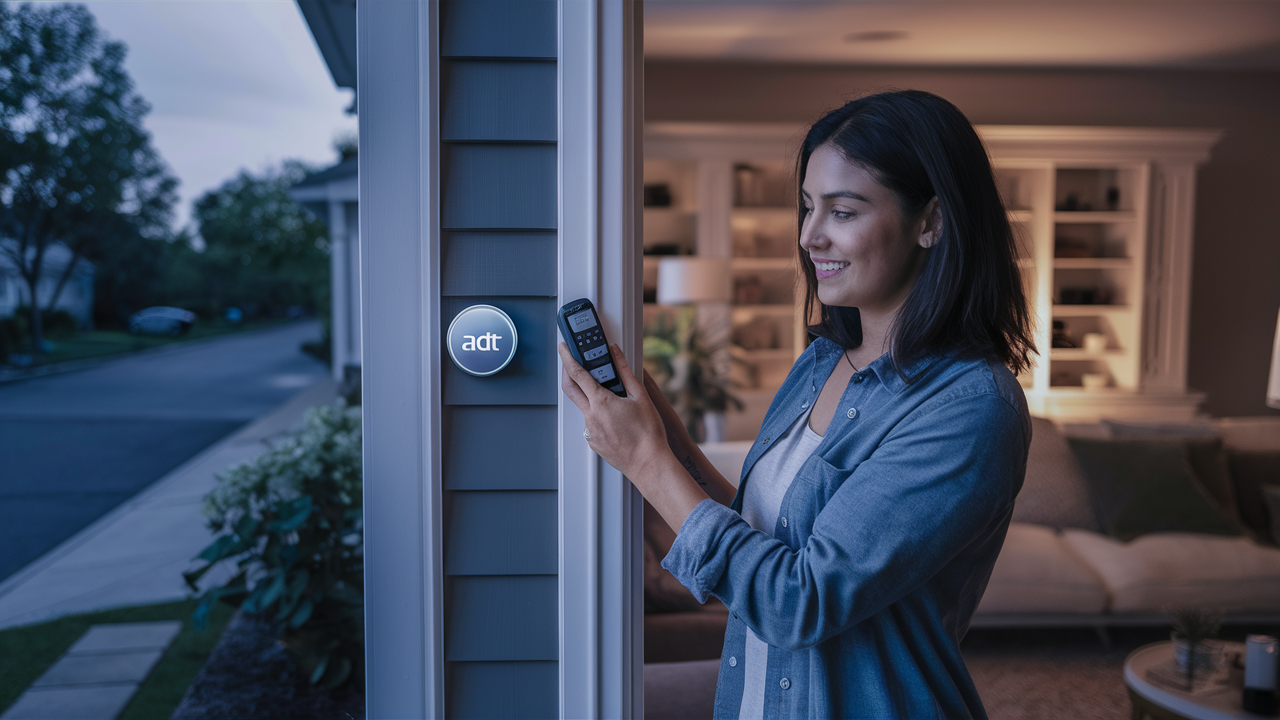
Keypads, often integrated into the control panel or as separate units, are the primary interface for users to arm and disarm the system using unique access codes. Key fobs offer a more convenient way to arm and disarm the system remotely, often with a simple button press. This is particularly useful when arriving or leaving home, allowing you to secure or disarm the system before reaching the main control panel.
The ADT Monitoring Center: Your 24/7 Watchdog
When your ADT alarm is triggered, the control panel sends a signal to the ADT monitoring center. Trained professionals at the center then assess the situation, verify the alarm (if possible), and dispatch emergency services (police, fire department, or ambulance) as needed. This constant, professional monitoring is a cornerstone of ADT's service, providing peace of mind that your home is protected around the clock. In 2025, ADT's monitoring network continues to be a leader in response times, with an average dispatch time of under 30 seconds for verified alarms.
Basic Operation: Arming and Disarming Your ADT Alarm
The most fundamental aspect of using your ADT alarm system is knowing how to arm and disarm it. This process is designed to be straightforward, ensuring you can quickly secure your home when leaving and disarm it upon returning.
Arming Your System
There are typically two ways to arm your ADT system: Away Mode and Stay Mode.
Arming in Away Mode
When to Use: Use Away Mode when everyone is leaving the premises. This mode activates all sensors, including motion detectors, ensuring comprehensive protection.
Steps:
- Ensure all doors and windows are closed and secured.
- Approach the control panel or keypad.
- Enter your unique user code (e.g., 1234).
- Press the "Away" or "Arm Away" button.
- The system will typically provide a countdown (e.g., 30-60 seconds) to allow you to exit the premises without triggering the alarm. During this exit delay, you will hear beeps from the control panel.
Example: You're leaving for work. After everyone is out and the doors are locked, you enter your code and press "Away." You have 60 seconds to leave the house. Once the exit delay expires, the system is fully armed.
Arming in Stay Mode
When to Use: Use Stay Mode when you are staying home, especially at night. This mode arms perimeter sensors (doors and windows) but bypasses interior motion detectors to allow free movement within the house.
Steps:
- Ensure all doors and windows are closed and secured.
- Approach the control panel or keypad.
- Enter your unique user code.
- Press the "Stay" or "Arm Stay" button.
- The system is typically armed immediately or with a very short exit delay (e.g., 10-15 seconds) to allow you to move to a safe area within the home.
Example: It's bedtime. You enter your code and press "Stay." The doors and windows are now armed, but you can move freely through the house without setting off the motion detectors.
Disarming Your System
Disarming your system is how you temporarily deactivate the alarm to prevent false alarms when entering your home.
Steps:
- Enter your home within the designated entry delay period (usually 30-60 seconds after opening a protected door).
- Approach the control panel or keypad.
- Enter your unique user code.
- Press the "Disarm" button.
Example: You arrive home from grocery shopping. You open the front door, which triggers the entry delay. You have 60 seconds to enter your code and press "Disarm" before the alarm sounds.
Important Note: If you forget to disarm the system within the entry delay, the alarm will sound, and ADT will be notified. If you accidentally trigger the alarm, disarm it immediately and contact ADT to cancel the dispatch. This is often referred to as a "false alarm" and may incur fines from local authorities depending on your municipality.
System Status Indicators
Your ADT control panel will provide visual and auditory cues to indicate the system's status. These can include:
- Ready: All sensors are secure, and the system can be armed.
- Not Ready: One or more sensors are open or malfunctioning. The panel will usually indicate which sensor.
- Armed Away: The system is fully armed, and all sensors are active.
- Armed Stay: The system is armed with perimeter sensors active and interior motion sensors bypassed.
- Chime: Some systems can be set to chime when a door or window is opened, even when the system is disarmed. This is a useful feature for monitoring entry and exit.
User Codes and Access Management
ADT systems allow for multiple user codes, enabling you to grant access to family members, trusted friends, or service providers while maintaining control and accountability. Managing these codes effectively is key to system security.
Master Codes vs. Standard User Codes
Most ADT systems differentiate between a Master Code and Standard User Codes. The Master Code typically has more privileges, such as the ability to add or delete other user codes, change system settings, and arm/disarm the system. Standard User Codes are generally limited to arming and disarming the system.
Adding a New User Code
The process for adding a new user code varies slightly depending on your specific ADT panel model. However, the general steps usually involve accessing the system's programming menu using the Master Code.
General Steps (refer to your system's manual for exact instructions):
- Access the system's programming mode (often by pressing a specific button sequence or navigating through the menu).
- Enter your Master Code.
- Navigate to the "User Codes" or "Access Codes" section.
- Select an available user slot or choose to add a new user.
- Enter the new four-digit user code (ensure it's not easily guessable, like 1234 or your birthdate).
- Assign a name or label to the code (e.g., "John's Code," "Nanny Code") for easier identification.
- Save the changes.
Example: You want to give your teenage son his own code. You use the Master Code to access the programming menu, navigate to user management, select an empty slot, enter '5678' as his code, label it "Son's Code," and save. He can now arm and disarm the system using this code.
Deleting or Modifying User Codes
Similarly, you can delete or modify existing user codes through the programming menu using the Master Code. This is essential for security when someone no longer needs access (e.g., a former roommate or service provider).
Steps:
- Access the programming mode with your Master Code.
- Navigate to the User Codes section.
- Select the user code you wish to delete or modify.
- Follow the prompts to delete the code or enter a new code.
- Save your changes.
Best Practices for User Codes
- Use unique codes: Avoid using the same code for multiple users.
- Choose strong codes: Do not use sequential numbers (1234, 4321), repeated numbers (1111, 2222), or easily guessable information like birthdays or addresses.
- Change codes regularly: Consider changing your codes every few months or immediately if you suspect a code has been compromised.
- Do not share your Master Code: Keep your Master Code confidential.
- Use temporary codes: If your system supports it, use temporary codes for short-term access (e.g., for a contractor) that automatically expire.
Customizing Your ADT Settings
Beyond basic arming and disarming, ADT systems offer various customization options to tailor the security experience to your lifestyle and preferences. These settings can enhance convenience and improve the system's effectiveness.
Entry and Exit Delays
Entry and exit delays are the time intervals you have to disarm the system upon entering or to leave the premises after arming. These are crucial for preventing false alarms.
- Entry Delay: The time allowed to disarm the system after opening a designated entry door. Typically ranges from 30 to 60 seconds.
- Exit Delay: The time allowed to leave the premises after arming the system. Typically ranges from 30 to 120 seconds.
You can usually adjust these delays through the system's programming menu, accessible with the Master Code. Consult your system's manual for specific instructions on how to modify these settings.
Chime Settings
The chime feature provides an audible alert (a beep or series of beeps) whenever a specific door or window sensor is opened, regardless of whether the system is armed or disarmed. This is a useful tool for monitoring activity in your home.
- Enabling/Disabling Chime: You can typically enable or disable the chime feature for individual sensors or for the entire system through the control panel's menu.
- Customizing Chime Sound: Some advanced systems may offer different chime sounds or volume levels.
Example: You can set your front door and back door sensors to chime. This way, you'll hear a beep every time someone enters or leaves through those doors, even if the alarm is off. This is great for keeping an eye on children or pets.
Sensor Sensitivity and Bypass
Sensor Sensitivity: For motion detectors, you might be able to adjust the sensitivity to prevent false alarms caused by pets or environmental factors like curtains moving. This is usually a setting accessible during installation or through advanced programming.
Sensor Bypass: You can manually bypass individual sensors when arming the system. This is useful if a window is temporarily open or a sensor is malfunctioning and you need to arm the system. When a sensor is bypassed, it will not trigger an alarm if activated.
How to Bypass:
- When arming the system, if the panel indicates "Not Ready," it means a sensor is open.
- Navigate to the sensor list.
- Select the sensor(s) you wish to bypass.
- Confirm the bypass.
- Arm the system. The panel will typically indicate which sensors are bypassed.
Important: Remember to un-bypass sensors once the issue is resolved. Bypassed sensors will not provide protection.
Notification Preferences
Modern ADT systems, especially those integrated with the ADT mobile app, allow you to customize how and when you receive notifications. This can include alerts for:
- System arming and disarming.
- Alarm events.
- Sensor activity.
- System status changes (e.g., power loss, low battery).
- Environmental alerts (smoke, CO, flood).
These settings are typically managed through the ADT mobile app or the web portal associated with your account.
Advanced Features and Integrations
ADT systems are increasingly becoming part of a broader smart home ecosystem, offering advanced features that go beyond traditional security.
Smart Home Integration
ADT systems can often integrate with popular smart home platforms and devices, allowing for a more connected and automated home experience. This can include:
- Smart Lighting: Lights can be programmed to turn on when the alarm is triggered or when you disarm the system, creating a welcoming or deterrent effect.
- Smart Thermostats: Adjust your home's temperature remotely or have it automatically adjust based on your security system's status.
- Smart Locks: Lock and unlock doors remotely and receive notifications when doors are opened or closed.
- Voice Assistants: Control your ADT system using voice commands through compatible smart speakers (e.g., Amazon Alexa, Google Assistant).
Integration capabilities depend on your specific ADT system model and any additional smart home hubs you may have. For example, ADT Command and Control systems are designed for seamless integration with a wide range of smart devices.
Video Surveillance
Many ADT packages include or can be upgraded to include indoor and outdoor security cameras. These cameras provide live video feeds and recorded footage that can be accessed remotely via the ADT mobile app.
- Live Viewing: Monitor your property in real-time from anywhere.
- Motion-Activated Recording: Cameras can be set to record only when motion is detected, saving storage space and making it easier to find relevant footage.
- Two-Way Audio: Some cameras feature built-in microphones and speakers, allowing for two-way communication.
- Night Vision: Ensure clear video quality even in low-light or complete darkness.
ADT's video services, such as ADT Video, offer advanced features like person detection and customizable alert zones. In 2025, the adoption of AI-powered video analytics by ADT is enhancing the accuracy of alerts and reducing false notifications.
Professional Monitoring and Emergency Dispatch
While we've touched on this, it's worth reiterating the advanced nature of ADT's professional monitoring. Beyond simply dispatching emergency services, ADT's system can:
- Prioritize Dispatches: Based on the type of alarm (e.g., fire, intrusion, medical), ADT can prioritize dispatch to the appropriate emergency responders.
- Provide Information to Responders: In critical situations, ADT can relay vital information to emergency personnel, such as the location of intruders or the type of hazard detected.
- Two-Way Voice Communication: Some systems allow ADT monitoring agents to speak directly with individuals inside the home through the control panel, enabling them to assess the situation and provide instructions or reassurance.
Cellular Backup
A critical advanced feature of ADT systems is cellular backup. If your home's landline or internet connection is cut (intentionally or accidentally), the system can automatically switch to a cellular network to maintain communication with the ADT monitoring center. This ensures your alarm remains active and monitored even if traditional communication lines are down.
Troubleshooting Common ADT Alarm Issues
Even the most reliable systems can encounter occasional issues. Knowing how to troubleshoot common problems can save you time and prevent unnecessary service calls.
False Alarms
False alarms are a common nuisance and can lead to fines. They occur when the alarm is triggered unintentionally.
Common Causes and Solutions:
- Open Doors/Windows: Ensure all protected doors and windows are fully closed and latched before arming. Check for drafts that might move a poorly sealed door or window.
- Pet Movement: If you have pets, ensure motion detectors are installed correctly and consider using pet-immune sensors or adjusting sensitivity settings. Keep pets away from motion detectors.
- User Error: Forgetting to disarm the system promptly upon entry, or entering the wrong code multiple times. Practice arming and disarming your system.
- Environmental Factors: Strong winds rattling windows, balloons or curtains moving near motion detectors, or even insects near sensors can sometimes trigger alarms.
- Low Batteries: Wireless sensors have batteries that need replacement. A low battery will usually be indicated on the control panel.
If a False Alarm Occurs: Disarm the system immediately using your code. Contact ADT to inform them it was a false alarm and to cancel any dispatch. Explain the likely cause if you know it.
System Not Ready to Arm
If your control panel displays "Not Ready" when you try to arm the system, it means at least one sensor is not in its secure state.
Troubleshooting Steps:
- Check the control panel display for an indication of which zone or sensor is open.
- Walk around your home and physically check all doors and windows.
- Ensure all sensors are properly closed and latched.
- If a specific sensor is consistently causing issues, it might be malfunctioning or have a low battery.
- If you need to arm the system urgently, you can bypass the problematic sensor (as described in the "Customizing Your ADT Settings" section).
Sensor Malfunctions
Occasionally, a sensor might stop communicating with the control panel or report false triggers.
Troubleshooting Steps:
- Check Battery: For wireless sensors, the most common issue is a low battery. Replace the battery if indicated.
- Check Connection: Ensure the sensor is properly mounted and aligned (for door/window sensors).
- Reboot System: Sometimes, a simple power cycle of the control panel can resolve communication issues.
- Contact ADT: If the problem persists, the sensor may need to be replaced or recalibrated by an ADT technician.
Control Panel Issues
If your control panel is unresponsive, displaying errors, or not functioning correctly:
Troubleshooting Steps:
- Check Power: Ensure the control panel is plugged in and the circuit breaker for the alarm system hasn't tripped.
- Check Battery Backup: ADT systems have a backup battery. If the main power is out, the system should run on battery. If the battery is dead, the panel might behave erratically.
- Reboot: Try unplugging the control panel for 30 seconds and plugging it back in.
- Contact ADT: For persistent issues with the control panel, it's best to contact ADT support.
ADT's customer service and technical support are available 24/7 to assist with troubleshooting. Many common issues can be resolved over the phone.
ADT Mobile App and Remote Access
The ADT mobile app, often referred to as ADT Control or ADT Pulse (depending on your system), is a powerful tool that extends the functionality of your alarm system to your smartphone or tablet. It allows for remote management and provides real-time insights into your home's security.
Key Features of the ADT Mobile App
- Remote Arming and Disarming: Secure or disarm your system from anywhere in the world. This is incredibly convenient if you forget to arm the system before leaving or need to let someone in remotely.
- System Status Monitoring: Check the current status of your alarm system (armed, disarmed, etc.) and view event history.
- Sensor Activity: Receive real-time notifications when doors or windows are opened, motion is detected, or other sensor events occur.
- Video Feed Access: View live streams from your ADT security cameras and access recorded footage.
- User Code Management: Add, delete, or modify user codes directly from the app (requires appropriate permissions).
- Customizable Alerts: Set up push notifications for specific events you want to be alerted about.
- Smart Home Control: If integrated, control smart lights, locks, thermostats, and other connected devices through the app.
Setting Up Remote Access
To use the ADT mobile app, you'll typically need to:
- Have a compatible ADT system: Most modern ADT systems, particularly those with cellular or Wi-Fi connectivity, are compatible.
- Have an ADT account: Your ADT service must be set up with remote access enabled.
- Download the App: Search for "ADT Control" or "ADT Pulse" in your device's app store (iOS or Android).
- Log In: Use your ADT account credentials to log in. If you don't have credentials, you'll need to set them up through your ADT customer portal or by contacting ADT.
- Link Your System: Follow the app's instructions to link your ADT alarm system to your account. This may involve entering a serial number or pairing code.
Using the App Effectively
To maximize the benefits of the ADT mobile app:
- Enable Push Notifications: Customize which alerts you receive to stay informed without being overwhelmed.
- Explore Automation Rules: If your system supports it, create "rules" or "scenes" to automate actions. For example, have lights turn on and the alarm disarm when you enter your geofence (approach your home).
- Regularly Review Event History: This can help you identify patterns of activity and ensure your system is functioning as expected.
- Keep the App Updated: Ensure you have the latest version of the app to benefit from new features and security updates.
ADT's investment in its digital platforms continues to grow. By 2025, the ADT app is designed to be the central command center for home security and smart home management, offering unparalleled convenience and control.
Maintaining Your ADT System for Optimal Performance
Regular maintenance is key to ensuring your ADT alarm system operates reliably and effectively. Proactive care can prevent issues and extend the lifespan of your equipment.
Battery Replacement for Wireless Sensors
Wireless sensors are powered by batteries, which have a limited lifespan (typically 1-5 years, depending on the sensor and usage). ADT systems are designed to alert you when a sensor's battery is low.
- Listen for Alerts: Pay attention to any beeping sounds from the control panel or messages indicating a low battery.
- Identify the Sensor: The control panel usually specifies which sensor has a low battery.
- Replace Batteries Promptly: Use the exact type of battery recommended for your sensor model. You can often find this information in your system's manual or by contacting ADT.
- Test the Sensor: After replacing the battery, arm and disarm the system, or trigger the sensor (e.g., open the door) to ensure it's communicating properly.
While you can often replace batteries yourself, ADT can also perform this service during a scheduled maintenance visit.
Testing Your System Regularly
It's a good practice to test your ADT alarm system periodically (e.g., monthly or quarterly) to ensure all components are functioning correctly and communicating with the monitoring center.
Steps for Testing:
- Notify ADT: Before testing, call ADT's customer service line to inform them you will be testing your system. This prevents them from dispatching emergency services unnecessarily.
- Put System in Test Mode: ADT may put your system in "test mode" for a specified period.
- Test Sensors: Arm the system in "Stay" or "Away" mode. Then, trigger each sensor one by one (e.g., open doors, walk in front of motion detectors). Listen for audible signals from the panel and check the event history on your app or panel.
- Test Communication: Some systems allow you to test the communication link to the monitoring center.
- End Test Mode: Once testing is complete, call ADT again to confirm your system is back in active monitoring mode.
Regular testing ensures that in a real emergency, your system will perform as expected.
Keeping Your System Software Updated
For smart ADT systems, software updates are crucial for security, performance, and new features. If your system is connected to Wi-Fi or cellular networks, it may receive automatic updates.
- Check for Updates: Periodically check your ADT app or customer portal for notifications about available software updates.
- Follow Update Instructions: If an update is available, follow the provided instructions carefully. This may involve initiating the update from the app or control panel.
- Ensure Stable Connection: Make sure your system has a stable internet or cellular connection during the update process.
Professional Inspections and Maintenance
While many aspects of ADT system maintenance can be handled by the user, periodic professional inspections are recommended, especially for older systems or those with complex integrations.
- Scheduled Maintenance: ADT offers maintenance plans that include regular check-ups by a certified technician.
- What to Expect: A technician will inspect all components, test sensors, check battery levels, verify communication with the monitoring center, and ensure the control panel is up-to-date.
- Address Issues Promptly: If you notice any unusual behavior or have concerns about your system's performance, schedule a service call with ADT.
Investing in regular maintenance ensures your ADT system remains a robust and reliable guardian of your home.
Conclusion
Setting your ADT alarm system is a straightforward yet vital process that ensures the safety and security of your home and loved ones. By understanding your system's components, mastering the arming and disarming procedures, managing user codes effectively, and leveraging customization options, you can create a personalized security experience. Advanced features like smart home integration and remote access via the ADT mobile app further enhance convenience and control, putting your home's security at your fingertips. Remember that regular maintenance, including battery checks and system testing, is crucial for optimal performance. If you ever encounter issues, ADT's robust troubleshooting resources and 24/7 professional monitoring are there to support you. With this comprehensive guide, you are well-equipped to confidently set and manage your ADT alarm system, enjoying the peace of mind that comes with advanced, reliable home protection.