
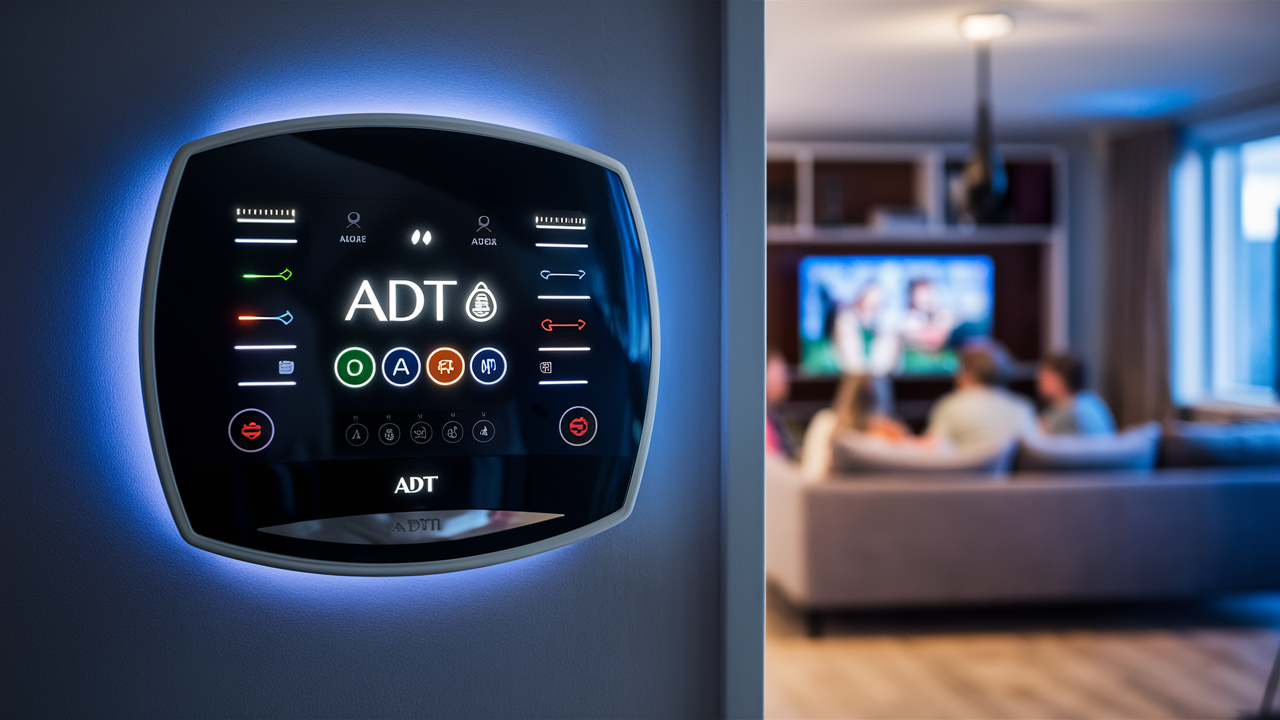
Understanding how to alarm your ADT panel is crucial for both immediate security needs and routine operation. This guide provides a comprehensive, step-by-step approach to arming your ADT system, covering various scenarios and offering insights to ensure you're always protected. We'll demystify the process, making it accessible for every user.
Understanding ADT Panel Arming Basics
Arming your ADT alarm panel is the fundamental action that activates your security system, preparing it to detect intrusions or emergencies. When armed, sensors placed throughout your property (doors, windows, motion detectors, glass break sensors) become active. If a sensor is triggered while the system is armed, it will initiate an alarm sequence, typically involving audible sirens and a notification to the ADT monitoring center. Understanding the nuances of arming is paramount to effective home security. It’s not just about pressing a button; it's about selecting the right mode for your current situation to maximize protection without unnecessary disruption. For instance, arming in "Away" mode when you're home can lead to false alarms if you move around, whereas using "Stay" mode ensures internal movement doesn't trigger the system while perimeter sensors remain active. In 2025, ADT continues to refine its systems, offering more intuitive ways to manage arming, including advanced mobile app integration and smart home compatibility, making security more accessible than ever.
Exploring ADT Alarm Panel Arming Modes
ADT alarm panels are designed with flexibility in mind, offering distinct arming modes to cater to various security needs and occupancy levels. Choosing the correct mode ensures your system provides the intended protection without causing false alarms. These modes are the cornerstone of an effective security strategy, allowing you to tailor the system's sensitivity and coverage based on whether you are present in the home, leaving the premises, or sleeping.
The "Stay" Mode: Protecting While Home
The "Stay" mode, often represented by an icon of a house with a person inside, is designed for situations where occupants are present within the home. When you arm your system in "Stay" mode, it typically activates perimeter sensors (like door and window contacts) but bypasses interior motion detectors. This allows you to move freely within your home without triggering the alarm, while still providing a robust defense against external threats attempting to breach entry points. This mode is ideal for nighttime, when residents are asleep, or during the day when you are home but want to secure the exterior of your property. For example, if a window sensor is tripped, the alarm will sound, but if someone walks through the living room where a motion detector is located, the system will remain quiet. The exit delay, which allows you to leave the premises after arming, is usually active in this mode, giving you a set period to exit without setting off the alarm. The entry delay, which allows you to disarm the system upon re-entry, is also typically active for perimeter breaches.
The "Away" Mode: Securing When You Leave
The "Away" mode is the most comprehensive arming setting, designed for when the property is completely vacant. When you arm your ADT panel in "Away" mode, all sensors—perimeter and interior—become active. This includes door/window sensors, motion detectors, glass break sensors, and any other protective devices installed. This ensures that any unauthorized entry or movement within the property will trigger an immediate alarm. This mode is essential when you are leaving your home for an extended period, whether for work, vacation, or errands. The exit delay is crucial here; it provides a sufficient window for all occupants to leave the premises after arming the system, preventing accidental triggering. Similarly, the entry delay allows authorized individuals to enter and disarm the system within a specified timeframe before the alarm sounds. Failing to disarm within this period will result in a full alarm activation, notifying ADT monitoring services.
The "Night" Mode: Enhanced Overnight Security
Some ADT panels offer a "Night" mode, which is a specialized variation of the "Stay" mode, providing an extra layer of security during sleeping hours. While similar to "Stay" in that it bypasses interior motion detectors, "Night" mode can be customized to activate specific zones or sensors that residents deem critical for overnight protection. For instance, you might choose to arm all downstairs window sensors and the hallway motion detector while bypassing the motion detectors in bedrooms. This offers peace of mind, knowing that while you sleep, the system is actively monitoring key access points. The specific configuration of "Night" mode can often be tailored through the ADT control panel or app, allowing users to create a personalized security profile that balances safety with the freedom of movement within their home during the night. This feature is particularly valuable for families with young children or for those living in areas with higher crime rates.
Step-by-Step Procedures for Arming Your ADT Panel
Successfully arming your ADT panel is a straightforward process, but the exact steps can vary slightly depending on the specific model of your ADT system and the method you choose to use. ADT offers multiple convenient ways to arm your system, ensuring you can always secure your home effectively, whether you're tech-savvy or prefer traditional methods. Familiarizing yourself with these procedures is key to maintaining optimal security.
Arming via the Keypad: The Classic Method
The ADT keypad is the central interface for controlling your alarm system. Arming through the keypad is a fundamental skill for any ADT user. Here’s a general guide, though specific button labels may vary by panel model:
- Approach the Keypad: Ensure you are within reach of your primary ADT control panel keypad.
- Enter Your Master Code: Typically, you will need to enter your unique 4-digit user code. This is often referred to as the "master code" if you are the primary user.
- Select Arming Mode: After entering your code, the keypad will usually prompt you to select an arming mode. Look for buttons labeled "STAY," "AWAY," or "NIGHT." Press the button corresponding to your desired mode.
- Confirm and Exit (if applicable): Once you select a mode, the system will usually indicate that it is arming. If you selected "Away" or "Stay" and need to leave, an exit delay will begin, indicated by beeping or a countdown on the screen. You have this time to exit the premises.
- System Confirmation: After the exit delay, the system will confirm it is armed, often with a steady light or a message on the display.
Example: To arm in "Away" mode, you would enter your code (e.g., 1234), then press the "AWAY" button. The keypad might beep rapidly for 30 seconds, indicating the exit delay. Once the beeping stops, the system is fully armed.
Arming via the ADT Control App: Modern Convenience
For users with ADT Pulse or ADT Command systems, the ADT Control mobile app offers a highly convenient way to arm and disarm your system remotely. This is particularly useful if you forget to arm your system as you leave or want to arm it before you arrive home.
- Open the ADT Control App: Launch the app on your smartphone or tablet.
- Log In: Ensure you are logged into your ADT account.
- Navigate to System Status: The main screen usually displays the current status of your alarm system (e.g., "Disarmed," "Armed Stay," "Armed Away").
- Select Arming Mode: Tap on the system status or look for an "Arm" button. You will be presented with options to "Arm Stay," "Arm Away," or sometimes a "Quick Arm" option.
- Confirm Arming: Select your desired mode. The app will confirm the system is arming and will update its status accordingly. If you are arming remotely, you might receive a push notification confirming the action.
Example: While at work, you realize you forgot to arm your system. You open the ADT Control app, tap "Arm Away," and receive a confirmation that your home is now secured.
Arming with Voice Commands: Hands-Free Security
ADT systems integrated with smart home assistants like Amazon Alexa or Google Assistant allow for voice-controlled arming. This offers unparalleled convenience, especially when your hands are full.
- Ensure Integration: Verify that your ADT system is linked to your smart home assistant account.
- Use the Wake Word: Say the wake word for your assistant (e.g., "Alexa," "Hey Google").
- Issue the Command: Clearly state your arming command, including the desired mode. For example:
- "Alexa, tell ADT to arm in Stay mode."
- "Hey Google, ask ADT to arm the system Away."
- Voice Confirmation: The smart assistant will typically confirm the command and may ask for a voice PIN or verbal confirmation to proceed, depending on your setup.
- System Activation: Once confirmed, your ADT panel will arm in the specified mode.
Example: As you are carrying groceries into the house, you can say, "Hey Google, tell ADT to arm Stay," and your system will be armed without you needing to put down your bags.
Troubleshooting Common Arming Issues
While ADT systems are generally reliable, occasional issues can arise that prevent your panel from arming correctly. Understanding common problems and their solutions can save you time and ensure your security is never compromised. These issues often stem from sensor malfunctions, communication disruptions, or power interruptions.
Sensor Faults and How to Address Them
A "sensor fault" or "zone fault" message on your ADT panel indicates that a specific sensor is not communicating properly with the control panel. This can prevent the system from arming.
- Identify the Faulty Zone: The panel display or the ADT Control app will usually specify which zone or sensor is experiencing a fault.
- Check for Obvious Issues: Ensure doors and windows with sensors are fully closed. For motion detectors, check for obstructions or low batteries.
- Bypass the Sensor (Temporary Solution): If you need to arm the system urgently and cannot resolve the fault immediately, you can often bypass the faulty sensor. This is usually done through the keypad by selecting the zone to bypass before arming. However, remember that bypassing a sensor leaves that area unprotected.
- Replace Batteries: Many wireless sensors are battery-powered. Low batteries are a common cause of faults. Replace the batteries as indicated by the system or app.
- Clean Sensors: Dust or debris can sometimes interfere with sensor operation. Gently clean the sensor and its contact points.
- Contact ADT Support: If the fault persists after these steps, there might be a more significant issue with the sensor or its connection. Contact ADT customer support for professional assistance.
2025-26 Stat: According to industry reports, approximately 15% of alarm system issues are related to sensor battery life, highlighting the importance of regular checks.
Communication Errors: Keeping Your System Connected
Communication errors occur when your ADT panel cannot connect to the ADT monitoring center. This can happen due to issues with your home's internet connection (for IP-based systems), cellular signal, or telephone line (for older landline systems).
- Check Your Internet/Phone Line: If your system relies on broadband internet, ensure your router is functioning and your internet service is active. For landline systems, check if your phone line has dial tone.
- Verify Cellular Signal (if applicable): If your system uses a cellular communicator, check the signal strength indicator on the panel or in the app. Poor signal can prevent communication.
- Reboot Your Equipment: Sometimes, simply rebooting your modem, router, and ADT panel can resolve temporary communication glitches.
- Test Your System: After addressing potential issues, use the ADT app or keypad to perform a system test. This will check the communication link to the monitoring center.
- Contact ADT Support: If communication errors persist, ADT technicians can diagnose issues with the communicator module or network settings.
Power Issues: Ensuring Continuous Operation
ADT systems have both a main power source and a backup battery. Power issues can arise if the main power is interrupted or the backup battery fails.
- Check Main Power: Ensure the ADT control panel is plugged into a working electrical outlet and that the circuit breaker for that outlet has not tripped. The panel should have a light indicating it's receiving main power.
- Backup Battery: ADT panels have a rechargeable backup battery that takes over during power outages. If the battery is old or faulty, it may not hold a charge, leading to system errors or failure to arm. The panel will usually indicate a "low battery" or "backup battery fault."
- Replace Backup Battery: Backup batteries typically need replacement every 3-5 years. If your panel indicates a battery issue, contact ADT to schedule a replacement.
- System Restarts: In some cases, a power interruption might cause the system to require a restart. Follow ADT's instructions for safely restarting your panel.
Advanced Features and Customization for ADT Panels
Modern ADT alarm panels offer a range of advanced features and customization options that go beyond basic arming and disarming. These features allow users to tailor their security system to their specific lifestyle and property needs, enhancing both convenience and effectiveness. By leveraging these capabilities, you can create a truly personalized security experience.
Customizing Zones for Specific Needs
ADT systems divide your property into "zones," each corresponding to a specific sensor or group of sensors. Customizing these zones allows for more granular control and reporting.
- Zone Naming: You can often rename zones to be more descriptive (e.g., "Front Door," "Master Bedroom Window," "Living Room Motion"). This makes identifying alarm triggers much easier.
- Zone Type Configuration: Different zone types exist (e.g., entry/exit delay zones, interior follower, interior bypass, always active). Configuring these types ensures the system behaves as expected for each sensor. For example, a front door might be set as an entry/exit delay zone, while a back window might be set as a perimeter zone that triggers an immediate alarm in "Away" mode.
- Bypassing Specific Zones: As mentioned in troubleshooting, you can selectively bypass zones when arming if a sensor is temporarily out of service or if you need to allow access to a specific area without triggering the alarm.
- Customizing Alerts: For some systems, you can configure specific notifications for certain zones, such as receiving an alert if a particular door is opened outside of expected hours.
Example: If you have a home office that you use frequently, you might set its motion detector to be bypassed in "Stay" mode but active in "Away" mode, and name it "Office Motion" for clarity.
Automated Arming and Disarming Schedules
Many ADT systems, especially those with the ADT Control app, allow you to set automated schedules for arming and disarming your system. This is incredibly useful for ensuring your home is always secured, even if you forget.
- Set Regular Schedules: You can program your system to automatically arm in "Stay" mode every night at a specific time (e.g., 11:00 PM) and disarm in the morning (e.g., 7:00 AM).
- Conditional Arming: Some advanced systems might allow for conditional arming based on other smart home events, though this is less common for basic ADT setups.
- Geofencing: The ADT Control app often supports geofencing, which can trigger arming or disarming actions based on your smartphone's location. For instance, the system could automatically arm in "Away" mode when the last registered user leaves a predefined geographic area around your home.
Example: Set your system to automatically arm in "Stay" mode every night at 10:30 PM. This ensures that even if you forget, your home is secured while you sleep.
Managing User Codes and Access Levels
ADT systems allow you to create multiple user codes for different individuals, such as family members, housekeepers, or pet sitters. Managing these codes is crucial for security and accountability.
- Assign Unique Codes: Each person who needs to arm or disarm the system should have their own unique user code. This allows you to track who is arming/disarming the system and when.
- Master vs. Standard Codes: Typically, there's a master code that can manage other user codes, and standard codes for everyday use.
- Temporary Codes: For visitors or service providers, you can often create temporary codes that expire after a certain date or number of uses.
- Code Restrictions: Some systems allow you to set restrictions on user codes, such as limiting their use to specific times of day or preventing them from accessing certain system settings.
- Regularly Review Codes: It's good practice to periodically review your list of active user codes and disable any that are no longer needed, especially if someone has moved out or their service has ended.
Example: Assign your children unique codes, and a separate, temporary code to your dog walker that only works during their scheduled hours.
Comparing ADT Panel Models and Arming Capabilities
ADT offers a range of alarm panels, each with varying features and capabilities. While the core function of arming remains consistent, the user experience and advanced options can differ significantly. Understanding these differences can help you make the most of your current system or inform future upgrade decisions. Here’s a general overview of common ADT panel types and their arming-related features:
| Panel Model (Example) | Arming Modes | Keypad Interface | Mobile App Control | Voice Control Integration | Customization Options | Typical Use Case |
|---|---|---|---|---|---|---|
| ADT Command/Control | Stay, Away, Night (configurable) | Touchscreen with intuitive icons | Full remote arm/disarm, status checks, notifications | Yes (with compatible smart assistants) | Extensive zone naming, scheduling, user code management | Modern homes, smart home integration, advanced security needs |
| ADT Pulse (older generation) | Stay, Away | Touchscreen or button-based | Remote arm/disarm, basic status | Limited/requires specific integrations | Moderate zone naming, user codes | Established ADT users, reliable remote access |
| Traditional Button Keypads (e.g., Vista series) | Stay, Away | Physical buttons with LCD display | Typically no direct app control without add-ons | No direct integration | Basic zone naming, user codes | Budget-conscious users, simpler security needs, reliable basic function |
Key Considerations for Arming:
- Touchscreen vs. Button Keypads: Touchscreen panels like ADT Command offer a more visual and user-friendly experience for selecting arming modes and navigating settings. Traditional keypads rely on button sequences.
- App Integration: If remote arming and monitoring are important, ensure your system supports the ADT Control app. ADT Command and newer Pulse systems generally offer robust app functionality.
- Smart Home Compatibility: For voice control or integration with other smart devices, ADT Command is the most integrated option.
- Customization Depth: Newer systems allow for more detailed customization of zones, schedules, and user permissions, providing greater control over your security.
2025-26 Trend: The trend is strongly towards integrated systems like ADT Command, which offer seamless mobile app control and smart home compatibility, making arming and managing security more intuitive and accessible than ever before.
ADT Alarm Panel Security Best Practices for 2025-26
Ensuring the optimal security of your ADT alarm panel involves more than just knowing how to arm it. It requires adopting proactive practices to maintain system integrity, prevent unauthorized access, and maximize its effectiveness. As security threats evolve, so too must our approach to safeguarding our homes and families. Here are essential best practices for 2025-26:
- Secure Your User Codes: Treat your ADT user codes like passwords. Do not share them with anyone who doesn't absolutely need them. Avoid using easily guessable codes (e.g., birthdates, sequential numbers like 1234). Change codes periodically, especially if you suspect they may have been compromised.
- Regular System Testing: Schedule regular system tests (monthly is recommended) through the ADT app or by contacting ADT. This ensures all sensors are functioning correctly, communication lines are open, and the monitoring center is receiving signals. A system that isn't tested might fail when you need it most.
- Keep Software Updated: For ADT Command and other app-connected systems, ensure your control panel's firmware and the ADT Control app are kept up-to-date. Updates often include security patches and performance enhancements that protect against vulnerabilities.
- Educate Household Members: Ensure everyone in your household knows how to properly arm and disarm the system, what to do in case of an accidental alarm, and who to contact if they have questions. Regular refreshers can be beneficial.
- Maintain Sensor Health: Regularly check for low battery warnings on wireless sensors and replace batteries promptly. Keep sensors clean and free from obstructions. For wired sensors, ensure connections remain secure.
- Secure Your Wi-Fi Network: If your ADT system uses Wi-Fi for communication, ensure your home Wi-Fi network is secured with a strong, unique password and WPA2/WPA3 encryption. A compromised Wi-Fi network can potentially provide an entry point for unauthorized access to your alarm system.
- Understand Your System's Limitations: Be aware of what your system can and cannot do. For example, motion detectors may not be triggered by slow-moving individuals or pets (depending on pet immunity settings). Understand the coverage areas of your sensors.
- Promptly Address Faults and Alerts: Don't ignore error messages or alerts from your ADT panel or app. Investigate them immediately, as they can indicate a developing problem that could compromise your security.
- Review Event History: Periodically check the event history in your ADT Control app. This can help you identify unusual activity patterns or confirm that the system is operating as expected.
- Consider Professional Monitoring: While you know how to arm your panel, the true value of ADT lies in its 24/7 professional monitoring. Ensure your monitoring service is active and that ADT has your most up-to-date contact information.
By integrating these best practices into your routine, you significantly enhance the security posture of your ADT alarm system, ensuring it remains a reliable guardian for your home and loved ones throughout 2025 and beyond.
Conclusion
Mastering how to arm your ADT panel is fundamental to leveraging the full power of your home security system. Whether you prefer the tactile feedback of a keypad, the convenience of a mobile app, or the ease of voice commands, ADT provides flexible options to suit every user. Understanding the distinct "Stay," "Away," and "Night" modes ensures you apply the right level of protection for any given situation, preventing false alarms while maximizing security. By following the step-by-step procedures and implementing the troubleshooting tips, you can confidently manage your system's day-to-day operation. Furthermore, exploring advanced features like zone customization and automated scheduling allows for a personalized and robust security experience. Remember that consistent system testing, prompt attention to alerts, and adherence to security best practices are crucial for maintaining an effective and reliable ADT system in 2025-26. Your proactive engagement with your alarm panel is the most significant factor in safeguarding your home and family. For any persistent issues or complex configurations, don't hesitate to reach out to ADT support for expert assistance.





