
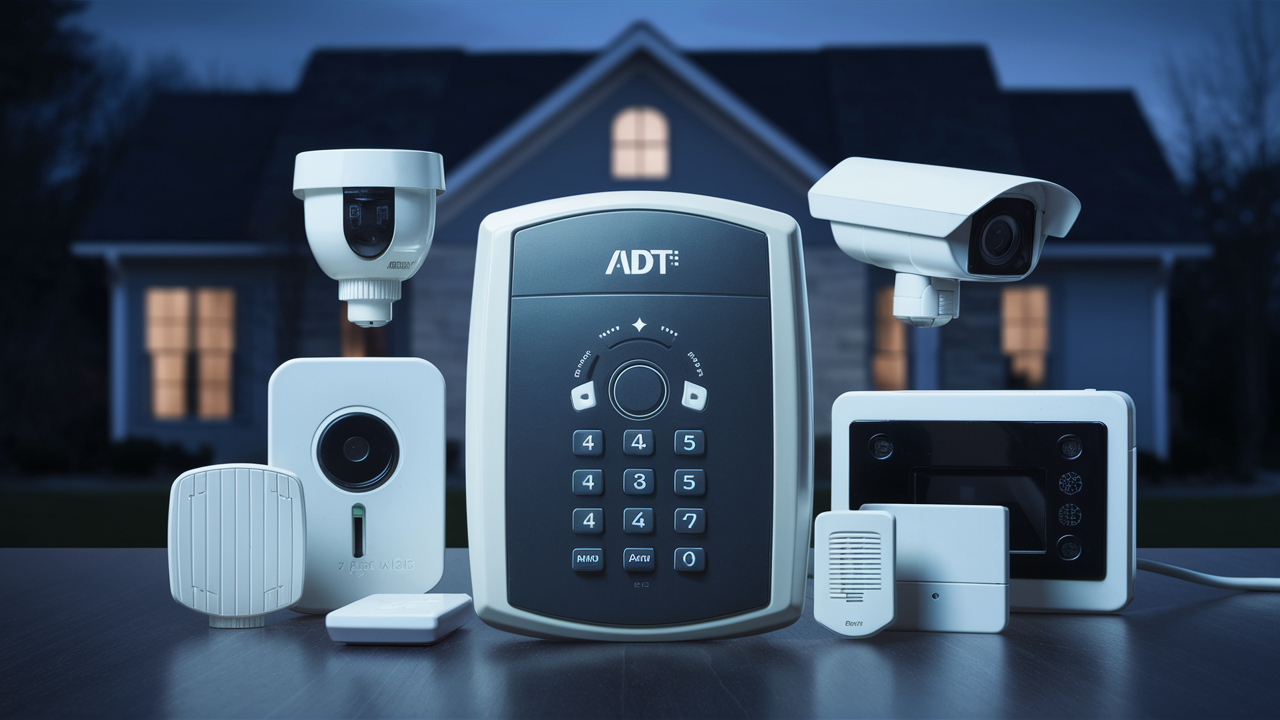
Arming your ADT alarm system is a crucial step in securing your home or business. This guide provides a comprehensive, step-by-step walkthrough on how to effectively arm your ADT system, covering various modes, common scenarios, and troubleshooting tips. Learn to maximize your security coverage with confidence.
Understanding ADT Alarm System Arming Basics
Arming your ADT alarm system is the fundamental action that transitions your security system from a passive monitoring state to an active protective one. When armed, the system is configured to detect intrusions or other triggered events (like smoke or carbon monoxide) and alert ADT's monitoring center. This process is designed to be straightforward, but understanding the underlying principles ensures you use it effectively. The core concept revolves around enabling sensors—motion detectors, door/window contacts, glass break sensors—to communicate with the main control panel. When an armed sensor is tripped, the panel initiates the alarm sequence. The primary goal of arming is deterrence and rapid response. A visible, armed security system can deter potential intruders, and if an intrusion occurs, the system's immediate notification capabilities are vital for a swift response from law enforcement or emergency services.
In 2025, the landscape of home security is more integrated than ever. ADT systems, whether traditional or smart-home integrated, rely on user interaction to activate their protective capabilities. This interaction typically involves entering a unique user code on the system's keypad or using a mobile application. The system then confirms the arming status, often with audible beeps or visual indicators. Understanding the difference between "stay" and "away" modes is paramount, as these settings dictate which sensors are active. For instance, in "stay" mode, interior motion sensors are usually deactivated to allow occupants to move freely within the home, while perimeter sensors (doors and windows) remain active. Conversely, "away" mode typically activates all sensors, assuming no one is inside the premises. This distinction is critical for preventing false alarms and ensuring the system provides comprehensive protection when you need it most. The user code acts as a key, ensuring only authorized individuals can control the system's armed state. The keypad is the most common interface, featuring dedicated buttons or key sequences for arming and disarming. Mobile apps, increasingly popular in 2025, offer remote arming and disarming capabilities, adding a layer of convenience and control, especially when you're away from home but need to secure your property.
Key ADT Alarm System Arming Modes Explained
ADT alarm systems offer distinct arming modes designed to cater to various security needs and occupancy situations. Understanding these modes is crucial for effective system operation and for minimizing false alarms. The primary modes are typically "Stay" and "Away," with variations and additional options depending on the specific ADT control panel model and configuration.
The "Stay" Mode
The "Stay" mode is designed for situations where occupants are present within the secured premises. In this mode, the system arms the perimeter sensors (such as door and window contacts) but typically bypasses interior motion detectors and other zone sensors that might be triggered by movement inside the home. This allows residents to move around freely within the house without setting off the alarm. It's ideal for nighttime use, when you're home during the day but want protection against external breaches, or when pets are inside and might inadvertently trigger motion sensors.
When to Use "Stay" Mode:
- Overnight when you are sleeping.
- When you are home during the day and want to monitor entry points.
- When you have pets that roam freely indoors.
- When you have guests staying over.
The "Stay" mode provides a critical layer of security against forced entry through doors or windows, while offering the comfort of not being confined by internal motion sensors. It's a balanced approach to security when occupancy is high.
The "Away" Mode
The "Away" mode is designed for when the premises are unoccupied. In this mode, all sensors, including perimeter sensors and interior motion detectors, are activated. This provides the most comprehensive level of protection, as any form of intrusion or unauthorized movement within the secured area will trigger the alarm. This is the mode you should select before leaving your home or business for an extended period.
When to Use "Away" Mode:
- When you leave your home or business for work or travel.
- When the property will be vacant for any significant duration.
- When you want maximum security coverage and are not concerned about internal movement.
Activating "Away" mode ensures that any attempt to enter the property, whether through a door, window, or by bypassing the perimeter, will be detected. This mode is essential for deterring and responding to burglaries. In 2025, with increased remote work and travel, ensuring the correct arming mode is selected before departure is more important than ever for maintaining continuous security.
Other Potential Modes and Features
Depending on the ADT system model, additional modes or customizable zones might be available. These can include:
- "Night" Mode: Often a variation of "Stay" mode, specifically configured for nighttime use, potentially with a delayed exit or entry time.
- "Vacation" Mode: A more robust "Away" mode that might randomize light usage or have specific sensor activation patterns to simulate occupancy.
- Customizable Zones: Advanced systems allow users to define specific zones as "stay" or "away" or to be bypassed entirely, offering granular control over sensor activation.
It is essential to consult your specific ADT system's user manual to understand all available arming modes and how to configure them for your unique security needs. The correct selection of arming mode directly impacts the effectiveness of your ADT alarm system.
Step-by-Step Guide: How to Arm Your ADT Alarm System
Arming your ADT alarm system is a straightforward process, typically involving a few simple steps using your system's keypad or a mobile application. While specific interfaces may vary slightly between ADT models, the general procedure remains consistent. This guide will walk you through the most common methods.
Using the ADT Keypad
The keypad is the central interface for controlling your ADT alarm system. Follow these steps to arm your system:
- Ensure all zones are clear: Before arming, make sure all doors and windows are closed and secured. The system will typically indicate if any zone is open. Check your keypad display for any "fault" or "open zone" messages. If a zone is open and you intend to arm the system, you may need to bypass that zone (explained later) or secure it.
- Enter your User Code: Most ADT systems require a four-digit user code for arming and disarming. Type in your personal user code on the keypad.
- Select the Arming Mode: After entering your code, you will typically see options to arm in "Stay" or "Away" mode.
- For "Stay" mode, press the "Stay" button or the designated number for "Stay" arming (e.g., '3' on some systems).
- For "Away" mode, press the "Away" button or the designated number for "Away" arming (e.g., '1' on some systems).
- Exit Delay: Once you have selected the arming mode, the system will typically initiate an exit delay. This is a grace period, usually 30-60 seconds, during which you can leave the premises without triggering the alarm. The keypad will usually beep periodically to indicate the exit delay is active.
- System Armed Confirmation: After the exit delay expires, the system will confirm that it is armed. This is often indicated by a steady light on the keypad, a specific message on the display (e.g., "System Armed"), or a distinct chime.
Using the ADT Mobile App (ADT Control or similar)
For users with smart home integration, the ADT mobile app provides convenient remote arming capabilities. The exact app name and interface may vary, but the process is generally as follows:
- Open the ADT App: Launch the ADT Control app (or your specific ADT mobile application) on your smartphone or tablet.
- Log In: Enter your ADT account credentials to log in.
- Navigate to the Security Screen: Locate the main security or arming screen within the app.
- Select Arming Mode: You will typically see clear options to arm in "Stay" or "Away" mode. Tap your desired mode.
- Confirm Arming: The app will usually ask for confirmation. You might need to enter a PIN or use biometric authentication (fingerprint, face ID) for security.
- View System Status: The app will update to show the system is armed, often displaying the current status and any active zones. Remote arming via the app also typically initiates an exit delay, allowing you time to leave if you are arming from inside.
Bypassing Zones
Sometimes, you may need to arm your system even if a specific sensor is temporarily unavailable or you don't want it to trigger the alarm (e.g., a window is accidentally left open). This is done by bypassing the zone.
- Initiate Arming: Begin the arming process as usual (enter code, select mode).
- System Prompt for Bypass: The system will likely detect the open zone and prompt you to bypass it. If not, you may need to manually select the bypass option.
- Enter Zone Number: The keypad will usually ask you to enter the number of the zone you wish to bypass. Refer to your system's documentation for zone numbering.
- Confirm Bypass: Confirm the bypass. The system will then arm, but the bypassed zone will be deactivated. A bypassed zone is typically indicated on the keypad display.
- Important Note: Bypassing zones reduces your overall security coverage for that specific zone. Only bypass zones when absolutely necessary and remember to re-enable them once the issue is resolved.
Regularly practicing these arming procedures will make them second nature, ensuring your ADT alarm system is always ready to protect your property.
Arming Your ADT System in Different Scenarios
Effectively arming your ADT alarm system requires adapting to various situations. Whether you're leaving for work, going on vacation, or dealing with unexpected circumstances, understanding how to use your system's features ensures optimal security. ADT's flexible arming options allow for tailored protection.
Scenario 1: Leaving Home for Work (Daily Departure)
This is the most common scenario. You're leaving your home for several hours and want to ensure it's protected.
- Mode Selection: "Away" mode is the appropriate choice. This activates all sensors, including motion detectors and perimeter contacts, to provide comprehensive coverage against potential intruders.
- Procedure:
- Ensure all doors and windows are closed and locked.
- Proceed to the keypad.
- Enter your user code.
- Press the "Away" button or the corresponding numerical key.
- Exit the premises within the designated exit delay time (typically 30-60 seconds).
- Key Considerations: Double-check that pets are secured in a way that won't trigger motion sensors if you accidentally arm in "Stay" mode. Forgetting to arm the system is a common oversight; consider setting reminders or utilizing the ADT mobile app for remote arming.
Scenario 2: Overnight Protection (While Sleeping)
When you are home and asleep, you want to be protected against external threats without being disturbed by internal movements.
- Mode Selection: "Stay" mode is ideal. This arms your perimeter sensors (doors, windows) to detect any forced entry from the outside, while keeping interior motion sensors deactivated.
- Procedure:
- Ensure all doors and windows are closed and locked.
- Proceed to the keypad.
- Enter your user code.
- Press the "Stay" button or the corresponding numerical key.
- You do not need to exit the premises. The system will arm after the exit delay (if applicable, some systems have a shorter or no exit delay for "Stay" mode).
- Key Considerations: If you have pets that might trigger motion sensors even in "Stay" mode (though less likely than in "Away" mode), you might need to explore zone bypassing or specific pet-immune sensor settings. Ensure all interior doors leading to areas you want to monitor (e.g., basement) are closed if they have sensors.
Scenario 3: Extended Absences (Vacation or Business Travel)
When you'll be away for several days or weeks, robust security is paramount.
- Mode Selection: "Away" mode is the standard. However, some ADT systems offer a "Vacation" mode, which might include features like randomized lighting schedules (if integrated) or more sensitive motion detection settings. Consult your user manual to see if this option is available and how to configure it.
- Procedure:
- Secure all entry points.
- Arm the system in "Away" mode (or "Vacation" mode if available).
- Ensure your ADT monitoring service has your updated contact information and travel dates.
- Key Considerations: Inform ADT of your travel dates. This allows them to be aware of your absence and potentially adjust their response protocols. Consider using smart home devices integrated with your ADT system to simulate occupancy, such as turning lights on and off at random intervals.
Scenario 4: Home with Guests
When you have visitors staying over, you need to balance security with their comfort.
- Mode Selection: "Stay" mode is generally the best option. This allows your guests to move freely within the house without triggering the alarm.
- Procedure:
- Arm the system in "Stay" mode before you retire for the night or when you want the perimeter secured.
- Brief your guests on how to disarm the system if they need to leave and re-enter, or if they are staying up later than you. Provide them with a user code if necessary.
- Key Considerations: Ensure guests understand not to tamper with sensors or attempt to bypass them. If a guest needs to leave and re-enter, they should know the disarm code and have sufficient time to do so before the alarm sounds.
Scenario 5: Temporary Access for Service Personnel
If a contractor or service person needs access while you are present but not supervising them directly.
- Mode Selection: "Stay" mode is typically sufficient. This protects against external breaches while allowing internal movement.
- Procedure:
- Arm the system in "Stay" mode.
- Provide the service person with temporary access.
- If they need to exit and re-enter, they will need to know the disarm code and have enough time to use it. Alternatively, you can disarm the system for them and then re-arm in "Stay" mode once they are back inside.
- Key Considerations: For greater control, you can create a temporary user code for service personnel that can be deleted after their visit. This is a good practice for maintaining security and accountability.
By understanding and applying these scenario-specific arming strategies, you can ensure your ADT alarm system provides the most effective and appropriate protection for your home and family at all times. Always refer to your ADT user manual for specific instructions related to your system model.
Troubleshooting Common ADT Arming Issues
While ADT alarm systems are generally reliable, users may occasionally encounter issues when trying to arm their system. Understanding these common problems and their solutions can help you maintain uninterrupted security. Most arming issues stem from sensor faults, communication problems, or incorrect user input. By systematically addressing these, you can quickly resolve most problems.
Issue 1: "Open Zone" or "Fault" Message on Keypad
This is the most frequent reason an ADT system may refuse to arm. It indicates that a sensor (door/window contact, motion detector, etc.) is not in its expected state.
- Cause: A door or window is not fully closed, a sensor has become dislodged, or a sensor is malfunctioning.
- Solution:
- Check all Doors and Windows: Visually inspect every door and window that has a contact sensor. Ensure they are firmly shut and latched. Sometimes, a slight draft or settling of the house can cause a door or window to shift just enough to trigger a sensor.
- Inspect Sensors: For door/window contacts, ensure the two parts of the sensor (magnet and transmitter) are properly aligned and within the manufacturer's specified range when the door/window is closed. For motion detectors, ensure they are not obstructed and are securely mounted.
- Bypass the Zone: If you need to arm the system immediately and cannot resolve the open zone, you can bypass it. Follow the instructions for your specific ADT system to bypass the indicated zone number. Remember to address the underlying issue later.
- Check for System Faults: If the message is a general "fault" rather than an "open zone," it could indicate a broader system issue, such as a low battery in a sensor or a problem with the main control panel.
Issue 2: System Fails to Arm After Entering Code and Mode
You enter your code, select "Stay" or "Away," but the system doesn't arm, and there's no specific error message.
- Cause: Incorrect user code, system is in a "downloading" or "programming" mode, or a system communication error.
- Solution:
- Verify User Code: Ensure you are entering the correct user code. Try entering it again slowly and deliberately.
- Check for System Messages: Look closely at the keypad display for any subtle messages or blinking lights that might indicate a problem.
- Wait and Retry: Sometimes, the system might be undergoing a remote update or experiencing a temporary communication glitch. Wait a few minutes and try arming again.
- Power Cycle (Advanced): As a last resort, and if you are comfortable doing so, you can try power cycling the system. This involves unplugging the main power transformer and disconnecting the backup battery, waiting a minute, and then reconnecting them in reverse order. Caution: This will disarm the system and may require you to re-enter certain settings. Consult your ADT manual or technician before attempting this.
Issue 3: False Alarms Triggered After Arming
The system arms correctly, but then an alarm is triggered without any apparent intrusion.
- Cause: Faulty sensors (especially motion detectors), incorrect arming mode for the situation, pets triggering sensors, or environmental factors.
- Solution:
- Review Arming Mode: Ensure you are using the correct mode. For example, if pets are inside, "Away" mode will likely trigger false alarms if they move around. Use "Stay" mode in such cases.
- Check Motion Detector Sensitivity: Some motion detectors have adjustable sensitivity settings. If they are too sensitive, they might be triggered by pets, curtains moving in a breeze, or even rapid temperature changes. Consult your manual for adjustment instructions or call ADT for assistance.
- Inspect Sensors for Damage: A damaged sensor can malfunction and cause false alarms. Look for any visible cracks or signs of wear.
- Environmental Factors: Strong drafts, sunlight directly hitting a motion detector, or even insects near a sensor can sometimes cause false alarms.
- Contact ADT: If false alarms persist, it's crucial to contact ADT. They can remotely diagnose many issues and schedule a technician visit if necessary.
Issue 4: Keypad is Unresponsive
The keypad does not light up, display any messages, or respond to button presses.
- Cause: Power loss to the keypad, loose wiring, or a faulty keypad.
- Solution:
- Check Main Power: Ensure the main control panel is receiving power. Check if the transformer is plugged in and the circuit breaker for the alarm system hasn't tripped.
- Check Backup Battery: The backup battery might be depleted or disconnected. If the main power is out, the keypad should still be responsive if the battery is functional.
- Inspect Wiring: If you are comfortable and have access, check the wiring connections between the keypad and the control panel for any loose or damaged wires.
- Contact ADT: An unresponsive keypad often requires professional diagnosis and repair by an ADT technician.
Issue 5: System Fails to Communicate with ADT Monitoring Center
The system arms and disarms correctly, but you receive a notification that it cannot communicate with ADT, or the system indicates a communication failure.
- Cause: Issues with the phone line (if using a landline), internet connection (if using broadband communication), or cellular signal (if using a cellular communicator).
- Solution:
- Check Phone Line/Internet/Cell Signal: Verify that your landline is working, your internet is active, or that you have a strong cellular signal in the location of your ADT communicator.
- Test Communication: Many ADT systems have a "Test" or "Check" function that can be initiated from the keypad or app to send a signal to the monitoring center.
- Contact ADT: This type of issue often requires ADT to perform remote diagnostics or send a technician to check the communicator and its connection.
When troubleshooting, always remember to prioritize safety. If you are unsure about any step, especially those involving electrical components, contact ADT for professional assistance. Regular system checks and prompt attention to error messages will help prevent arming issues and ensure your ADT system is always ready to protect you.
Maximizing Security: Advanced ADT Arming Features
Beyond the basic "Stay" and "Away" modes, ADT alarm systems offer a range of advanced features designed to enhance security, provide greater convenience, and minimize false alarms. Leveraging these capabilities can significantly improve your overall home protection strategy. As of 2025-2026, these features are increasingly integrated with smart home ecosystems, offering seamless control and automation.
Customizable Zones and Sensor Types
Modern ADT systems allow for granular control over individual sensors and zones. This means you can customize how each sensor behaves when the system is armed.
- Pet-Immune Motion Detectors: These are designed to ignore movement from pets below a certain weight threshold (e.g., 40-80 lbs), allowing you to use "Away" mode without worrying about your furry friends triggering the alarm.
- Configurable Zones: You can often assign specific characteristics to zones. For example, a basement window might be set to trigger an alarm immediately in "Away" mode but be bypassed in "Stay" mode.
- Entry/Exit Delays: While standard, the duration of these delays can often be customized. You might want a longer exit delay if you have a large property or multiple doors to secure, or a shorter one if you're in a hurry.
Remote Arming and Disarming via Mobile App
The ADT Control app (or similar) is a cornerstone of advanced system management. It offers:
- Real-time Status Updates: See instantly whether your system is armed or disarmed, and which zones are active.
- Remote Control: Arm or disarm your system from anywhere in the world. This is invaluable if you forget to arm your system before leaving, or if you need to grant temporary access to a family member or service provider.
- Event History: Review a log of all system events, including arming/disarming actions, sensor triggers, and alarm events. This can help identify patterns or troubleshoot issues.
- Notifications: Receive instant alerts on your smartphone for alarm events, system arming/disarming, and sensor status changes.
Smart Home Integration and Automation
ADT systems are increasingly integrated with popular smart home platforms and devices. This allows for sophisticated automation scenarios related to arming and disarming.
- Geofencing: Set up your system to automatically arm when you leave a designated radius around your home and disarm when you approach it. This requires location services to be enabled on your smartphone.
- Smart Locks Integration: Arm your system when you lock your smart door. Conversely, disarming your system can be linked to unlocking the door.
- Lighting and Thermostat Control: Integrate with smart lights and thermostats. For instance, your system could turn off all lights and adjust the thermostat to an energy-saving mode when you arm in "Away" mode.
- Voice Control: If integrated with smart assistants like Amazon Alexa or Google Assistant, you can arm or disarm your system using voice commands (often requiring a voice PIN for added security).
Scheduled Arming and Disarming
For predictable routines, you can schedule your ADT system to arm or disarm at specific times.
- Example: Schedule the system to arm in "Stay" mode every night at 11:00 PM and disarm at 7:00 AM. This is particularly useful for ensuring consistent overnight security without manual intervention.
Duress Codes
A duress code is a special user code that, when entered, disarms the system but also silently sends a distress signal to the ADT monitoring center. This is a critical safety feature for situations where you might be forced to disarm the system under duress.
- How it Works: It looks like a normal disarm to an intruder, but ADT is immediately alerted and can dispatch authorities discreetly.
- Implementation: These codes are typically set up by the ADT technician during installation and should be known only by trusted individuals.
System Test Mode
Regularly testing your system is vital to ensure all components are functioning correctly and communicating with the ADT monitoring center. Most ADT systems have a dedicated test mode.
- Procedure: Initiate the test mode through your keypad or app. This typically puts the system in a monitoring-only state, preventing actual alarm dispatches while allowing you to trigger sensors and verify communication.
- Frequency: ADT recommends testing your system at least monthly.
By understanding and utilizing these advanced arming features, you can transform your ADT alarm system from a basic security device into an intelligent, integrated component of your smart home, offering unparalleled peace of mind and protection in 2025 and beyond.
ADT Alarm System Arming: A Comparative Look (2025-2026)
In the competitive landscape of home security in 2025-2026, ADT remains a prominent player, known for its professional monitoring and established infrastructure. However, the way users arm their systems and the associated features are evolving, with various competitors offering different approaches. Understanding these differences can help consumers make informed decisions.
ADT's Arming Approach
ADT's strength lies in its robust, professionally monitored systems, which often feature intuitive keypads with clear "Stay" and "Away" buttons. Their mobile app, ADT Control, offers comprehensive remote arming and status checks. The emphasis is on reliability and ease of use for the core functions. For 2025-2026, ADT is increasingly integrating with smart home ecosystems, allowing for advanced features like geofencing and voice control, though these may require specific packages or subscriptions.
Key ADT Arming Features (2025-2026):
- Dedicated "Stay" and "Away" buttons on keypads.
- Intuitive mobile app for remote arming/disarming.
- Professional monitoring ensures immediate dispatch.
- Increasing integration with smart home devices.
- Duress codes for emergency situations.
Competitor Arming Features and Strategies
Other major security providers and DIY systems offer varying arming functionalities:
DIY Systems (e.g., SimpliSafe, Ring Alarm)
These systems typically rely heavily on mobile apps for arming and disarming. Keypads are often optional or simpler in design.
- App-Centric Arming: Arming and disarming are primarily done through a smartphone app. This offers great flexibility but can be a drawback if the user's phone is unavailable or has no signal.
- Keypad Simplicity: Keypads, if present, usually require a code and a single button press for "Home" (equivalent to Stay) or "Away."
- Geofencing as Standard: Many DIY systems include geofencing as a standard feature, automatically prompting users to arm when they leave.
- Self-Monitoring Option: While professional monitoring is often available, many DIY users opt for self-monitoring, meaning they receive alerts and are responsible for contacting authorities themselves. This can lead to slower response times in critical situations compared to ADT's 24/7 professional monitoring.
Smart Home Focused Systems (e.g., Google Nest Secure - though phased out, its principles persist in integrations)
These systems integrate security as part of a broader smart home experience.
- Seamless Integration: Arming can be triggered by other smart home events or routines. For example, saying "Goodnight" to a smart speaker might arm the system.
- Less Emphasis on Dedicated Keypads: Often, the focus is on app control and voice commands.
- Potential for Complex Setups: While powerful, configuring complex automation rules for arming might require more technical expertise.
Traditional Security Companies (e.g., Vivint)
Vivint, a direct competitor to ADT, offers a similar model with professional installation and monitoring, often with a strong emphasis on smart home integration.
- Integrated Smart Home Hubs: Vivint's systems often feature touch-screen hubs that serve as the primary interface for arming, disarming, and controlling other smart home devices.
- Advanced Automation: Similar to ADT, they offer robust smart home integration, allowing for sophisticated arming routines.
- Professional Monitoring: Like ADT, they provide 24/7 professional monitoring services.
Comparison Summary (2025-2026)
When comparing how these systems handle arming, several key differences emerge:
| Feature | ADT | DIY Systems (e.g., SimpliSafe) | Smart Home Focused | Vivint |
|---|---|---|---|---|
| Primary Arming Interface | Keypad & Mobile App | Mobile App (Keypad optional) | App, Voice, Smart Home Routines | Touchscreen Hub & Mobile App |
| "Stay" vs. "Away" Modes | Clearly defined, often dedicated buttons | "Home" and "Away" modes via app | Integrated into routines, less explicit naming | Clearly defined modes on hub/app |
| Professional Monitoring | Core offering | Optional | Varies by integration | Core offering |
| Geofencing | Available (may require specific package) | Often standard | Standard | Available |
| Automation Potential | Growing, strong integration | Good, app-driven | High, core focus | High, integrated hub |
| Ease of Use (Basic Arming) | Very High (keypad) | High (app) | Moderate (requires setup) | High (hub) |
ADT's strength in arming lies in its user-friendly keypads and reliable professional monitoring. While DIY and smart home-focused systems offer more advanced automation and app-centric control, they may require more user involvement in monitoring or setup. The choice often depends on whether you prioritize simplicity and established professional support (ADT, Vivint) or flexibility and DIY integration (SimpliSafe, Ring).
In conclusion, while the fundamental act of arming an ADT alarm system remains consistent across models, the surrounding features and integration capabilities continue to evolve. Understanding these nuances, especially in the context of competitors' offerings in 2025-2026, empowers users to select and utilize the system that best fits their security needs and lifestyle.
Arming your ADT alarm system is a fundamental step in securing your property, and this comprehensive guide has covered everything from basic arming modes to advanced features and troubleshooting. By understanding the "Stay" and "Away" modes, following step-by-step procedures for keypad and app arming, and knowing how to adapt to different scenarios, you can ensure your system is always providing optimal protection. We've also addressed common issues and explored how ADT's arming capabilities compare to competitors in the 2025-2026 market. The key takeaway is that consistent, correct arming is crucial for effective security. We recommend regularly testing your system and familiarizing yourself with all its features. For ultimate peace of mind, ensure you are using the appropriate arming mode for your situation and leverage ADT's advanced features like remote access and smart home integration. If you encounter persistent issues, don't hesitate to contact ADT support for professional assistance.





