
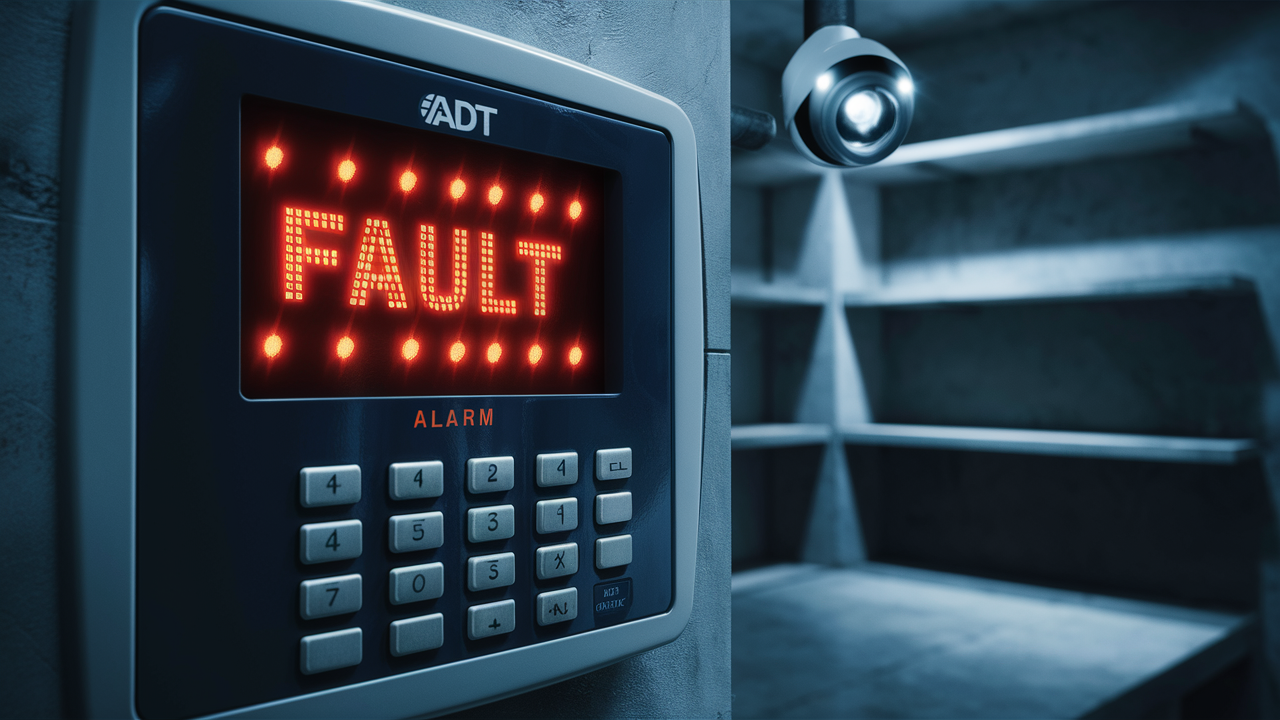
Encountering a fault on your ADT alarm system can be unsettling, but understanding how to clear it efficiently is key to restoring your peace of mind. This guide provides a comprehensive, step-by-step approach to diagnosing and resolving common ADT alarm faults, ensuring your home security remains robust.
Understanding ADT Alarm Faults
ADT alarm systems are sophisticated pieces of technology designed to protect your home and loved ones. Like any electronic system, they can occasionally encounter issues that manifest as "faults." These faults are essentially the system's way of communicating that something is not operating as intended. Recognizing the nature of these faults is the first step towards resolving them effectively. ADT systems typically employ a central control panel, various sensors (door/window contacts, motion detectors, glass break sensors), and communication modules to connect to the ADT monitoring center. A fault can originate from any of these components or the communication link itself.
The primary purpose of a fault notification is to alert the user to a potential problem that could compromise the system's ability to function correctly. This could range from a minor issue, like a low battery in a sensor, to a more significant problem, such as a communication failure with the monitoring center. Understanding the specific fault message or code displayed on your ADT control panel is crucial, as it provides vital clues for diagnosis. ADT utilizes a variety of control panels, and the exact wording or display of faults can differ slightly between models, such as the ADT Command, ADT Safewatch, or older DSC-based systems. However, the underlying principles of fault identification and resolution remain consistent.
In 2025, the landscape of home security systems continues to evolve, with greater emphasis on smart home integration and advanced diagnostics. ADT systems, while robust, are not immune to the occasional glitch. These faults can be triggered by environmental factors (temperature fluctuations affecting sensors), power interruptions, hardware malfunctions, or even user error. For instance, a door or window sensor might report a fault if it's been dislodged or if its battery is critically low. Similarly, a communication fault could arise from a severed phone line (for older systems), an internet outage (for IP-based systems), or issues with the cellular backup module.
The impact of a fault can vary. Some faults might simply result in a persistent beeping sound or a message on the keypad, while others could disable specific zones or even the entire system. It's important to remember that a fault doesn't necessarily mean your system is completely unprotected, but it does indicate a need for attention. Proactive troubleshooting and understanding the common fault types can save you time, money, and unnecessary anxiety. By the end of this guide, you will be equipped with the knowledge to confidently address most common ADT alarm faults.
Common ADT Fault Codes and Their Meanings
ADT alarm systems communicate issues through specific fault codes or messages displayed on the control panel. Identifying these codes is the first step in diagnosing and clearing the problem. While the exact codes may vary slightly depending on your specific ADT panel model (e.g., ADT Command, Safewatch Pro, Lynx), several common fault types are frequently encountered by users. Understanding these common codes can significantly speed up the troubleshooting process.
One of the most frequent fault messages is related to **low battery power** in wireless sensors. This is often indicated by a code like "LO BATT" or a specific sensor ID followed by "LOW BATTERY." Wireless sensors, such as door/window contacts, motion detectors, and key fobs, rely on batteries to operate. When a battery level drops below a certain threshold, the sensor reports this to the main panel to prevent it from failing unexpectedly. This is a critical alert, as a sensor with a dead battery cannot detect intrusions.
Another common issue is a **communication fault**. This signifies that the alarm system is unable to communicate with the ADT monitoring center. This can be due to several reasons:
- Phone Line Fault (for landline systems): If your system uses a traditional landline for communication, a cut phone line, a busy signal, or issues with the phone service provider can trigger this fault. The code might appear as "TELCO FAULT," "LINE FAULT," or "COMM FAULT."
- Internet/IP Fault (for IP-connected systems): Modern ADT systems often use broadband internet for primary or backup communication. An internet outage, router issues, or network configuration problems can lead to an "IP FAULT" or "INTERNET FAULT."
- Cellular Module Fault: Many systems have a cellular backup. If this module malfunctions, is not properly registered, or experiences signal issues, a "CELL FAULT" or "COMM FAULT" may appear.
Tamper Faults are security alerts indicating that a sensor or the main control panel itself has been physically tampered with. This is a security feature designed to detect unauthorized access. A tamper fault is usually indicated by "TAMPER" or a specific zone number with a tamper alert. This could mean a sensor cover has been opened, or the panel has been disturbed.
Zone Faults refer to issues with specific sensors or the wiring connected to them. This can include:
- Open Circuit Fault: The system detects a break in the wiring for a wired sensor.
- Short Circuit Fault: The system detects a short in the wiring for a wired sensor.
- Sensor Malfunction: The sensor itself may be faulty or not communicating correctly with the panel.
These might be displayed as a specific zone number followed by "FAULT" or "TROUBLE."
Power Faults indicate that the system is not receiving adequate power. This could be due to a power outage, a tripped breaker, or a problem with the transformer or backup battery. Codes like "AC POWER LOSS," "LOW AC," or "SYSTEM POWER FAULT" are common. In 2025, with increased reliance on smart home devices, power fluctuations are a more common concern.
System Malfunction/General Fault: Sometimes, the system may display a generic "SYSTEM FAULT" or "TROUBLE" message without a specific code. This can indicate a more complex internal issue with the control panel itself or a combination of problems.
Communication Delay Fault: This fault can appear if the system takes too long to establish communication with the central monitoring station during an alarm event. This is often linked to broader communication issues.
Here's a simplified table for quick reference:
| Common Fault Code/Message | Likely Cause | Potential Resolution |
|---|---|---|
| LO BATT / LOW BATTERY | Wireless sensor battery is low. | Replace the battery in the affected sensor. |
| COMM FAULT / TELCO FAULT / IP FAULT | System cannot communicate with monitoring center. | Check phone line, internet connection, or cellular signal. Reboot modem/router. |
| TAMPER | Sensor or panel cover has been opened or disturbed. | Ensure all covers are securely closed. |
| ZONE FAULT / TROUBLE (with zone number) | Issue with a specific wired or wireless sensor. | Check sensor connection, battery, or physical placement. |
| AC POWER LOSS / SYSTEM POWER FAULT | No main power to the system. | Check power outlet, breaker, and transformer. |
| SYSTEM FAULT / GENERAL TROUBLE | Internal system issue. | May require professional diagnosis. |
It's important to consult your specific ADT system's user manual for the most accurate interpretation of fault codes and their corresponding troubleshooting steps. Many ADT panels allow you to silence the audible trouble beeps while you work on resolving the fault, typically by pressing the "Disarm" or "Ground" button. However, the fault message will usually remain on the display until the issue is fully cleared.
Troubleshooting Steps for ADT Alarms
When your ADT alarm system displays a fault, it's natural to feel a sense of urgency. However, a methodical approach to troubleshooting can help you identify and resolve the issue efficiently. These steps are designed to guide you through common scenarios, helping you to clear a fault on your ADT alarm system without necessarily needing immediate professional assistance. Always remember to prioritize safety and consult your system's manual for model-specific instructions.
Step 1: Identify the Fault Message/Code
The very first action is to observe the control panel. Note down the exact message or code displayed. Is it a specific zone number, a communication error, a low battery warning, or a general system fault? This information is critical for narrowing down the potential causes. For example, a message like "Zone 5 Low Battery" is much more specific than a generic "Trouble" alert.
Step 2: Silence the Trouble Beeps (Optional but Recommended)
Most ADT panels emit an audible beep sequence to alert you to a trouble condition. To reduce nuisance noise while you troubleshoot, you can usually silence this by pressing the "Disarm" or "Ground" button once or twice. This action typically silences the beeping but does not clear the fault message from the display. The fault will remain until the underlying issue is resolved.
Step 3: Consult Your User Manual
Your ADT system came with a user manual, and it's your best friend in these situations. Locate the section on "Troubleshooting," "Faults," or "Error Codes." This will provide a definitive list of codes specific to your panel and detailed instructions for addressing each one. If you don't have a physical copy, you can often find a PDF version by searching online for your specific ADT panel model number (e.g., "ADT Command user manual PDF").
Step 4: Address Common Faults Systematically
Based on the fault message, proceed with the relevant troubleshooting steps:
- Low Battery Faults (e.g., "LO BATT"):
- Identify the specific sensor mentioned in the fault message.
- If no specific sensor is indicated, you may need to cycle through the system's sensor list to find the one with a low battery.
- Obtain the correct type of replacement battery for that sensor (check the sensor itself or your manual). Common types include CR2032, CR123A, or AA/AAA alkaline batteries.
- Carefully open the sensor housing, remove the old battery, and insert the new one, ensuring correct polarity.
- Close the sensor housing securely.
- On the control panel, you may need to press the "Disarm" or "Bypass" button twice to acknowledge the battery change and clear the fault.
- Communication Faults (e.g., "COMM FAULT," "TELCO FAULT," "IP FAULT"):
- For Landline Systems: Check if your phone line is active. Ensure the phone cord is securely plugged into the alarm panel's designated port and the wall jack. Listen for a dial tone. If there's no dial tone, contact your phone service provider.
- For IP/Broadband Systems: Verify your home internet connection is working. Check your modem and router. Try rebooting your modem and router by unplugging them for 30 seconds and then plugging them back in. Ensure the Ethernet cable connecting the panel to the router is secure.
- For Cellular Systems: Ensure the system has a good cellular signal. This is harder for users to check directly but might be indicated by a signal strength indicator on some panels.
- After checking and potentially resolving the connectivity issue, you might need to prompt the system to re-establish communication. This can sometimes be done by arming and disarming the system, or by following specific panel instructions to send a test signal.
- Tamper Faults (e.g., "TAMPER"):
- This fault usually means a sensor cover or the main control panel cover has been opened or is not securely closed.
- Go to the affected sensor or the main panel.
- Ensure all covers are firmly snapped or screwed shut.
- Once the cover is secured, the tamper fault should clear automatically or after a system reset (arming/disarming).
- Zone Faults (e.g., "ZONE 3 FAULT"):
- For Wired Sensors: This could indicate a wiring issue (break or short). Check the wiring between the sensor and the panel for any visible damage. For more advanced users, checking the terminal connections at the panel might be necessary, but exercise caution.
- For Wireless Sensors: This might indicate a sensor malfunction or a connectivity issue. Try replacing the battery first. If the fault persists, the sensor itself might need replacement. Ensure the sensor is within range of the control panel.
- Physical Obstruction: For motion detectors, ensure they are not obstructed or triggered by moving objects like curtains or pets (if not pet-immune). For door/window sensors, ensure the door or window is fully closed and the sensor is properly aligned.
- Power Faults (e.g., "AC LOSS," "SYSTEM POWER FAULT"):
- Check if the alarm system's transformer is plugged into a working power outlet.
- Verify that the circuit breaker supplying power to the outlet hasn't tripped.
- If the main power is out, the system should be running on its backup battery. A "SYSTEM POWER FAULT" might indicate a problem with the transformer, the main board, or the backup battery itself is failing.
- If the fault persists after confirming power, the backup battery may need replacement. These typically last 3-5 years.
Step 5: System Reboot/Reset
In some cases, a simple system reboot can resolve transient software glitches. The procedure varies by panel, but often involves:
- Disarming the system.
- Unplugging the transformer from the wall outlet.
- Disconnecting the backup battery (usually a red and black wire connected to a rectangular battery).
- Waiting for at least 60 seconds.
- Reconnect the backup battery.
- Plug the transformer back into the wall outlet.
- Allow the system to fully power up and re-initialize.
This process effectively resets the system's internal components and can clear certain types of faults.
Step 6: Test the System
Once you believe you have resolved the fault, it's crucial to test the system. Arm the system, then trigger a sensor (e.g., open a protected door or window) to ensure it registers correctly. If you have a cellular or IP connection, consider placing a test call to the ADT monitoring center (follow their specific procedure for placing the system in test mode to avoid dispatch). This confirms that the system is functioning and communicating as expected.
If the fault persists after following these steps, or if you are uncomfortable performing any of them, it is time to contact ADT support.
Clearing Specific ADT Faults
While general troubleshooting covers many scenarios, certain ADT alarm faults require more specific actions to clear. Understanding these nuances can save you considerable time and frustration. The key is to match the fault code or symptom to the appropriate resolution strategy. In 2025, with more interconnected systems, understanding communication pathways is particularly important.
Clearing Low Battery Faults
Symptom: "LO BATT" or "LOW BATTERY" message on the keypad, often accompanied by a specific zone number.
Resolution Steps:
- Identify the Sensor: The panel usually indicates which sensor has a low battery. If not, you may need to navigate through the panel's menus to view sensor status.
- Obtain the Correct Battery: Check the sensor's casing or your manual for the exact battery type (e.g., CR2032, CR123A, AA). Using the wrong battery can damage the sensor or prevent it from working.
- Replace the Battery:
- Carefully open the sensor housing. This might involve sliding a cover, using a small screwdriver, or pressing a release tab.
- Note the orientation of the old battery.
- Remove the old battery and dispose of it properly.
- Insert the new battery, ensuring the positive (+) and negative (-) terminals are correctly aligned.
- Close the sensor housing securely.
- Acknowledge the Change: Return to the control panel. Often, pressing the "Disarm" button twice, or a specific "Reset" or "Bypass" function, will clear the low battery fault from the display. Some systems automatically clear the fault once the new battery is detected.
Example: If zone 3 shows "LOW BATTERY," and it's a door sensor, you'll need to replace the battery in that specific door sensor. After replacement, pressing "Disarm" twice should clear the message.
Clearing Communication Faults
Symptom: "COMM FAULT," "TELCO FAULT," "IP FAULT," "NETWORK FAULT," or similar messages.
Resolution Steps (Landline):
- Check Phone Line: Ensure the phone line connected to the alarm panel is active and has a dial tone. If you use a VoIP service, ensure your internet is stable.
- Verify Connections: Make sure the phone cord is securely plugged into both the alarm panel and the wall jack.
- Test with a Phone: Plug a standard phone into the wall jack to confirm the line is working.
- Reboot Modem/Router (if applicable): If your landline is delivered via your internet service (VoIP), reboot your modem and router.
- Prompt Re-communication: After verifying connectivity, arm and then disarm the system. This often triggers the panel to attempt re-establishing communication.
Resolution Steps (IP/Broadband):
- Check Internet Status: Confirm your home internet is operational. Try browsing the web on another device.
- Reboot Network Equipment: Unplug your modem and router for 30 seconds, then plug them back in. Wait for them to fully restart.
- Check Cable Connections: Ensure the Ethernet cable connecting the alarm panel to your router is securely plugged in at both ends.
- Check Panel Network Settings: In rare cases, network settings on the panel might need to be verified or reset. This usually requires specific panel knowledge or professional assistance.
- Prompt Re-communication: Arm and disarm the system.
Resolution Steps (Cellular Backup):
- Check Signal Strength: Some panels display cellular signal strength. If it's low, try to identify potential obstructions or interference.
- Reboot Panel: A system reboot (as described in the troubleshooting section) can sometimes resolve cellular module glitches.
- Contact ADT: If the fault persists, it might indicate an issue with the cellular module itself or the cellular network. ADT support will need to check the module's status remotely.
Example: If your ADT Command panel shows "IP FAULT" and your home internet is down, the resolution is to fix your internet connection. Once restored, rebooting the router and then arming/disarming the alarm should clear the fault.
Clearing Tamper Faults
Symptom: "TAMPER" message on the keypad, often with a zone number.
Resolution Steps:
- Locate the Tampered Device: The fault message usually indicates which sensor or panel is involved.
- Secure the Cover: Go to the indicated device. Ensure its cover is properly closed and latched. For many sensors, this involves snapping the front cover onto the backplate. For the main panel, ensure its casing is securely fastened.
- Acknowledge: Once the cover is secure, the tamper fault should clear automatically. If not, arming and disarming the system often resets the tamper detection.
Example: If a motion detector shows a "TAMPER" fault, check if its cover is loose. Snap it back into place. The fault should disappear.
Clearing Zone Faults (Non-Battery Related)
Symptom: "ZONE X FAULT" or "ZONE X TROUBLE" (where X is a zone number), and it's not a low battery issue.
Resolution Steps (Wired Sensors):
- Check for Damage: Visually inspect the wiring leading to the sensor for any cuts, nicks, or loose connections.
- Check Sensor Placement: Ensure the sensor is properly mounted and hasn't been dislodged.
- Test Sensor Function: If it's a door/window sensor, ensure the door/window closes properly and the magnet and sensor are aligned. If it's a motion detector, ensure it's not obstructed and is correctly positioned.
- Professional Inspection: For wired systems, a zone fault often indicates a wiring problem (open or short circuit) that may require a technician to diagnose and repair.
Resolution Steps (Wireless Sensors):
- Check Battery: Even if not explicitly a "LO BATT" message, a weak battery can sometimes cause intermittent communication issues leading to a zone fault. Try replacing the battery.
- Check Sensor Range: Ensure the sensor is within the optimal communication range of the control panel. Walls and metal objects can interfere with the signal.
- Reset Sensor: Some wireless sensors have a small reset button or require a specific sequence to re-pair with the panel. Consult your manual.
- Test Sensor: Try arming the system and then triggering the sensor to see if it registers.
Example: A "ZONE 7 FAULT" on a basement window sensor might mean the sensor has become loose or the wiring is damaged. If it's wireless, try a new battery and ensure it's within range.
Clearing System Power Faults
Symptom: "AC LOSS," "SYSTEM POWER FAULT," "LOW AC," or similar.
Resolution Steps:
- Check Main Power: Ensure the alarm system's transformer is plugged into a working electrical outlet. Test the outlet with another device.
- Check Circuit Breaker: Locate the circuit breaker panel for your home and check if the breaker controlling the alarm system's outlet has tripped. Reset it if necessary.
- Check Transformer: The small plug-in transformer that powers the system might be faulty. If you have a multimeter and are comfortable, you can test its output voltage, but this is often best left to a technician.
- Check Backup Battery: If the system is receiving AC power but still reports a power fault, the backup battery may be completely dead or the charging circuit is faulty. Replace the backup battery (typically a 12V sealed lead-acid battery).
Example: If your ADT panel shows "AC LOSS" during a power outage, this is normal as it switches to battery. However, if it shows "AC LOSS" when the power is clearly on, check the outlet and breaker. If it shows "SYSTEM POWER FAULT" even with AC power, the transformer or battery is likely the culprit.
By systematically addressing these specific fault types, you can often resolve common issues yourself. However, always remember that complex problems or persistent faults may require the expertise of an ADT technician.
When to Call ADT Support
While this guide empowers you to tackle many common ADT alarm faults, there are definitive situations where professional intervention is not just recommended, but necessary. Recognizing these triggers will save you time, prevent potential damage to your system, and ensure your security remains uncompromised. In 2025, ADT's support infrastructure is designed to handle a wide range of issues, from remote diagnostics to on-site service calls.
Persistent Faults After Troubleshooting: If you have diligently followed the troubleshooting steps for a specific fault (low battery, communication error, zone fault, etc.) and the message on your control panel remains unchanged, it's a strong indicator that the issue is beyond simple user-level fixes. This could point to a faulty component that needs replacement, a more complex wiring issue, or a problem with the system's internal programming.
Multiple Simultaneous Faults: If your system displays several different fault messages at once, or if a general "SYSTEM FAULT" or "GENERAL TROUBLE" message appears without any specific indicators, it suggests a systemic problem. This could be related to the main control panel itself, a power supply issue affecting multiple components, or a communication breakdown within the system's internal network. Attempting to fix multiple issues simultaneously can be confusing and may exacerbate the problem.
Suspected Hardware Failure: If a sensor has been physically damaged (e.g., by impact, water, or extreme temperature), or if the control panel itself appears damaged, do not attempt to repair it. Contact ADT support immediately. Continuing to use damaged equipment can be a security risk and may cause further damage to the system.
Communication Issues You Cannot Resolve: For communication faults, if you've confirmed your home internet or phone line is working correctly, and rebooting your network equipment hasn't helped, the issue might lie with the ADT communication module (cellular or IP) or with ADT's network. ADT technicians can remotely test and diagnose these modules.
System Not Responding: If your control panel is completely unresponsive – the screen is blank, and no buttons work – this points to a critical power issue or a complete system failure. Do not attempt to open the panel yourself unless you are trained to do so. ADT support will guide you through basic power checks or schedule a service visit.
False Alarms Due to Faults: If a fault condition is causing your alarm system to trigger false alarms, this is a critical issue that needs immediate attention. Persistent false alarms can lead to fines from local authorities and erode your confidence in the system. ADT can help diagnose the fault causing the false alarms and rectify it.
When You Feel Uncomfortable or Unsure: Your comfort level and technical expertise are paramount. If at any point you feel unsure about a troubleshooting step, or if the process seems too complex, it is always best to err on the side of caution and call ADT. Security systems are complex, and improper handling can lead to further issues.
Regular System Check-ups: While not strictly a "fault," consider scheduling periodic check-ups with ADT, especially if your system is older or if you've recently made changes to your home network. This proactive approach can identify potential issues before they escalate into faults.
How to Contact ADT Support:
- Phone: ADT offers 24/7 customer support. You can find the relevant phone number on your ADT bill, your ADT account portal, or by searching "ADT customer service number" online.
- Online Portal/App: Many ADT customers can manage their accounts, report issues, and even schedule service appointments through the ADT customer portal or the ADT mobile app.
When you call ADT support, be prepared to provide your account information and a clear description of the fault message and any troubleshooting steps you have already taken. This will help the support representative assist you more efficiently. For 2025, ADT continues to invest in remote diagnostic tools, meaning many issues can be resolved over the phone without an on-site visit.
Preventative Maintenance for ADT Systems
Proactive maintenance is the cornerstone of a reliable ADT alarm system. By implementing a few simple preventative measures, you can significantly reduce the likelihood of encountering faults, minimize downtime, and ensure your system operates at peak performance. In the evolving security landscape of 2025, a well-maintained system is more critical than ever for seamless integration with smart home technology and consistent protection.
Regularly Check Sensor Batteries:
- Frequency: While ADT systems typically alert you to low batteries, it's good practice to proactively check them every 6-12 months, especially for critical sensors like those on main entry points.
- Action: Note the battery type for each sensor and keep spares on hand. Replace batteries before they become critically low. Many wireless sensors have an expected battery life of 1-3 years, depending on usage and environmental factors.
Test Your System Periodically:
- Frequency: Monthly testing is generally recommended.
- Action: Arm your system and then trigger each sensor one by one (e.g., open a door, walk past a motion detector). Ensure the panel registers the event correctly. If you have cellular or IP communication, place your system in "Test Mode" with ADT before testing to avoid unnecessary dispatch. This confirms the system is communicating with the monitoring center.
Maintain Your Control Panel:
- Cleaning: Gently dust the control panel and keypad regularly with a soft, dry cloth. Avoid using harsh chemicals or excessive moisture.
- Power Source: Ensure the transformer is securely plugged into a reliable power outlet that is not controlled by a light switch. Periodically check that the outlet is functioning.
Inspect Wiring and Connections (for Wired Systems):
- Frequency: Annually or if you notice any unusual behavior from a specific zone.
- Action: Visually inspect visible wiring for damage, fraying, or loose connections. Ensure sensors are securely mounted. If you have a wired system and are comfortable, periodically check terminal connections at the panel for corrosion or looseness, but exercise caution.
Monitor Communication Links:
- Landline: Ensure your phone line is active and has a consistent dial tone. If you use VoIP, ensure your internet service is stable.
- IP/Broadband: Keep your modem and router firmware updated. Periodically reboot your network equipment to ensure optimal performance. Ensure the Ethernet cable connecting the panel to the router is secure and undamaged.
- Cellular: While less user-serviceable, be aware of any significant changes in your environment that might affect cellular signal strength (e.g., new construction nearby).
Keep Software/Firmware Updated:
- For modern ADT systems (like ADT Command), ensure the control panel's firmware is kept up-to-date. ADT often pushes updates remotely, but sometimes user prompts or technician visits are required. Updated firmware can fix bugs and improve performance.
Understand Your System's Limitations:
- Be aware of the range limitations of wireless sensors and potential interference sources (e.g., large metal objects, other wireless devices).
- Ensure motion detectors are placed appropriately to avoid false triggers from pets, heat sources, or moving objects.
Document Everything:
- Keep a log of any faults, troubleshooting steps taken, and maintenance performed. Note down battery replacement dates. This record is invaluable for diagnosing recurring issues and for providing information to ADT support.
By integrating these preventative maintenance practices into your routine, you empower yourself to maintain a robust and reliable ADT alarm system. This proactive approach not only minimizes the chances of encountering faults but also ensures your home security system is always ready when you need it most.
Conclusion
Effectively clearing a fault on your ADT alarm system hinges on understanding the fault codes, employing systematic troubleshooting, and knowing when to seek professional help. From low battery warnings to communication errors, most common issues can be resolved with the right approach. Regularly checking sensor batteries, performing system tests, and maintaining your communication links are crucial preventative measures that significantly reduce the likelihood of future faults. Remember that your ADT user manual is an indispensable resource, offering specific guidance tailored to your system. If you encounter persistent issues, multiple simultaneous faults, or feel uncertain about any troubleshooting step, contacting ADT support is the most prudent course of action. By combining your own diligence with ADT's expertise, you can ensure your home security system remains a reliable guardian for your peace of mind.





