Connecting your Vivint camera to your phone is a crucial step for maximizing its security benefits. This guide provides a clear, step-by-step process to ensure you can easily access live feeds, receive alerts, and manage your cameras remotely, enhancing your home's safety and your peace of mind.
Understanding Vivint Cameras and Their Connectivity
Vivint's smart home security ecosystem is designed for seamless integration, and their cameras are a cornerstone of this system. Unlike standalone DIY cameras, Vivint cameras are typically part of a professionally installed security system. This means their connection to your phone is managed through the central Vivint hub and the dedicated Vivint app. Understanding this distinction is key to a smooth setup process.
How Vivint Cameras Work
Vivint cameras, whether indoor or outdoor models, are designed to capture high-definition video footage. They connect wirelessly to your home's Vivint Smart Hub, which in turn communicates with Vivint's cloud servers. This cloud connection is what enables remote access via your smartphone or tablet. The Vivint app acts as the bridge, allowing you to view live streams, access recorded clips, receive motion detection alerts, and even communicate through two-way audio (on supported models).
The Role of the Vivint App
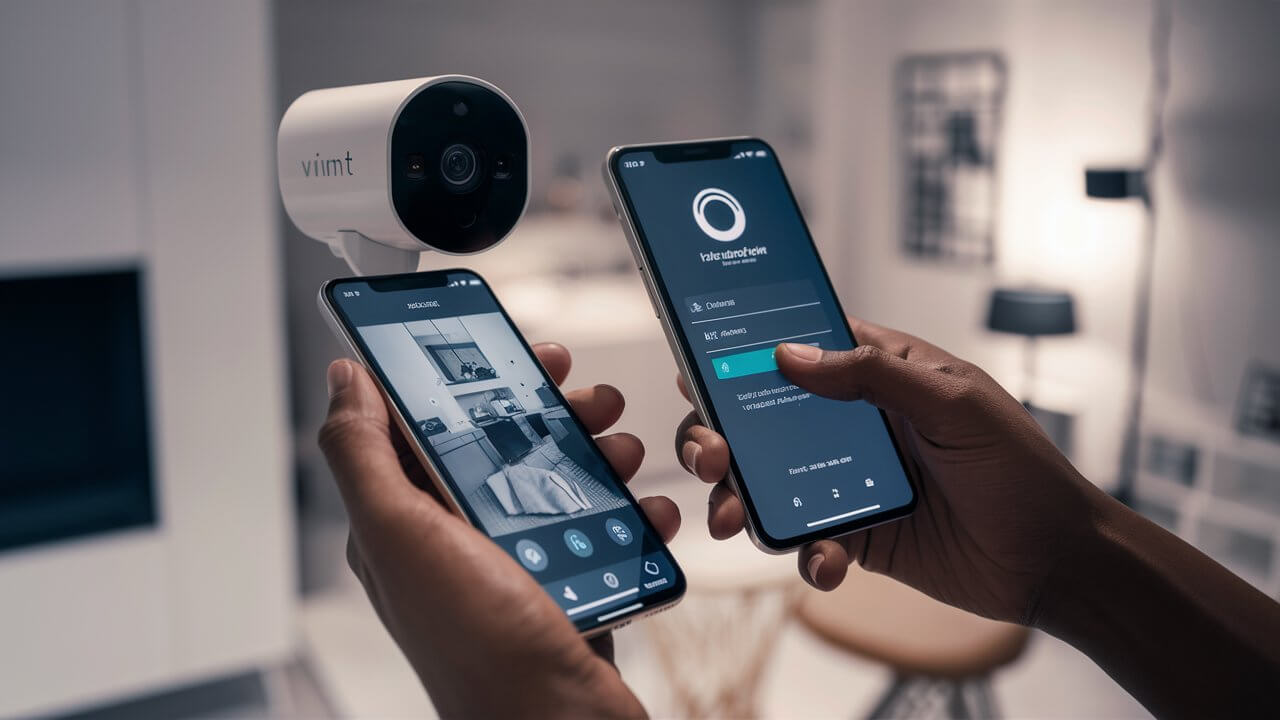
The Vivint app is your primary interface for interacting with your cameras and the entire Vivint security system. It's available for both iOS and Android devices. Once your cameras are linked to your Vivint account, the app will display them, allowing for real-time monitoring and control. The app also manages notifications, playback of recorded events, and settings customization for each camera.
Connectivity Requirements
For your Vivint cameras to connect to your phone, several components must be in place and functioning correctly:
- Vivint Smart Hub: This is the central brain of your Vivint system. It needs to be powered on and connected to your home's internet (usually via Wi-Fi or Ethernet).
- Home Wi-Fi Network: A stable and reliable Wi-Fi connection is essential for the Smart Hub to communicate with Vivint's servers and for the cameras to transmit data.
- Vivint Account: You'll need an active Vivint service account, linked to your home system.
- Vivint App: Downloaded and installed on your smartphone or tablet.
- Internet Connection on Phone: Your phone needs an active internet connection (Wi-Fi or cellular data) to access the Vivint app and stream video.
The initial setup and linking of cameras to your Vivint account are typically handled by a Vivint technician during installation. However, if you're adding new cameras or troubleshooting, understanding these components is vital.
Pre-Connection Checklist: What You Need
Before you begin the process of connecting your Vivint camera to your phone, it's essential to ensure you have all the necessary prerequisites in place. This will prevent potential roadblocks and ensure a smoother, more efficient setup. Think of this as your essential preparation guide.
Essential Hardware and Software
- Vivint Smart Hub: Ensure your Vivint panel is powered on, functioning correctly, and has a stable internet connection. If it's offline, your cameras won't be able to communicate with Vivint's servers, and thus, won't be accessible via the app.
- Vivint Cameras: Confirm that your Vivint cameras are properly installed and powered on. For outdoor cameras, this means they are connected to their power source. For indoor cameras, they should be plugged in and within range of the Smart Hub's wireless signal.
- Smartphone or Tablet: Have your primary mobile device ready. This device will be used to download and operate the Vivint app.
- Vivint App Installed: Download the latest version of the Vivint app from the Apple App Store (for iOS devices) or Google Play Store (for Android devices).
- Vivint Account Credentials: You will need your username and password for your Vivint account. This is the same login information used for the Vivint customer portal.
Network and Internet Requirements
- Stable Home Wi-Fi Network: Your Vivint Smart Hub relies on your home's Wi-Fi network to connect to the internet. Ensure your Wi-Fi is operational and providing a strong signal, especially near the Smart Hub. If you're experiencing Wi-Fi issues, it's best to address them before proceeding.
- Internet Service: A reliable internet service is crucial. Vivint recommends a minimum upload speed of 1-2 Mbps per camera for smooth streaming and recording. For a system with multiple cameras, higher speeds are beneficial. According to recent data from 2025, the average household internet speed in the US has increased significantly, with many exceeding 100 Mbps download, but upload speeds remain a critical factor for video surveillance.
- Router Accessibility: While not always necessary for the initial phone connection (as it's app-driven), understanding your router's settings can be helpful for advanced troubleshooting. Ensure your router is not blocking Vivint's services.
Account and System Status
- Active Vivint Service: Your Vivint security service must be active and in good standing. If your service is suspended or inactive, you will not be able to access your cameras remotely.
- Camera Linked to Account: Vivint cameras are designed to be linked to your specific Vivint account by a technician. If you have recently moved or had your system installed, confirm with Vivint support that your cameras are correctly associated with your account.
- System Updates: Ensure both your Vivint Smart Hub firmware and the Vivint app are up-to-date. Outdated software can sometimes cause compatibility issues. The Vivint app typically prompts for updates automatically, but it's good practice to check manually if you encounter problems.
By ticking off each item on this checklist, you'll be well-prepared to establish a successful connection between your Vivint cameras and your phone, unlocking the full potential of your home security system.
Step-by-Step Guide: Connecting Vivint Cameras via the Vivint App
Connecting your Vivint cameras to your phone is primarily managed through the Vivint app. Since Vivint systems are professionally installed, the initial linking of cameras to your account is usually done by the technician. This guide focuses on how to access and view these already-connected cameras through the app, and what to do if they aren't appearing.
Accessing Your Cameras in the Vivint App
Once your Vivint system is installed and activated, your cameras should automatically appear in the Vivint app. Here’s how to access them:
- Open the Vivint App: Launch the Vivint app on your smartphone or tablet.
- Log In: Enter your Vivint account username and password. If you've enabled biometric login (fingerprint or facial recognition), you can use that for quicker access.
- Navigate to Cameras: Once logged in, you should see a dashboard or menu. Look for an option labeled "Cameras," "Video," or a similar icon. Tap on it.
- View Live Feeds: You will see a list of your connected Vivint cameras (e.g., "Front Door Camera," "Backyard Camera"). Tap on the name of a specific camera to view its live video feed.
- Switch Between Cameras: Within the camera view, you can usually swipe left or right, or select from a dropdown menu, to switch to other cameras connected to your system.
What If Your Cameras Don't Appear?
If you open the Vivint app and your cameras are not listed or show as offline, don't panic. There are several common reasons and solutions:
Step 1: Check Camera Power and Status
- Physical Inspection: Visually inspect each camera. Ensure outdoor cameras are securely mounted and their power cables are firmly connected. Indoor cameras should be plugged into a working power outlet.
- Indicator Lights: Some Vivint cameras have indicator lights that show their status. Consult your camera's specific manual or Vivint's support resources to understand what these lights mean (e.g., solid green might indicate a good connection, red might indicate an error).
Step 2: Verify the Vivint Smart Hub Status
- Check the Panel: Go to your Vivint Smart Hub panel. Ensure it's powered on and displays a normal status (e.g., "Ready," "Disarmed").
- Internet Connection: Confirm the Smart Hub has a stable internet connection. On the panel, navigate to settings (usually requires a PIN) and check the network status. If it's offline, troubleshoot your home Wi-Fi or Ethernet connection. A stable internet connection is paramount for remote access, with 2025 data showing that over 90% of households rely on broadband for smart home devices.
Step 3: Check the Vivint App and Account
- App Updates: Ensure you have the latest version of the Vivint app installed. Go to your device's app store and check for updates.
- Log Out and Log In: Sometimes, a simple log-out and log-in can resolve temporary glitches.
- Account Verification: Confirm that your Vivint account is active and in good standing. You can check this via the Vivint customer portal online or by contacting Vivint customer support.
Step 4: Restart Devices
- Restart Smart Hub: If the panel is unresponsive or showing errors, try restarting it. This often involves a specific procedure outlined in your Vivint manual or by support.
- Restart Router: Power cycling your home router can resolve many network-related issues that might be affecting the Smart Hub's connection. Unplug your router, wait 30 seconds, and plug it back in.
Step 5: Contact Vivint Support
If none of the above steps resolve the issue, it's time to contact Vivint customer support. They have the tools to remotely diagnose your system and can guide you through more advanced troubleshooting or schedule a technician visit if necessary. When contacting them, be prepared to provide your account information and describe the issue in detail.
Using the Vivint App for Camera Management
Once your cameras are successfully connected and visible in the app, you can leverage various features:
- Live View: Access real-time video streams from any of your cameras.
- Playback: Review recorded footage. Vivint's cloud storage allows you to access clips triggered by motion detection or other events. The length of available recordings depends on your service plan.
- Notifications: Customize push notifications for motion detection, sound detection, or other alerts. You can often set specific times or zones for motion detection to reduce false alarms.
- Two-Way Audio: If your camera supports it, you can speak and listen through the camera directly from the app. This is useful for communicating with visitors or deterring intruders.
- Camera Settings: Depending on the camera model and your service plan, you might be able to adjust settings like video quality, motion sensitivity, and notification preferences within the app.
By following these steps, you should be able to connect to and effectively use your Vivint cameras through the Vivint app, ensuring you always have eyes on your home.
Troubleshooting Common Connection Issues
Even with a professionally installed system, connection issues can arise. Fortunately, most problems with connecting your Vivint camera to your phone are resolvable with a systematic approach. This section delves into common problems and their solutions, helping you get back to monitoring your home quickly.
Issue 1: Cameras Show as "Offline" in the App
This is perhaps the most frequent issue. It means the Vivint app cannot establish a connection with the camera through the Smart Hub and Vivint's servers.
Possible Causes and Solutions:
- Power Interruption:
- Check Power Source: Ensure the camera is plugged in and receiving power. For outdoor cameras, check the power adapter and the outlet. For indoor cameras, verify the power cord is secure.
- Test Outlet: Plug another device into the same outlet to confirm it's working.
- Internet Connectivity Issues:
- Verify Home Internet: Check if your home internet is working on other devices. If not, troubleshoot your modem and router.
- Smart Hub Connection: Ensure the Vivint Smart Hub is connected to the internet. Check its network status on the panel. If it's disconnected, restart your router and modem. Vivint's system relies heavily on stable broadband; in 2025, reports indicate that over 95% of households have access to broadband, but intermittent service can still occur.
- Wi-Fi Signal Strength: A weak Wi-Fi signal between the Smart Hub and your router can cause intermittent connectivity. Consider moving your router closer to the hub or using a Wi-Fi extender if necessary.
- Vivint Server Issues:
- Check Vivint Status: Occasionally, Vivint's servers may experience temporary outages. Check Vivint's official social media channels or support website for any reported issues.
- Camera Hardware Malfunction:
- Contact Support: If power and internet are confirmed to be stable, the camera itself might be faulty. Contact Vivint support for further diagnosis.
Issue 2: Live Feed is Laggy or Freezing
A choppy or frozen live feed indicates a problem with data transmission, usually due to insufficient bandwidth or network congestion.
Possible Causes and Solutions:
- Insufficient Upload Speed:
- Test Upload Speed: Run an internet speed test on a device connected to your home network. Vivint recommends at least 1-2 Mbps upload speed per camera. If your upload speed is consistently low, contact your Internet Service Provider (ISP).
- Reduce Bandwidth Usage: If other devices on your network are heavily using the internet (e.g., streaming 4K video, large downloads), this can impact camera performance. Try pausing other high-bandwidth activities.
- Network Congestion:
- Router Performance: An older or overloaded router may struggle to handle multiple devices. Consider upgrading your router.
- Wi-Fi Interference: Other wireless devices (microwaves, cordless phones, Bluetooth devices) can interfere with Wi-Fi signals. Try to minimize interference or reposition devices.
- Camera Placement:
- Signal Strength: Ensure the camera has a strong wireless signal to the Smart Hub. If it's too far or there are many obstructions, performance can suffer.
Issue 3: Not Receiving Motion Detection Alerts
If your cameras are online and showing video, but you're not getting notifications when motion is detected, the issue lies with the alert settings or the detection configuration.
Possible Causes and Solutions:
- Notification Settings in App:
- Check App Preferences: Open the Vivint app, go to settings, and ensure notifications for video events are enabled. Verify that your phone's system settings also allow notifications from the Vivint app.
- Specific Camera Alerts: Ensure alerts are enabled for the specific camera you expect them from.
- Motion Detection Sensitivity:
- Adjust Sensitivity: The motion detection sensitivity might be set too low, or the camera might be in an area with minimal movement. Access camera settings in the app and adjust the sensitivity.
- Detection Zones: If your camera supports detection zones, ensure the zones are configured correctly to cover the areas where you expect motion.
- Recording Rules:
- Verify Rules: Check if there are any specific rules or schedules set up that might disable notifications during certain times.
- Account or Service Issues:
- Cloud Storage: Some advanced features, including detailed event notifications, may depend on your Vivint service plan and cloud storage capabilities. Ensure your plan supports these features.
Issue 4: Two-Way Audio Not Working
If you can see and hear from your camera but cannot speak through it, or vice-versa, there might be a microphone or speaker issue, or a setting problem.
Possible Causes and Solutions:
- Camera Compatibility:
- Model Support: Confirm that your specific Vivint camera model supports two-way audio. Not all models do.
- App Permissions:
- Microphone Access: Ensure the Vivint app has permission to access your phone's microphone. Check your phone's app settings.
- Audio Settings:
- Enable Audio: Within the camera's settings in the Vivint app, make sure two-way audio is enabled.
- Volume Levels: Check if volume levels are appropriately set within the app.
- Network Latency:
- High Latency: Very high network latency can sometimes disrupt real-time audio communication. A stable, fast internet connection is crucial.
General Troubleshooting Tips
- Keep Software Updated: Regularly update the Vivint app and ensure your Smart Hub firmware is current. Updates often include bug fixes that can resolve connectivity problems.
- Document Changes: When making adjustments to settings or network configurations, keep a record of what you changed. This helps if you need to revert a setting.
- Use Vivint Support Resources: Vivint's website offers extensive knowledge bases, FAQs, and video tutorials that can be invaluable for troubleshooting specific issues.
By systematically working through these common issues, you can often resolve most connection problems yourself. If you're unable to fix the problem, don't hesitate to reach out to Vivint's professional support team.
Leveraging Advanced Features and Tips
Once you've successfully connected your Vivint cameras to your phone, you've unlocked a powerful layer of home security and convenience. But are you using the system to its full potential? This section explores advanced features and provides practical tips to optimize your Vivint camera experience in 2025-26.
Maximizing Motion Detection and Alerts
Motion detection is the backbone of proactive security. Fine-tuning it can significantly reduce false alarms and ensure you're alerted to genuine events.
- Custom Detection Zones: Most Vivint cameras allow you to define specific zones within the camera's field of view where motion detection should be active. For example, on an outdoor camera, you might draw zones around your driveway and front porch but exclude a busy sidewalk or a swaying tree. This dramatically reduces irrelevant alerts.
- Sensitivity Levels: Experiment with different sensitivity settings. A setting that's too high might trigger alerts from pets or shadows, while one that's too low might miss actual events. Check the camera's performance during different times of day and adjust accordingly.
- Scheduled Alerts: Utilize the app's scheduling feature to enable or disable motion alerts during specific times. For instance, you might want alerts when you're away but not when you're home during the day.
- Person Detection (Model Dependent): Newer Vivint camera models may offer advanced AI features like person detection. If available, enable this to receive alerts only when a human is detected, further filtering out non-threatening motion.
Utilizing Two-Way Audio Effectively
Two-way audio isn't just for talking to delivery drivers; it's a versatile tool.
- Deterrence: If you see suspicious activity on your camera feed, using the two-way audio to announce your presence or ask who's there can often deter potential intruders.
- Communication: Easily communicate with family members arriving home, or provide instructions to visitors.
- Testing: Regularly test the audio quality by speaking and listening to ensure it's clear and functional.
Leveraging Video Playback and Storage
Understanding how to access and manage your recorded footage is crucial for reviewing events and providing evidence if needed.
- Cloud Storage Plans: Vivint offers different cloud storage plans. Understand the recording duration (e.g., 14 days, 30 days) and the number of cameras covered by your plan. As of 2025, cloud storage is standard, but higher tiers offer more storage and longer retention periods.
- Event Tagging: The Vivint app often categorizes recorded events (e.g., motion, person). Learn to use these filters to quickly find specific clips.
- Downloading Clips: You can typically download important video clips directly from the app to your phone or computer. Do this promptly for events you might need to save long-term.
- Sharing Footage: The app usually provides options to share recorded clips via email or text message, which can be useful for reporting incidents to authorities or sharing with others.
Integrating Cameras with the Broader Vivint Ecosystem
Vivint cameras are part of a larger smart home system. Consider how they can work with other devices.
- Smart Deterrence: Some Vivint systems can be configured to automatically turn on lights or sound an alarm when motion is detected by a camera, actively deterring unwanted visitors.
- Automation Rules: Explore creating custom automation rules. For example, if a door sensor is triggered while you're away, you could have the nearest camera automatically start recording and send you an alert.
- Voice Control: If you have a compatible smart assistant (like Google Assistant or Amazon Alexa) linked to your Vivint system, you might be able to ask it to show you a specific camera feed on a smart display.
Maintenance and Best Practices
- Regular Cleaning: Keep camera lenses clean to ensure clear footage. For outdoor cameras, this might involve occasional wiping to remove dirt, dust, or spiderwebs.
- Firmware Updates: Always keep your Vivint app and Smart Hub firmware updated. Vivint regularly releases updates that improve performance, security, and add new features.
- Network Health: Periodically check your home internet speed and router performance. A robust network is the foundation of a reliable smart home system.
- Battery Check (if applicable): For any battery-powered components associated with your cameras (e.g., some wireless sensors), check battery levels regularly via the app.
Future Trends in Smart Home Cameras (2025-26 Outlook)
The smart home camera market continues to evolve rapidly. By 2025-26, expect to see:
- Enhanced AI Capabilities: More sophisticated AI for distinguishing between people, animals, vehicles, and packages, leading to more accurate alerts.
- Improved Low-Light Performance: Better night vision technology, including color night vision, providing clearer images in dark conditions.
- Increased Integration: Deeper integration with other smart home devices and platforms, enabling more complex automation scenarios.
- Cybersecurity Focus: Continued emphasis on robust encryption and security protocols to protect user data and prevent unauthorized access.
By staying informed and actively using these advanced features, you can transform your Vivint cameras from simple monitoring devices into an integral part of a truly intelligent and secure home.
Vivint Camera vs. Competitors: A 2025-26 Overview
When considering home security, the choice of cameras is paramount. Vivint offers a compelling, professionally installed solution, but it's essential to understand how it stacks up against the DIY market in 2025-26. This comparison highlights key differences in features, cost, and user experience.
Vivint Cameras: The Professional Advantage
Vivint's camera offerings are integrated into a comprehensive smart home security system. This means they are designed to work seamlessly with other Vivint components like door/window sensors, motion detectors, and the Smart Hub.
Key Strengths:
- Professional Installation: Cameras are installed and configured by trained technicians, ensuring optimal placement and setup.
- System Integration: Cameras work in tandem with the entire Vivint ecosystem, enabling sophisticated automation and security responses.
- Dedicated Support: 24/7 professional monitoring and customer support are available.
- High-Quality Hardware: Vivint typically uses robust, high-definition cameras built for durability and performance.
- Consistent Cloud Service: Reliable cloud storage and app access are standard, managed by Vivint.
Potential Drawbacks:
- Higher Upfront Cost: The initial investment for Vivint equipment and installation is generally higher than DIY options.
- Monthly Service Fees: Access to monitoring, cloud storage, and app features requires an ongoing monthly subscription.
- Less Customization for Tech-Savvy Users: While feature-rich, the system is designed for ease of use, which can mean less granular control for advanced users compared to some DIY platforms.
DIY Camera Competitors (e.g., Arlo, Ring, Nest, Wyze)
The DIY market offers a wide range of cameras, from budget-friendly options to high-end, feature-packed devices.
Key Strengths:
- Lower Upfront Cost: Individual cameras can be purchased for significantly less than Vivint's integrated system.
- Flexibility and Scalability: Users can start with one or two cameras and add more over time as needed.
- No Mandatory Monthly Fees (for basic use): Many DIY cameras offer free cloud storage for a limited period or number of clips, or allow local storage via SD cards.
- Wide Variety of Features: The market offers specialized cameras for different needs (e.g., battery-powered, doorbell cameras, floodlight cameras).
- Open Integration (sometimes): Some DIY brands integrate with third-party smart home platforms like Google Home or Amazon Alexa.
Potential Drawbacks:
- Self-Installation: Requires users to mount, power, and configure cameras themselves, which can be challenging for some.
- Variable Reliability: Performance can depend heavily on the user's Wi-Fi network and the quality of the DIY setup.
- Fragmented Ecosystems: Managing multiple cameras from different brands can lead to a less cohesive smart home experience.
- Support Limitations: Support is often online-based or through community forums, lacking the immediate, professional support of Vivint.
- Subscription Costs for Advanced Features: While basic use might be free, advanced features like longer cloud storage, AI detection, or package detection often require paid subscriptions.
Comparison Table (2025-26 Focus)
| Feature | Vivint Cameras | DIY Competitors (General) |
|---|---|---|
| Installation | Professional | DIY (Self-installation) |
| Initial Cost | Higher (system-based) | Lower (per camera) |
| Monthly Fees | Required for full functionality (monitoring, cloud) | Optional for advanced features; basic often free |
| System Integration | High (part of a unified Vivint system) | Variable (depends on brand and platform) |
| Cloud Storage | Included in subscription, reliable | Often tiered or limited; paid subscriptions for more |
| AI Features (e.g., Person Detection) | Integrated, often standard | Varies by brand; often requires higher-tier subscription |
| Customer Support | 24/7 Professional Monitoring & Support | Online, Community Forums, Limited Phone Support |
| Hardware Quality | Generally high-end, durable | Varies widely from budget to premium |
| Warranty | Typically covered under service agreement | Varies by manufacturer (often 1-2 years) |
Who Should Choose Vivint Cameras?
Vivint cameras are an excellent choice for homeowners who:
- Prefer a fully integrated, professionally managed security system.
- Value ease of use and don't want to deal with complex self-installation or troubleshooting.
- Are looking for comprehensive home security, not just cameras.
- Want reliable 24/7 professional monitoring and support.
- Have the budget for a higher upfront investment and ongoing monthly fees.
Who Might Prefer DIY Cameras?
DIY cameras are often a better fit for individuals or renters who:
- Are on a tighter budget and want to spread costs over time.
- Are comfortable with technology and enjoy setting up their own systems.
- Only need specific camera functionalities without a full security system.
- Want maximum flexibility to choose specific brands and features.
- Are looking for temporary or less permanent solutions.
In conclusion, while DIY cameras offer affordability and flexibility, Vivint cameras provide a premium, integrated, and professionally supported experience. The decision hinges on your priorities regarding cost, convenience, and the level of integration you desire for your home security.
Conclusion
Connecting your Vivint camera to your phone is a straightforward process when approached systematically, primarily through the user-friendly Vivint app. By ensuring your system is properly set up, your network is stable, and your app is updated, you can effortlessly access live feeds, review recordings, and receive critical alerts. We've covered the essential pre-connection checks, detailed the step-by-step app usage, and provided robust troubleshooting for common issues like offline cameras or notification failures. Furthermore, exploring advanced features like custom detection zones and two-way audio maximizes the value of your investment. In the competitive landscape of 2025-26, Vivint's integrated, professionally supported approach offers a distinct advantage for those seeking a seamless and reliable home security experience. Prioritize these steps and tips to ensure your Vivint cameras are always working for you, providing peace of mind and enhanced security for your home.