How to fix ADT wifi fault?
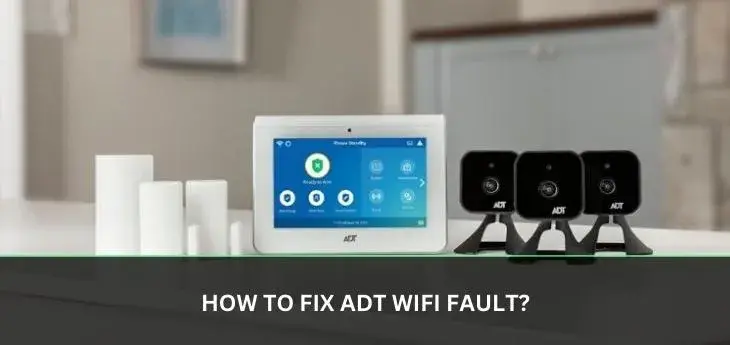
Encountering an ADT Wi-Fi fault can be frustrating, disrupting your home security. This guide provides a comprehensive, step-by-step approach to diagnosing and resolving common ADT Wi-Fi issues, empowering you to restore your system's connectivity quickly and efficiently. We aim to be your definitive resource.
Understanding ADT Wi-Fi Faults
An ADT Wi-Fi fault typically indicates that your ADT security system is unable to establish or maintain a stable connection to your home's wireless network. This connection is crucial for several reasons, including remote monitoring via the ADT Control app, receiving critical system updates, and ensuring that your system can communicate with the ADT monitoring center in the event of an alarm. When this connection is lost, you might see specific error messages on your ADT control panel, or the system might display a general "Wi-Fi Fault" or "Communication Error." In 2025, with the increasing reliance on smart home integration and app-based control, a stable Wi-Fi connection for your security system is more vital than ever. Understanding the potential root causes is the first step toward effective resolution. This guide will walk you through a systematic troubleshooting process, starting with the simplest solutions and progressing to more complex ones, ensuring you can tackle most common issues yourself before needing to contact ADT.
Common Causes of ADT Wi-Fi Faults
ADT Wi-Fi faults can stem from a variety of issues, ranging from simple network glitches to more complex hardware or environmental problems. Identifying the specific cause is key to applying the correct fix. Below are some of the most prevalent reasons your ADT system might be experiencing Wi-Fi connectivity problems:
- Router or Modem Issues: The most frequent culprits are problems with your home's internet router or modem. This could include the devices being offline, needing a reboot, experiencing firmware issues, or being too far from the ADT panel.
- Wi-Fi Signal Strength and Interference: Weak Wi-Fi signals due to distance or physical obstructions (walls, large appliances) can prevent the ADT panel from connecting reliably. Other electronic devices emitting radio frequencies can also cause interference.
- Incorrect Network Credentials: If your Wi-Fi password or network name (SSID) has changed, the ADT panel will lose its connection. It needs to be reconfigured with the new credentials.
- ADT Panel Software Glitches: Like any electronic device, the ADT panel can sometimes experience temporary software glitches that affect its network connectivity.
- Power Outages or Fluctuations: While the ADT panel has a battery backup, a prolonged or severe power issue can sometimes impact network devices or the panel's ability to reconnect after power is restored.
- ISP (Internet Service Provider) Problems: An outage or issue with your internet service provider will naturally affect your ADT system's ability to connect to the internet.
- Hardware Failures: In rare cases, there might be a hardware issue with the ADT panel's Wi-Fi module or your router.
Step 1: Basic Checks and Resets
Before diving into more complex troubleshooting, it's essential to perform a series of basic checks and resets. These steps are often the quickest and easiest way to resolve common ADT Wi-Fi faults. Many connectivity issues are temporary and can be resolved with a simple power cycle.
Check Your Internet Connection
The ADT system relies on your home's internet service. The first step is to confirm that your internet is actually working. Try browsing the web on another device connected to your home Wi-Fi. If other devices cannot connect to the internet, the problem likely lies with your router, modem, or your ISP, not specifically with your ADT system. In such cases, troubleshooting your internet service should be your priority. You can check your ISP's status page or contact them directly.
Reboot Your ADT Control Panel
A simple reboot can often clear temporary software glitches that might be preventing your ADT panel from connecting to Wi-Fi. The process for rebooting your ADT panel can vary slightly depending on the specific model you have (e.g., ADT Command, ADT Pulse). Generally, it involves the following:
- Disarm your system: Ensure your system is disarmed to avoid triggering any accidental alarms.
- Locate the power source: Find the main power adapter for your ADT panel. It's usually plugged into a wall outlet.
- Unplug the power adapter: Carefully unplug the power adapter from the wall outlet.
- Remove the backup battery (if accessible): For some models, you may need to open the panel's casing (following manufacturer instructions or consulting your manual) and disconnect the backup battery. This ensures a complete power cycle. If you are unsure how to do this safely, skip this step and proceed with just unplugging the main power.
- Wait: Leave the panel without power for at least 60 seconds. This allows any residual power to dissipate and the system to fully reset.
- Reconnect power: Plug the power adapter back into the wall outlet. If you disconnected the battery, reconnect it now.
- Wait for boot-up: The ADT panel will take a few minutes to boot up and re-establish its connections. Observe the panel for any status indicators.
Once the panel has fully rebooted, check if the Wi-Fi fault message has disappeared. If it persists, proceed to the next steps.
Check for Physical Damage or Loose Connections
Inspect the ADT control panel and any associated Wi-Fi extenders or modules for any visible signs of physical damage. Ensure all cables are securely plugged in. While less common for Wi-Fi faults, it's a good practice to rule out any obvious physical issues.
Step 2: Router and Modem Diagnostics
Your ADT system connects to the internet through your home's Wi-Fi network, which is managed by your router and modem. Issues with these devices are a primary cause of ADT Wi-Fi faults. Addressing them systematically can resolve the problem.
Power Cycle Your Router and Modem
This is the most effective troubleshooting step for network-related issues. It clears temporary errors and refreshes the connection to your ISP.
- Unplug both modem and router: Locate your modem (the device that connects to your internet line) and your Wi-Fi router (the device that broadcasts the Wi-Fi signal). Unplug the power cords from both devices. If you have a combined modem/router unit, unplug that single device.
- Wait: Allow at least 60 seconds for the devices to fully power down.
- Plug in the modem first: Plug the power cord back into your modem. Wait for all its indicator lights to stabilize, which usually takes a few minutes. This signifies that it has re-established a connection with your ISP.
- Plug in the router: Once the modem is fully online, plug the power cord back into your Wi-Fi router. Wait for its indicator lights to stabilize, indicating that it's broadcasting a Wi-Fi signal.
- Check ADT panel: After your network equipment is back online, observe your ADT panel. It should attempt to reconnect to the Wi-Fi network automatically.
This process is similar to rebooting your ADT panel but focuses on the network infrastructure your panel relies on. If your ADT system connects after this, you've likely resolved the issue.
Verify Router and Modem Status Lights
The indicator lights on your modem and router provide valuable information about their operational status. Consult your router and modem manuals for a detailed explanation of what each light signifies. Generally:
- Power light: Should be solid, indicating the device is powered on.
- Internet/WAN light: Should be solid or blinking, indicating a connection to your ISP. If it's off or red, there's an issue with your internet service.
- Wi-Fi light: Should be solid or blinking, indicating that the Wi-Fi network is active.
If the internet or WAN light on your modem is not active, the problem is with your internet service. You will need to contact your ISP.
Check Router Placement and Signal Strength
The physical location of your router significantly impacts Wi-Fi signal strength throughout your home. For optimal performance for your ADT system:
- Central location: Place your router in a central location in your home, if possible.
- Avoid obstructions: Keep the router away from thick walls (especially concrete or brick), large metal objects, and appliances that can cause interference (microwaves, cordless phones, Bluetooth devices).
- Elevated position: Placing the router on a shelf or table, rather than on the floor, can improve signal dispersion.
If your ADT panel is located far from the router, or if there are many walls in between, the signal may be too weak. Consider using a Wi-Fi extender or mesh network system to boost the signal strength in areas where your ADT panel is located. For 2025, mesh Wi-Fi systems are increasingly popular for providing consistent coverage throughout larger homes.
Ensure Correct Wi-Fi Network and Password
If you have recently changed your Wi-Fi network name (SSID) or password, your ADT system will no longer be able to connect. You will need to update the Wi-Fi settings on your ADT panel. The exact steps for this vary by ADT system model. Generally, you will need to:
- Access Wi-Fi settings on the panel: Navigate through the ADT panel's menu to find the network or Wi-Fi settings.
- Scan for available networks: The panel should scan for nearby Wi-Fi networks.
- Select your network: Choose your home Wi-Fi network from the list.
- Enter the password: Carefully enter your Wi-Fi password. Passwords are case-sensitive.
If you are unsure of the exact steps for your specific ADT panel, consult your user manual or the ADT support website. Incorrect credentials are a very common reason for persistent Wi-Fi faults.
Check Router Band (2.4 GHz vs. 5 GHz)
Most ADT systems, especially older models, are designed to connect to the 2.4 GHz Wi-Fi band. While 5 GHz offers faster speeds, it has a shorter range and is more susceptible to interference. If your router broadcasts both 2.4 GHz and 5 GHz networks (often with different SSIDs), ensure your ADT system is configured to connect to the 2.4 GHz network. If you have a single SSID for both bands (band steering), you might need to temporarily disable 5 GHz on your router or create a separate 2.4 GHz network to ensure compatibility. Check your ADT system's specifications to confirm which band it supports.
Router Compatibility and Firmware
While most modern routers are compatible with ADT systems, very old or specialized routers might present issues. Ensure your router's firmware is up-to-date. Router manufacturers regularly release firmware updates to improve performance, security, and compatibility. You can usually check for and install firmware updates through your router's web interface.
Table: Router/Modem Troubleshooting Checklist
| Symptom | Potential Cause | Action |
|---|---|---|
| No internet on any device | Modem issue, ISP outage | Check modem lights, reboot modem, contact ISP |
| Wi-Fi signal weak/unreliable | Router placement, interference, distance | Relocate router, reduce interference, consider extender |
| ADT panel cannot connect after password change | Incorrect Wi-Fi credentials | Update Wi-Fi network name and password on ADT panel |
| Intermittent connection | Router/modem needs reboot, firmware issue | Power cycle modem and router, check for firmware updates |
Step 3: ADT Panel Connectivity Checks
Once you've addressed your home network, it's time to focus on the ADT panel itself and its direct connection to Wi-Fi. This section covers specific checks related to the panel's internal settings and its interaction with the wireless network.
Check ADT Panel Network Settings
Navigate through your ADT panel's menu to find the network or Wi-Fi settings. Ensure that Wi-Fi is enabled and that the panel is attempting to connect to the correct network. Some panels allow you to view the signal strength of the Wi-Fi network it's connected to or trying to connect to. A low signal strength reading (e.g., one or two bars) can indicate a weak connection that might be causing the fault.
Example: On an ADT Command panel, you might find these settings under 'System Settings' > 'Network' > 'Wi-Fi'.
Forget and Re-add Wi-Fi Network
Similar to how you might reset network settings on a smartphone, you can often "forget" your Wi-Fi network on the ADT panel and then re-add it. This forces the panel to re-establish the connection from scratch, which can resolve corrupted network profiles.
- Locate the Wi-Fi network list: In the panel's network settings, find the list of saved or available Wi-Fi networks.
- Select your network: Highlight your home Wi-Fi network.
- Choose "Forget" or "Delete": There should be an option to remove the network from the panel's memory.
- Scan and reconnect: Perform a new scan for Wi-Fi networks and select yours again.
- Enter credentials: Re-enter your Wi-Fi network name and password accurately.
This process ensures that the panel is using fresh connection parameters for your network.
Check ADT Panel Software Updates
ADT regularly releases software updates for its security systems. These updates often include improvements to network connectivity and bug fixes. If your ADT panel is not receiving updates, it might be due to a connectivity issue, creating a catch-22. However, if your panel is capable of receiving updates and has not for some time, it's worth checking if there's a manual update option or if an update is pending. Ensure your panel is connected via Ethernet temporarily if possible, or that its Wi-Fi connection is stable enough to download updates. For 2025, keeping your system updated is paramount for security and functionality.
Test ADT Panel's Ethernet Connection (if applicable)
Some ADT systems, particularly the ADT Command system, have an Ethernet port. If your panel has this option and your router is nearby, try connecting the ADT panel directly to your router using an Ethernet cable. If the Wi-Fi fault clears when using a wired connection, it strongly suggests the issue is with the Wi-Fi signal or the panel's Wi-Fi module itself, rather than your internet service.
This is a powerful diagnostic step. If Ethernet works, you know the core internet connection is fine, and the problem lies within the wireless communication path. This might lead you to consider a permanent wired connection if feasible, or to focus troubleshooting on Wi-Fi signal boosters or the panel's Wi-Fi hardware.
Check ADT System Status via ADT Control App
If you use the ADT Control app (or the older ADT Pulse app), check the system status within the app. The app often provides more detailed information about connectivity issues. It might indicate if the panel is offline, has a weak signal, or is experiencing a specific communication error. The app can also sometimes guide you through troubleshooting steps or provide error codes that can be helpful when contacting ADT support.
Step 4: Advanced Troubleshooting and Environmental Factors
If the basic and intermediate steps haven't resolved your ADT Wi-Fi fault, it's time to consider more advanced scenarios and environmental influences that might be at play. These can include network configuration complexities and external interference.
Wi-Fi Interference
Wireless interference is a significant cause of unstable Wi-Fi connections. Many common household devices operate on the 2.4 GHz frequency band, which can clash with your Wi-Fi signal. These include:
- Microwave ovens
- Cordless phones (especially older models)
- Bluetooth devices
- Baby monitors
- Some older wireless security cameras
- Fluorescent lighting
If your ADT panel is located near any of these devices, try moving them further away or temporarily turning them off to see if the ADT Wi-Fi fault resolves. If you have a dual-band router (2.4 GHz and 5 GHz), ensure your ADT panel is connected to the 5 GHz band if it supports it and if interference is a major issue on the 2.4 GHz band. However, remember that 2.4 GHz generally offers better range.
Network Congestion
In homes with many connected devices (smart TVs, smartphones, tablets, smart home gadgets), your Wi-Fi network can become congested. This means the router has too many devices trying to communicate simultaneously, leading to slow speeds and dropped connections. While ADT systems typically use minimal bandwidth, a severely congested network can still impact their reliability. Consider upgrading your router to a newer model with better capacity for handling multiple devices, especially if you have a large number of smart home devices. Wi-Fi 6 and Wi-Fi 6E routers, common in 2025, offer improved performance in crowded wireless environments.
Router Settings: MAC Filtering, Firewall, and DHCP
Advanced router settings can sometimes inadvertently block your ADT system. Check the following:
- MAC Address Filtering: If MAC address filtering is enabled on your router, your ADT panel's MAC address must be explicitly allowed. You can usually find your ADT panel's MAC address in its network settings. If you don't know how to find it, consult your ADT manual.
- Firewall Settings: Ensure your router's firewall is not overly restrictive and is not blocking the ports or protocols that your ADT system uses to communicate. ADT typically uses specific ports for communication; check ADT's support documentation for these if you suspect a firewall issue.
- DHCP Settings: Your router assigns IP addresses to devices on your network via DHCP. Ensure DHCP is enabled and has a sufficient pool of IP addresses available. While unlikely to cause a complete fault, issues here can lead to intermittent connectivity. It's generally best to let DHCP manage IP assignments unless you have a specific reason for static IPs.
Modifying these settings can be complex. If you are not comfortable with router configuration, it's best to consult your router's manual or seek assistance from your ISP or a network professional.
Wi-Fi Extenders or Mesh Networks
If your ADT panel is in a location with a weak Wi-Fi signal, a Wi-Fi extender or a mesh network system can significantly improve reliability.
- Wi-Fi Extenders: These devices pick up your existing Wi-Fi signal and rebroadcast it, extending the network's range. Place the extender halfway between your router and your ADT panel.
- Mesh Wi-Fi Systems: These systems use multiple nodes placed around your home to create a single, seamless Wi-Fi network with strong coverage everywhere. They are generally more effective than traditional extenders for larger homes or areas with persistent dead spots.
When setting up an extender or mesh system, ensure that the ADT panel is connected to the network broadcast by the extender/mesh node that provides the strongest signal to the panel's location.
Check for ADT System-Specific Error Codes
Your ADT panel may display specific error codes related to Wi-Fi faults. These codes are invaluable for diagnosis. If you see an error code, note it down precisely and search the ADT support website or your user manual for its meaning. This can often point directly to the problem, whether it's a network issue, a panel configuration problem, or a hardware fault. If you cannot find information on the code, it will be crucial information to provide to ADT technical support.
When to Call ADT for Support
While this guide aims to empower you to fix most common ADT Wi-Fi faults, there are instances when professional assistance is necessary. You should contact ADT support if:
- You have exhausted all troubleshooting steps: If you have diligently followed all the steps in this guide and the Wi-Fi fault persists, it's time to escalate.
- You encounter specific error codes you cannot resolve: If your panel displays an error code that you cannot decipher or fix using available resources, ADT support can interpret it.
- You suspect a hardware issue with the ADT panel: If you've confirmed your home network is functioning perfectly, and the panel still won't connect even via Ethernet (if applicable), there might be a fault with the panel's internal Wi-Fi module or other hardware.
- Your internet service provider confirms no issues on their end: If your ISP has verified that your internet connection is stable and working correctly for all other devices, but your ADT system still has a Wi-Fi fault, the problem is likely with the ADT system or its interaction with your network.
- You are uncomfortable with advanced router settings: Modifying router configurations like firewall rules or MAC filtering can be complex. If you're not confident, it's safer to let ADT or your ISP handle these aspects.
- You have recently moved or reconfigured your network: If the fault appeared after a network change, ADT support can help reconfigure the system's connection.
When you call ADT, be prepared to provide them with detailed information about the troubleshooting steps you've already taken, any error codes displayed, the model of your ADT panel, and the make and model of your router. This will help them diagnose the problem more efficiently. For 2025, ADT offers various support channels, including phone, chat, and their online portal, so choose the one most convenient for you.
Preventative Measures for Stable ADT Wi-Fi
To minimize the chances of encountering ADT Wi-Fi faults in the future, consider implementing these preventative measures:
- Regularly reboot your router and modem: A weekly or bi-weekly reboot of your network equipment can prevent many temporary glitches from occurring.
- Keep router firmware updated: Ensure your router is always running the latest firmware for optimal performance and security.
- Optimize router placement: Position your router in a central location away from potential sources of interference.
- Consider a mesh Wi-Fi system: For larger homes or areas with known dead spots, a mesh system provides consistent, strong Wi-Fi coverage.
- Avoid changing Wi-Fi credentials frequently: If you must change your Wi-Fi password, ensure you update it on your ADT panel promptly.
- Monitor your internet service: Be aware of your ISP's service status and any planned maintenance.
- Test your system periodically: Use the ADT app or panel to check your system's connectivity status regularly, rather than waiting for a fault to occur.
- Invest in a quality router: A robust, modern router is better equipped to handle multiple devices and provide a stable connection.
By taking these proactive steps, you can significantly reduce the likelihood of experiencing ADT Wi-Fi faults and ensure your home security system remains reliably connected.
Conclusion
Resolving an ADT Wi-Fi fault often involves a systematic approach, starting with simple reboots and progressing to more in-depth network diagnostics. By understanding the common causes—from router issues and signal interference to incorrect credentials and panel glitches—you can effectively troubleshoot and restore your system's connectivity. Remember to always check your internet service first, power cycle your network equipment, verify your Wi-Fi settings, and consider environmental factors. If you've exhausted these steps, or if specific error codes appear, contacting ADT support is the next logical move. Implementing preventative measures like regular reboots and firmware updates will help maintain a stable connection, ensuring your peace of mind and the continuous protection of your home. For 2025, a reliable connection is paramount for leveraging the full capabilities of your smart security system.