How to put ADT in test mode?
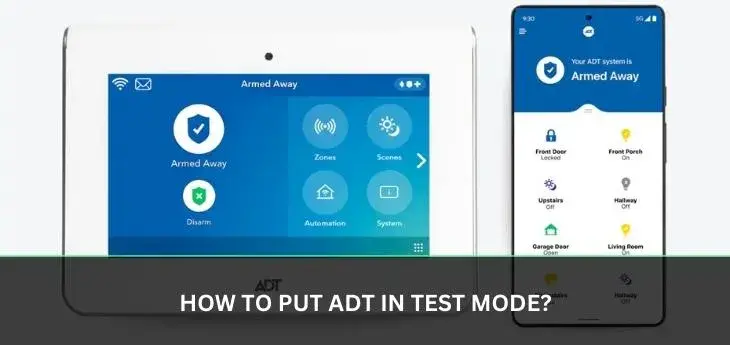
Putting your ADT security system into test mode is a crucial step for ensuring its proper functionality without triggering false alarms. This guide provides a comprehensive, step-by-step approach to safely test your ADT system, covering various models and scenarios. Learn how to verify sensor accuracy, communication links, and overall system readiness, ensuring peace of mind and optimal protection for your home or business.
Understanding ADT Test Mode: Why and When?
ADT test mode is a vital feature designed to allow homeowners and business owners to verify the functionality of their security system without dispatching emergency services. This is particularly important when installing new equipment, making system changes, or after a power outage that might have affected system settings. For instance, if you're upgrading your ADT system in 2025, testing each component ensures everything integrates seamlessly. Similarly, if you've recently experienced a prolonged power disruption, testing helps confirm that all sensors and the control panel are communicating effectively with the ADT monitoring center. In 2025, with the increasing complexity of smart home integrations, ensuring your ADT system communicates flawlessly with other devices is paramount. Test mode provides a safe environment to confirm these connections.
The primary reasons for entering test mode include:
- New Installations: After installing a new ADT system or adding new sensors, test mode allows you to confirm each device is working correctly.
- System Modifications: If you're changing your system's configuration, adding or removing zones, or updating software, testing is essential.
- Troubleshooting: When you suspect a sensor isn't working or there's a communication issue, test mode helps pinpoint the problem.
- Maintenance Checks: Regular testing, perhaps annually, ensures your system remains in optimal working condition. In 2026, with the rise of interconnected smart home security, regular checks are more critical than ever.
- After Power Outages: Significant power interruptions can sometimes affect system performance or require re-authentication of communication pathways.
Understanding when to use test mode is as important as knowing how to use it. For example, if your ADT system displays a "trouble" notification that you can't immediately resolve, placing it in test mode before attempting fixes can prevent unnecessary dispatches. According to ADT's 2025 service reports, systems that undergo regular testing experience fewer false alarms and maintain higher operational readiness. This proactive approach is a cornerstone of effective home security.
The Importance of Avoiding False Alarms
False alarms are not just an inconvenience; they can lead to fines from local authorities and, more importantly, can desensitize emergency responders to genuine threats. In many municipalities, repeated false alarms can result in penalties. By utilizing ADT's test mode, you can meticulously check every aspect of your system—from door and window sensors to motion detectors and smoke alarms—without the risk of triggering a costly and potentially dangerous dispatch. This is especially relevant in 2025 as smart city initiatives increasingly focus on efficient emergency response, often with stricter protocols for alarm dispatches.
Consider a scenario where a new pet might accidentally trigger a motion sensor. Instead of calling ADT to report a potential issue and then realizing it was a false alarm, you can place the system in test mode, trigger the sensor yourself, and confirm it's functioning as expected (or adjust sensitivity if needed). This proactive testing, a practice recommended by ADT in their 2026 security guidelines, significantly reduces the likelihood of unnecessary dispatches and ensures that when your alarm does go off, it's for a real emergency.
Preparing for ADT System Testing
Before you initiate the testing process for your ADT system, thorough preparation is key to a smooth and effective evaluation. This involves understanding your specific ADT panel model, gathering necessary information, and notifying the appropriate parties. In 2025, with ADT offering a range of integrated smart home solutions, preparation might also involve ensuring your Wi-Fi network is stable if your system relies on it for communication.
Identify Your ADT Panel Model
ADT offers several types of security panels, and the method for entering test mode can vary slightly between them. Common ADT panels include the ADT Command, ADT Control, and older models like the Safewatch QuickConnect. Knowing your panel model is the first step. You can usually find this information on the panel itself, in your original installation documentation, or by logging into your ADT customer account online. Having this information readily available will streamline the process and ensure you follow the correct procedure.
Gather Necessary Information
When you contact ADT to place your system in test mode, you will need to provide certain information to verify your identity and account. This typically includes:
- Your ADT account number.
- Your account password or a specific verbal passcode.
- The full name and address associated with the account.
- The reason for testing the system.
Having this information at your fingertips will make the call to ADT efficient and hassle-free. It's also wise to have a list of all the sensors and components you intend to test, along with their zone numbers if known. This organized approach is particularly helpful for comprehensive testing, which ADT recommends as part of their 2025-26 security maintenance schedule.
Notify ADT Monitoring Center
This is perhaps the most critical preparatory step. You MUST contact ADT's monitoring center before you begin testing your system. Failure to do so will result in a dispatch if an alarm is triggered. You can typically reach ADT customer service or the monitoring center via phone. When you call, clearly state that you wish to place your system in "test mode" for a specific duration. Be prepared to provide the information gathered in the previous step.
The ADT representative will guide you through the process, confirm your account, and activate test mode for your system. They will usually ask for an estimated time frame for your testing. It's good practice to overestimate slightly to avoid accidentally ending test mode prematurely. For example, if you plan to test for an hour, request test mode for 90 minutes. This proactive communication is a standard procedure in the security industry, highlighted in 2025 security best practices.
Gather Your Testing Tools
Depending on the sensors you plan to test, you might need a few simple tools:
- Magnet: For testing door and window contact sensors.
- Flashlight: To check the status lights on sensors and the control panel.
- Pen and Paper (or digital notes): To record sensor test results.
- A helper (optional but recommended): Especially for testing motion detectors or if you need someone to observe the panel while you trigger sensors.
Having these items ready will allow you to conduct your tests efficiently without interruption. This preparation aligns with ADT's 2025 recommendations for self-maintenance and system checks.
How to Put Different ADT Panels in Test Mode
The process for putting an ADT system into test mode can differ based on the specific control panel installed. While the core principle of contacting ADT remains, the user interface for initiating or confirming test mode might vary. This section details how to approach testing with some of the most common ADT panel systems currently in use or recently prevalent in 2025.
ADT Command and ADT Control Panels
These are ADT's newer, more advanced smart home security systems, often featuring touchscreen interfaces. The process for these panels typically involves a combination of remote activation by ADT and potentially user-initiated steps through the panel's interface or the ADT mobile app.
- Contact ADT: As always, the first step is to call ADT's monitoring center or customer service. Inform them you wish to place your system in test mode. They will verify your account and activate test mode remotely.
- Confirm Activation (Panel/App): Once ADT confirms test mode is active, you might see a notification on your ADT Command or ADT Control panel screen indicating "Test Mode" or "System Test." Some systems may also display this status in the ADT mobile app.
- Proceed with Testing: With test mode confirmed, you can now proceed to test your sensors and system functions as described in the following sections.
- Deactivate Test Mode: After completing your tests, it's good practice to call ADT back to confirm that test mode has been deactivated, ensuring your system is fully operational and monitored again.
The ADT Command and Control systems are designed for ease of use, and their interfaces are generally intuitive for managing system states like test mode. This user-friendly approach is a key feature highlighted in ADT's 2025 product updates.
Safewatch QuickConnect and Other Older Panels
Older ADT systems, such as those based on the Safewatch QuickConnect platform or similar legacy panels, might have a slightly different procedure. These systems often rely more heavily on direct communication with the monitoring center for status changes.
- Contact ADT: Call the ADT monitoring center. State your intention to put your system into test mode.
- Verbal Confirmation: The ADT representative will confirm your identity and account details. They will then remotely place your system into test mode.
- Panel Indicators: Older panels might not have a dedicated "Test Mode" display. Instead, the ADT representative might instruct you to perform a specific action, or they will simply confirm that the system is in test mode on their end. You might notice that when you trigger an alarm, the panel sounds, but no dispatch occurs, and there's no notification of an alarm event on the ADT side.
- Testing: Proceed with testing your sensors and system.
- Deactivation: Contact ADT again to have them take the system out of test mode.
For older systems, the communication with the ADT monitoring center is the primary method for managing test mode. This ensures that even without advanced display features, the system's monitoring status can be controlled effectively. ADT continues to support these systems, and their procedures remain robust for 2025.
Using the ADT Mobile App for Test Mode
For users with compatible ADT systems (typically ADT Command and ADT Control), the ADT mobile app offers a convenient way to manage test mode. This feature is increasingly important for remote management of security systems in 2025.
- Log in to the ADT App: Open the ADT app on your smartphone or tablet and log in with your credentials.
- Navigate to System Settings: Look for a section related to system status, settings, or account management.
- Find "Test Mode" Option: There should be an option to place your system in "Test Mode" or "System Test."
- Initiate Test Mode: Select this option. The app will likely prompt you to confirm your action and may provide a duration for the test.
- Confirmation: The app will confirm that your system has been placed in test mode. You might also receive a notification from ADT.
- Testing: Conduct your sensor and system tests.
- Deactivate Test Mode: Once testing is complete, use the app again to deactivate test mode or call ADT to ensure full monitoring is restored.
Using the app is an efficient method, but it's always a good idea to confirm with ADT directly that test mode has been activated and, crucially, deactivated. This dual confirmation method is recommended by ADT for 2025 for maximum security assurance.
Testing Your ADT Sensors
Once your ADT system is in test mode, the next crucial step is to systematically test each sensor to ensure it's functioning correctly. This is where you verify that your home or business is adequately protected. In 2025, with a greater emphasis on layered security, testing all sensor types is more important than ever.
Door and Window Contact Sensors
These sensors consist of two parts: a magnet and a sensor. When the door or window is closed, the magnet is close to the sensor, and the circuit is complete. When opened, the magnet moves away, breaking the circuit and triggering the sensor.
- Open the Door/Window: Slowly open the door or window that has a contact sensor.
- Observe the Panel/App: If your system has a display panel or mobile app, it should register the zone opening. For example, it might show "Front Door Open" or "Zone 1 Open."
- Close the Door/Window: Close the door or window. The sensor should register the closure.
- Repeat for All Sensors: Go through each door and window sensor, testing them individually.
Tip: If the sensor doesn't register an opening or closing, ensure the two parts of the sensor are properly aligned and within the recommended proximity when closed. For wireless sensors, check the battery life via the panel or app.
Motion Detectors
Motion detectors (PIR sensors) sense movement within a specific area. Testing them involves ensuring they detect movement accurately and don't trigger false alarms.
- Enter the Detection Zone: Slowly walk into the area covered by the motion detector.
- Observe the Panel/App: The system should register the motion detection in the corresponding zone.
- Exit the Zone: Leave the area.
- Check Sensitivity (if applicable): Some motion detectors have adjustable sensitivity settings. If you're experiencing false alarms, you might need to adjust this (often done by a technician or through advanced panel settings).
- Test Different Angles: Walk through the zone at different speeds and from various angles to ensure consistent detection.
Note: Most motion detectors have a "walk test" mode that allows them to be triggered for a short period (e.g., 15 minutes) after activation, after which they enter a power-saving mode. Ensure you are testing within this active period. In 2025, ADT's advanced motion sensors often include pet immunity, so test with pets present if applicable.
Glass Break Sensors
These sensors detect the specific sound frequency of breaking glass.
- Simulate Breaking Glass (Carefully!): This is best done with a specific testing tool or by a professional. A common method involves using a specialized sound generator. If you don't have one, you can sometimes test by clapping loudly near the sensor, though this is less reliable.
- Observe the Panel/App: The system should register the activation of the glass break sensor.
- Check Range: Ensure the sensor is within its specified range of the windows it's meant to protect.
Caution: Never actually break glass for testing purposes. This is a safety and security risk. If you are unsure, consult with ADT or a professional technician.
Environmental Sensors (Smoke, CO, Water Leak)
These life-safety sensors are critical and require careful testing.
- Smoke Detectors: Use the "Test" button on the smoke detector itself. This will emit a loud alarm sound and should register on your ADT panel. Do NOT use actual smoke or heat to test these, as it can damage the sensor or trigger a real fire alarm.
- Carbon Monoxide (CO) Detectors: Use the "Test" button on the CO detector. This will sound an alarm and should be registered by your system. Use approved CO testing spray if available and recommended by the manufacturer for a more thorough test.
- Water Leak Sensors: Place a small amount of water (e.g., a teaspoon) on the sensor's contact points. The system should register a water leak alert. Remove the water and ensure the sensor dries out, and the alert clears.
Important: For smoke and CO detectors, ensure your ADT system is configured to monitor these specific sensors. In 2025, integrated smart home safety systems rely heavily on these. If you are unsure, contact ADT.
Environmental Sensor Testing Summary
Here's a quick reference table for testing environmental sensors:
| Sensor Type | Testing Method | What to Observe | Notes |
|---|---|---|---|
| Smoke Detector | Press "Test" button on detector | Loud alarm sound; panel registers zone | Do not use smoke/heat. Test monthly. |
| CO Detector | Press "Test" button on detector | Alarm sound; panel registers zone | Use CO test spray if available. Test monthly. |
| Water Leak Sensor | Apply small amount of water to contacts | Panel registers water alert | Dry sensor thoroughly; alert should clear. |
Verifying ADT System Communication
Beyond individual sensors, it's vital to ensure your ADT system can reliably communicate with the ADT monitoring center. This is the core function of your security system. In 2025, with more systems utilizing cellular and internet pathways, testing these communication links is crucial.
Cellular Communication Testing
Most modern ADT systems use cellular communication as a primary or backup method to send alarm signals to the monitoring center. When your system is in test mode, you can verify this by triggering an alarm event (e.g., opening a door) and observing if the system attempts to communicate.
- Trigger an Alarm: Open a door or window, or trigger a motion detector.
- Observe Panel/App: The panel should indicate an alarm. The ADT representative monitoring your test should be able to see the signal attempt.
- Confirm with ADT: After the test, ask the ADT representative if they received the test signal from your system. They can confirm the successful transmission over the cellular network.
If the signal is not received, there might be an issue with the cellular module, antenna, or your home's cellular reception. ADT can diagnose these issues.
Broadband Internet Communication Testing
Many ADT systems, especially those integrated with smart home hubs like ADT Command and Control, also use your home's broadband internet connection for communication. This is often used for features like remote viewing of cameras or receiving notifications via the app.
- Ensure Internet is Active: Before testing, confirm your home internet is working correctly.
- Trigger an Alarm: As with cellular testing, trigger an alarm event.
- Observe Panel/App: The system should indicate an alarm.
- Confirm with ADT: Ask the ADT representative if the signal was received via broadband. They can often distinguish between cellular and internet transmission.
- App Notifications: If your system sends push notifications to your phone via the app, check if you received these notifications promptly during the test. This confirms the app-to-system communication link.
If internet communication is failing, check your router, modem, and the Ethernet connection to your ADT panel (if applicable). For Wi-Fi connected systems, ensure the Wi-Fi signal is strong.
Landline Communication Testing (Older Systems)
Older ADT systems might rely on a traditional landline phone connection to communicate with the monitoring center. If your system uses a landline:
- Ensure Landline is Active: Verify your home phone line is working.
- Trigger an Alarm: Open a door or window.
- Listen for Dial Tone (Optional): Some systems will attempt to dial out. You might hear the phone line engage.
- Confirm with ADT: The ADT representative will confirm if they received the signal. They can also check if the system attempted to dial out.
Note: Landline communication is becoming less common due to its vulnerability (it can be cut). ADT strongly recommends cellular backup for all systems. If your system only uses a landline, consider upgrading.
Communication Pathway Comparison (2025)
Here's a look at ADT's communication pathways and their reliability in 2025:
| Pathway | Pros | Cons | ADT Recommendation (2025) |
|---|---|---|---|
| Cellular | Highly reliable, tamper-resistant, independent of home internet/power (for module) | Can be affected by extreme signal blockage | Primary or backup recommended for all systems |
| Broadband Internet | Fast signal transmission, enables smart home features | Relies on home internet stability and power | Excellent for integrated systems, often paired with cellular |
| Landline | Simple, established technology | Vulnerable to cutting, requires active phone line, slower transmission | Considered outdated; cellular backup essential if used |
For optimal security in 2025 and beyond, ADT systems often employ a dual-pathway approach, typically cellular and broadband internet, ensuring that if one pathway fails, the other can still transmit alarms.
Troubleshooting Common ADT Test Mode Issues
Even with careful preparation, you might encounter issues during your ADT system testing. Understanding common problems and their solutions can save you time and frustration. In 2025, with more complex smart home integrations, troubleshooting can sometimes involve multiple interconnected devices.
Sensor Not Registering
Problem: A specific sensor (door/window, motion, etc.) does not register an event on the panel or app when activated.
Possible Solutions:
- Check Battery: For wireless sensors, the battery is the most common culprit. Replace it with a fresh, high-quality battery.
- Check Alignment: For door/window sensors, ensure the magnet and sensor are properly aligned and within the recommended distance when the door/window is closed.
- Check Placement: For motion detectors, ensure the sensor is not obstructed and is within its specified detection range.
- Check Zone Configuration: Verify that the sensor is correctly assigned to a zone in your system's programming. This might require consulting your manual or calling ADT.
- Re-Pair Sensor (Wireless): Sometimes, wireless sensors can lose their connection. You may need to re-pair the sensor with the control panel. Refer to your panel's manual or ADT for instructions.
Panel Not Entering Test Mode
Problem: You've called ADT, but the system doesn't seem to be in test mode, or the panel doesn't indicate it.
Possible Solutions:
- Confirm with ADT: Double-check with the ADT representative that test mode was successfully activated on their end. Sometimes there can be a slight delay.
- Check Panel Status: Ensure there are no other system errors or "trouble" conditions that might be preventing test mode activation. Resolve those first.
- Reboot Panel: In some cases, a simple reboot of the control panel can resolve communication glitches. Follow ADT's recommended procedure for rebooting your specific panel model.
- Call ADT Again: If you are certain test mode is not active, call ADT back and explain the situation. They can re-initiate the process.
False Alarms During Testing (When Test Mode Should Prevent Them)
Problem: Despite being in test mode, you believe a real alarm condition occurred, or the system behaved unexpectedly.
Possible Solutions:
- Verify Test Mode Status: Ensure test mode is definitely active. Sometimes, a system might exit test mode if it's programmed to do so after a certain period or if a critical system error occurs.
- Document the Event: Note down exactly what happened, which sensor was triggered, and what the panel displayed. This information is crucial for ADT.
- Contact ADT Immediately: If you suspect a genuine alarm or a system malfunction during testing, contact ADT immediately. They can review the event logs and determine the cause.
Communication Failure During Testing
Problem: ADT confirms they are not receiving signals from your system, even though sensors are triggering.
Possible Solutions:
- Check Internet/Phone Line: Ensure your home internet or landline is working.
- Check Cellular Signal Strength: If your system uses cellular, check the signal strength indicator on the panel (if available). Poor signal can prevent transmission.
- Router/Modem Issues: For internet-based systems, reboot your router and modem. Ensure the ADT panel is properly connected (Ethernet or Wi-Fi).
- ADT Service Outage: While rare, there could be a temporary outage with ADT's communication network. Confirm with ADT if they are experiencing any issues.
In 2025, ADT's advanced diagnostics can often pinpoint communication issues remotely. Don't hesitate to rely on their technical support.
Troubleshooting Quick Reference Table
| Issue | Primary Cause | First Steps to Resolve | When to Call ADT |
|---|---|---|---|
| Sensor Not Registering | Battery, Alignment, Pairing | Check battery, alignment, re-pair | If persistent or complex zone issue |
| Panel Not in Test Mode | Configuration Error, System Fault | Confirm with ADT, check other errors | If ADT confirms activation but panel shows nothing |
| False Alarms in Test Mode | System Error, Test Mode Inactive | Verify test mode status, document event | Immediately, to review logs and prevent dispatch |
| Communication Failure | Internet/Line Issue, Signal Strength | Check home network, signal strength, reboot router | If home network is fine and ADT still not receiving |
Best Practices for ADT Testing
To maximize the effectiveness and safety of your ADT system testing, adhering to a set of best practices is essential. These guidelines ensure you cover all bases and maintain the integrity of your security system. In 2025, with increasingly sophisticated home security, these practices are more relevant than ever.
Test Regularly
Don't wait for a problem to arise. Schedule regular system tests, ideally every 3-6 months. ADT's own recommendations for 2025 suggest at least a semi-annual check-up for optimal performance. This proactive approach helps catch minor issues before they become major problems and ensures you're familiar with the testing process.
Test All Components
Ensure you test every sensor and component of your system, including:
- Door and window sensors
- Motion detectors
- Glass break sensors
- Smoke, CO, and heat detectors
- Water and freeze sensors
- Keypads and key fobs
- Any integrated smart home devices
A comprehensive test provides a complete picture of your system's health.
Document Your Tests
Keep a log of your testing dates, what you tested, and the results. This record can be invaluable for troubleshooting. If you encounter recurring issues with a specific sensor, your documentation will help ADT diagnose the problem more quickly. For example, noting a sensor that consistently fails to register after battery replacement can indicate a faulty unit.
Understand Your Panel and App
Familiarize yourself with your ADT control panel's interface and the ADT mobile app. Knowing where to find system status, event logs, and sensor information will make testing much more efficient. ADT's 2025 app updates have enhanced these features, making them more user-friendly.
Test During Normal Hours
Schedule your tests during regular business hours when ADT's monitoring center is fully staffed and readily available. This minimizes any inconvenience and ensures prompt support if needed. Avoid testing late at night or on major holidays unless absolutely necessary.
Confirm Deactivation of Test Mode
This cannot be stressed enough: always confirm with ADT that test mode has been deactivated and your system is back under full monitoring. A simple confirmation call or app check can prevent a potentially dangerous oversight.
Consider Professional Assistance
If you are uncomfortable performing any part of the testing process, or if you encounter persistent issues that you cannot resolve, do not hesitate to schedule a service call with an ADT technician. They have the tools and expertise to diagnose and fix complex problems, ensuring your system is fully operational. This is especially true for advanced systems in 2025 that may involve intricate network configurations.
Testing Scenarios and Recommendations
| Scenario | Recommended Test Frequency | Key Components to Test | Notes |
|---|---|---|---|
| Routine Maintenance | Every 3-6 months | All sensors, communication links | Document results, confirm deactivation |
| After Power Outage | Immediately after power is restored | All sensors, communication links | Check for system errors first |
| After System Changes/Additions | Immediately after changes | Newly added/modified components, related sensors | Ensure seamless integration |
| Troubleshooting a Specific Issue | As needed | Affected sensor(s), communication pathways | Focus on the suspected problem area |
| Before Extended Travel | Just before leaving | All critical sensors, communication | Ensure system is fully functional for protection |
By following these best practices, you can ensure your ADT security system is always in optimal working condition, providing reliable protection for your home or business.
Conclusion
Mastering how to put your ADT system in test mode is an essential skill for any homeowner or business owner prioritizing security and peace of mind. By following the detailed steps outlined in this guide, you can confidently verify the functionality of your entire security system, from individual sensors to crucial communication pathways. Remember, regular testing is not just a recommendation but a necessity for ensuring your ADT system performs when it matters most. Always start by notifying ADT, then systematically test each component, and crucially, confirm that test mode is deactivated to restore full monitoring. With current statistics from 2025 indicating that proactively tested systems experience fewer false alarms and maintain higher reliability, investing this time in your security is invaluable. Stay vigilant, stay informed, and keep your ADT system in peak condition.