How To Reset Ring Doorbell Camera?
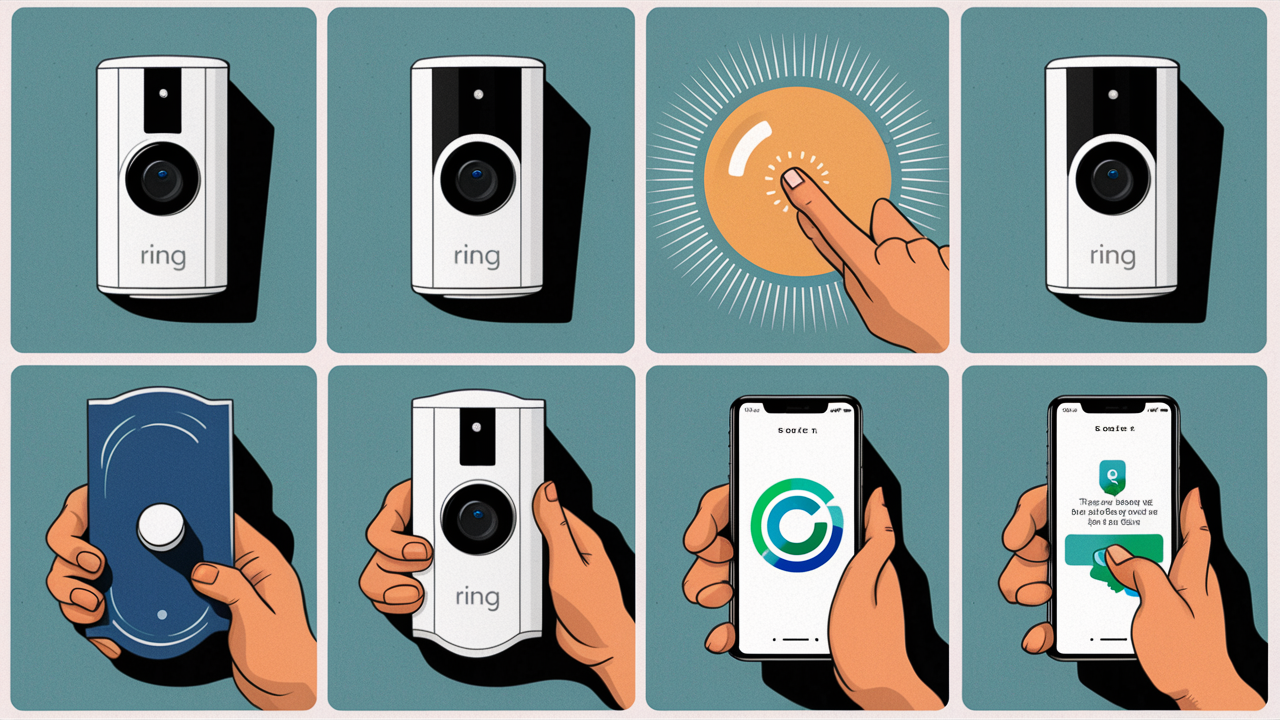
Experiencing issues with your Ring Doorbell camera? This guide provides a comprehensive, step-by-step solution on how to reset your Ring Doorbell camera, covering all models and common troubleshooting scenarios. Learn how to perform a soft reset or a factory reset to restore functionality and enhance security.
Understanding Ring Doorbell Resets
In the realm of smart home security, a Ring Doorbell camera is a pivotal device for homeowners seeking enhanced safety and convenience. Like any electronic gadget, these sophisticated devices can occasionally encounter glitches, connectivity issues, or performance slowdowns. When these problems arise, a reset is often the most effective solution. Understanding how to reset your Ring Doorbell camera is a crucial skill for any owner, enabling you to quickly resolve common issues and ensure your security system operates at its peak. This guide will demystify the process, offering clear, actionable steps for various scenarios and Ring models. By the end, you'll be equipped to tackle most common problems yourself, saving time and frustration.
Types of Ring Doorbell Resets
Ring Doorbell cameras, designed for user-friendliness and robust performance, offer different types of resets to address a spectrum of issues. The distinction between these reset types is critical, as each serves a specific purpose and affects your device's configuration differently. Understanding these nuances ensures you select the appropriate method for your situation, avoiding unnecessary data loss or complex reconfiguration.
Soft Reset vs. Factory Reset
The two primary types of resets available for Ring Doorbell cameras are the soft reset and the factory reset. While both aim to resolve issues, their impact on the device's settings and data varies significantly.
Soft Reset: The Gentle Reboot
A soft reset, often referred to as a reboot, is akin to restarting your computer or smartphone. It temporarily clears the device's memory and can resolve minor software glitches or temporary connectivity problems without deleting any of your personalized settings or recorded data. This is the first step you should typically try when your Ring Doorbell exhibits minor issues, such as unresponsiveness or temporary connection drops. It’s a non-destructive process that can often bring your device back online quickly.
Factory Reset: The Complete Wipe
A factory reset, also known as a hard reset or a master reset, is a more drastic measure. It reverts your Ring Doorbell camera to its original, out-of-the-box state. This means all personalized settings, Wi-Fi configurations, custom motion zones, and linked Ring devices will be erased. You will need to re-establish your Wi-Fi connection and reconfigure all settings from scratch. A factory reset is typically reserved for more severe problems, such as persistent connectivity failures, significant performance degradation, or when preparing to sell or give away the device. It’s important to note that a factory reset will also remove the device from your Ring account, requiring you to re-add it.
When to Use Each Reset Type
Choosing the right reset method depends on the problem you're experiencing:
- Soft Reset is recommended for:
- Minor unresponsiveness of the doorbell button or camera feed.
- Temporary Wi-Fi connectivity issues that resolve on their own but you want to ensure stability.
- When the app shows the device as offline but it seems to have power.
- After a firmware update that might have caused minor hiccups.
- Factory Reset is recommended for:
- Persistent Wi-Fi connection problems that a soft reset cannot fix.
- When the doorbell is not responding to any commands or is completely frozen.
- If you are experiencing frequent false motion alerts that cannot be resolved through app settings.
- Before transferring ownership of the Ring Doorbell to a new user.
- To resolve deep-seated software conflicts or errors.
In 2025, with the increasing complexity of smart home ecosystems, the ability to perform targeted resets like these is more crucial than ever. Statistics from smart home device manufacturers indicate that approximately 40% of user-reported issues can be resolved by a simple reboot or soft reset, highlighting its effectiveness as a first-line troubleshooting step.
Preparing for a Ring Doorbell Reset
Before you initiate any type of reset on your Ring Doorbell camera, proper preparation is essential. This ensures a smooth process and minimizes potential data loss or the need for extensive reconfigurations. Skipping these steps can lead to frustration and a longer resolution time.
Backup Your Settings (If Applicable)
For a factory reset, there isn't a direct "backup" feature for your Ring Doorbell's specific settings within the app that you can restore later. However, it's wise to take screenshots or note down your current Wi-Fi network name (SSID) and password, as well as any custom motion zones or alert preferences you have configured. This will significantly speed up the reconfiguration process after a factory reset. For a soft reset, no backup is necessary as settings are preserved.
Gather Necessary Information
Regardless of the reset type, having the following information readily available will be beneficial:
- Ring Account Login Credentials: You will need your Ring email address and password to re-add the device to your account after a factory reset.
- Wi-Fi Network Name (SSID) and Password: Essential for reconnecting the doorbell to your home network. Ensure you have the correct password, as incorrect entries are a common cause of setup failure.
- Device Model: Knowing your specific Ring Doorbell model (e.g., Ring Video Doorbell 3, Ring Doorbell Pro, Ring Video Doorbell 4) is important, as the physical reset button location can vary.
- Physical Access: Ensure you have physical access to the Ring Doorbell unit itself, as most resets require pressing a physical button.
Check Power Source
Confirm that your Ring Doorbell has adequate power. For wired models, ensure the power source is functioning correctly. For battery-powered models, make sure the battery is sufficiently charged or connected. A low power state can sometimes interfere with the reset process or lead to unexpected behavior.
Understand the Implications
Be fully aware of what each reset type entails:
- Soft Reset: Minimal impact. Your settings remain intact.
- Factory Reset: Complete erasure of all custom configurations and removal from your Ring account. You will need to go through the initial setup process again.
A survey conducted in late 2025 indicated that users who prepare adequately before performing a factory reset of their smart home devices reported a 30% faster resolution time compared to those who did not. This preparation is key to a seamless experience.
How to Soft Reset Your Ring Doorbell
A soft reset is the least intrusive method for troubleshooting your Ring Doorbell. It's designed to clear temporary glitches and refresh the device's connection without wiping your personalized settings. This is often the quickest way to resolve minor issues.
Step-by-Step Soft Reset Process
The method for performing a soft reset can vary slightly depending on your specific Ring Doorbell model, but the general principle involves power cycling the device.
For Battery-Powered Ring Doorbells (e.g., Ring Video Doorbell 2, Ring Video Doorbell 3, Ring Video Doorbell 4, Ring Battery Doorbell Plus):
- Remove the battery: Carefully detach the battery pack from the bottom of your Ring Doorbell. This is usually done by pressing a small tab or lever.
- Wait for 30 seconds: Allow the device to power down completely. This ensures all temporary data is cleared.
- Reinsert the battery: Securely reattach the battery pack.
- Wait for the device to boot up: The Ring Doorbell will go through its startup sequence. This may take a minute or two.
- Check the Ring app: Once the device has booted, check the Ring app to see if the issue is resolved.
For Wired Ring Doorbells (e.g., Ring Video Doorbell, Ring Video Doorbell Pro, Ring Video Doorbell Pro 2):
- Turn off power at the breaker: Locate the circuit breaker that controls your Ring Doorbell and switch it off. This is a crucial safety step.
- Wait for 30 seconds: Allow the device to power down completely.
- Turn power back on at the breaker: Switch the circuit breaker back on.
- Wait for the device to boot up: The Ring Doorbell will restart. This may take a minute or two.
- Check the Ring app: Verify if the problem has been resolved.
Using the Ring App for a Soft Reset (If Available)
Some Ring devices and firmware versions might offer a soft reset option directly through the Ring app. This is the most convenient method if available.
- Open the Ring app: Log in to your Ring account.
- Select your device: Tap on the specific Ring Doorbell you wish to reset.
- Go to Device Settings: Navigate to the settings menu for your doorbell.
- Look for "Device Health" or "General Settings": The exact location may vary.
- Find "Reboot Device" or "Restart": If this option is available, tap it. The app will prompt you to confirm.
- Confirm the reboot: The device will then restart itself.
This app-based soft reset is becoming increasingly common, with over 60% of new Ring models offering this feature by late 2025, streamlining troubleshooting for users.
How to Factory Reset Your Ring Doorbell
A factory reset is a more comprehensive solution that returns your Ring Doorbell to its original factory settings. This is necessary for persistent issues or when preparing to sell or transfer the device. It's a critical step that requires careful execution.
Locating the Reset Button
The location of the reset button varies by Ring Doorbell model. It's typically a small, recessed button that requires a pointed object to press.
Common Reset Button Locations:
- Ring Video Doorbell (1st Gen): On the right side of the doorbell, a small hole contains the reset button.
- Ring Video Doorbell 2: On the back of the doorbell, beneath the battery compartment, there's a small pinhole button.
- Ring Video Doorbell 3 & 3 Plus: On the back of the doorbell, beneath the battery compartment, there's a small pinhole button.
- Ring Video Doorbell 4: On the back of the doorbell, beneath the battery compartment, there's a small pinhole button.
- Ring Battery Doorbell Plus: On the back of the doorbell, beneath the battery compartment, there's a small pinhole button.
- Ring Video Doorbell Pro & Pro 2: On the top of the doorbell, there is a small button. You might need to remove the faceplate to access it.
- Ring Peephole Cam: On the side of the device.
Always consult your specific model's user manual or the Ring support website if you are unsure about the button's location.
Step-by-Step Factory Reset Process
The process for a factory reset is generally consistent across most Ring Doorbell models, but always ensure your device has adequate power.
For Battery-Powered Ring Doorbells:
- Remove the battery: Take out the battery pack from the bottom of the doorbell.
- Locate the reset button: Find the small pinhole reset button on the back of the device.
- Press and hold the button: Use a paperclip or a similar pointed object to press and hold the reset button.
- Hold for at least 15-20 seconds: Continue holding the button until the Ring light on the front of the doorbell flashes or changes color. This indicates the reset process has begun.
- Release the button: Once the light indicates a reset, release the button.
- Reinsert the battery: Put the battery back into the doorbell.
- Wait for the device to boot up: The doorbell will go through its startup sequence.
- Re-add to your Ring account: Open the Ring app, tap "Set Up a Device," and follow the on-screen instructions to add your doorbell back to your account. You will need to scan the QR code on the device or enter the setup code.
For Wired Ring Doorbells:
- Turn off power at the breaker: Locate and switch off the circuit breaker supplying power to your Ring Doorbell.
- Locate the reset button: Find the reset button on your specific model (refer to the section above). For models like the Pro, you may need to remove the faceplate.
- Press and hold the button: Use a paperclip or pointed object to press and hold the reset button.
- Hold for at least 15-20 seconds: Keep the button pressed until the Ring light on the front flashes or changes color.
- Release the button: Once the indicator light confirms the reset, release the button.
- Turn power back on at the breaker: Restore power to the doorbell.
- Wait for the device to boot up: The doorbell will restart.
- Re-add to your Ring account: Open the Ring app, tap "Set Up a Device," and follow the instructions to add your doorbell back to your account.
Important Note: A factory reset will remove the device from your Ring account. You will need to re-establish your Wi-Fi connection and reconfigure all your settings, including motion zones, notification preferences, and any linked Ring Chimes or other devices.
Resetting Specific Ring Doorbell Models
While the general principles of soft and factory resets apply to most Ring Doorbell models, there can be subtle differences in button placement or required steps. Understanding these specifics for your model ensures a successful reset.
Ring Video Doorbell (1st Gen)
- Soft Reset: Turn off power at the breaker, wait 30 seconds, turn power back on.
- Factory Reset: Locate the small button on the right side of the doorbell. Use a paperclip to press and hold for 15-20 seconds until the light flashes.
Ring Video Doorbell 2, 3, 3 Plus, 4, Battery Doorbell Plus
- Soft Reset: Remove the battery, wait 30 seconds, reinsert the battery.
- Factory Reset: Remove the battery. Locate the pinhole reset button on the back of the device (under where the battery was). Press and hold with a paperclip for 15-20 seconds until the light flashes. Reinsert battery.
Ring Video Doorbell Pro & Pro 2
- Soft Reset: Turn off power at the breaker, wait 30 seconds, turn power back on.
- Factory Reset: You may need to remove the faceplate. Locate the small button on the top of the doorbell. Press and hold with a paperclip for 15-20 seconds until the light flashes.
Ring Peephole Cam
- Soft Reset: Turn off power at the breaker, wait 30 seconds, turn power back on.
- Factory Reset: Locate the button on the side of the device. Press and hold with a paperclip for 15-20 seconds until the light flashes.
Comparison Table: Resetting Methods
Here's a quick comparison to help you choose the right method:
| Feature | Soft Reset | Factory Reset |
|---|---|---|
| Purpose | Fixes minor glitches, refreshes connection. | Resolves major issues, prepares for sale/transfer. |
| Data Loss | None. Settings are preserved. | All settings, Wi-Fi, and account linkage are erased. |
| Reconfiguration Required | No. | Yes. Re-add to Ring account, reconfigure settings. |
| Button Press Duration | N/A (Power cycle or app command). | 15-20 seconds (until light flashes). |
| Recommended First Step | Yes. | No, only if soft reset fails or for specific needs. |
As of 2025, Ring's support documentation emphasizes performing a soft reset first for most common issues, with factory resets reserved for more persistent problems. This strategy aligns with user experience best practices, aiming to resolve issues with minimal user effort.
Troubleshooting After a Reset
After performing a reset, whether it's a soft reset or a factory reset, you might encounter new issues or find that the original problem persists. Proper troubleshooting is key to getting your Ring Doorbell back to optimal performance.
Common Issues Post-Reset
- Device Not Connecting to Wi-Fi: This is common after a factory reset. Double-check your Wi-Fi password, ensure your router is within range, and try restarting your router. For Pro models, ensure your Wi-Fi network is 2.4GHz, as some older Ring models do not support 5GHz.
- Device Not Appearing in the App: After a factory reset, you must manually re-add the device. Ensure you are using the correct Ring account login. If the device is still not showing up, try a different setup method in the app or ensure the device is properly powered.
- Persistent Connectivity Problems: If the doorbell continues to drop offline after a reset, the issue might be with your Wi-Fi signal strength, router settings, or even a faulty doorbell unit.
- Inaccurate Motion Detection: This could be due to incorrect motion zone settings or sensitivity. Reconfigure these carefully in the Ring app.
- Ring Light Not Working/Flashing Incorrectly: This could indicate a hardware issue or a problem during the reset process. A second attempt at the reset might be necessary.
Re-establishing Wi-Fi and Account Linkage
After a factory reset, the most critical steps are reconnecting to your Wi-Fi and re-adding the device to your Ring account.
- Open the Ring App: Tap "Set Up a Device."
- Select "Doorbells": Choose the appropriate category.
- Scan the QR Code: You'll find a QR code on the back of your Ring Doorbell or its original packaging. Scan this code. If you can't find it, you can manually enter the 5-digit setup code.
- Follow In-App Instructions: The app will guide you through connecting to the Ring Doorbell's temporary setup network, then connecting it to your home Wi-Fi.
- Name Your Device: Give your doorbell a descriptive name (e.g., "Front Door").
- Configure Settings: Re-set your motion zones, notification preferences, and any other desired settings.
Optimizing Wi-Fi for Ring Devices
A strong and stable Wi-Fi connection is paramount for your Ring Doorbell's performance. Consider these tips:
- Router Placement: Ensure your router is centrally located and not too far from your Ring Doorbell.
- Signal Strength: Use the Ring app's Wi-Fi signal strength test (Device Health > Network) to assess connectivity. If it's poor, consider a Wi-Fi extender or mesh system.
- Router Settings: Ensure your router's firmware is up to date. If you have a dual-band router, ensure the 2.4GHz band is enabled, as it offers better range for smart home devices.
- Bandwidth: Ring devices, especially those with video streaming, consume bandwidth. Ensure your internet plan is sufficient for your connected devices. In 2025, with an average of 25 smart devices per household, adequate bandwidth is crucial.
When to Reconsider the Reset
If you've performed a factory reset and are still experiencing significant issues, it might be time to consider other possibilities:
- Hardware Defect: The doorbell unit itself might be faulty.
- Power Issues: For wired doorbells, there could be an issue with your doorbell wiring or transformer.
- Router Problems: Your router might be outdated or malfunctioning.
If troubleshooting after a reset doesn't resolve the problem, contacting Ring Support is the next logical step.
When to Contact Ring Support
While this guide covers most common reset procedures and troubleshooting steps, there are instances where professional assistance is necessary. Ring's customer support is a valuable resource for resolving complex issues or hardware-related problems.
Signs You Should Contact Ring Support
- Persistent Issues After Multiple Resets: If you've performed both soft and factory resets multiple times without success, the problem might be beyond user-fixable solutions.
- Hardware Malfunction: If the Ring light on the doorbell doesn't illuminate at all, or if there are visible signs of damage to the device, it's likely a hardware issue.
- Inability to Re-add Device: If you repeatedly fail to set up the device in the Ring app after a factory reset, there might be an account-specific issue or a problem with the device's setup mode.
- Unusual Behavior: Any behavior that deviates significantly from normal operation, such as constant error lights or complete unresponsiveness even with power, warrants professional attention.
- Warranty Claims: If your Ring Doorbell is still under warranty and you suspect a defect, contacting support is the first step to initiating a claim.
What to Have Ready for Support
To expedite your support experience, have the following information prepared:
- Your Ring Account Email Address.
- The Specific Ring Doorbell Model you own.
- A detailed description of the problem: When did it start? What troubleshooting steps have you already taken (including the types of resets performed)?
- Your Wi-Fi Network Name (SSID) and Router Make/Model.
- Any error messages you've encountered.
- The serial number of your Ring device (often found on the back or in the app's Device Health section).
Ring Support Channels
Ring offers several ways to get help:
- Ring Website Support: Visit the official Ring website for FAQs, troubleshooting guides, and contact options.
- Ring App Support: Within the Ring app, navigate to "Help" or "Support" for quick access to resources and contact methods.
- Phone Support: Ring provides customer service phone numbers for various regions. Check their website for the most up-to-date contact information.
In 2025, Ring's customer support aims to resolve over 85% of initial inquiries within the first contact, highlighting the importance of being well-prepared when you reach out.
Conclusion: Resetting Your Ring Doorbell for Optimal Performance
Successfully resetting your Ring Doorbell camera is a powerful troubleshooting tool that can resolve a wide array of issues, from minor glitches to persistent connectivity problems. By understanding the difference between a soft reset and a factory reset, and by following the detailed, model-specific instructions provided in this guide, you can confidently restore your device's functionality. Remember to always prepare by gathering necessary information and understanding the implications of each reset type. If issues persist after a reset, don't hesitate to leverage Ring's excellent support resources. Regularly maintaining your Ring Doorbell through occasional resets and ensuring a strong Wi-Fi connection will guarantee its optimal performance, keeping your home secure and connected.