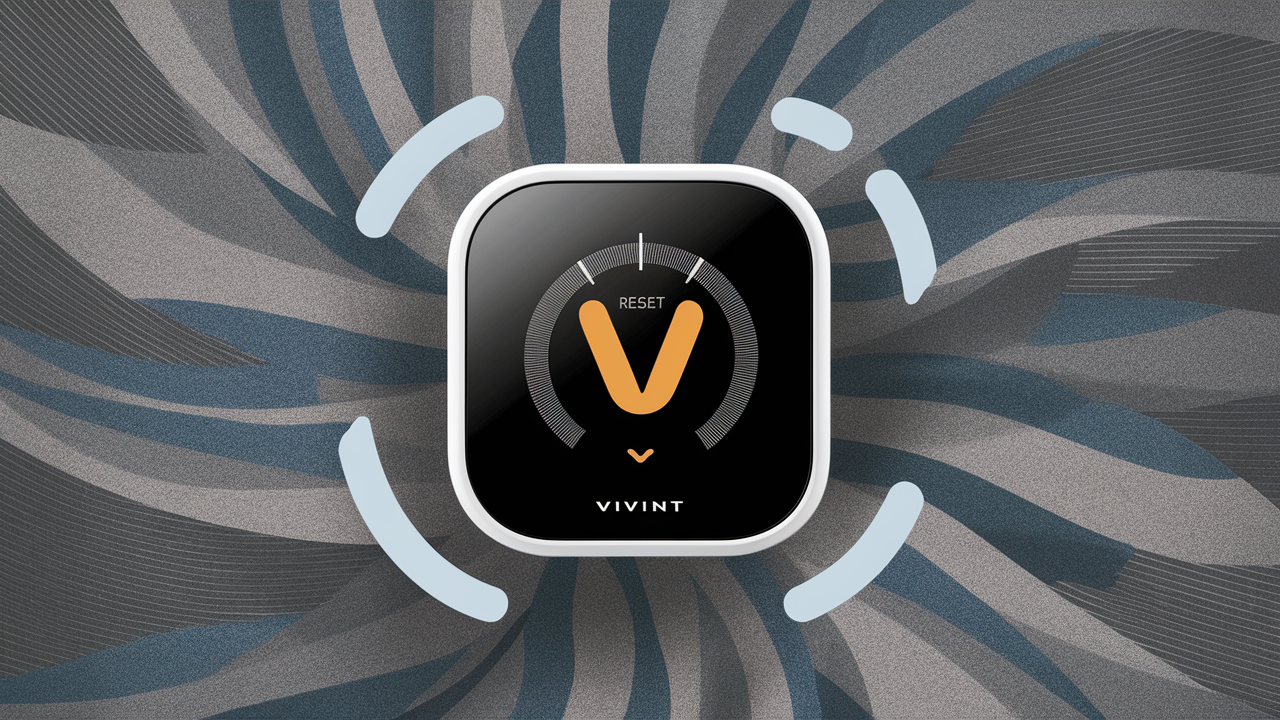
Experiencing issues with your Vivint thermostat? This comprehensive guide will walk you through exactly how to reset your Vivint thermostat, covering various scenarios from simple restarts to factory defaults. We'll help you troubleshoot common problems and get your smart home climate control back to optimal performance quickly and efficiently.
Understanding Vivint Thermostat Resets
In the realm of smart home technology, a thermostat is more than just a device to control temperature; it's a central hub for comfort, energy efficiency, and convenience. Vivint's smart thermostat, integrated into their comprehensive home security and automation system, offers advanced features like remote control, learning capabilities, and energy usage monitoring. However, like any electronic device, it can sometimes encounter glitches or require a refresh. Understanding how to reset your Vivint thermostat is a crucial skill for any user, ensuring you can quickly resolve minor issues and maintain optimal performance. This guide will demystify the process, providing clear, actionable steps for various reset scenarios, empowering you to take control of your home's climate.
When to Reset Your Vivint Thermostat
Resetting your Vivint thermostat isn't always the first step in troubleshooting, but it becomes necessary when other, simpler solutions fail to resolve an issue. Several common indicators suggest that a reset might be in order. For instance, if your thermostat screen is frozen or completely unresponsive, a soft reset or reboot is often the quickest way to restore functionality. Persistent connectivity problems, where the thermostat fails to connect to your Vivint system or Wi-Fi network, can also be resolved by a reset, especially if network settings have been inadvertently altered or corrupted.
Another common reason to consider a reset is when the thermostat's programming or scheduling features are not behaving as expected. If you've set a specific temperature schedule, and it's not being followed, or if the thermostat seems to be ignoring your manual adjustments, a reset can clear any software conflicts that might be causing these deviations. Inaccurate temperature readings, where the displayed temperature significantly differs from the actual room temperature, can sometimes be a sign of a sensor glitch that a reset might fix. Furthermore, after significant software updates or changes to your home's network infrastructure, a reset can help the thermostat re-establish its connection and configurations. It's also a useful step before troubleshooting more complex hardware issues or before performing a factory reset, which is a more drastic measure.
Types of Vivint Thermostat Resets
Vivint thermostats, like most smart devices, offer different levels of resets, each designed to address specific types of problems. Understanding these distinctions is key to choosing the right method and avoiding unnecessary data loss. The three primary types of resets are a soft reset (reboot), a hard reset (power cycle), and a factory reset.
Soft Reset (Reboot)
A soft reset, often referred to as a reboot, is the least intrusive type of reset. It's akin to restarting your computer or smartphone. This process involves powering down the thermostat's software and then immediately powering it back up without cutting off the main power supply to the device. A soft reset is typically used to clear temporary software glitches, resolve minor performance lags, or refresh the device's operating system. It does not erase any user settings, schedules, or learned preferences. This is the first troubleshooting step you should consider for most minor issues.
Hard Reset (Power Cycle)
A hard reset, or power cycle, involves a more thorough interruption of power to the thermostat. This means physically disconnecting the thermostat from its power source for a short period before reconnecting it. This process is more effective at clearing out temporary memory (RAM) and resolving deeper software issues that a simple reboot might not address. While it's more disruptive than a soft reset, a hard reset typically does not erase user settings either. It's a good step to take if a soft reset doesn't resolve the problem, and you want to ensure all temporary data is cleared from the system.
Factory Reset
A factory reset is the most drastic type of reset and should be considered a last resort. This process returns the thermostat to its original, out-of-the-box state. It erases all user-defined settings, including Wi-Fi credentials, temperature schedules, learned preferences, and any custom configurations. After a factory reset, you will need to set up the thermostat again from scratch, including reconnecting it to your Vivint system and Wi-Fi network, and re-entering your preferred temperature settings and schedules. This is typically done to resolve persistent, complex software issues, or when preparing to sell or move the device, or if instructed by Vivint support.
Step-by-Step Guide: How to Reset Vivint Thermostat
Navigating the process of resetting your Vivint thermostat can seem daunting, but with clear instructions, it becomes manageable. The specific steps will depend on the type of reset you need to perform. It's always recommended to start with the least intrusive method (soft reset) and only proceed to more drastic measures if necessary. Ensure you have your Vivint account login details handy, especially if you anticipate needing to reconfigure the device after a reset.
Soft Reset Vivint Thermostat Instructions
A soft reset is designed to be quick and easy, often achievable directly through the thermostat's interface or the Vivint app. This method is ideal for addressing minor software hiccups without affecting your settings.
- Access the Thermostat Menu: On your Vivint thermostat's touchscreen display, navigate to the main menu. This is typically accessed by tapping the screen or pressing a designated button.
- Find the System Settings: Within the menu, look for an option labeled "Settings," "System," or "Device Information."
- Locate the Reboot Option: Browse through the settings until you find an option such as "Reboot," "Restart Device," or "Software Reset."
- Confirm the Action: The thermostat will likely ask for confirmation before proceeding. Select "Yes" or "Confirm" to initiate the reboot.
- Wait for the Device to Restart: The thermostat will power down and then automatically restart. This process usually takes a few minutes. Once it's back online, check if the issue you were experiencing has been resolved.
If you cannot access the menu due to an unresponsive screen: You may need to proceed to a hard reset. For some Vivint thermostat models, a soft reset might also be initiated via the Vivint app. Log in to your Vivint app, navigate to your thermostat's device page, and look for a "Restart" or "Reboot" option within the device settings.
Hard Reset Vivint Thermostat Instructions
A hard reset, or power cycle, involves temporarily cutting off the power supply to the thermostat. This is a more effective way to clear temporary memory and resolve issues that a soft reset might not fix. This process requires physical access to the circuit breaker that controls your HVAC system or the thermostat itself.
- Identify the Correct Circuit Breaker: Locate your home's main electrical panel. You'll need to identify the breaker that controls your HVAC system (furnace and air conditioner) and, by extension, your thermostat. If you're unsure, consult your home's electrical diagram or a qualified electrician. Sometimes, there's a dedicated breaker for the thermostat itself.
- Turn Off the Circuit Breaker: Once identified, switch the breaker to the "OFF" position. This will cut power to your HVAC system and thermostat.
- Wait for Power to Discharge: Leave the breaker off for at least 60 seconds. This ensures that any residual power in the thermostat's components is discharged, effectively performing a hard reset.
- Turn the Circuit Breaker Back On: After the waiting period, switch the breaker back to the "ON" position.
- Allow the Thermostat to Power Up: The thermostat will reboot as power is restored. This may take a few minutes. Monitor the screen to ensure it powers on correctly and attempts to reconnect to the Vivint system.
Important Note: Be cautious when working with electrical panels. If you are uncomfortable or unsure, it's best to contact Vivint support or a qualified HVAC technician. This method will not erase your settings.
Factory Reset Vivint Thermostat Instructions
A factory reset is a more advanced procedure that returns your Vivint thermostat to its original factory settings. This will erase all your personalized configurations, schedules, and Wi-Fi information. Only perform this reset if other troubleshooting steps have failed or if instructed by Vivint support. You will need to re-setup your thermostat afterward.
Method 1: Via Thermostat Interface (if accessible)
- Access the Thermostat Menu: Tap the thermostat screen to wake it up and navigate to the main menu.
- Go to System Settings: Find and select the "Settings" or "System" option.
- Navigate to Advanced Settings: Look for an "Advanced Settings" or "Maintenance" section. You may need to enter a PIN code, which is often a default code like 0000 or 1234, or a code you previously set. If you don't know the PIN, you may need to contact Vivint support.
- Find the Factory Reset Option: Within the advanced settings, locate an option such as "Factory Reset," "Reset All Settings," or "Restore Defaults."
- Confirm the Reset: The thermostat will warn you that all data will be erased. Confirm your intention to proceed.
- Wait for the Process to Complete: The thermostat will perform the factory reset and reboot. This can take several minutes.
- Reconfigure Your Thermostat: Once the reset is complete, the thermostat will be in its initial setup state. You will need to follow the on-screen prompts to reconnect it to your Wi-Fi network and your Vivint account.
Method 2: Via Vivint App (if applicable and supported for factory reset)
Some Vivint thermostat models may allow for a factory reset through the Vivint app. This process is generally less common for a full factory reset compared to the thermostat interface, but it's worth checking.
- Open the Vivint App: Log in to your Vivint account on your smartphone or tablet.
- Navigate to Your Thermostat: Select your thermostat from the list of connected devices.
- Access Device Settings: Look for a "Settings" or "Device Info" option for the thermostat.
- Find Factory Reset: If available, you will find an option for "Factory Reset" or "Reset to Defaults."
- Confirm and Execute: Follow the prompts to confirm the factory reset. The app will guide you through the process.
If you cannot access the thermostat interface or the app option is unavailable: You will need to contact Vivint customer support. They can guide you through the process or remotely initiate a factory reset if possible. They may also provide specific instructions or a PIN code if you've forgotten it.
Troubleshooting Common Vivint Thermostat Issues
Resetting your Vivint thermostat is often a solution, but understanding the specific problem can help you determine the best reset method or if a reset is even necessary. Here are some common issues and how they relate to resets.
Thermostat Unresponsive
Issue: The thermostat screen is blank, frozen, or doesn't respond to touch inputs.
Solution: This is a prime candidate for a soft reset or a hard reset. If the screen is frozen, try a soft reset first through the Vivint app or by navigating the menu if possible. If the screen is completely unresponsive, a hard reset (power cycle) is the most effective way to bring it back to life. If the issue persists after both types of resets, there might be a deeper hardware problem, and you should contact Vivint support.
Connectivity Problems
Issue: The thermostat cannot connect to your home Wi-Fi network or the Vivint smart home system. Error messages related to network connectivity are displayed.
Solution: Check your Wi-Fi router and internet connection first. If your network is functioning correctly, try a soft reset. If that doesn't work, a hard reset can sometimes resolve temporary network communication glitches. If connectivity issues persist after a hard reset, a factory reset might be necessary to clear corrupted network settings. After a factory reset, you will need to re-enter your Wi-Fi credentials and re-sync the thermostat with your Vivint account.
Inaccurate Temperature Readings
Issue: The temperature displayed on the thermostat does not match the actual room temperature, leading to inefficient heating or cooling.
Solution: Ensure the thermostat is not placed in direct sunlight, near a heat source (like a lamp or vent), or in a drafty area, as this can affect its sensor. Try a soft reset first. If the readings remain inaccurate, a hard reset can sometimes recalibrate the sensors. If the problem continues, especially if the discrepancy is significant, there might be a sensor malfunction. While a factory reset won't fix a hardware sensor issue, it can sometimes resolve software-related calibration problems. If the issue persists, contact Vivint support, as a faulty sensor may require professional attention or replacement.
Schedule Not Working
Issue: The programmed temperature schedule is not being followed, or manual adjustments are being overridden.
Solution: Double-check your schedule settings in the Vivint app or on the thermostat to ensure they are correctly programmed. Sometimes, conflicting settings or a temporary software glitch can cause schedules to malfunction. A soft reset is a good first step to clear any temporary software errors. If the schedule still doesn't work, a hard reset might help. If the problem persists after a hard reset, a factory reset could resolve deeper software conflicts. After a factory reset, you will need to re-program your entire schedule.
Alternatives to Resetting Your Vivint Thermostat
Before resorting to a reset, especially a factory reset, consider these alternative troubleshooting steps. Often, simpler solutions can resolve issues without the need for a full system refresh.
- Check Power Supply: Ensure the thermostat is receiving power. For battery-powered models, check and replace the batteries. For hardwired models, verify that the circuit breaker is on and that there are no loose wires at the thermostat or HVAC unit (if you are comfortable and knowledgeable about electrical work).
- Verify Wi-Fi Connection: Ensure your home Wi-Fi is working correctly. Restart your router and modem. Check if other smart devices are connected.
- Update Vivint App and Firmware: Make sure you are using the latest version of the Vivint app. Vivint also pushes firmware updates to its devices; ensure your thermostat is set to receive these updates automatically or check for manual updates through the app or Vivint's online portal.
- Review Settings: Carefully review all your thermostat settings, schedules, and preferences in the Vivint app. Sometimes, an unintended setting can cause unexpected behavior.
- Check for System Alerts: Look for any system alerts or notifications within the Vivint app or on the thermostat itself that might indicate a specific problem.
- Consult Vivint Support: Vivint's customer support is a valuable resource. They can often diagnose issues remotely and provide tailored advice. They may also be able to perform remote diagnostics or even trigger a reset for you.
- Inspect HVAC System: Ensure your furnace or air conditioner is functioning correctly. If the HVAC unit itself has a problem, the thermostat might appear to be malfunctioning.
By trying these alternatives first, you can often resolve issues quickly and avoid the inconvenience of reconfiguring your thermostat.
Understanding the Impact of a Reset
It's essential to understand what happens when you reset your Vivint thermostat, particularly the implications of a factory reset. Each type of reset has a different impact on your data and settings.
- Soft Reset (Reboot): This is the most benign. It's like turning a device off and on again. Your schedules, Wi-Fi passwords, learned preferences, and any custom settings remain intact. It's primarily used to clear temporary software glitches and refresh the operating system.
- Hard Reset (Power Cycle): This is slightly more disruptive as it involves a complete power interruption. However, it also typically preserves your user settings. It's more effective at clearing out temporary memory and resolving deeper software issues than a soft reset. No data is lost.
- Factory Reset: This is the most impactful. It wipes the device clean, returning it to its original state. All your personalized settings, including:
- Wi-Fi network name and password
- Temperature schedules
- Learned comfort preferences
- Customizable modes
- Any custom sensor pairings or configurations
Before performing a factory reset, it's a good practice to note down your key settings and schedules so you can easily re-enter them. If your thermostat is part of a larger Vivint system, ensure you have your Vivint account credentials ready, as you may need to re-authenticate the device with your account.
Vivint Thermostat Reset vs. Other Smart Thermostats
While the core concept of resetting a smart thermostat is similar across brands, the specific procedures and accessibility can vary significantly. Vivint's approach is often tied to its integrated smart home ecosystem, which can offer both advantages and unique considerations.
Vivint's Integrated Ecosystem:
- App-Centric Control: Vivint heavily emphasizes control through its mobile app. This means many basic resets (like soft resets) can often be initiated remotely, offering convenience. However, for more advanced resets like factory defaults, physical access to the thermostat or specific system permissions might be required.
- System Dependencies: Vivint thermostats are designed to work seamlessly with the Vivint security and automation panel. This integration means that some troubleshooting steps or resets might involve interaction with the main panel or require specific Vivint account privileges.
- Proprietary Hardware/Software: While Vivint thermostats use standard communication protocols, their software interface and specific reset sequences are proprietary. This means generic "smart thermostat reset" advice might not directly apply.
Comparison with Standalone Smart Thermostats (e.g., Nest, Ecobee):
| Feature | Vivint Thermostat Reset | Standalone Smart Thermostat Reset (General) |
|---|---|---|
| Ease of Soft Reset | Often via app or device menu; generally straightforward. | Usually via device menu or companion app; varies by brand. |
| Hard Reset Method | Typically requires accessing the HVAC system's circuit breaker. | May involve circuit breaker, or sometimes a specific button/sequence on the device itself. |
| Factory Reset Access | Often requires PIN on device, or Vivint support intervention. Less common via app for full reset. | Generally accessible through device settings menu, sometimes via app. |
| Data Loss on Factory Reset | All custom settings, schedules, Wi-Fi credentials are lost. Requires full re-setup. | All custom settings, schedules, Wi-Fi credentials are lost. Requires full re-setup. |
| Integration Impact | May require re-syncing with Vivint panel/account. | Usually affects only the thermostat's connection to Wi-Fi and cloud services. |
Key Takeaway: While the principle of resetting is the same, Vivint users should be prepared for procedures that might be more integrated with the Vivint ecosystem. Always refer to Vivint's official documentation or support for the most accurate and model-specific instructions.
FAQ on Vivint Thermostat Resets
Here are answers to some frequently asked questions regarding resetting your Vivint thermostat.
Q1: Will resetting my Vivint thermostat erase my learned schedules?
A: A soft reset or hard reset will NOT erase your learned schedules or custom settings. Only a factory reset will erase all your personalized data.
Q2: How often should I reset my Vivint thermostat?
A: You should only reset your Vivint thermostat when you are experiencing issues that cannot be resolved by other means. Frequent resets are generally not necessary and can be inconvenient.
Q3: What is the default PIN for a factory reset on a Vivint thermostat?
A: The default PIN is often 0000 or 1234. However, if you have changed it, you will need to use your custom PIN. If you've forgotten it, you'll need to contact Vivint support.
Q4: Can I reset my Vivint thermostat remotely through the Vivint app?
A: You can typically perform a soft reset (reboot) remotely via the Vivint app. A factory reset is less commonly initiated through the app and often requires interaction with the thermostat's interface or Vivint support.
Q5: What should I do if my Vivint thermostat is still not working after a factory reset?
A: If your thermostat is still malfunctioning after a factory reset and you have reconfigured it, it's likely a hardware issue. Contact Vivint customer support immediately for further assistance or to schedule a service appointment.
Q6: Will resetting affect my Vivint security system?
A: Resetting the thermostat itself should not affect your Vivint security system's core functions (like alarm monitoring or door sensors). However, if the thermostat is integrated into automation rules within the Vivint system, you might need to re-establish those connections after a factory reset.
Conclusion
Mastering how to reset your Vivint thermostat is an essential skill for any homeowner leveraging smart climate control. Whether you're facing a minor glitch or a more persistent issue, understanding the different reset types—soft, hard, and factory—empowers you to address problems effectively. Remember to always start with the least intrusive method, such as a soft reset, and only proceed to a factory reset as a last resort, being mindful of the data you will lose. By following the step-by-step guides and troubleshooting tips provided in this comprehensive article, you can confidently navigate common thermostat issues and ensure your Vivint system continues to provide optimal comfort and energy efficiency. For any persistent problems, never hesitate to reach out to Vivint's dedicated support team for expert assistance.