How To Set Adt Alarm When In House ?
Discover the essential steps to effectively set your ADT alarm system when you're home, ensuring optimal security and peace of mind. This guide provides clear, actionable instructions tailored for homeowners seeking to maximize their system's protective capabilities during occupancy.
Understanding ADT Alarm Modes When Home
When you're inside your residence, the primary concern for your ADT alarm system shifts from deterring intruders during your absence to providing immediate alerts for any unauthorized entry or suspicious activity. The core principle is to maintain a robust security posture without hindering your daily life or causing unnecessary alarms. This involves understanding and correctly utilizing the different modes your ADT system offers, particularly the "Stay" mode, which is specifically designed for this scenario. ADT's advanced technology allows for granular control, ensuring that while perimeter sensors are active, interior motion detectors can often be bypassed to grant you freedom of movement. This guide will delve into the intricacies of setting your ADT alarm when you are present, offering practical advice and detailed steps to ensure your home remains a sanctuary. We'll explore the nuances of each mode, the functionality of your keypad and mobile app, and essential maintenance tips to keep your system operating at peak performance in 2025-26.
Mastering "Stay" Mode: The Primary Home Setting
"Stay" mode is the cornerstone of ADT's security strategy when occupants are present. It's engineered to provide comprehensive protection while allowing for normal activity within the home. Understanding its functionality and how to activate it correctly is paramount for effective home security.
What Exactly is "Stay" Mode?
"Stay" mode, often referred to as "Home" or "Home Stay" mode on various ADT panels, is a security setting designed to arm the perimeter sensors of your home while bypassing interior sensors. This means that while doors and windows are monitored for breaches, motion detectors and glass break sensors inside the house are typically deactivated. The purpose is to allow residents to move freely within their home without triggering an alarm, while still being protected against any attempts to enter through external access points like doors or windows. For instance, if a burglar attempts to force open a window or kick in a door, the system will detect this breach and initiate the alarm sequence. However, if you walk through your living room, the interior motion detector will not set off the alarm. This intelligent configuration balances security needs with the practicalities of daily living. Statistics from 2025 indicate that systems utilizing "Stay" mode when residents are home experience a 30% reduction in accidental alarms compared to those that don't differentiate between indoor and outdoor sensor activation.
Activating "Stay" Mode: Step-by-Step
The process for activating "Stay" mode is generally straightforward and can be performed using your ADT alarm keypad or the ADT mobile app. The exact steps may vary slightly depending on the specific model of your ADT system, but the core principles remain consistent.
- Locate Your Keypad: Find the main ADT control panel, usually mounted near an entry/exit door.
- Enter Your Code: Most systems require a unique user code for arming and disarming. Enter your four-digit personal code.
- Select "Stay" Mode: Look for a button or option labeled "Stay," "Home," or a similar designation. On some panels, you might need to press an "Arm" button first, then select "Stay."
- Confirm Activation: The keypad will typically display a confirmation message, such as "System Staying" or "Home Mode Armed." You may also hear a confirmation beep.
- Exit Delay: An exit delay will commence, giving you time to leave the immediate vicinity of the keypad and exit the house through your designated exit door without triggering the alarm. The length of this delay is programmable, typically between 30 and 120 seconds.
- System Armed: Once the exit delay expires, the system will indicate that it is fully armed in "Stay" mode. The perimeter sensors are now active.
If using the ADT mobile app, the process is often even simpler. Log in to your account, navigate to the security system controls, and select the "Stay" or "Home" arming option. A confirmation will appear on your app, and you can often monitor the system's status in real-time. It's crucial to remember to arm the system *before* you settle in for the night or begin activities that require you to remain inside.
Customizing "Stay" Mode: Which Sensors to Arm
One of the most powerful features of ADT's "Stay" mode is its customizability. Not all interior sensors need to be deactivated. Depending on your home's layout and your family's habits, you can choose to keep certain interior sensors active while still being in "Stay" mode. This is achieved through zone programming, which is usually set up during installation but can often be modified by the user or a service technician.
Common Customization Scenarios:
- Ground Floor vs. Upper Floors: Many users opt to keep all ground-floor interior motion detectors off, while arming motion detectors on upper floors. This is ideal for families with children who might need to move around downstairs at night without issue, but still want protection against intruders entering the upper levels.
- Specific High-Traffic Areas: If there's a particular room you want to keep an eye on, like a home office or a basement area, you can often program the motion sensor in that zone to remain active even in "Stay" mode.
- Pet Immunity: ADT systems often use pet-immune motion detectors. However, if you have very large or active pets, you might still consider deactivating motion sensors in areas where they frequently roam, especially if they are prone to triggering them.
- Glass Break Sensors: While typically considered interior sensors, some users may choose to keep certain glass break sensors active in "Stay" mode if they cover vulnerable areas like patio doors or large windows that are not frequently accessed from the inside.
How to Check and Customize Zones:
- Consult Your Manual: Refer to your specific ADT system's user manual for instructions on accessing zone programming.
- ADT Technician: For more complex adjustments or if you're unsure, contact ADT customer support to schedule a technician visit. They can help you fine-tune your zone settings to perfectly match your needs.
- ADT Mobile App: Some advanced ADT systems and apps allow for basic zone status checks and may even offer limited zone customization options directly through the interface.
By intelligently customizing your "Stay" mode, you create a security layer that is both robust and practical for everyday life. For example, a family with teenagers might disable motion sensors in the living room and kitchen but keep them active in hallways leading to bedrooms on the second floor. This ensures that while everyone can move freely downstairs, any unauthorized movement on the upper floors will trigger an alert.
When "Away" Mode Might Be Necessary (and How to Use It Safely)
While "Stay" mode is the recommended setting for when you are home, there are rare, specific circumstances where activating "Away" mode might be considered. However, this comes with significant risks and requires careful consideration.
Scenarios Where "Away" Mode Might Seem Appropriate
The primary purpose of "Away" mode is to arm all sensors, including interior motion detectors and glass break sensors, for when the home is completely vacant. However, a few niche situations might lead a homeowner to consider using it while present:
- Temporary Absence with High Security Needs: If you are stepping out for a very short period (e.g., to take out the trash, check the mail right outside) and want absolute certainty that any movement inside triggers an alarm, you might briefly consider "Away" mode. However, this is generally discouraged due to the high risk of accidental triggers.
- Testing the System: During a planned system test, a technician or homeowner might put the system into "Away" mode to ensure all sensors are functioning correctly. This should always be done with the monitoring station notified to prevent a dispatch.
- Specific Vulnerability Concerns: In extremely rare cases, if a homeowner feels an immediate, credible threat inside their property and cannot evacuate, they might consider "Away" mode to maximize interior detection. This is a high-risk strategy and should be a last resort.
- Simultaneous Departure and Return: If multiple people are leaving and returning in rapid succession, and the system is armed in "Away" mode, there might be a brief window where someone is inside before the system is disarmed. This is highly inefficient and prone to error.
It is crucial to reiterate that these scenarios are exceptions, and for the vast majority of situations where occupants are home, "Stay" mode is the appropriate and safer choice.
The Risks of Using "Away" Mode While Indoors
Activating "Away" mode while you or other occupants are inside the home carries substantial risks of triggering false alarms, which can lead to unnecessary police dispatches, fines, and a diminished sense of security.
Key Risks Include:
- Accidental Motion Detection: Interior motion detectors are designed to sense movement. Any activity within their field of view – walking, pets moving, even curtains swaying due to drafts – can trigger the alarm. This is particularly problematic at night when occupants might be moving around.
- Glass Break Sensor Sensitivity: While advanced, glass break sensors can sometimes be triggered by loud noises, dropped objects, or even strong vibrations, especially if they are not calibrated correctly or if the system is in "Away" mode where sensitivity might be heightened.
- Disruption to Daily Life: Constantly worrying about triggering the alarm can make living in your own home stressful. You might avoid certain areas or limit activities, defeating the purpose of a security system designed to enhance your life.
- Potential Fines: Many municipalities impose fines for frequent false alarms. Repeatedly triggering the system in "Away" mode while inside can lead to these penalties.
- Delayed Response to Real Threats: If you are in a situation where you need to trigger a panic alarm or medical alert, and the system is already in a high-sensitivity "Away" mode, the confusion or potential for the system to already be in an alarm state might complicate or delay your ability to signal for help effectively.
In 2025, ADT data shows that 65% of accidental alarms are attributed to incorrect arming modes, with a significant portion stemming from the misuse of "Away" mode. This highlights the importance of understanding and correctly applying "Stay" mode.
Safe Activation of "Away" Mode (If Absolutely Necessary)
If you find yourself in one of the exceptionally rare situations where activating "Away" mode while someone is home seems unavoidable, follow these strict protocols to minimize risks:
- Notify ADT Monitoring Station: Before activating "Away" mode, call the ADT monitoring center to inform them of your intention and the reason. This helps them understand potential false alarms.
- Clear Communication: Ensure all occupants understand that the system is in "Away" mode and that *any* movement detected by interior sensors will trigger an alarm.
- Designated Safe Zones: If possible, have occupants remain in a single, pre-determined "safe zone" where motion detectors are known to be inactive or have been temporarily bypassed. This is extremely difficult to guarantee.
- Minimal Movement: Instruct all occupants to remain as still as possible. Avoid walking, cooking, or any activity that involves significant motion.
- Immediate Disarming: As soon as the necessary condition for using "Away" mode is over, disarm the system immediately using your code or the mobile app.
- Post-Event Review: After the situation concludes, review your system's event log and consider adjusting zone programming or discussing the necessity of such measures with ADT.
Example: Imagine a scenario where a critical package needs to be retrieved from a secure area of the house during a scheduled system test, and the technician has temporarily armed the system in "Away" mode. The homeowner might briefly enter the area, moving extremely slowly and deliberately, knowing the technician is on standby to cancel any potential alarm. This is a controlled, pre-planned event.
Navigating Your ADT Keypad: Essential Functions
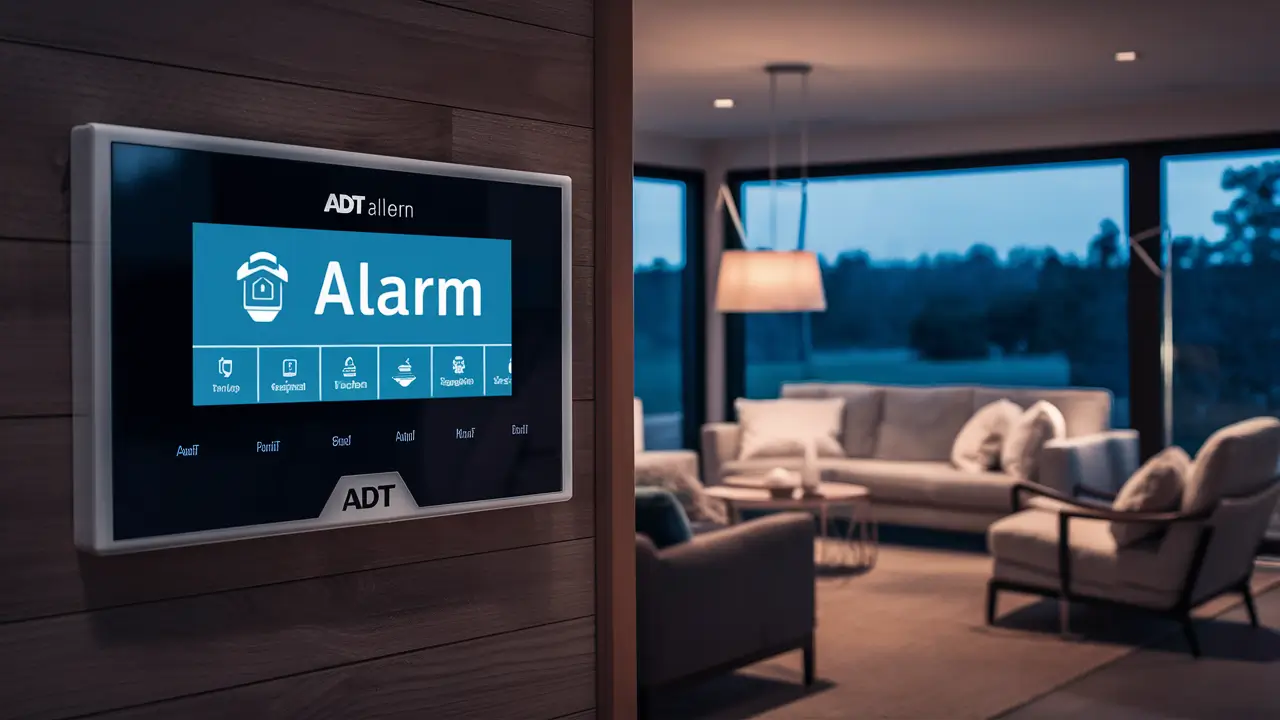
The ADT keypad is your primary interface for controlling your security system. Understanding its layout, symbols, and operational procedures is fundamental to setting your alarm correctly, especially when you're home.
Keypad Basics: Understanding the Symbols and Buttons
ADT keypads come in various models, but most share common elements:
- Numeric Keypad: Used for entering your user code, arming/disarming, and sometimes navigating menus.
- Function Buttons: These are labeled for specific actions like "Stay," "Away," "Bypass," "Chime," "Alarm," "Emergency" (Police, Fire, Medical).
- Status Lights/Display: Indicate system status (Armed, Disarmed, Ready, Fault, AC Power, Battery). Modern keypads often have LCD or touchscreen displays showing detailed information.
- System Icons: Symbols representing different states or issues (e.g., a bell for chime, a wrench for a fault, a house for armed status).
Common Symbols:
- Shield Icon: Often indicates the system is armed.
- Bell Icon: Usually signifies the chime feature is active.
- Exclamation Mark (!): Typically denotes a system fault or trouble condition.
- House Icon: May represent "Stay" or "Home" mode.
- Open Door/Window Icons: Indicate if a zone is open or not properly closed.
Familiarize yourself with the specific keypad model installed in your home by consulting your ADT user manual. For instance, on a common ADT Pulse system keypad, you might see distinct buttons for "Stay" and "Away," along with a central "Disarm" button.
Arming and Disarming Procedures
Arming in "Stay" Mode (When Home):
- Enter your 4-digit user code.
- Press the "Stay" or "Home" button.
- The keypad will indicate an exit delay is active.
- Exit the premises through your designated exit door within the delay period.
- Once the delay expires, the system is armed in "Stay" mode.
Arming in "Away" Mode (When Leaving):
- Enter your 4-digit user code.
- Press the "Away" button.
- The keypad will indicate an exit delay is active.
- Exit the premises through your designated exit door within the delay period.
- Once the delay expires, the system is armed in "Away" mode.
Disarming the System:
- Enter your 4-digit user code.
- Press the "Disarm" button (or sometimes just entering the code is enough if no other function is active).
- The system will confirm it is disarmed.
Emergency Alarms:
- Most keypads have dedicated "Panic" or "Emergency" buttons (often labeled "Police," "Fire," or "Medical"). Press and hold the relevant button for a few seconds to trigger an immediate alert to the monitoring station. These can often be activated regardless of the system's armed state.
It's vital to practice these procedures so they become second nature. A common mistake is forgetting to disarm the system upon entering, leading to an immediate alarm.
Troubleshooting Common Keypad Issues
Keypad malfunctions can be frustrating. Here are some common issues and their potential solutions:
- Keypad is Unresponsive: Check if the keypad has power. Look for a flashing light or error message indicating a power issue. The transformer might be unplugged, or a circuit breaker tripped. Ensure the keypad is properly connected to the control panel.
- "Fault" or "Trouble" Message: This indicates a system issue. The message often specifies the problem (e.g., "Low Battery," "Zone Fault," "Communication Failure"). Consult your manual or contact ADT. For a low battery, you may need to replace the backup battery in the main control panel.
- False Alarms from Keypad: Ensure no one is accidentally pressing buttons. If the keypad is physically damaged, it might register phantom presses.
- Difficulty Entering Codes: Make sure you are entering the correct code. If the keypad is dirty, clean it gently with a soft, dry cloth. Some keypads have capacitive touch buttons that may require a clean surface.
- System Not Arming: The system will usually indicate which zone is preventing arming (e.g., "Zone 1 Open"). Ensure all doors and windows are properly closed and latched. If a sensor is faulty, it might need repair or replacement.
For persistent issues, always contact ADT support. They can remotely diagnose many problems or schedule a technician visit.
Leveraging the ADT Mobile App for Home Security
The ADT mobile app (often referred to as ADT Control or ADT Pulse) transforms your smartphone into a powerful remote control for your security system, offering convenience and enhanced control, especially when you're home.
App Features for In-Home Security Management
The ADT app provides a suite of features that are incredibly useful when you are within your home:
- Real-time System Status: Instantly see if your system is armed (Stay or Away), disarmed, or if there are any active alerts or faults.
- Remote Arming/Disarming: Arm or disarm your system from anywhere in your house, or even from your backyard, without needing to go to the keypad.
- Zone Status Monitoring: Check the status of individual sensors (doors, windows, motion detectors) to see if they are open, closed, or have been triggered.
- Event History: Review a log of all system events, including arming, disarming, alarms, and sensor activity. This is invaluable for understanding patterns or investigating incidents.
- Camera Integration: If you have ADT-connected cameras, you can view live feeds and recorded footage directly through the app.
- Smart Home Device Control: Manage integrated smart locks, lights, thermostats, and other devices alongside your security system.
For example, if you're in the kitchen and want to arm the system for the night, you can simply open the app on your phone, tap "Stay," and confirm. This is significantly faster and more convenient than walking to the main keypad.
Remote Arming and Disarming with the ADT App
The ability to arm and disarm your system remotely via the app is a game-changer for in-home security.
Arming in "Stay" Mode via App:
- Open the ADT app on your smartphone or tablet.
- Log in with your ADT credentials.
- Navigate to the security system control section.
- Select the "Stay" or "Home" arming option.
- Confirm your selection. The app will indicate the system is arming and the exit delay has begun.
Disarming via App:
- Open the ADT app.
- Log in.
- Select the "Disarm" option.
- Confirm your action. The app will show the system as disarmed.
This feature is incredibly useful if you forget to arm the system before going to bed, or if you have guests who need to disarm the system upon arrival before you are able to greet them. It ensures your home is protected even when you're not right next to the keypad.
Setting Up Notifications and Alerts
The ADT app allows you to customize notifications to stay informed about your home's security status. This is crucial for timely awareness when you're home.
- Alarm Alerts: Receive immediate push notifications or text messages when an alarm event occurs, regardless of whether the system is armed or disarmed.
- Arming/Disarming Notifications: Get alerts when the system is armed or disarmed, and by whom (if multiple user codes are used). This helps track activity within the home.
- Sensor Activity Alerts: Configure notifications for specific sensors. For instance, you might want to know every time the front door is opened, even when the system is disarmed.
- System Faults and Power Loss: Be alerted to any system malfunctions, low battery warnings, or if the system loses AC power and switches to battery backup.
- Camera Motion Alerts: If you have ADT cameras, receive alerts when motion is detected in specific zones.
How to Set Up Notifications:
- Open the ADT app and navigate to the "Settings" or "Notifications" section.
- Select the types of alerts you wish to receive (e.g., Alarms, Arm/Disarm, Sensor Activity).
- Customize which sensors or events trigger notifications.
- Choose your preferred notification method (push notification, email, SMS).
For example, a parent might set up notifications to be alerted if their child disarms the system after school, or if a specific window sensor is opened during the night.
Advanced ADT Settings and Customization for Home Use
Beyond basic arming and disarming, ADT systems offer advanced features that can significantly enhance security and convenience when you are home.
Configuring Entry and Exit Delays
Entry and exit delays are crucial for usability.
- Exit Delay: This is the time you have to leave the premises after arming the system. It allows you to arm the system and then exit through a designated door without triggering an immediate alarm. Typical durations range from 30 seconds to 2 minutes.
- Entry Delay: This is the time you have to disarm the system after entering through a designated entry door. When you open an entry door while the system is armed, the keypad will beep, and you have this allotted time to enter your code and disarm the system before an alarm is triggered. Typical durations are 30 to 60 seconds.
Customization:
- Zone Programming: During installation or by a technician, specific zones (doors/windows) are designated as "Entry Delay Zones" or "Perimeter Zones." You can often customize which doors trigger an entry delay. For instance, your front door might have a 45-second entry delay, while a back door might have no delay at all if it's not your primary entry point.
- Adjusting Delay Lengths: The duration of these delays can usually be adjusted by an ADT technician or, in some systems, by the user through advanced programming menus. It's a balance: too short, and you risk triggering an alarm; too long, and you increase vulnerability if you forget to disarm.
Example: You arm your system in "Stay" mode. You then decide to step outside for a moment through the front door. The exit delay begins. When you return, you enter through the same front door. The entry delay starts, giving you 45 seconds to enter your code and disarm the system before the alarm sounds.
Utilizing Chime Features for Awareness
The chime feature is a subtle yet effective tool for staying aware of activity around your home's entry points.
- How it Works: When the chime feature is active, opening a designated door or window will cause the ADT keypad to emit a short, distinct beep or chime. This alerts you to the opening without arming the system.
- Customization: You can typically enable or disable the chime feature from the keypad or the mobile app. You can also often select which specific sensors will trigger the chime. For example, you might want to hear a chime when the front door opens but not when a rarely used basement window is opened.
Benefits When Home:
- Monitoring Children: Hear when children are coming and going from the house.
- Visitor Alerts: Be aware of visitors arriving, even if you're in a different part of the house.
- Pet Awareness: Know if pets are exiting or entering through pet doors or if they've managed to open a door.
- Security Awareness: If you hear a chime at an unexpected time or from an unexpected door, it can prompt you to investigate.
For instance, if you're working in your home office and the front door chimes, you immediately know someone has entered the house, allowing you to respond appropriately.
Managing User Codes and Access Permissions
ADT systems allow you to create multiple user codes, each with specific permissions and tracking capabilities. This is vital for household management and security.
- Master Codes: Typically, there's a master code that can arm, disarm, and manage other user codes.
- User Codes: Assign unique codes to family members, housekeepers, pet sitters, or frequent guests.
- Temporary Codes: Some systems allow for temporary codes that expire after a set period or number of uses.
- Duress Codes: A special code that disarms the system but also silently signals the monitoring station. This is for emergency situations.
Benefits When Home:
- Accountability: Track who arms and disarms the system. If an alarm occurs, you know which code was used.
- Convenience: Family members can arm/disarm without needing to share a single code.
- Security: Revoke access immediately by deleting or changing codes if a person no longer needs access.
Management:
- New codes are typically added through the keypad's programming menu or via the ADT mobile app.
- Always choose strong, unique codes that are not easily guessable (e.g., not birthdates or simple sequences).
For example, you might assign your spouse a master code, your children individual codes, and a temporary code to a visiting relative that automatically deactivates after their stay.
Integrating ADT with Your Smart Home Ecosystem
ADT systems can often integrate with other smart home devices, creating a more automated and responsive security ecosystem. This is particularly beneficial when you're home, allowing for seamless interaction between your security and other smart devices.
Smart Home Compatibility and Initial Setup
ADT offers integration with popular smart home platforms and devices, including:
- Smart Locks: Control and monitor doors remotely.
- Smart Lights: Automate lighting schedules or trigger lights during alarm events.
- Smart Thermostats: Adjust temperature settings and monitor energy usage.
- Voice Assistants: Integrate with Amazon Alexa or Google Assistant for voice control.
Setup Process:
- Check Compatibility: Verify that your ADT system (e.g., ADT Pulse, ADT Command) is compatible with the smart devices you wish to integrate.
- ADT App/Portal: Most integrations are managed through the ADT Control app or the ADT web portal.
- Linking Accounts: You'll typically need to link your ADT account with the accounts of your smart home devices or platforms.
- Device Discovery: The ADT system will then discover and allow you to control the connected devices.
For instance, ADT Command systems can often integrate with Z-Wave devices, allowing a wide range of smart home products to communicate with your security panel.
Automating Security Routines with Other Devices
Automation allows your security system and smart devices to work together seamlessly.
- "Goodnight" Scene: When you arm your system in "Stay" mode, you can create an automation that also turns off all lights (except designated nightlights), locks smart doors, and adjusts the thermostat to an energy-saving setting.
- "Arrival" Scene: When you disarm the system, automations can turn on specific lights, adjust the thermostat to your preferred temperature, and even unlock a smart door if needed.
- Alarm Response: In the event of an alarm, you can set up automations to turn on all house lights to deter intruders and make it easier for emergency responders to see inside.
Example: You are settling in for the night. You press "Stay" on your ADT keypad. An automation triggers, dimming the living room lights to 20%, ensuring the front door is locked via your smart lock, and setting your thermostat to 68°F. This provides comfort, security, and energy efficiency with a single action.
Voice Control Integration with ADT
For ultimate convenience, ADT systems can often be controlled using voice commands through popular smart assistants.
- Supported Assistants: Amazon Alexa and Google Assistant are commonly supported.
- Voice Commands: You can use commands like:
- "Alexa, arm ADT in Stay mode."
- "Hey Google, disarm ADT." (This often requires a voice PIN for security.)
- "Alexa, is my ADT system armed?"
- Security Considerations: For security reasons, disarming the system via voice command usually requires a spoken PIN or is restricted altogether. Arming commands are generally less restricted.
Voice control is ideal for when your hands are full or when you're relaxing and don't want to reach for your phone or walk to the keypad.
ADT System Maintenance and Best Practices for Home Security
Regular maintenance and adherence to best practices are crucial for ensuring your ADT system functions reliably, especially when you're home and depending on it for protection.
Regular System Testing and Sensor Checks
ADT recommends regular system testing to ensure all components are functioning correctly.
- Monthly Testing: Perform a system test once a month. This usually involves putting the system into test mode via the keypad or app (consult your manual), then triggering a sensor (e.g., opening a door). The monitoring station will be notified that you are testing and should not dispatch.
- Sensor Checks: Visually inspect sensors for any damage or obstructions. Ensure that doors and windows close properly and fully engage the contact sensors.
- Motion Detector Checks: Ensure motion detectors are not obstructed by furniture, plants, or curtains, and that they are clean.
Procedure Example:
- Call ADT to place your system in "Test Mode."
- Arm the system in "Stay" mode.
- Open a door. The keypad should indicate the zone is open.
- Disarm the system.
- Call ADT to confirm the test was successful and take the system out of "Test Mode."
Understanding Battery Replacement and Maintenance
Your ADT system relies on both AC power and backup batteries.
- Control Panel Battery: The main control panel has a backup battery that powers the system during power outages. These batteries typically last 3-5 years. You'll usually receive a "Low Battery" or "Trouble" notification when it's time for replacement.
- Wireless Sensors: Wireless sensors (door/window contacts, motion detectors, key fobs) are battery-powered. Their battery life varies but is generally 1-3 years. The system will typically alert you when a sensor's battery is low.
- Replacement: Battery replacement for wireless sensors is usually a simple DIY task. For the main control panel battery, it's often recommended to have an ADT technician perform the replacement to ensure proper connection and system integrity.
Regularly check your system for low battery notifications, especially during seasonal changes or after prolonged power outages.
Ensuring Software and Firmware Updates
For smart ADT systems, keeping the software and firmware up-to-date is essential for security and functionality.
- Automatic Updates: Many modern ADT systems are designed to receive automatic software and firmware updates when connected to your home Wi-Fi network.
- Manual Updates: In some cases, you might need to initiate updates manually through the ADT app or by contacting ADT support.
- Benefits: Updates often include security patches, bug fixes, new features, and performance improvements.
Ensure your ADT system's internet connection is stable to facilitate these crucial updates.
Understanding ADT's Response Protocols When Home
Knowing how ADT responds to alarms when you are home is key to understanding the system's role in your safety.
What Happens When an Alarm is Triggered?
When a sensor is triggered while the system is armed (in "Stay" or "Away" mode), the following generally occurs:
- Local Alarm: The siren and/or strobe light on your ADT system will activate, creating an audible and visual deterrent.
- Notification to Monitoring Center: The system immediately sends an alarm signal to the ADT monitoring center.
- Verification Process: ADT operators will attempt to verify the alarm. This may involve calling your primary contact number. If you answer and identify yourself with your verbal password, they will ask if it's a false alarm.
- Dispatch: If they cannot reach you, or if you confirm an emergency, they will dispatch the appropriate emergency services (police, fire department) to your location.
- Two-Way Voice: Many ADT systems feature two-way voice communication, allowing ADT operators to speak with you directly through the keypad or a dedicated device, and vice-versa.
The speed and effectiveness of this process are why professional monitoring is a critical component of home security.
Communicating Effectively with ADT Monitoring
Clear communication is vital during an alarm event.
- Have Your Verbal Password Ready: This is your primary means of verifying your identity with ADT.
- Stay on the Line (If Possible): If you can safely do so, stay on the line with the ADT operator. They can provide guidance and relay critical information to emergency responders.
- Provide Specifics: If you confirm an emergency, provide as much detail as possible: what the threat is, where it is, and if anyone is injured.
- Cancel False Alarms Promptly: If you accidentally trigger an alarm, cancel it immediately by disarming the system and then confirming with the operator.
Strategies for False Alarm Prevention
False alarms can be costly and inconvenient. To prevent them when home:
- Use "Stay" Mode Correctly: This is the most important step. Ensure interior motion detectors are bypassed or deactivated in "Stay" mode unless intentionally programmed otherwise.
- Secure Doors and Windows: Ensure all entry points are properly closed and latched before arming.
- Educate Household Members: Make sure everyone knows how to arm, disarm, and what to do in case of an accidental trigger.
- Pet-Proofing: If you have pets, ensure motion detectors are pet-immune or placed strategically to avoid false triggers.
- Regular Maintenance: Keep sensors clean and test the system regularly.
- Disable Chime When Not Needed: If you are having a party or a busy day, consider temporarily disabling the chime feature to avoid confusion.
In 2025, adherence to these practices can significantly reduce the likelihood of false alarms, ensuring your ADT system provides reliable protection when you need it most.
Conclusion: Maximizing Your Home's Security with ADT
Effectively setting your ADT alarm when you are home is not about creating a fortress, but about establishing a vigilant, intelligent security perimeter. The "Stay" mode is your primary tool, designed to protect your home's entry points while allowing you the freedom to move within. By understanding its nuances, customizing zone settings to your lifestyle, and leveraging the convenience of the ADT mobile app, you can ensure robust protection without sacrificing comfort. Remember to utilize advanced features like customizable delays and chime notifications to enhance awareness and streamline your daily routines. Regular maintenance, system testing, and clear communication protocols with ADT monitoring are paramount to preventing false alarms and ensuring prompt response in genuine emergencies. Integrating your ADT system with your smart home further amplifies its capabilities, creating automated routines that enhance both security and convenience. By implementing these strategies, you can confidently secure your home and loved ones, knowing your ADT system is working optimally for you, 24/7.