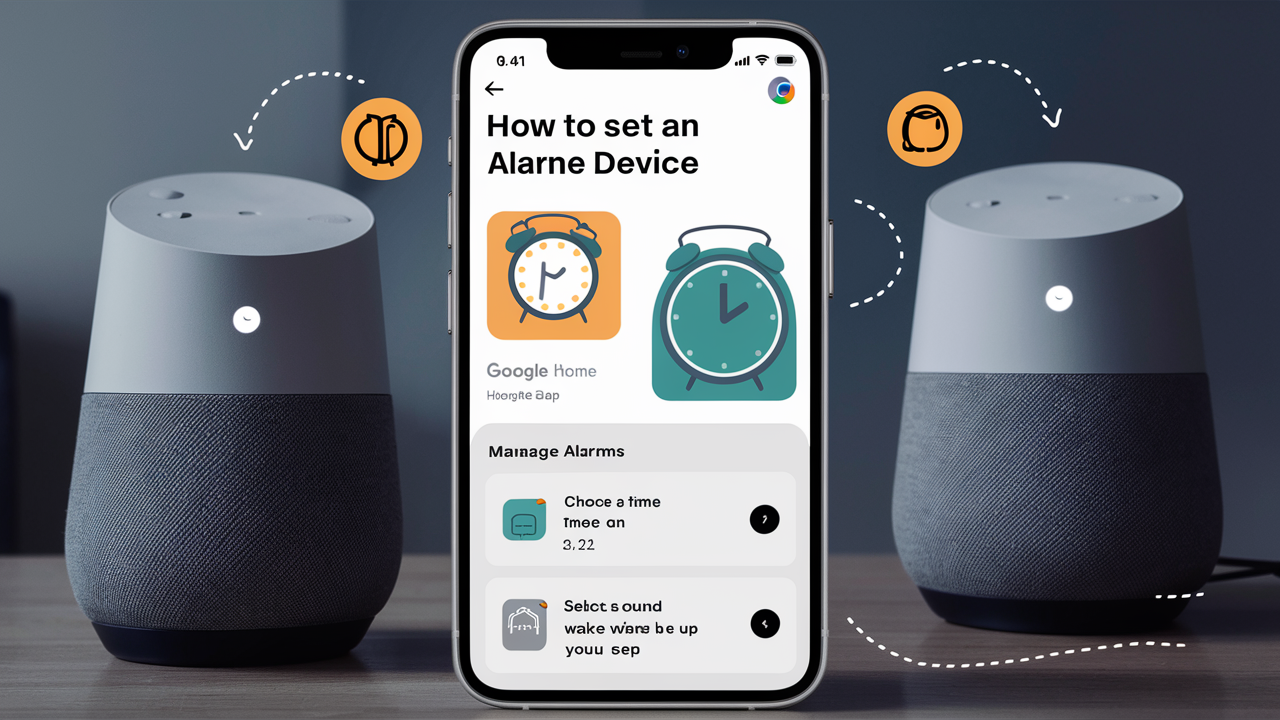
Unlock the full potential of your Google Home device by mastering how to set alarms. This guide provides a comprehensive, step-by-step walkthrough, ensuring you never miss an important appointment or wake-up call again. Discover simple voice commands and app-based methods for seamless alarm management in 2025.
Setting Alarms Using Your Voice
The primary and most convenient way to set an alarm on your Google Home device is through voice commands. Google Assistant is designed to understand natural language, making the process intuitive and quick. This section will guide you through the various voice commands you can use, from simple wake-up calls to more specific reminders.
Basic Alarm Setting
To set a basic alarm for a specific time, simply say "Hey Google" or "OK Google," followed by your request. The most common command is:
"Hey Google, set an alarm for 7 AM tomorrow."
Your Google Home device will confirm the alarm has been set. For instance, it might respond with, "OK, alarm set for 7 AM tomorrow."
Setting Recurring Alarms
If you need an alarm to go off daily, on weekdays, or on specific days of the week, you can specify this in your voice command.
For a daily alarm: "Hey Google, set a daily alarm for 6:30 AM."
For weekdays: "Hey Google, set an alarm for 8 AM on weekdays."
For specific days: "Hey Google, set an alarm for 9 PM on Friday and Saturday."
The Assistant will confirm the recurring nature of the alarm, such as, "OK, I'll remind you every weekday at 8 AM."
Setting Alarms with Labels
To make managing multiple alarms easier, you can assign a label to them. This is particularly useful for distinguishing between different types of alarms, like "wake-up alarm" or "medication reminder."
"Hey Google, set an alarm for 7:15 AM called 'Morning Workout'."
The confirmation might be: "Got it. Your 'Morning Workout' alarm is set for 7:15 AM." This label will be announced when the alarm goes off and will be visible in the Google Home app.
Setting Alarms for a Specific Duration (Timers)
While not strictly alarms in the sense of recurring daily events, timers are a crucial part of Google Home's time-management features. You can set timers for specific durations.
"Hey Google, set a timer for 10 minutes."
"OK Google, set a timer for 1 hour and 30 minutes."
You can also label timers: "Hey Google, set a 20-minute timer for the pasta."
These timers will announce when they are up, for example, "Your 10-minute timer is up."
Voice Command Variations and Tips
Google Assistant is quite flexible. You can use phrases like:
- "Wake me up at 6 AM."
- "Set a reminder alarm for 3 PM."
- "Alarm for tomorrow morning at 7:30."
The key is to be clear and concise. If the Assistant misunderstands, try rephrasing your command. For instance, if it sets an alarm for PM instead of AM, you can say, "Hey Google, change my 7 PM alarm to 7 AM."
Setting Alarms Via the Google Home App
While voice commands are quick, the Google Home app offers a more visual and detailed way to manage your alarms. This is especially helpful if you prefer to see all your set alarms at a glance or if you're in a noisy environment where voice commands might not be picked up reliably. The app provides precise control over all alarm settings.
Accessing Alarm Settings in the App
1. Open the Google Home app on your smartphone or tablet. 2. Tap the 'Alarms & timers' icon. This is usually found on the main dashboard or within the settings for a specific device. In recent versions, you might find it by tapping the 'Device' tab for your speaker and then looking for 'Alarms & timers' or similar. Alternatively, you can often access it by tapping your profile icon and then 'Assistant settings' > 'Alarms & reminders'. 3. Tap the '+' button (usually in the bottom right or top right corner) to create a new alarm.
Creating an Alarm in the App
Once you've tapped the '+' button, you'll be presented with several options:
- Time: Select the desired hour and minute.
- Repeat: Choose which days of the week the alarm should repeat. You can select 'Never' for a one-time alarm, 'Every day', 'Weekdays', 'Weekends', or specific days.
- Alarm Sound: This is where you can choose from a variety of sounds. Google offers default alarm tones, but you can also select music from linked streaming services like Spotify, YouTube Music, or Pandora.
- Label: Assign a name to your alarm. This is highly recommended for better organization.
- Volume: Adjust the volume of the alarm.
After configuring these settings, tap 'Save' or 'Done'.
Setting Music Alarms
One of the most popular features is waking up to your favorite music.
In the app, when setting or editing an alarm:
- Select 'Alarm sound'.
- Choose 'Music'.
- You'll see options to select music from your linked services. You can choose a specific song, artist, playlist, or even a genre.
- If you choose a song or artist, you can specify the service (e.g., "Play 'Good Morning' by Pharrell Williams on Spotify").
The app will then confirm your music selection for the alarm.
Setting Routine-Based Alarms
Google Home routines can be triggered by alarms. This allows for a more sophisticated start to your day. For example, you can set an alarm that, when snoozed or dismissed, automatically triggers a routine that turns on your smart lights, reads your calendar, and plays the news.
To set this up:
- In the Google Home app, go to 'Routines'.
- Create a new routine or edit an existing one.
- Under 'When', select 'Add starter' and choose 'When an alarm is set or dismissed'.
- You can then specify which alarms should trigger this routine.
- Under 'Assistant will', add the actions you want to occur (e.g., 'Adjust lights', 'Tell me about my day', 'Play news').
This integrates your alarms seamlessly into your smart home ecosystem.
Customizing Your Alarms
Beyond just setting a time, Google Home allows for a high degree of customization to make your alarms more personalized and effective. This includes choosing specific sounds, linking them to music, and setting up routines that activate when an alarm goes off.
Choosing Your Alarm Sound
Google offers a selection of built-in alarm sounds. To access these:
- Open the Google Home app.
- Navigate to 'Alarms & timers' (as described in the previous section).
- Tap the '+' to create a new alarm or tap an existing alarm to edit it.
- Select 'Alarm sound'.
- Browse through the available sounds. You can preview each one by tapping it.
- Once you find a sound you like, select it and save the alarm.
For a more engaging experience, you can opt for music alarms, which are covered in detail in the app section.
Setting Specific Music for Alarms
This is a highly sought-after feature. Imagine waking up to your favorite song instead of a jarring beep.
Using voice: "Hey Google, play 'Here Comes the Sun' by The Beatles on Spotify when my 7 AM alarm goes off."
Using the app: As detailed before, go to Alarm settings, choose 'Alarm sound', select 'Music', and then pick your song, artist, or playlist from a linked music service.
Note: Ensure your music streaming service (e.g., Spotify, YouTube Music, Pandora) is linked to your Google account in the Google Home app under 'Settings' > 'Media'.
Volume Control for Alarms
You can set the volume for individual alarms, or you can set a default alarm volume for your device.
For individual alarms (via app): When creating or editing an alarm in the Google Home app, there's a 'Volume' slider. Adjust this to your preference.
Default alarm volume (via voice): "Hey Google, set alarm volume to 50%." The Assistant will confirm the change. This sets the default volume for all future alarms unless overridden by an individual alarm's setting.
Snooze and Dismiss Options
When an alarm goes off, you have a few options:
- Snooze: Say "Hey Google, snooze." By default, this snoozes the alarm for 9 minutes. You can also specify a snooze duration: "Hey Google, snooze for 15 minutes."
- Dismiss: Say "Hey Google, stop" or "Hey Google, dismiss alarm."
If you're using the Google Home app, you'll see on-screen buttons to snooze or dismiss the alarm when it sounds on your phone.
Linking Alarms to Routines
This is where alarms become truly smart. You can set an alarm to trigger a pre-defined routine.
Example: You want your alarm to gently wake you up with soft music, then gradually turn on your bedroom lights, and finally, have the Assistant tell you the weather and your first calendar appointment.
To set this up:
- Create your alarm in the Google Home app or via voice.
- Go to 'Routines' in the Google Home app.
- Create a new routine.
- Under 'When', select 'Add starter'.
- Choose 'When an alarm is set or dismissed'.
- Select the specific alarm you want to trigger this routine.
- Under 'Assistant will', add the desired actions (e.g., 'Play soft music', 'Turn on bedroom lights', 'Tell me the weather', 'Tell me about my day').
- Save the routine.
Now, when your designated alarm goes off, it will not only sound but also initiate your custom routine. This is a powerful way to automate your mornings.
Managing Existing Alarms
Once you've set alarms, you'll likely need to manage them – whether it's checking what alarms are set, changing their times, disabling them temporarily, or deleting them entirely. Both voice commands and the Google Home app provide robust tools for this.
Checking Your Set Alarms
Via Voice:
"Hey Google, what alarms do I have set?"
The Assistant will list all active alarms, including their times and any labels. For example, it might say, "You have alarms set for 7 AM tomorrow, 8 AM on weekdays labeled 'Work', and 10 PM tonight."
Via the Google Home App:
Navigate to the 'Alarms & timers' section of the app. Here, you'll see a clear list of all your currently active alarms. Each alarm will display its time, repeat days, and label.
Editing Alarms
Via Voice:
If you need to change the time or label of an existing alarm, you can do so directly.
"Hey Google, change my 7 AM alarm to 7:15 AM."
"Hey Google, change my 'Morning Workout' alarm to 6:45 AM."
"Hey Google, change my 8 AM weekday alarm to repeat only Monday, Wednesday, and Friday."
The Assistant will confirm the changes.
Via the Google Home App:
1. Go to 'Alarms & timers'. 2. Tap on the alarm you wish to edit. 3. Make your desired changes to the time, repeat days, sound, or label. 4. Tap 'Save'.
Disabling Alarms
Sometimes you might want to disable an alarm without deleting it, perhaps for a holiday or a weekend off.
Via Voice:
"Hey Google, disable my 7 AM alarm."
"Hey Google, turn off my 'Morning Workout' alarm."
You can also disable all alarms: "Hey Google, disable all alarms."
Via the Google Home App:
In the 'Alarms & timers' section, each alarm typically has a toggle switch next to it. Simply tap the switch to turn the alarm off. The switch will change color or position to indicate it's disabled. You can tap it again to re-enable it.
Deleting Alarms
If you no longer need an alarm, it's best to delete it to keep your list clean.
Via Voice:
"Hey Google, delete my 7 AM alarm."
"Hey Google, remove my 'Morning Workout' alarm."
You can also delete all alarms: "Hey Google, delete all alarms."
Via the Google Home App:
1. Go to 'Alarms & timers'. 2. Tap on the alarm you wish to delete. 3. Look for a 'Delete' or trash can icon, usually at the top or bottom of the alarm editing screen. 4. Tap it and confirm the deletion.
Managing Timers
Similar to alarms, timers can also be managed.
Via Voice:
- "Hey Google, how much time is left on my timer?"
- "Hey Google, cancel my timer."
- "Hey Google, pause my timer."
- "Hey Google, resume my timer."
Via the Google Home App:
The 'Alarms & timers' section will also show any active timers. You can usually tap on a timer to cancel it.
Troubleshooting Common Alarm Issues
While Google Home's alarm functionality is generally reliable, users can sometimes encounter issues. This section addresses common problems and provides solutions to get your alarms working correctly again.
Alarm Not Sounding
Possible Causes & Solutions:
- Volume is too low: Check your alarm volume. Say, "Hey Google, what's the alarm volume?" or adjust it in the app. Ensure the device's overall volume is not muted or set too low.
- Alarm is disabled: Verify the alarm is enabled in the Google Home app or ask, "Hey Google, what alarms do I have set?" to check its status.
- Incorrect Time Zone: Ensure your Google Home device and Google account are set to the correct time zone. This can be checked and adjusted in the Google Home app under device settings or your account settings.
- Device is offline: Your Google Home device needs an active internet connection for alarms to function. Check your Wi-Fi connection.
- Software Glitch: Try restarting your Google Home device by unplugging it for 30 seconds and plugging it back in.
- Do Not Disturb Mode: If your Google Home device or linked phone has 'Do Not Disturb' enabled, it might silence alarms. Check the settings on both.
Alarm Sounding at the Wrong Time
Possible Causes & Solutions:
- Incorrect Time Zone: This is the most common culprit. Double-check your device's and Google account's time zone settings.
- Daylight Saving Time issues: While usually automatic, DST changes can sometimes cause temporary confusion. Ensure your device has the latest software updates.
- Misunderstood Command: If you set the alarm via voice, the Assistant might have misheard AM/PM or the specific time. Verify the alarm time in the app.
Music Alarm Not Playing the Correct Song/Service
Possible Causes & Solutions:
- Linked Service Issue: Ensure the music streaming service is properly linked in the Google Home app ('Settings' > 'Media') and that your subscription is active.
- Incorrect Command: When setting via voice, be specific about the song, artist, and service. "Hey Google, play 'Song Title' by 'Artist' on 'Spotify'."
- App Permissions: Ensure the Google Home app has the necessary permissions to access your music services.
- Song Availability: The specific song might not be available on the selected service. Try a different track or service.
Google Assistant Not Responding to Alarm Commands
Possible Causes & Solutions:
- Microphone Issue: Ensure the microphone on your Google Home device is not muted. There's usually a physical button to toggle the microphone on/off.
- Background Noise: Excessive background noise can prevent the Assistant from hearing you clearly. Try speaking closer to the device or in a quieter environment.
- Internet Connectivity: The Assistant requires an internet connection to process commands. Check your Wi-Fi.
- Account Syncing Problem: Sometimes, re-linking your Google account or restarting the device can resolve syncing issues.
Alarms Not Syncing Between Devices
Possible Causes & Solutions:
- Device Updates: Ensure all your Google Home devices and the Google Home app are running the latest software versions.
- Account Consistency: Make sure all devices are linked to the same Google account.
- Network Issues: A poor or unstable network connection can sometimes prevent seamless syncing.
Troubleshooting Recurring Alarms
Possible Causes & Solutions:
- Incorrect Day Selection: When setting via voice or app, double-check that the correct days are selected for repetition.
- System Updates: Occasionally, a system update might reset or alter recurring alarm settings. Always verify after an update.
If you continue to experience issues, consider factory resetting your Google Home device as a last resort. However, always try the simpler troubleshooting steps first.
Advanced Alarm Features and Integrations
Google Home's alarm system extends beyond simple time notifications. It integrates with other smart home devices and services, offering advanced features that can enhance your daily routines and provide greater convenience.
Smart Home Device Control Triggered by Alarms
As touched upon with routines, alarms can act as triggers for your smart home ecosystem.
- Lights: Wake up to gradually brightening lights that simulate sunrise. "Hey Google, when my 7 AM alarm goes off, turn on my bedroom lights to 30%."
- Thermostat: Have your heating or cooling system adjust to your preferred temperature before you even get out of bed. "Hey Google, when my 6 AM alarm stops, set the thermostat to 70 degrees."
- Smart Plugs: Turn on coffee makers, fans, or other appliances connected to smart plugs. "Hey Google, when my 6:30 AM alarm sounds, turn on the coffee maker."
- Smart Blinds/Curtains: Automatically open your blinds to let in natural light. "Hey Google, when my 7:30 AM alarm goes off, open the bedroom blinds."
These integrations are primarily managed through Google Home Routines, where you can define specific actions to occur when an alarm is set, dismissed, or goes off.
Alarms as Triggers for Google Assistant Routines
This is a cornerstone of advanced customization. Routines allow you to bundle multiple actions together and trigger them with a single command or event. Alarms can be the starting point for complex morning or evening routines.
Morning Routine Example:
- Alarm Trigger: Set a 7:00 AM alarm.
- Routine Actions:
- Gradually brighten bedroom lights.
- Start playing a curated morning playlist on Spotify.
- Read the weather forecast.
- Announce the first item on your Google Calendar.
- Turn on the smart plug connected to your coffee maker.
This turns a simple alarm into a personalized morning assistant.
Integration with Google Calendar
While not a direct alarm setting, Google Assistant can remind you of upcoming calendar events, which can function similarly to alarms.
"Hey Google, what's on my calendar today?"
You can also set reminders for specific events: "Hey Google, remind me to call Mom at 3 PM." This creates a reminder that functions much like a one-time alarm.
Using Alarms for Medication Reminders
For individuals needing regular medication, Google Home can be a lifesaver. Set recurring alarms with specific labels.
"Hey Google, set an alarm for 9 AM, 1 PM, and 5 PM every day called 'Take Medication'."
The clear label when the alarm sounds ensures you know exactly what the reminder is for.
Setting Alarms for Specific Tasks or Events
Beyond waking up, alarms can be used for a multitude of purposes:
- Cooking: "Hey Google, set a timer for 25 minutes for the roast."
- Work Breaks: "Hey Google, set an alarm for 10:30 AM for my break."
- Exercise: "Hey Google, set an alarm for 6 PM for my gym session."
- Leaving the House: "Hey Google, set an alarm for 8:45 AM to remind me to leave for work."
Third-Party App Integrations (Indirectly)
While Google Home doesn't directly integrate alarms with all third-party apps, you can use services like IFTTT (If This Then That) to create more complex automations. For example, an IFTTT applet could trigger a specific action in another app when a Google Home alarm is dismissed. However, for most users, Google's native routines offer sufficient power.
Voice Match for Personalized Alarms
If you have multiple users in your household who use Google Home, Voice Match ensures that alarms and reminders are associated with the correct person. When you set an alarm, it's linked to your voice profile. This means that when the alarm sounds, it will be announced by your Assistant, and any associated music or routine will be tailored to your linked services.
Ensure Voice Match is set up for all users in the Google Home app under 'Settings' > 'Assistant' > 'Voice Match'.
Google Home Alarms vs. Smart Speaker Competitors (2025-26)
In the competitive landscape of smart speakers, alarm functionality is a standard feature. However, Google Home (powered by Google Assistant) often distinguishes itself through its advanced natural language processing, seamless integration with the Google ecosystem, and robust routine capabilities. Let's compare its alarm features against key competitors like Amazon Echo (Alexa) and Apple HomePod (Siri) as of 2025-26.
Google Home (Google Assistant)
Strengths:
- Natural Language Understanding: Excels at understanding varied and conversational commands for setting, managing, and customizing alarms.
- Routines: The most powerful and flexible routine system, allowing deep integration of alarms with smart home devices and Google services (Calendar, Keep, etc.).
- Music Integration: Excellent integration with YouTube Music, Spotify, Pandora, and other services for music alarms.
- Voice Match: Robust personalization for multiple users.
- Cross-Device Sync: Alarms sync well across Google Home/Nest devices and the Google Assistant app on mobile.
Weaknesses:
- Can sometimes be overly verbose in confirmations.
- Some users find the app interface less intuitive than competitors for basic tasks.
2025-26 Trends: Continued emphasis on AI-driven personalization, proactive suggestions for alarms, and deeper integration with Google's productivity suite. Expect more nuanced music alarm options.
Amazon Echo (Alexa)
Strengths:
- Skill Ecosystem: A vast array of "Skills" can add functionality, potentially including unique alarm types or integrations.
- Ease of Use: Generally straightforward commands for basic alarm setting.
- Device Variety: Available on a wide range of Echo devices at various price points.
- Music Services: Integrates well with Amazon Music, Spotify, Apple Music, and others.
Weaknesses:
- Routine Complexity: While improved, Alexa routines can sometimes be less intuitive or powerful than Google's for complex multi-device actions triggered by alarms.
- Natural Language: While good, it can sometimes be less flexible than Google Assistant in understanding nuanced requests.
- Voice Match: Functional, but Google's implementation is often considered more seamless.
2025-26 Trends: Focus on ambient computing, more proactive assistance, and tighter integration with Amazon's shopping and entertainment services. Potential for more visual alarm displays on Echo Show devices.
Apple HomePod (Siri)
Strengths:
- Apple Ecosystem Integration: Seamlessly works with iPhone, iPad, Apple Watch, and Apple Music.
- Privacy Focus: Apple emphasizes on-device processing and user privacy.
- Sound Quality: HomePod devices are known for their superior audio performance.
- Simple Commands: Siri is generally good at understanding direct commands.
Weaknesses:
- Limited Music Services: Primarily focused on Apple Music; integration with third-party services like Spotify can be less direct or require workarounds.
- Smart Home Interoperability: While improving with Matter, it's still more closed than Google or Amazon's ecosystems.
- Routine/Automation Power: Siri Shortcuts offer automation, but the direct integration of alarms as triggers for complex, multi-device routines is less developed compared to Google's Routines.
- Device Availability: Fewer HomePod models compared to Echo or Nest.
2025-26 Trends: Continued focus on audio quality, deep Apple ecosystem integration, and potentially expanding Siri's capabilities with more advanced conversational AI.
Comparison Table (2025-26 Outlook)
| Feature | Google Home (Assistant) | Amazon Echo (Alexa) | Apple HomePod (Siri) |
|---|---|---|---|
| Natural Language Understanding | Excellent | Good | Good |
| Alarm Customization (Sounds, Music) | Excellent (Wide Service Support) | Very Good (Good Service Support) | Good (Primarily Apple Music) |
| Routine/Automation Power (Alarm Triggered) | Excellent | Very Good | Good (via Shortcuts) |
| Smart Home Integration | Excellent | Excellent | Good (Improving) |
| User Personalization (Voice Match) | Excellent | Very Good | Good (via Apple ID) |
| App Interface for Alarms | Good | Very Good | Good |
In conclusion, while all major smart speaker platforms offer alarm functionality, Google Home continues to lead in terms of flexibility, natural language interaction, and the power of its routine automation triggered by alarms. This makes it an excellent choice for users who want to deeply integrate their time management with their smart home and digital life.
Conclusion
Mastering how to set an alarm on your Google Home device is a fundamental skill that unlocks significant convenience and efficiency. Whether you prefer the speed of voice commands or the detailed control offered by the Google Home app, the process is designed to be straightforward and highly customizable. From setting simple wake-up calls and recurring reminders to integrating alarms with your favorite music and automating your smart home devices through powerful routines, Google Home offers a comprehensive solution for managing your time in 2025 and beyond.
Remember to explore the various customization options, including unique alarm sounds, music integration, and routine triggers, to tailor your experience. Regularly check your active alarms via the app or voice commands to ensure everything is set as intended. By leveraging features like Voice Match and understanding how to troubleshoot common issues, you can ensure your Google Home device reliably serves as your personal timekeeper.
For an optimized smart home experience, we highly recommend utilizing Google Home's alarm and routine features to automate your mornings and evenings. Start by setting a simple alarm today, and gradually explore the advanced integrations to truly harness the power of your Google Assistant. Your journey to a more organized and automated life begins with a simple command.