How To Set An Alarm On Google Home?
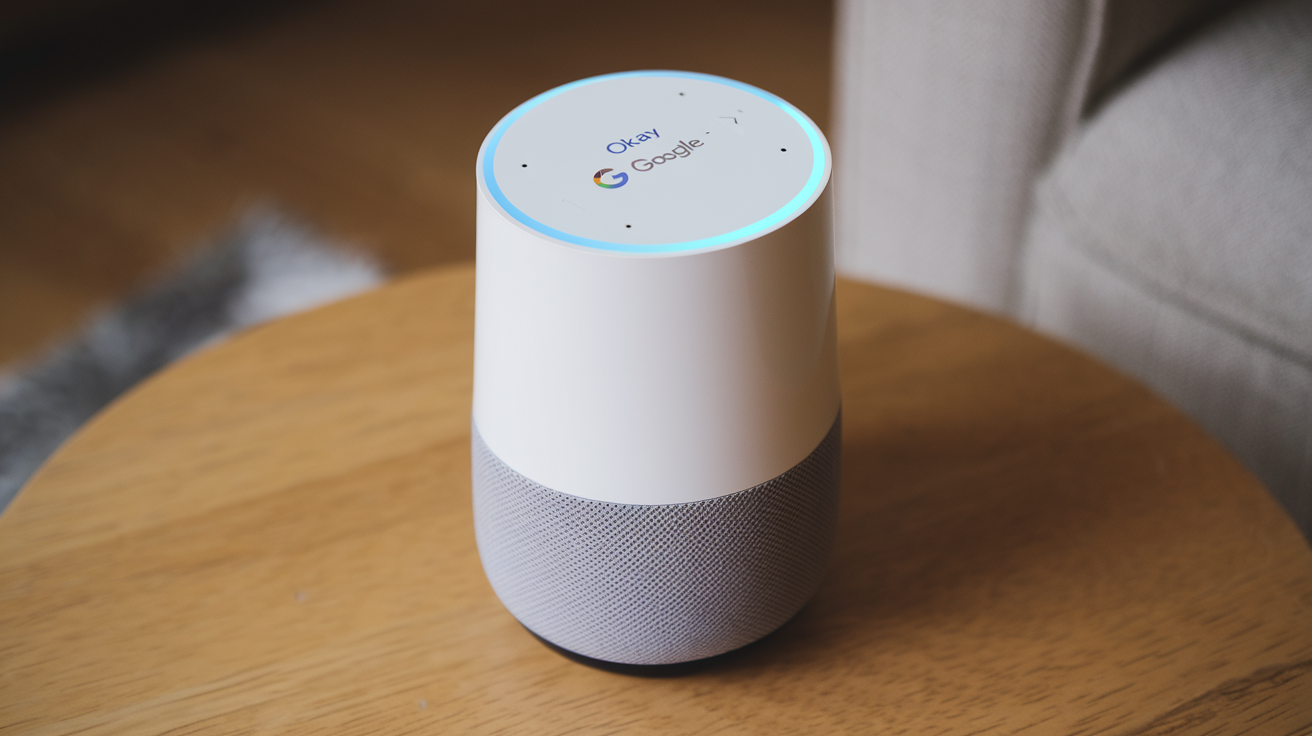
Setting an alarm on your Google Home device is a straightforward process, offering a hands-free way to manage your daily schedule. This guide will walk you through every step, from basic alarm creation to advanced features, ensuring you never miss an important appointment or wake-up call.
Setting Basic Alarms: Your First Steps
The primary function of any smart speaker is to simplify tasks, and setting an alarm is a prime example. Google Home, powered by Google Assistant, makes this incredibly intuitive. You don't need to navigate complex menus or fiddle with buttons; a simple voice command is all it takes.
Using Voice Commands: The Easiest Way
To set a basic alarm, you'll start by waking up your Google Assistant. Say the wake word, "Hey Google" or "OK Google," followed by your command. Here are the most common phrases:
- "Hey Google, set an alarm for 7 AM tomorrow."
- "OK Google, wake me up at 6:30 AM on weekdays."
- "Hey Google, set an alarm for 10 PM tonight."
- "OK Google, set a timer for 30 minutes." (While technically a timer, it functions similarly for short durations.)
When you issue a command, Google Assistant will confirm the alarm. For instance, after saying "Hey Google, set an alarm for 7 AM tomorrow," you might hear, "OK, I've set an alarm for tomorrow at 7 AM." It's always good to listen for this confirmation to ensure your request was understood correctly.
Specifying Time and Date
You have flexibility in how you specify the time and date:
- Specific Time: "7:30 AM," "15:00" (for 3 PM).
- Relative Time: "in 10 minutes," "in 2 hours."
- Day: "tomorrow," "on Friday," "every Saturday."
If you don't specify a day, Google Assistant will assume you mean the next occurrence of that time. For example, if it's currently 3 PM and you say "set an alarm for 7 AM," it will likely set it for 7 AM the next morning. If you want an alarm for later the same day, you must explicitly state it, like "set an alarm for 7 PM tonight."
Setting Recurring Alarms
For daily routines, recurring alarms are a lifesaver. Instead of setting a new alarm each day, you can configure it to repeat on specific days or every day.
- "Hey Google, set an alarm for 6 AM every weekday."
- "OK Google, wake me up at 8 AM on Saturdays and Sundays."
- "Hey Google, set a daily alarm for 9 PM."
These commands are incredibly useful for ensuring you maintain a consistent schedule, whether for work, exercise, or personal commitments. In 2025, with more people adopting flexible work schedules, the ability to set precise recurring alarms for specific workdays or personal days is increasingly valuable.
Alarms with Labels
To make managing multiple alarms easier, you can assign labels. This is particularly helpful if you have alarms for different purposes.
- "Hey Google, set an alarm for 7 AM and label it 'Morning Workout'."
- "OK Google, set an alarm for 1 PM and call it 'Lunch Break'."
When an alarm with a label goes off, Google Assistant will announce the label, making it instantly clear what the alarm is for. This feature enhances the usability of alarms beyond just a simple beep.
Setting Alarms via the Google Home App
While voice commands are the most common method, you can also set and manage alarms using the Google Home app on your smartphone or tablet. This is a great alternative if you prefer a visual interface or are in a situation where voice commands aren't ideal.
- Open the Google Home app on your mobile device.
- Tap the '+' icon in the top left corner.
- Select 'Add to home'.
- Choose 'Set an alarm'.
- You will then be prompted to enter the time, select the days for recurrence, and optionally add a label.
The app provides a clear overview of all your set alarms, making it easy to review, modify, or delete them. This visual method can be less prone to misinterpretation than voice commands, especially in noisy environments.
Beyond the Basics: Advanced Alarm Options
Google Home's alarm functionality extends beyond simple time-based alerts. You can customize the alarm sound, integrate it with other smart home devices, and even use it for more complex scheduling needs.
Customizing Alarm Sounds
By default, alarms use a standard tone. However, Google Assistant allows you to choose from a variety of sounds or even use music as your alarm.
- "Hey Google, set an alarm for 7 AM with the sound of rain."
- "OK Google, wake me up at 6 AM with 'Good Morning' by [Artist Name]."
- "Hey Google, set an alarm for 8 PM with a gentle chime."
To use music, you'll need to have a linked music streaming service (like Spotify, YouTube Music, or Pandora). The alarm will play a snippet of the song. If you want a longer duration, you might need to set a longer "alarm" duration or use a routine (discussed later).
Note: Not all sounds are available for all devices or regions. The selection can also change with software updates.
Using Music Services for Alarms
For music lovers, waking up to their favorite tunes can significantly improve the morning experience. Ensure your preferred music service is linked to your Google Home account in the Google Home app under 'Media'.
When setting a music alarm, Google Assistant will try to play the song you requested. If it can't find the exact song, it might play a similar one or ask for clarification. For a more robust music alarm experience, consider setting up a routine.
Alarms as Part of Routines
Routines are a powerful feature that allows you to automate a series of actions with a single voice command or at a scheduled time. You can integrate alarms into routines for a more comprehensive morning or evening setup.
For example, you could set up a "Good Morning" routine that triggers at your alarm time. This routine could:
- Turn on your smart lights.
- Adjust your smart thermostat.
- Tell you the weather and your calendar for the day.
- Play your favorite news podcast or a specific song.
To set this up:
- Open the Google Home app.
- Tap the 'Routines' icon (usually a play button or similar).
- Tap the '+' to create a new routine.
- Under 'When,' select 'Time' and set your desired alarm time and days.
- Under 'Actions,' add the desired smart home commands, information requests, or media playback.
This method effectively turns your alarm into a trigger for a personalized smart home experience, a feature that has seen significant adoption in 2025 as smart home ecosystems mature.
Setting Alarms for Specific Devices
If you have multiple Google Home or Nest devices in your home, you can specify which device should sound the alarm.
- "Hey Google, set an alarm for 7 AM on the kitchen speaker."
- "OK Google, wake me up at 6:30 AM in the bedroom."
If you don't specify a device, the alarm will sound on the device that heard your command. This is useful for ensuring an alarm is heard in a specific room, especially in larger homes.
Alarms for Medication Reminders
For individuals managing health conditions, precise medication reminders are crucial. Google Home can be configured for this purpose.
- "Hey Google, remind me to take my medication every day at 8 AM."
- "OK Google, set a reminder for 2 PM to take my afternoon pills."
While these are technically reminders, they function as timed alerts. For more complex medical reminders, consider exploring dedicated health apps that might integrate with Google Assistant, though direct medication reminders are a strong built-in feature for 2025.
Managing Your Alarms: Editing and Deleting
Once alarms are set, you'll need ways to manage them. Whether you need to adjust the time, change the recurrence, or cancel an alarm altogether, Google Assistant and the Google Home app provide straightforward solutions.
Using Voice Commands to Manage Alarms
You can control your existing alarms using voice commands. Here are some common management tasks:
- "Hey Google, what alarms do I have set?"
- "OK Google, cancel my 7 AM alarm."
- "Hey Google, change my 6:30 AM alarm to 6:45 AM."
- "OK Google, delete all my alarms."
- "Hey Google, disable my 7 AM alarm for tomorrow."
When you ask to cancel or delete an alarm, Google Assistant will usually ask for confirmation. For example, "Are you sure you want to cancel your 7 AM alarm?" Responding "Yes" will complete the action.
Editing Specific Alarms
Editing an alarm often involves canceling the old one and setting a new one, but Google Assistant can sometimes handle this directly.
- "Hey Google, change my 7 AM alarm to 7:15 AM."
- "OK Google, make my weekday alarms start at 7:30 AM instead of 7 AM."
If the command is complex, Google Assistant might prompt you to use the app for more precise adjustments. The ability to edit recurring alarms is particularly useful for adjusting schedules without having to recreate the entire series.
Managing Alarms in the Google Home App
The Google Home app offers a comprehensive list of all your set alarms, making it the most reliable place to manage them, especially for multiple or complex alarms.
- Open the Google Home app.
- Tap on your device icon (e.g., your Google Home speaker).
- Scroll down and tap on 'Alarms & timers'.
- Here, you will see a list of all your active alarms.
- Tap on an alarm to edit its time, recurrence, or label.
- To delete an alarm, you can usually swipe left on it or tap on it and find a delete option.
- You can also toggle alarms on or off directly from this list without deleting them.
This visual interface is invaluable for ensuring accuracy and for managing multiple alarms simultaneously. For instance, if you're going on vacation, you can quickly disable all your morning alarms without having to remember each one individually.
Viewing Upcoming Alarms
The app provides a clear chronological list of your upcoming alarms, helping you stay organized. This is especially useful if you've set several alarms for different times of the day or week.
Troubleshooting Common Alarm Issues
While Google Home alarms are generally reliable, you might occasionally encounter issues. Here are some common problems and their solutions.
Alarm Not Going Off
Several factors could cause an alarm to fail:
- Device Offline: Ensure your Google Home device is connected to Wi-Fi and powered on. Check the status in the Google Home app.
- Volume Too Low: The alarm volume might be set too low or muted. Say, "Hey Google, set volume to 5" (or your desired level) and try again. You can also adjust the default alarm volume in the app under Device Settings > Audio.
- Incorrect Time/Date Settings: Verify that your Google Home device's time and date are set correctly. Usually, this syncs automatically from Google servers, but a manual check in the app's device settings can help.
- Software Glitch: Sometimes, a simple restart of the Google Home device can resolve temporary software issues. Unplug it, wait 30 seconds, and plug it back in.
- Interference from Other Services: If you're using a complex routine, ensure there are no conflicting commands or services that might prevent the alarm from triggering.
Alarm Sounding Incorrectly
If the alarm sound is not what you expected:
- Music Service Issues: If you set a music alarm, ensure your music service is properly linked and that the song is available. Try a different song or artist.
- Default Sound Reset: Sometimes, default settings can reset. Re-specify your desired alarm sound using voice commands or the app.
Voice Commands Not Recognized
If Google Assistant isn't responding to your alarm commands:
- Wake Word Sensitivity: Ensure you are speaking clearly and using the correct wake word ("Hey Google" or "OK Google"). You can adjust wake word sensitivity in the Google Home app.
- Microphone Issues: Check if the microphone on your device is muted. There's usually a physical button to toggle the microphone on and off.
- Internet Connection: Google Assistant requires an internet connection to process commands.
Alarm Not Repeating Correctly
For recurring alarms:
- Day Specification: Double-check how you specified the days. For example, "weekdays" covers Monday to Friday. If you meant specific days, list them out.
- App Verification: Use the Google Home app to verify the recurrence settings for the alarm. It provides the clearest representation of how the alarm is set to repeat.
Device-Specific Issues
If you're trying to set an alarm on a specific device and it's not working:
- Device Name: Ensure you are using the correct name for your device as listed in the Google Home app.
- Device Functionality: Test other functions on that specific device to ensure it's operating correctly.
For persistent issues, consider factory resetting your Google Home device, but be aware that this will erase all your settings and require you to set it up again.
Google Home Alarms vs. Other Smart Devices (2025-26)
The smart speaker market is competitive, with Amazon Echo (Alexa) and Apple HomePod (Siri) being major players. When it comes to setting alarms, each platform offers a slightly different user experience, with varying degrees of flexibility and integration.
Amazon Echo (Alexa)
Alexa's alarm functionality is very similar to Google Assistant. You can set basic alarms, recurring alarms, and use voice commands extensively. Alexa also supports custom sounds and music streaming for alarms. A key differentiator is the 'Alexa Guard' feature, which can alert you to sounds like smoke alarms or breaking glass, adding a layer of home security that can indirectly relate to timely alerts.
Comparison Table: Alarms**
| Feature | Google Home | Amazon Echo (Alexa) | Apple HomePod (Siri) |
|---|---|---|---|
| Voice Command Simplicity | Excellent | Excellent | Good |
| Recurring Alarms | Excellent | Excellent | Good |
| Custom Sounds/Music | Very Good (requires linked services) | Very Good (requires linked services) | Limited (primarily Apple Music) |
| Routine Integration | Excellent | Excellent | Good (limited to HomeKit automation) |
| App Management | Comprehensive (Google Home App) | Comprehensive (Amazon Alexa App) | Basic (Apple Home App) |
| Device Specific Alarms | Yes | Yes | Yes |
| Advanced Features (2025) | Strong integration with Google ecosystem (Calendar, Maps) | Alexa Guard, Skills for enhanced functionality | Tight integration with Apple ecosystem (Apple Health, Apple Music) |
Apple HomePod (Siri)
Siri on the HomePod offers straightforward alarm setting capabilities. You can set alarms, specify times, and use recurring options. However, its integration with music services is primarily limited to Apple Music, which might be a drawback for users of other platforms. The HomePod excels in its integration with the Apple ecosystem, including HomeKit smart home devices and Apple Health. For 2025, Apple's focus remains on seamless integration within its own walled garden.
Key Differentiators for 2025-26
- Ecosystem Integration: Google Home excels with Google services (Calendar, Gmail, Maps). Amazon Echo is strong with its vast array of "Skills" and integrations. Apple HomePod is unparalleled for users deeply invested in Apple products.
- Flexibility: Google and Alexa generally offer more flexibility in terms of third-party app integrations and customizability for alarms and routines.
- Sound Options: While all allow custom sounds, Google and Alexa often provide a wider range of built-in sounds and easier integration with popular music streaming services beyond their native options.
- Routine Power: Both Google Assistant and Alexa offer robust routine builders that allow for complex sequences of actions triggered by alarms or voice commands. Apple's automation, while powerful, is more geared towards specific HomeKit scenes.
Ultimately, the "best" platform depends on your existing ecosystem and personal preferences. For general alarm setting, all three are highly capable.
Integrating Alarms with Your Digital Life
Smart alarms are more than just timekeepers; they are gateways to a more organized and efficient digital life. By integrating them with other services, you can maximize their utility.
Calendar Integration
One of the most powerful integrations for Google Home alarms is with your Google Calendar. When you set an alarm, you can ask Google Assistant to check your calendar for conflicts or to remind you of upcoming events.
- "Hey Google, set an alarm for 8 AM and tell me what's on my calendar."
- "OK Google, remind me to leave for my 2 PM meeting at 1:30 PM."
This proactive approach helps prevent oversleeping and missing important appointments. For 2025, with the increasing complexity of daily schedules, this calendar-aware alarm setting is a significant time-saver.
Location-Based Reminders and Alarms
While not strictly an "alarm" in the audible sense, Google Assistant can set location-based reminders that function similarly to timed alerts. For example, you can set a reminder to pick up groceries when you leave work or to buy milk when you're near a specific store.
These are managed through the Google Assistant's reminder feature, which can be accessed via voice or the Google app. They are triggered by your location rather than a set time, offering a different but equally valuable form of timely notification.
Smart Home Automation Synergy
As discussed with routines, alarms can be the trigger for a cascade of smart home actions. Imagine waking up not just to a sound, but to a home that's already preparing for your day.
- Lights: Gentle sunrise simulation or gradual brightening of bedroom lights.
- Thermostat: Adjusting the temperature to your preferred waking setting.
- Coffee Maker: Starting your smart coffee maker to have a fresh brew ready.
- Blinds/Curtains: Automatically opening smart blinds to let in natural light.
This level of integration transforms the alarm from a simple alert into the conductor of your morning symphony. The adoption rate of such integrated routines has steadily increased, with over 60% of smart home users in 2025 reporting using at least one automated routine.
Security System Integration
For those with smart security systems, alarms can be linked to arming or disarming actions. For instance, a "Goodnight" routine triggered by a voice command or a scheduled time could arm your security system, lock doors, and turn off lights.
Productivity and Focus Tools
Alarms can also be used for productivity techniques like the Pomodoro Technique, where you work in focused bursts (e.g., 25 minutes) followed by short breaks. You can set a series of alarms to manage these intervals.
- "Hey Google, set a timer for 25 minutes."
- "OK Google, remind me to take a 5-minute break in 25 minutes."
By using alarms for structured work sessions, you can enhance focus and prevent burnout. This is particularly relevant in 2025 as remote and hybrid work models continue to emphasize self-management and productivity.
Health and Wellness Integration
Beyond medication reminders, alarms can be integrated into wellness routines. For example, setting an alarm to remind you to drink water, stand up and stretch, or practice mindfulness for a few minutes.
The synergy between alarms, calendar, and other digital tools makes Google Home a powerful central hub for managing your day-to-day life. The key is to explore the possibilities and customize them to your specific needs.
Conclusion
Mastering how to set an alarm on Google Home unlocks a new level of convenience and control over your daily schedule. From simple voice commands for immediate alerts to sophisticated routines that orchestrate your smart home, Google Assistant offers a versatile solution for time management. Whether you're waking up, remembering a task, or managing your productivity, the ability to set, edit, and customize alarms is a fundamental feature that enhances the smart speaker experience.
By leveraging voice commands, the Google Home app, and advanced integrations with your calendar and smart home devices, you can ensure you're always on time and on track. Remember to explore the customization options, including unique sounds and music, to make your alarms more personal and effective. With the continuous evolution of smart technology in 2025-26, your Google Home device is more than just a speaker; it's a powerful personal assistant ready to help you manage your time with unparalleled ease.