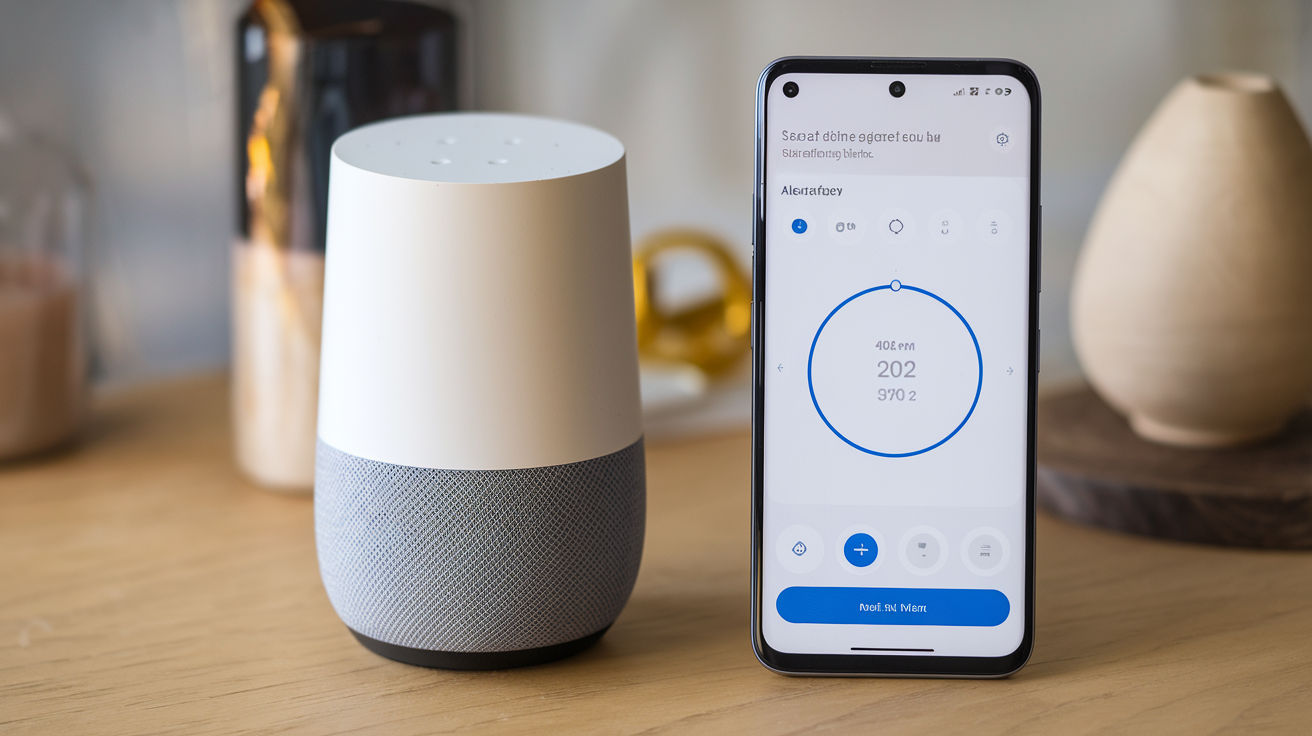
Unlock the full potential of your smart home by mastering how to set a Google Home alarm. This comprehensive guide will walk you through every step, ensuring you never miss an important event, wake up on time, or get timely reminders. Discover the convenience and power of voice-activated alarms and timers with your Google Assistant-enabled device.
Setting Alarms with Google Home
Setting an alarm with your Google Home or Nest device is remarkably straightforward, primarily relying on simple voice commands. The Google Assistant is designed to understand natural language, making the process intuitive for users of all technical backgrounds. Whether you need a simple wake-up call or a reminder for an important appointment, your smart speaker can handle it with ease. This section will guide you through the basic commands and the underlying principles of setting alarms.
The Power of Voice Commands
The core of setting an alarm on your Google Home device lies in its voice control capabilities. You don't need to navigate complex menus or use an app for basic alarm functions. Simply speaking the command clearly is usually enough. The Assistant is designed to be responsive, and with a few practice runs, you'll find it second nature.
Basic Alarm Setting Commands
Here are the fundamental voice commands you'll use:
- To set a specific time alarm: "Hey Google, set an alarm for 7 AM tomorrow." or "Okay Google, wake me up at 6:30 AM on weekdays."
- To set a timer: "Hey Google, set a timer for 15 minutes." or "Okay Google, set a 5-minute timer for the pasta."
- To set a recurring alarm: "Hey Google, set an alarm for 8 AM every Monday, Wednesday, and Friday."
- To set an alarm for a specific date: "Hey Google, set an alarm for 9 PM on December 24th."
The Google Assistant will typically confirm your request by repeating the alarm details back to you. For instance, after saying "Hey Google, set an alarm for 7 AM tomorrow," you might hear, "Okay, alarm set for 7 AM tomorrow." This confirmation is crucial for ensuring the alarm is set as intended.
Understanding the Google Home App Interface
While voice commands are the primary method, the Google Home app offers a visual interface for managing alarms and timers, which can be particularly useful for more complex scheduling or for users who prefer a visual approach. The app provides a centralized location to view, edit, and delete all your set alarms and timers across all your Google Assistant devices.
Accessing Alarms in the Google Home App
To access alarm settings within the Google Home app:
- Open the Google Home app on your smartphone or tablet.
- Tap on your device icon (e.g., your Google Home speaker).
- Look for an option related to "Alarms & Timers" or similar. This might be directly visible or within a settings menu for the device.
Within this section, you can see a list of all active alarms and timers. You can also set new alarms and timers here, often with more granular control over settings like repetition and sound than might be immediately obvious with voice commands alone. This visual confirmation and management tool is a valuable addition for a seamless smart home experience.
How Google Assistant Processes Alarm Requests
When you issue an alarm command, Google Assistant processes it through several steps. First, it uses Natural Language Processing (NLP) to understand your intent and extract key information such as the time, day, and any specific labels you might have assigned. Then, it communicates with the Google servers to schedule the alarm. The alarm is then pushed to your specific Google Home device or, if you've set it up that way, to your Google account, meaning it can be managed across multiple devices.
Factors Affecting Alarm Accuracy
For optimal alarm accuracy, ensure the following:
- Clear Pronunciation: Speak clearly and at a normal pace.
- Quiet Environment: Minimize background noise to help the Assistant hear you accurately.
- Internet Connection: A stable internet connection is essential for Google Assistant to process your requests and schedule alarms correctly.
- Correct Time Zone: Ensure your Google Home device and Google account are set to the correct time zone. This is usually configured during initial setup but can be checked in the Google Home app settings.
By following these guidelines, you can ensure that setting alarms with your Google Home device is a reliable and hassle-free experience. The convenience of setting alarms hands-free is one of the most appreciated features of smart speakers.
Exploring Different Alarm Types
Google Home offers a variety of alarm types and functionalities beyond a simple one-time alert. Understanding these options allows you to tailor your alarms to your specific needs, whether it's for waking up, managing tasks, or even creating ambient soundscapes. From recurring alarms that fit your weekly schedule to custom sounds that make waking up more pleasant, Google Home provides flexibility.
Standard Alarms
These are the most common type of alarms, set for a specific time and day. They are perfect for daily wake-up calls, remembering to take medication, or signaling the end of a work block.
- Single Alarms: "Hey Google, set an alarm for 7:15 AM." This alarm will sound once at the specified time.
- Recurring Alarms: "Hey Google, set an alarm for 6:45 AM every weekday." This is ideal for consistent routines, ensuring you're prompted at the same time on specific days. You can specify days of the week (e.g., "every Monday," "weekends," "weekdays").
Timers
Timers are essentially countdown alarms. They are incredibly useful for a wide range of activities, from cooking and exercise to managing screen time for children or simply remembering to check on something.
- Simple Timers: "Hey Google, set a timer for 30 minutes."
- Named Timers: "Hey Google, set a 'pizza' timer for 20 minutes." This allows you to distinguish between multiple active timers. When the timer goes off, Google Assistant will announce, "Your pizza timer is up."
- Multiple Timers: You can set multiple timers simultaneously. "Hey Google, set a 'laundry' timer for 45 minutes and a 'dinner prep' timer for 10 minutes."
Sunrise Alarms (for compatible devices)
Some Google Home devices, particularly those with displays like the Nest Hub, can simulate a sunrise. This feature gradually increases the screen brightness before the alarm sounds, offering a more natural and gentle way to wake up. This is a significant upgrade from jarring traditional alarms.
- Setting a Sunrise Alarm: This is typically set through the Google Home app. Navigate to your device's settings, then to "Alarms & timers," and look for the "Sunrise alarm" option. You can customize the duration of the sunrise effect and the alarm sound.
Custom Sounds and Music Alarms
Waking up to your favorite song or a custom sound can make a huge difference in your morning mood. Google Home allows you to set alarms that play music from linked streaming services or use specific sounds.
- Music Alarms: "Hey Google, wake me up with 'Good Morning' by U2 at 7 AM tomorrow." You can specify a song, artist, or playlist. Ensure your preferred music streaming service (e.g., Spotify, YouTube Music) is linked to your Google account.
- Radio Alarms: "Hey Google, wake me up to NPR at 6 AM."
- Custom Sounds: While less common for direct voice commands, some routines can be set up to play specific sounds. For more advanced custom sounds, you might explore third-party integrations or routines.
Location-Based Alarms (via Google Assistant Routines)
While not a direct "set alarm" command, you can leverage Google Assistant Routines to create location-based reminders that function similarly to alarms. For example, you can set a reminder to go off when you leave home or arrive at work.
- Example Routine: "Hey Google, set up a routine. When I leave home, remind me to pick up groceries." This would trigger a notification or announcement when your phone's location services indicate you've left your designated home area.
Comparison of Alarm Types
Here's a quick comparison to help you choose the right alarm type:
| Alarm Type | Primary Use Case | Setup Method | Key Features |
|---|---|---|---|
| Standard Alarm | Time-specific reminders, wake-ups | Voice command or Google Home app | Single, recurring, specific date |
| Timer | Countdown for tasks, cooking | Voice command or Google Home app | Named timers, multiple timers |
| Sunrise Alarm | Gentle waking experience | Google Home app (for devices with screens) | Gradual light increase, customizable duration |
| Music/Radio Alarm | Pleasant wake-up, personalized start | Voice command or Google Home app | Plays songs, artists, playlists, or radio stations |
| Location-Based Reminder (Routine) | Context-aware reminders | Google Home app (Routines section) | Triggers based on arrival/departure from locations |
By understanding these different types, you can harness the full power of your Google Home device to manage your time and daily schedule more effectively. The versatility ensures there's an alarm solution for almost any situation.
Customizing Your Google Home Alarms
Beyond simply setting an alarm, Google Home offers a surprising amount of customization to make your alarms more personal, effective, and less disruptive. This section delves into the various ways you can tweak your alarms, from selecting specific sounds and volumes to integrating them with other smart home actions.
Choosing Your Alarm Sound
The default alarm sound can be monotonous. Google Home allows you to choose from a variety of sounds or even use music as your alarm.
- Default Sounds: Google Assistant has a selection of built-in alarm tones. You can ask, "Hey Google, what alarm sounds can I use?" to hear some options.
- Music as Alarms: As mentioned earlier, you can set alarms to play specific songs, artists, or playlists from linked music services. This is a popular way to make waking up more enjoyable. "Hey Google, set a 7 AM alarm with my 'Morning Vibes' playlist."
- Radio Alarms: For news or talk radio enthusiasts, waking up to a live broadcast is an option. "Hey Google, wake me up to BBC Radio 1 at 6:30 AM."
Note: The availability of specific sounds or music integration may depend on your linked services and device model.
Setting Alarm Volume
The volume of your alarm is crucial. Too low, and you might sleep through it; too high, and it can be startling. You can control this in a few ways:
- During Setup: You can often specify the volume when setting the alarm, although this is less common via voice command and more prevalent in the app.
- Adjusting System Volume: The alarm volume is generally tied to the device's media volume. You can adjust this manually by saying, "Hey Google, set volume to 5" or using the physical volume buttons on the device.
- App Control: The Google Home app allows you to set a default media volume for your device, which will affect alarm volumes.
For a wake-up alarm, it's often recommended to start with a moderate volume and gradually increase it if needed. Some devices might offer a "gentle wake" feature that starts softly and increases in volume.
Customizing Recurring Alarms
Recurring alarms are powerful for establishing routines. You can fine-tune them for specific needs:
- Specific Days: "Hey Google, set an alarm for 8 AM every Tuesday and Thursday."
- Weekday/Weekend Patterns: "Hey Google, set a 9 AM alarm for weekdays."
- Editing Recurring Alarms: If your schedule changes, you can edit these recurring alarms. This is best done through the Google Home app, where you can select the specific recurring alarm and modify its days or time.
Adding Labels to Alarms
For timers, especially, adding a label makes them much more manageable when you have multiple running. This is primarily done via voice command.
- Example: "Hey Google, set a timer for 20 minutes for the roast chicken." When the timer expires, Google Assistant will announce, "Your roast chicken timer is up." This clarity is invaluable in a busy kitchen.
Integrating Alarms with Google Assistant Routines
This is where customization truly shines. Routines allow you to trigger multiple actions with a single voice command or at a scheduled time, including alarms. You can also have alarms trigger routines.
- Example: Alarm triggering a Routine: You can set a morning alarm that, once dismissed, triggers a routine. For instance, your 7 AM alarm could be followed by a routine that says, "Good morning, [Your Name]. The weather today is..." and turns on your smart lights. This is configured within the "Routines" section of the Google Home app.
- Example: Routine triggering an Alarm-like reminder: While not a traditional alarm, you could set up a routine that runs at a specific time and performs an action, like playing a specific sound or announcing a message.
Sunrise and Sunset Alarms (for Nest Hubs)
For devices with screens, like the Nest Hub, you can configure sunrise and sunset alarms. This feature simulates the natural progression of daylight.
- Sunrise Alarm: The screen gradually brightens over a set period (e.g., 30 minutes) before the alarm sounds, mimicking a sunrise. This can lead to a more natural and less jarring wake-up experience.
- Sunset Alarm: Similarly, a sunset alarm can gradually dim the screen, signaling it's time to wind down for the night.
These are typically set up through the Google Home app under the device's settings, within the "Alarms & timers" section. You can customize the duration of the light effect and the associated sound.
Customizing Notification Sounds
While not strictly an alarm, Google Assistant can also provide other notifications. You can often customize the sounds associated with these notifications within the Google Home app's notification settings for your device. This ensures you can differentiate between important alerts and general information.
Using Third-Party Integrations
For even deeper customization, explore third-party integrations. Some apps and services can connect with Google Assistant to offer more advanced alarm features, such as:
- Sleep Tracking Integration: Alarms that adjust based on sleep cycles.
- Smart Home Scenes: Alarms that trigger complex smart home scenes beyond basic routines.
These often require setting up specific app connections within your Google account or through the Google Home app.
By taking advantage of these customization options, you can transform your Google Home device from a simple alarm clock into a personalized time management tool that perfectly fits your lifestyle. The ability to fine-tune alarms ensures they are always helpful and never an annoyance.
Managing Your Alarms Effectively
Once you've set your alarms, knowing how to manage them efficiently is key to maintaining control over your schedule. This includes viewing active alarms, editing them, deleting them, and ensuring they are functioning correctly. Google Home provides straightforward methods for alarm management, both through voice commands and the Google Home app.
Viewing Your Active Alarms
Knowing what alarms are currently set is the first step in effective management.
- Via Voice Command: You can ask your Google Assistant to list your alarms. Try commands like:
- "Hey Google, what alarms do I have set?"
- "Okay Google, show me my alarms."
- Via Google Home App: The Google Home app offers a clear visual overview of all your alarms and timers.
- Open the Google Home app.
- Select the device for which you want to see alarms (or it might show a general list).
- Navigate to the "Alarms & Timers" section.
Editing Existing Alarms
Schedules change, and your alarms need to adapt. Editing is simple:
- Via Voice Command: You can modify existing alarms, though it often requires canceling and re-setting, or specifying the alarm you want to change.
- "Hey Google, change my 7 AM alarm to 7:15 AM."
- "Okay Google, change my weekday alarm to 7 AM."
- Via Google Home App: This is the most robust way to edit alarms.
- Open the Google Home app.
- Go to "Alarms & Timers" for your device.
- Tap on the specific alarm you wish to edit.
- You can then change the time, days of recurrence, sound, and other settings.
Deleting Alarms
When an alarm is no longer needed, it's best to delete it to avoid accidental activation.
- Via Voice Command:
- "Hey Google, cancel my 7 AM alarm."
- "Okay Google, delete all my alarms." (Use with caution!)
- "Hey Google, cancel my timer for the pasta."
- Via Google Home App:
- Open the Google Home app.
- Navigate to "Alarms & Timers".
- Tap on the alarm or timer you want to remove.
- Look for a "Delete" or trash can icon and tap it.
Managing Multiple Devices
If you have multiple Google Home or Nest devices in your home, alarms set on one device are generally synced across your account. This means an alarm set on your Nest Mini in the kitchen will also be visible and manageable on your Nest Hub in the bedroom.
- Check Device Settings: Ensure all your devices are linked to the same Google account within the Google Home app. This synchronization ensures consistent alarm management across your smart home ecosystem.
- Specify Device for Alarms: While alarms are often global, you can sometimes specify which device should sound the alarm: "Hey Google, set an alarm for 7 AM on the kitchen speaker."
Troubleshooting Alarm Syncing Issues
Occasionally, you might encounter issues where alarms don't sync correctly between devices or the app. Common solutions include:
- Restart Devices: Power cycle your Google Home devices and your smartphone.
- Check Internet Connection: Ensure all devices have a stable Wi-Fi connection.
- Update Google Home App: Make sure you're using the latest version of the Google Home app.
- Check Google Account: Verify that all devices are linked to the correct Google account.
Best Practices for Alarm Management
- Regular Review: Periodically review your active alarms, especially recurring ones, to ensure they still align with your schedule.
- Clear Naming: Use descriptive labels for timers (e.g., "Chicken Timer," "Workout Timer") to avoid confusion.
- Test New Alarms: After setting a new or complex alarm, consider setting a short, immediate test alarm to confirm it's working as expected.
- Utilize the App: For detailed management, editing, and deletion, the Google Home app is generally the most efficient tool.
Effective management of your alarms ensures that your smart speaker remains a helpful tool for timekeeping rather than a source of confusion. By mastering these management techniques, you can confidently rely on your Google Home device to keep you on track.
Troubleshooting Common Alarm Issues
While Google Home alarms are generally reliable, like any technology, you might occasionally encounter issues. This section provides solutions to common problems users face when setting, managing, or receiving alarms, helping you get back on track quickly.
Alarm Not Sounding
This is one of the most frustrating issues. Several factors could be at play:
- Check Volume: Ensure the device volume is turned up. "Hey Google, set volume to 6." Alarms use the media volume, so if that's low, the alarm might be too quiet to hear.
- Do Not Disturb Mode: Check if "Do Not Disturb" mode is active on your Google Home device or Google Assistant app. This mode can silence notifications and alarms. You can usually disable it by saying, "Hey Google, turn off Do Not Disturb."
- Internet Connectivity: Alarms rely on an internet connection to be scheduled and triggered. Ensure your Google Home device is connected to Wi-Fi. Check your router and Wi-Fi status.
- Correct Time and Time Zone: Verify that your Google Home device's time and time zone are set correctly. This is usually done in the Google Home app under device settings. An incorrect time zone is a common culprit for alarms not sounding at the expected local time.
- Alarm Set for the Correct Day/Time: Double-check the exact time and day you set the alarm for. If it's a recurring alarm, ensure the correct days are selected. Use "Hey Google, what alarms do I have set?" to confirm.
- Device Restart: A simple restart can often resolve temporary glitches. Unplug your Google Home device, wait 30 seconds, and plug it back in.
- App Sync Issues: If you set the alarm via the app, ensure it synced correctly. Try setting a new, simple alarm via voice command to see if that works.
- Firmware Updates: Ensure your Google Home device firmware is up to date. Updates are usually automatic, but sometimes a manual check in the Google Home app might be necessary.
Alarm Sounding at the Wrong Time
This usually points to a time zone issue or a misunderstanding of the command.
- Verify Time Zone: This is the most common cause. Go to the Google Home app, select your device, then Settings > Device Information > Time zone. Ensure it's set correctly for your location.
- Check AM/PM: Ensure you clearly stated AM or PM when setting the alarm, or that the device correctly interpreted it. "Hey Google, set an alarm for 7 PM" is different from "7 AM."
- Recurring Alarm Days: If it's a recurring alarm, confirm the correct days were selected. You might have accidentally set it for a day it wasn't intended for.
Google Assistant Doesn't Understand Alarm Commands
Misinterpretation can happen, especially in noisy environments or with complex phrasing.
- Speak Clearly: Enunciate your words and speak at a moderate pace.
- Reduce Background Noise: Move to a quieter area if possible.
- Simplify Commands: Try using the most basic command structure first. Instead of "Hey Google, can you please set an alarm for when I need to leave for my dentist appointment tomorrow at 2 PM?", try "Hey Google, set an alarm for 2 PM tomorrow."
- Check Microphone: Ensure the microphone on your Google Home device isn't obstructed or damaged.
- Language Settings: Verify that the language settings for your Google Assistant are correct.
Timers Not Working or Being Confused
This often happens when multiple timers are set.
- Use Named Timers: Always try to name your timers, especially if you're setting more than one. "Hey Google, set a 'cooking' timer for 25 minutes." This way, when it expires, Google will announce, "Your cooking timer is up," making it clear which timer has finished.
- Check Active Timers: Ask, "Hey Google, what timers are running?" to get a list of all active timers.
- Delete Unused Timers: If you have old timers running in the background, delete them to avoid confusion.
Sunrise Alarms Not Working (Nest Hubs)
Sunrise alarms are specific to devices with screens.
- Device Compatibility: Ensure you are using a device that supports sunrise alarms (e.g., Nest Hub, Nest Hub Max).
- App Configuration: Sunrise alarms are typically set and managed through the Google Home app. Double-check the settings for your specific device in the app, under "Alarms & timers," ensuring the sunrise feature is enabled and configured correctly.
- Screen Brightness: Ensure the screen brightness is not turned all the way down or off, as this can interfere with the light simulation.
Alarms Not Syncing Across Devices
If you have multiple Google Assistant devices, alarms should sync, but sometimes they don't.
- Same Google Account: Ensure all devices are linked to the exact same Google account in the Google Home app.
- Restart Devices: Restarting all involved Google Home devices and your smartphone can help re-establish sync.
- Check App Updates: Make sure the Google Home app is updated to the latest version on all controlling devices.
- Network Issues: A flaky network can prevent proper synchronization.
Alarm Dismissal Issues
Sometimes, an alarm might not dismiss properly.
- Voice Command: Try saying, "Hey Google, stop" or "Hey Google, dismiss alarm."
- App Dismissal: If using a Nest Hub, you can often swipe down or tap to dismiss. In the Google Home app, you might see an option to dismiss active alarms.
- Device Unresponsiveness: If the device is completely unresponsive, a restart might be necessary.
General Troubleshooting Steps
- Check Google Status Dashboard: Occasionally, Google services themselves might experience outages. Check the Google Workspace Status Dashboard to see if there are any reported issues with Google Assistant or related services.
- Factory Reset (Last Resort): If all else fails, you can perform a factory reset on your Google Home device. This will erase all settings, and you'll need to set it up again from scratch. This should be considered a last resort.
By systematically working through these troubleshooting steps, you can resolve most common issues and ensure your Google Home alarms function reliably, keeping you punctual and organized.
Leveraging Advanced Alarm Features
Beyond the basic functionality, Google Home offers a suite of advanced features that elevate alarms from simple timekeepers to integrated components of your smart home ecosystem. These features leverage the power of routines, integrations, and contextual awareness to provide a more sophisticated and personalized experience. Understanding and utilizing these can significantly enhance your daily life.
Customizable Routines for Alarms
Routines are arguably the most powerful aspect of Google Assistant. They allow you to automate sequences of actions triggered by a voice command or a schedule. You can integrate alarms into routines in several ways:
- Scheduled Routines as Alarms: You can create a routine that runs at a specific time and performs actions that mimic an alarm. For example, a "Good Morning" routine triggered at 7 AM could announce the weather, play a news briefing, and then play a specific song. While not a traditional "alarm," it serves a similar purpose with added functionality.
- Open the Google Home app.
- Tap Routines.
- Create a new routine.
- Set the starter to "Time" and choose your desired time and days.
- Add actions such as "Tell me about the weather," "Play news," or "Play music."
- Alarms Triggering Routines: While you can't directly set a standard alarm to trigger a routine, you can achieve this indirectly. For instance, you could set a standard alarm for 7 AM, and then create a separate routine that starts at 7:05 AM (or immediately after the alarm is dismissed, if the Assistant can detect that). Alternatively, you can use a scheduled routine that *includes* an alarm-like sound as one of its actions.
- Location-Based Routines: As mentioned previously, you can set routines that trigger based on your location (e.g., leaving home, arriving at work). These can serve as context-aware reminders that function like alarms when you're on the move. "Hey Google, set up a routine. When I leave work, remind me to pick up dry cleaning."
Integration with Smart Home Devices
One of the biggest advantages of Google Home alarms is their ability to interact with other smart devices.
- Morning Routines: Set a morning alarm that, when dismissed or when the routine starts, turns on your smart lights, adjusts the thermostat, starts your smart coffee maker, or even brews your favorite podcast.
- Evening Routines: Use scheduled routines to simulate a "wind-down" period. A routine set for 10 PM could dim your smart lights, turn off certain devices, and play calming music.
- Security Integration: While not a direct alarm function, you could create routines that, upon a specific voice command or at a scheduled time, arm your smart security system or check the status of your cameras.
These integrations are configured within the "Routines" section of the Google Home app, where you can add various smart home actions to your starters.
Music and Media Alarms with Advanced Control
Beyond simply playing a song, you can have more control over your music alarms.
- Volume Control: Ensure your music alarms are set to a comfortable volume. As discussed in customization, this is tied to media volume. For wake-up alarms, consider starting softer and gradually increasing.
- Playlist Customization: Link your preferred music streaming service (Spotify, YouTube Music, Apple Music, etc.) and create specific playlists for different alarms. This allows for a truly personalized wake-up experience.
- Radio Station Selection: Wake up to your favorite news, talk, or music radio station by specifying the station name.
Using Alarms for Productivity and Focus
Alarms and timers are excellent tools for productivity techniques like the Pomodoro Technique.
- Pomodoro Technique: Set a timer for 25 minutes of focused work, followed by a 5-minute break. "Hey Google, set a 'work' timer for 25 minutes." When it goes off, take your break. After the break, set another timer for 5 minutes. Repeat this cycle.
- Task Management: Use timers to allocate specific time slots for different tasks throughout the day.
- Mindfulness Breaks: Set short timers for mindfulness or meditation sessions.
Advanced Timer Features
- Multiple Named Timers: As emphasized before, naming timers is crucial when managing several simultaneously. This prevents confusion in the kitchen or during complex tasks.
- Timer Duration Flexibility: You can set timers for seconds, minutes, hours, or even days, offering immense flexibility for various needs.
Sunrise/Sunset Simulation with Nest Hubs
For devices with screens, the sunrise and sunset simulation offers a more advanced approach to managing your sleep-wake cycle.
- Gradual Wake-Up: The gentle increase in light before the alarm sounds can significantly improve the waking experience, making it feel more natural and less abrupt.
- Sleep Aid: The sunset feature can help signal your body it's time to wind down, promoting better sleep hygiene.
- Customization: You can adjust the duration of the light simulation and the associated alarm sound, tailoring it to your preferences.
Leveraging Third-Party Integrations
The Google Assistant platform is extensible, allowing for integration with various third-party services that can enhance alarm functionality.
- IFTTT (If This Then That): While Google Assistant's native routines are powerful, IFTTT can offer even more complex or niche automations. You might find applets that allow alarms to trigger specific actions in other apps or services that aren't directly supported by Google Home.
- Smart Home Platforms: If you use other smart home platforms (e.g., SmartThings, HomeKit via a bridge), you might be able to create more complex cross-platform automations that involve alarms or timers.
Explore the "Works with Google" section in the Google Home app or search for specific integrations online to discover possibilities. For example, some sleep-tracking apps might integrate with Google Assistant to provide more intelligent alarm suggestions based on your sleep patterns.
By exploring these advanced features, you can transform your Google Home device into a sophisticated personal assistant that not only tells time but actively helps you manage your day, improve your productivity, and enhance your overall well-being. The seamless integration with other smart home devices and the power of routines make Google Home alarms a cornerstone of modern smart living.
Conclusion
Mastering how to set a Google Home alarm unlocks a new level of convenience and control over your daily schedule. From simple voice commands to sophisticated routines that orchestrate your smart home, Google Assistant offers a versatile and powerful solution for all your timekeeping needs. Whether you're setting a wake-up call, managing cooking timers, or integrating alarms into your morning routine, the process is designed to be intuitive and efficient.
We've explored the fundamental voice commands, the visual management through the Google Home app, and the diverse range of alarm types available, including standard alarms, timers, music alarms, and even sunrise simulations for compatible devices. Customization options, such as choosing sounds, setting volumes, and labeling timers, ensure your alarms are perfectly tailored to your preferences. Furthermore, effective management techniques, including viewing, editing, and deleting alarms, are crucial for maintaining an organized system. We've also addressed common troubleshooting steps to ensure your alarms always function reliably.
The true power of Google Home alarms lies in their advanced capabilities, particularly their integration with routines and other smart home devices. By leveraging these features, you can create automated sequences that turn on lights, play news briefings, or start your coffee maker, all triggered by a simple alarm or a scheduled routine. This interconnectedness transforms your smart speaker from a standalone device into a central hub for managing your home and your time.
Our final recommendation is to actively explore and experiment with the features discussed. Don't hesitate to try different voice commands, set up a personalized morning routine, or use timers for your productivity tasks. The more you engage with your Google Home device's alarm functionalities, the more you'll discover how it can simplify and enhance your daily life. Embrace the convenience, customize your experience, and let your Google Home device help you stay on track, on time, and in control.