How To Turn Off Ring Doorbell Camera?
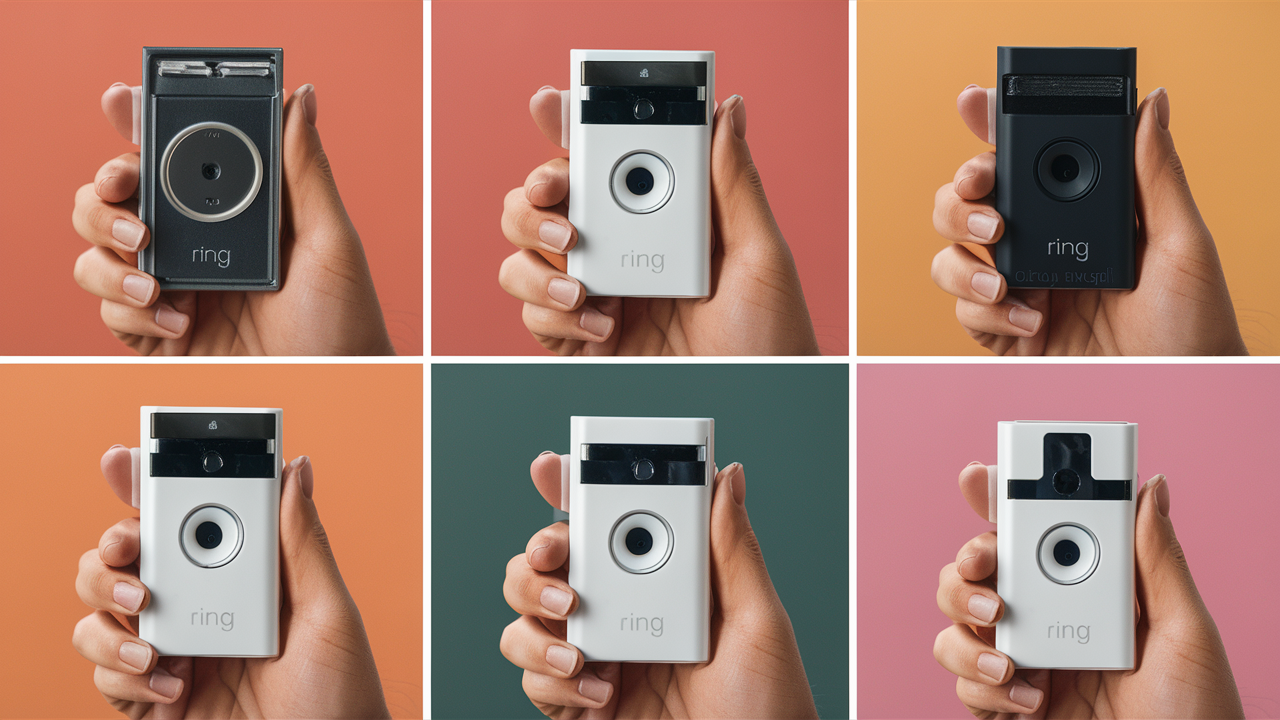
Discover the most straightforward methods to temporarily or permanently disable your Ring Doorbell camera. Whether you need to manage privacy, troubleshoot issues, or simply conserve battery, this guide provides clear, step-by-step instructions. We cover all common scenarios, ensuring you can regain control of your Ring device with confidence and ease.
Understanding Your Ring Doorbell Disabling Options
In the evolving landscape of home security, smart devices like the Ring Doorbell offer unparalleled convenience and peace of mind. However, there are legitimate reasons why a user might need to temporarily or permanently disable their Ring Doorbell camera. These reasons can range from personal privacy concerns during gatherings, troubleshooting technical glitches, to simply conserving battery life for portable models. Understanding the various methods available to achieve this is crucial for responsible device management. Ring offers a layered approach, allowing users to control different functionalities of the doorbell independently, or to completely power it down. This guide will explore both software-based solutions through the Ring application and hardware-based interventions, providing a comprehensive understanding of how to turn off your Ring Doorbell camera effectively, ensuring you maintain control over your device's operation and your home's privacy.
Software-Based Disabling: The Ring App Method
The Ring application is the central hub for managing all your Ring devices. It provides granular control over various features, allowing you to disable specific functionalities without resorting to physical intervention. This is often the preferred method as it's convenient, reversible, and can be done remotely. These software-based methods are essential for managing your Ring Doorbell's day-to-day operations and ensuring it aligns with your immediate needs.
Disabling Motion Detection
Motion detection is a core feature of Ring Doorbells, designed to alert you to activity outside your home. However, in situations where you might experience frequent false alerts (e.g., from passing cars, swaying trees, or pets), or when you simply don't want notifications, disabling motion detection is a practical solution. This ensures your Ring Doorbell remains powered and connected but won't trigger alerts or recordings based on movement.
Steps to Disable Motion Detection:
- Open the Ring app on your smartphone or tablet.
- Tap the three horizontal lines (menu icon) in the top-left corner.
- Select "Devices" and then choose your specific Ring Doorbell.
- Tap on "Motion Settings."
- You will see options for "Motion Zones" and "Motion Sensitivity." To disable motion detection entirely, you can adjust the sensitivity to the lowest setting. Alternatively, you can disable motion detection by toggling the main "Motion Detection" switch to the off position.
- For more granular control, you can adjust the "Motion Zones" to exclude areas where you don't want detection, effectively disabling it for those specific zones.
- Ensure you tap "Save" to apply your changes.
Disabling motion detection is a powerful way to manage notifications and battery life, especially for battery-powered models. By turning off this feature, your Ring Doorbell will still be able to receive doorbell presses and allow live view, but it won't actively record or send alerts for motion. This is a common strategy during parties or when expecting frequent visitors.
Disabling Recording Schedules
Ring Doorbells, particularly those with continuous recording capabilities or specific event-based recording settings, can be managed through recording schedules. While not a direct "off" switch for the camera itself, disabling recording ensures that no video footage is captured or stored, even if motion is detected or the doorbell is pressed. This is a privacy-focused feature that allows you to control when your device is actively capturing video.
Steps to Disable Recording Schedules:
- Navigate to your Ring Doorbell within the Ring app.
- Look for settings related to "Motion Settings" or "Recording Settings." The exact wording may vary slightly depending on your Ring Doorbell model.
- Within these settings, you may find options to set specific times or days when motion recording is active. By adjusting these schedules, you can effectively turn off recording during periods when it's not needed.
- For some models, there might be a direct toggle to "Enable/Disable Recording" for motion events. Ensure this is turned off if you wish to stop all motion-triggered recordings.
- Note that disabling recording does not disable the doorbell's ability to receive a press and alert you, nor does it prevent live view.
It's important to distinguish between disabling motion detection and disabling recording. You can disable motion detection to stop alerts but still record if the doorbell is pressed. Conversely, you can disable recording while still receiving motion alerts (though this is less common and usually tied to the motion detection feature itself). For complete cessation of video capture, both might need to be considered in conjunction with other settings.
Disabling Notifications
While not strictly turning off the camera, disabling notifications is a crucial step for users who want to stop receiving alerts without fully disabling the device's recording or motion detection capabilities. This is particularly useful when you are home and don't want to be disturbed by alerts, or if you are troubleshooting notification issues.
Steps to Disable Notifications:
- In the Ring app, go to your Ring Doorbell's device settings.
- Tap on "Notification Settings."
- Here, you can customize which types of alerts you receive: Motion Alerts, Ring Alerts (doorbell presses), and Alerts for Shared Users.
- To disable all notifications, you can toggle off "Motion Alerts" and "Ring Alerts."
- You can also adjust notification settings for specific times of day or days of the week using the "Motion Schedule" and "Do Not Disturb" features.
- For a complete silence, you can also disable push notifications for the Ring app itself through your smartphone's operating system settings.
Disabling notifications is a temporary measure that significantly impacts the user experience by reducing interruptions. It allows the Ring Doorbell to continue its core functions in the background, ready to be re-enabled when needed.
Putting Your Device Offline Temporarily
The Ring app allows you to temporarily disconnect your device from your Wi-Fi network, effectively putting it offline. This is a more comprehensive software-based method to stop all communication, including live view, motion detection, and recording, without physically touching the device. This is ideal for short periods when you want to ensure the camera is not active.
Steps to Put Device Offline:
- Open the Ring app and navigate to your Ring Doorbell's device settings.
- Look for an option that says "Device Health" or "Device Status."
- Within Device Health, you should find a toggle or button labeled "Device Status" or "Online/Offline."
- Tap this toggle to switch your device to "Offline."
- Your Ring Doorbell will then disconnect from your Wi-Fi network.
- To bring it back online, simply repeat the process and toggle the "Device Status" back to "Online."
This method is incredibly useful for privacy during events, or when you are performing maintenance on your home network that might disrupt the doorbell's connection anyway. It's a clean way to ensure no data is being transmitted or received. As of 2025, Ring continues to refine these app-based controls, making them more intuitive and accessible for all users.
Hardware-Based Disabling: Physical Methods
While software-based methods are convenient, sometimes a more direct, physical approach is necessary or preferred. Hardware-based disabling ensures that the device is completely powered down, preventing any operation. This is particularly relevant for battery-powered models or when troubleshooting persistent issues that software controls can't resolve.
Removing the Battery Pack
For Ring Doorbell models that use a removable battery pack (such as the Ring Video Doorbell 3, 3 Plus, 4, and Battery models), the simplest and most effective way to turn off the camera is to remove the battery. This completely cuts power to the device, rendering it inoperable until the battery is reinserted.
Steps to Remove Battery Pack:
- Locate the battery release mechanism on your Ring Doorbell. This is typically a small screw at the bottom of the doorbell, or a tab that needs to be pressed. Consult your specific model's manual if unsure.
- Use the provided screwdriver (or an appropriate tool) to remove the screw or press the release tab.
- Carefully slide the battery pack out from the bottom or side of the doorbell.
- The doorbell will immediately power off.
- To re-enable, simply slide the battery pack back into place until it clicks securely.
This method is highly recommended for any situation requiring a complete power cut, such as during extended travel or when performing maintenance on the doorbell itself. For battery-powered Ring devices, this is the most direct way to ensure the camera is off and conserve any remaining battery life.
Disconnecting Power for Wired Doorbells
For Ring Doorbells that are hardwired into your home's electrical system, the process of disabling the camera involves interrupting its power source. This is typically done at the transformer or doorbell wiring junction. This method requires a bit more caution and potentially some basic electrical knowledge.
Steps to Disconnect Power (Wired Models):
- Identify the Power Source: Most wired Ring Doorbells are powered by a low-voltage transformer, often located near your electrical panel, in your basement, garage, or attic. Some may also be wired directly to your existing doorbell chime.
- Locate the Transformer: Look for a small, box-like device with wires connected to it, usually plugged into an outlet or hardwired into your home's electrical system. The transformer will step down the voltage from your home's main power to the 8-24 VAC required by the doorbell.
- Disconnect the Transformer:
- If the transformer is plugged into an outlet, simply unplug it.
- If it's hardwired, you will need to turn off the corresponding circuit breaker at your electrical panel first. Once the power is confirmed off, carefully disconnect the wires from the transformer terminals.
- Alternative (Chime Unit): Some wired systems connect through the indoor chime unit. You can often disconnect the wires leading to the doorbell from the chime terminals. Again, ensure power is off at the breaker before touching any wires.
- Re-enabling: To restore power, plug the transformer back in, reconnect the wires to the transformer or chime, and turn the circuit breaker back on if it was switched off.
Important Safety Note: Working with electrical wiring can be dangerous. If you are not comfortable or experienced with electrical work, it is highly recommended to hire a qualified electrician to perform these steps. Incorrect wiring can damage your Ring Doorbell, your home's electrical system, or cause injury.
Disabling via Circuit Breaker (Advanced)
This is the most definitive way to cut power to any hardwired Ring Doorbell, as it completely de-energizes the circuit that supplies power to the doorbell system. This method is highly effective but requires access to your home's main electrical panel and a clear understanding of which breaker controls your doorbell.
Steps to Disable via Circuit Breaker:
- Locate Your Electrical Panel: This is usually a metal box with a door, typically found in a basement, garage, utility room, or hallway closet.
- Identify the Correct Breaker: Look for a label on the panel door or inside it that indicates which breaker controls your doorbell or the area where your doorbell is located. If it's not clearly labeled, you may need to do some trial and error (with caution).
- Turn Off the Breaker: Flip the identified breaker to the "OFF" position. This will cut power to the entire circuit, including your wired Ring Doorbell.
- Verify Power Cut: The Ring Doorbell should immediately go offline. You can also check its status in the Ring app.
- Re-enabling: To restore power, simply flip the breaker back to the "ON" position.
Safety First: Always exercise extreme caution when working with your electrical panel. If you are unsure about identifying the correct breaker or any aspect of this process, consult a qualified electrician. This method is best suited for situations where you need to ensure the doorbell is completely inactive for an extended period, such as during major renovations or electrical work.
When Should You Turn Off Your Ring Doorbell Camera?
There are numerous scenarios where disabling your Ring Doorbell camera is not only acceptable but also advisable. Understanding these situations can help you proactively manage your device and ensure it serves your needs without causing inconvenience or privacy breaches. The decision to disable often hinges on balancing security features with personal comfort, privacy, and operational needs.
Addressing Privacy Concerns
Privacy is a paramount concern for many homeowners. During private events, such as family gatherings, parties, or intimate moments, you may wish to temporarily disable the Ring Doorbell camera to ensure the privacy of your guests and family. This is a respectful gesture that allows people to feel more comfortable in your home.
Example: Hosting a birthday party for young children might warrant disabling the doorbell camera to ensure their privacy and allow them to play freely without feeling recorded. Similarly, if you are having a private conversation with a visitor at your doorstep, temporarily disabling the camera can offer peace of mind.
Troubleshooting and Maintenance
Like any electronic device, Ring Doorbells can sometimes encounter issues. Disabling the camera is often a necessary step when troubleshooting problems such as connectivity issues, software glitches, or when performing physical maintenance or cleaning. It prevents the device from attempting to operate while it's in a compromised state.
Example: If your Ring Doorbell is experiencing persistent Wi-Fi connectivity problems, disabling it temporarily via the app or by removing the battery allows you to reset the device and your network without it continuously trying to connect and sending error alerts. If you need to replace the battery or perform a firmware update that requires a hard reset, powering it down is essential.
Battery Conservation
For battery-powered Ring Doorbell models, continuous operation, especially with frequent motion detection and recording, can drain the battery quickly. If you are in a period where you don't require the doorbell's active monitoring (e.g., you are home all day and can monitor visually, or you are away on vacation and relying on other security measures), disabling motion detection or temporarily powering down the device can significantly extend battery life.
Statistics (2025-26 Outlook): Battery life for smart doorbells is a key consumer consideration. With advancements in power management, Ring devices are expected to offer improved battery performance. However, in high-traffic areas or extreme weather conditions that trigger more frequent activity, battery conservation remains a practical concern. Estimates suggest that disabling motion detection can extend battery life by up to 30-40% in busy environments.
Temporary Absence or Events
When you are away from home for an extended period, you might choose to disable certain features or the entire device for security or privacy reasons. For instance, if you are going on a long vacation and have arranged for a house sitter or have other robust security systems in place, you might disable the Ring Doorbell to avoid unnecessary notifications or potential security vulnerabilities. Conversely, if you are hosting a large event where you want to ensure no unexpected recordings occur, disabling the camera is a proactive measure.
Example: If you're hosting a wedding reception at your home and want to ensure all guest photos and videos are managed by your hired photographer, disabling the Ring Doorbell camera prevents any accidental or unintended recordings that might conflict with your professional photography.
Understanding the Security Implications of Disabling
Disabling your Ring Doorbell camera, while sometimes necessary, inherently impacts your home security. The primary function of a Ring Doorbell is to provide surveillance, deter potential intruders, and offer evidence in case of an incident. When the camera is off, these capabilities are lost.
Reduced Deterrence: Visible security cameras, including Ring Doorbells, act as a deterrent to criminals. If a potential intruder sees that the camera is not operational, they may feel more emboldened to proceed with illicit activities.
Loss of Evidence: In the event of a break-in, package theft, or vandalism, the footage captured by your Ring Doorbell can be invaluable evidence for law enforcement and insurance claims. Disabling the camera means losing this crucial evidence.
Missed Alerts: If your doorbell is disabled, you will not receive alerts for motion or doorbell presses. This means you won't be aware of visitors, deliveries, or potential security threats at your doorstep.
Vulnerability During Disablement: It's important to be aware of the duration for which the device is disabled. If it's a short period, the risk might be minimal. However, for extended periods, your home is effectively less monitored at the entry point.
Recommendations for Minimizing Risk:
- Use Temporary Disablement Sparingly: Only disable the camera when absolutely necessary and for the shortest duration possible.
- Prioritize Privacy Over Complete Disablement: Often, disabling motion detection or notifications is sufficient to address privacy concerns without completely turning off the camera.
- Inform Others: If you are disabling the camera for an extended period, inform trusted neighbors or family members who might be checking on your property.
- Re-enable Promptly: Make it a habit to re-enable your Ring Doorbell as soon as the need for disabling has passed.
As of 2025-26, the debate around smart home device privacy and security continues. While Ring offers robust features, users must remain vigilant about managing their devices responsibly to maintain both convenience and security.
Re-Enabling Your Ring Doorbell
Re-enabling your Ring Doorbell is as straightforward as disabling it, and the process varies slightly depending on the method you used to turn it off. The key is to reverse the steps you took.
For Software-Based Disablement (via Ring App):
- To Re-enable Motion Detection/Recording/Notifications: Open the Ring app, navigate to your doorbell's settings, and re-enable the specific features you previously turned off (Motion Settings, Notification Settings, Recording Schedules).
- To Bring Device Online: Go to "Device Health," tap "Device Status," and toggle it back to "Online."
For Hardware-Based Disablement:
- Reinserting Battery: If you removed the battery pack, simply slide it back into the doorbell until it clicks securely. The device should power on automatically.
- Reconnecting Power (Wired): If you disconnected the transformer or wiring, reconnect the wires and ensure the transformer is plugged in or the circuit breaker is switched back on. Remember to turn the circuit breaker back on if you previously switched it off.
After re-enabling, it's always a good practice to check the Ring app to confirm that your doorbell is online, functioning correctly, and that your desired settings are active. You might want to perform a test motion detection event or a doorbell press to ensure everything is working as expected.
Comparison of Disabling Methods
Choosing the right method to turn off your Ring Doorbell depends on your specific needs and the model you own. Here's a comparative overview to help you decide:
| Method | Ease of Use | Reversibility | Completeness of Disable | When to Use | Potential Downsides |
|---|---|---|---|---|---|
| Disabling Motion Detection (App) | Very Easy | Instant | Partial (Camera still active for doorbell presses/live view) | Reducing false alerts, conserving battery when home. | Doesn't stop doorbell presses or live view. |
| Disabling Recording (App) | Easy | Instant | Partial (Camera still active for motion alerts/doorbell presses/live view) | Privacy during specific times without losing alerts. | Doesn't stop alerts. |
| Disabling Notifications (App) | Easy | Instant | Partial (Camera still active, recording and detecting motion) | Avoiding interruptions while maintaining security. | Camera is still active and recording. |
| Putting Device Offline (App) | Easy | Instant | High (Stops all communication) | Temporary privacy, troubleshooting Wi-Fi, remote disablement. | Requires app access and Wi-Fi connection. |
| Removing Battery Pack (Hardware) | Moderate (Requires physical access) | Instant | Complete (Device powered off) | Complete power cut, battery conservation, physical maintenance. | Requires physical access to the doorbell. |
| Disconnecting Power (Wired - Transformer/Chime) | Difficult (Requires electrical knowledge/tools) | Moderate (Requires re-wiring) | Complete (Device powered off) | Permanent or long-term disablement, electrical work. | Requires electrical expertise, risk of damage/injury. |
| Disabling Circuit Breaker (Wired - Advanced) | Difficult (Requires electrical panel access) | Easy (Flip breaker) | Complete (Device powered off) | Complete power cut for extended periods, major renovations. | Requires access to electrical panel, risk of error. |
In 2025, the trend continues towards user-friendly app controls. However, hardware methods remain crucial for complete power control and troubleshooting.
Advanced Tips and Considerations
Beyond the basic methods of disabling your Ring Doorbell, several advanced tips and considerations can enhance your control and ensure optimal usage. These often involve understanding the interplay between different settings and planning for specific scenarios.
Scheduling for Privacy: Many users find the scheduling features within the Ring app to be incredibly powerful. You can schedule motion detection, recording, or even notifications to be active only during specific hours. For example, you might want motion detection active only between 10 PM and 6 AM, but disabled during the day when you are home. This offers a balanced approach to security and privacy.
Using "Do Not Disturb" Mode: The "Do Not Disturb" feature, available in the Ring app's notification settings, is an excellent way to temporarily silence all alerts without disabling the camera's recording or motion detection capabilities. This is perfect for movie nights, sleeping, or any time you need quiet without compromising your security monitoring.
Firmware Updates and Disablement: Sometimes, Ring may push out firmware updates that require the device to reboot or temporarily go offline. While you usually don't need to do anything, be aware that your doorbell might be inoperable for a few minutes during these updates. If you are intentionally disabling the device, ensure you do so after any pending updates have been completed to avoid conflicts.
Geofencing and Location-Based Settings: While Ring doesn't currently offer advanced geofencing for disabling the doorbell based on your location (like some other smart home systems), you can manually use the app's features before leaving or upon arriving home. For instance, you could set a reminder to disable motion detection when you arrive home and re-enable it when you leave.
Impact on Other Ring Devices: If you have a Ring system with multiple devices (e.g., Ring Alarm, other cameras), consider how disabling one device might affect the overall system. For example, if your doorbell camera is integrated into a security scene, disabling it might alter how other devices respond.
Battery Health Monitoring: For battery-powered models, regularly checking the battery health in the Ring app is crucial. If you find yourself frequently disabling the device to conserve battery, it might be time to consider a higher-capacity battery or a wired power solution. As of 2025, Ring offers extended battery packs and solar chargers that can significantly reduce the need for frequent disabling.
Data Privacy and Ring's Policies: While this guide focuses on how to disable the camera, it's also worth noting Ring's commitment to data privacy. Understanding their policies on data storage and access can provide additional peace of mind regarding your footage. When the camera is disabled, no new footage is being generated or stored.
Troubleshooting "Offline" Status: If your Ring Doorbell shows as "Offline" in the app and you haven't intentionally disabled it, it could indicate a power issue, Wi-Fi problem, or a device malfunction. In such cases, the troubleshooting steps for re-enabling (checking power, Wi-Fi, or rebooting) become relevant.
By incorporating these advanced tips, users can achieve a more sophisticated level of control over their Ring Doorbell, balancing its powerful security features with their personal needs for privacy and convenience.
In conclusion, turning off your Ring Doorbell camera is a manageable process with multiple options available to suit different user needs and technical abilities. Whether you prefer the convenience of app-based controls to disable motion, recording, or the entire device, or you need to resort to hardware methods like removing the battery or disconnecting power, this comprehensive guide has provided you with the knowledge to proceed confidently. Remember to always prioritize your privacy and security, and to re-enable your device promptly once the need for disabling has passed. By understanding these methods, you can effectively manage your Ring Doorbell's operation, ensuring it serves your home security needs without compromising your comfort or privacy.