Experiencing issues with your ADT security system? This comprehensive guide offers easy-to-follow troubleshooting steps to quickly resolve common problems, ensuring your home remains secure. From sensor malfunctions to connectivity glitches, we've got you covered.
Common ADT System Issues and Solutions
ADT security systems are designed for reliability, but like any technology, they can encounter occasional hiccups. Understanding these common problems and their straightforward solutions can save you time, stress, and ensure your home's safety is never compromised. In 2025, with the increasing complexity of smart home integrations, users might face issues that were less common a few years ago. This section will cover the most frequent ADT troubleshooting scenarios, from minor alert notifications to complete system unresponsive errors.
The goal of ADT troubleshooting is to empower homeowners with the knowledge to fix minor issues themselves, thereby reducing the need for costly service calls and minimizing downtime. We'll break down problems by component, starting with the most common culprits: sensors and the main control panel.
Understanding Trouble Lights and Beeps
Your ADT system often communicates issues through audible beeps or visual indicators on the control panel. Recognizing these signals is the first step in effective troubleshooting. A common beep pattern might indicate a low battery in a sensor, while a steady trouble light could signify a communication failure or a system fault.
Common Trouble Light Indicators
- Steady Red Light: Often indicates a system fault or an alarm event that has occurred.
- Flashing Red Light: May signify a communication error with the ADT monitoring center.
- Yellow or Amber Light: Typically points to a system problem that requires attention, such as a sensor issue or low battery.
- Green Light: Usually means the system is armed and operational.
The specific meaning of lights and sounds can vary slightly depending on your ADT model (e.g., ADT Command, ADT Pulse). Always refer to your system's user manual for precise interpretations. However, the general principles outlined here apply broadly.
Interpreting Beep Codes
A single beep every minute often signifies a low battery in one of the wireless sensors. Multiple beeps in quick succession might indicate a system error or a sensor that has gone offline. For detailed beep code interpretations, consult your ADT user guide or the ADT support website. For instance, a rapid, repeating beep might signal an issue with the main panel's power supply.
Power-Related Issues
A surprising number of ADT troubleshooting scenarios stem from power interruptions. This can affect the control panel, sensors, or communication modules. Ensuring your system has a stable power source is fundamental.
Control Panel Power
The main control panel requires both AC power and a backup battery. If the AC power is interrupted (e.g., during a power outage), the system should automatically switch to its battery backup. If you see a "System Power Failure" message or the panel is completely dead, check the following:
- Check the AC Adapter: Ensure the power adapter is securely plugged into both the wall outlet and the control panel. Try a different outlet to rule out a faulty socket.
- Inspect the Circuit Breaker: If the outlet is on a dedicated circuit, check your home's breaker box to ensure the breaker hasn't tripped.
- Backup Battery: ADT control panels have a backup battery that lasts several hours. If the AC power is out for an extended period, the battery will eventually drain. When AC power is restored, the battery will begin to recharge. If the battery is old (typically 3-5 years), it may need replacement. A "Low Battery" message on the panel usually indicates this.
Sensor Power
Most wireless ADT sensors are battery-powered. Low batteries are one of the most common reasons for sensor malfunctions. When a sensor's battery is low, you'll typically receive a notification on your control panel or via the ADT app, often accompanied by a specific beep pattern. Replacing these batteries is usually a simple DIY task. Common battery types include CR2032, CR123A, and AA/AAA. Always use the exact battery type specified in your sensor's manual.
System Not Arming or Disarming
One of the most frustrating ADT troubleshooting issues is when the system refuses to arm or disarm. This often points to an open sensor or a system fault that needs to be addressed before arming is possible.
Arming Issues
If your system won't arm, it's usually because a zone (a specific sensor or group of sensors) is reporting an "open" or "fault" status. This means a door or window is ajar, or a motion detector is sensing movement. The control panel will typically indicate which zone is causing the problem.
- Check All Sensors: Walk around your home and ensure all doors and windows protected by ADT sensors are firmly closed.
- Verify Motion Detectors: If you have motion detectors, ensure no pets or objects are triggering them. Sometimes, a curtain swaying in the breeze can activate a motion sensor.
- Bypass Faulty Zones: If you need to arm the system urgently and cannot resolve the issue immediately, you can often "bypass" the problematic zone. This tells the system to ignore that sensor for the current arming cycle. Consult your user manual for instructions on bypassing zones.
Disarming Issues
If your system fails to disarm, it could be due to a communication error, a system malfunction, or a problem with your keypad or remote access.
- Verify Your Code: Ensure you are entering the correct user code.
- Check for Alarms: If an alarm is currently sounding or has recently been triggered, the system might require a specific procedure to disarm.
- System Reset: In some cases, a simple system reset can resolve temporary glitches. This typically involves turning off the AC power to the control panel, disconnecting the backup battery, waiting 30 seconds, then reconnecting the battery and AC power. Consult your manual before performing a reset.
Troubleshooting ADT Sensors
Sensors are the eyes and ears of your ADT security system. When a sensor isn't functioning correctly, it can lead to false alarms or system failures. This section dives deep into common sensor problems and their fixes.
Door and Window Sensor Issues
These sensors consist of two parts: a magnet and a sensor unit. When the door or window is closed, the magnet is near the sensor, and the circuit is complete. When opened, the magnet moves away, breaking the circuit and triggering an alert.
Common Problems and Solutions
- Sensor Not Registering Open/Closed:
- Alignment: Ensure the two parts of the sensor are properly aligned and within the recommended distance (usually 1-2 inches apart when closed). The magnet should be directly opposite the sensor.
- Battery: Check the battery. A low battery is the most frequent cause of intermittent sensor issues. Replace it if necessary.
- Damage: Inspect the sensor for physical damage.
- Interference: While rare, strong magnetic fields nearby could potentially interfere.
- "Sensor Tamper" Alert: This alert usually means the sensor cover has been removed or the sensor has been moved. Re-secure the cover and ensure the sensor is firmly attached to the door/window frame.
Motion Detector Problems
Motion detectors use infrared technology to sense movement. False alarms or failure to detect motion can occur.
Common Problems and Solutions
- False Alarms:
- Pets: If you have pets, ensure the motion detector is mounted at a height that avoids their movement (typically above 7 feet). Some detectors have pet immunity settings.
- Environmental Factors: Direct sunlight, heating vents, air conditioners, or moving curtains can trigger false alarms. Ensure the detector is not pointed towards these sources and is mounted in a stable environment.
- Placement: Avoid placing motion detectors directly facing windows or heat sources.
- Failure to Detect Motion:
- Battery: Low battery is a common cause. Replace it.
- Obstructions: Ensure there are no large objects blocking the detector's view.
- Range: Verify the detector is within its specified range from the control panel.
- Sensitivity: Some motion detectors have adjustable sensitivity settings.
- "Motion Detector Tamper" Alert: Similar to door/window sensors, this indicates the cover has been removed or the unit has been disturbed. Re-secure it.
Glass Break Sensor Issues
These sensors detect the specific sound frequency of breaking glass.
Common Problems and Solutions
- False Alarms:
- Other Loud Noises: Very loud noises like thunder, dropped dishes, or even certain types of music can sometimes trigger false alarms. Ensure the sensor is not placed near sources of such sounds.
- Environmental Noise: Constant background noise can also be an issue.
- Failure to Detect:
- Range: Ensure the sensor is within its effective range of the windows it's meant to protect.
- Obstructions: Curtains or blinds can sometimes muffle the sound.
- Battery: Check the battery.
Environmental Sensor Troubleshooting (Smoke, CO, Flood)
These life-safety sensors are critical. Issues here require prompt attention.
Common Problems and Solutions
- Smoke/CO Detector "Trouble" or "Low Battery": Replace the battery immediately. If the problem persists, the sensor may need replacement. Ensure it's not expired (typically 7-10 years for smoke, 5-7 for CO).
- Flood Sensor False Alarms: Check for nearby sources of moisture, such as leaky pipes or condensation. Ensure the sensor is placed in an area prone to flooding and not in a consistently damp environment.
- System Not Recognizing Sensor: If a new sensor isn't working, ensure it's properly enrolled/added to your ADT system. Check its battery and ensure it's within range of the panel.
ADT Control Panel Troubleshooting
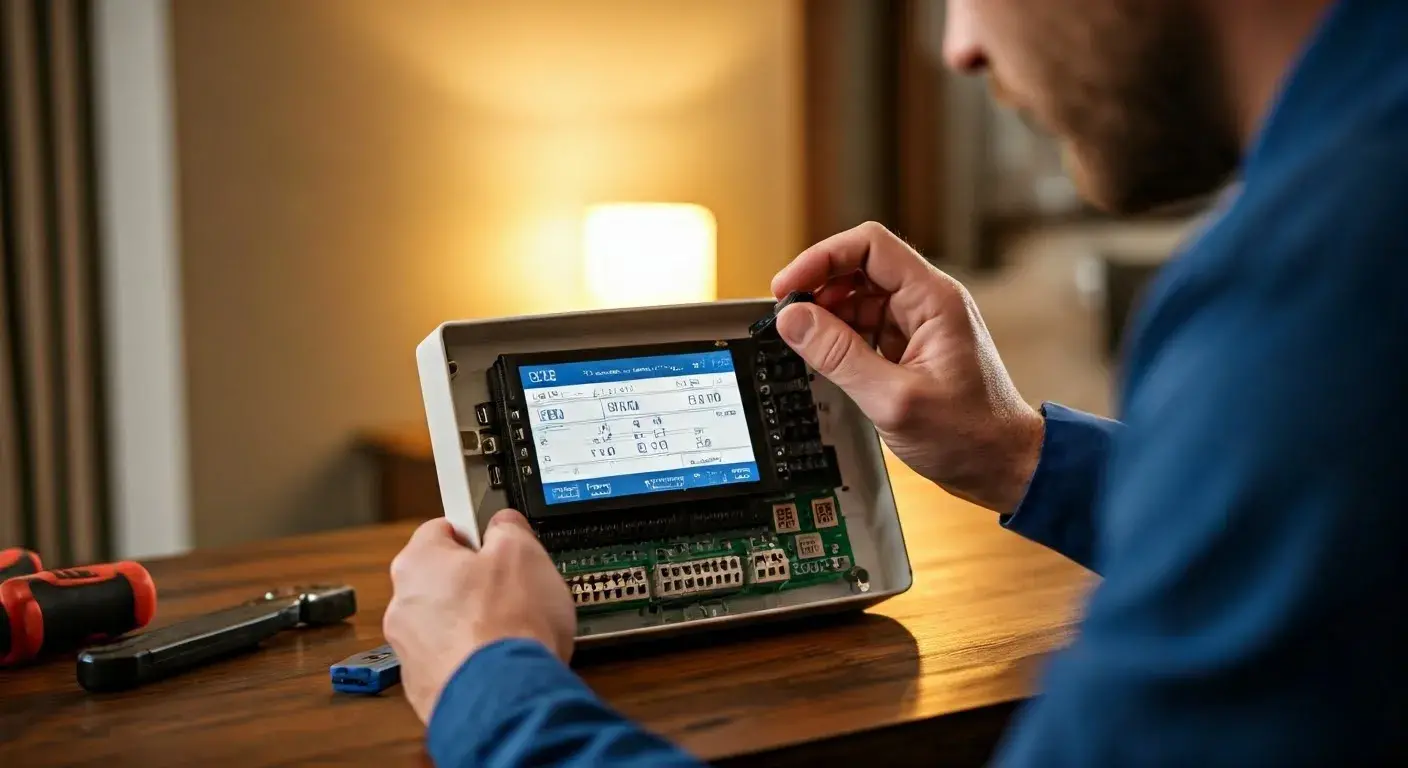
The control panel is the brain of your ADT system. Issues here can affect the entire system's operation.
Screen Issues
If your ADT Command or Pulse panel screen is unresponsive, blank, or displaying errors, here's what to do.
Common Problems and Solutions
- Blank Screen:
- Power: Check AC power and backup battery as described in the power section.
- System Reboot: Try a soft reboot by unplugging the AC adapter, removing the backup battery, waiting 30 seconds, then reconnecting.
- Unresponsive Touchscreen:
- Clean Screen: Ensure the screen is clean and dry.
- System Reboot: Perform a system reboot.
- Software Glitch: Occasionally, a software glitch can cause unresponsiveness. A reboot often resolves this.
- Error Messages: Note down the exact error message. Search the ADT support website or your user manual for its meaning. Common messages include "System Fault," "Communication Failure," or "Zone Fault."
Keypad Issues
If your keypad is not responding to button presses or is displaying incorrect information.
Common Problems and Solutions
- No Response:
- Power: Ensure the keypad is receiving power (if it's a wired keypad, check the connection to the panel).
- System Status: The system might be in a state where the keypad is temporarily disabled (e.g., during an alarm).
- Incorrect Information: This could be a display glitch. Try disarming and rearming the system, or perform a system reboot.
System Fault Errors
A "System Fault" message indicates a general problem with the system that requires investigation.
Troubleshooting Steps
- Identify the Fault: The panel usually provides a more specific fault code or description. Write this down.
- Check Recent Events: Review the system's event log for any recent unusual activity.
- Troubleshoot Specific Components: Based on the fault code, you might need to troubleshoot a specific sensor, module, or power source. For example, a "Communication Fault" points to connectivity issues.
- Reboot the System: A system reboot can sometimes clear transient faults.
- Contact ADT: If the fault persists, it likely requires professional diagnosis.
Resolving ADT Connectivity Problems
Modern ADT systems often rely on internet or cellular connections for remote access and monitoring. Connectivity issues can prevent you from arming/disarming remotely, receiving alerts, or even communicating with the monitoring center.
Internet Connectivity (ADT Pulse, Command)
ADT Pulse and Command systems utilize your home's Wi-Fi network for communication.
Common Problems and Solutions
- "No Internet Connection" or "Offline" Status:
- Check Your Router: Ensure your home Wi-Fi router is powered on and functioning correctly. Try rebooting your router.
- Wi-Fi Signal Strength: If the ADT panel is far from the router, the Wi-Fi signal might be weak. Consider a Wi-Fi extender.
- Network Changes: If you recently changed your Wi-Fi password or network name (SSID), you'll need to update these settings on your ADT panel.
- ISP Issues: Check if your internet service provider is experiencing an outage.
- Slow or Intermittent Connection: This can lead to delayed alerts or unresponsiveness. Again, check router performance and signal strength.
Cellular Backup Troubleshooting
ADT systems typically include cellular backup, which ensures communication with the monitoring center even if your home internet goes down.
Common Problems and Solutions
- "Cellular Communication Failure":
- Signal Strength: The cellular module might have a weak signal. Ensure the panel is located where it can get a decent cellular signal.
- Module Fault: The cellular module itself might be experiencing a fault.
- Service Interruption: In rare cases, there might be an issue with the cellular network provider.
- Testing Cellular Backup: ADT typically performs regular tests of your cellular backup. If you suspect an issue, you can request a test from ADT.
ADT App and Remote Access Issues
Problems with the ADT app or website preventing remote control.
Common Problems and Solutions
- App Not Connecting:
- Check System Status: Ensure your ADT system itself is online (via Wi-Fi or cellular).
- App Updates: Make sure you have the latest version of the ADT app installed.
- Account Login: Verify your login credentials.
- Server Issues: Occasionally, ADT's servers might be undergoing maintenance or experiencing issues.
- Commands Not Executing: If you can see your system status but arming/disarming commands don't work, it could be a communication lag or a system fault.
Dealing with ADT False Alarms
False alarms are disruptive and can incur fines from local authorities. Understanding their causes and prevention is key.
Common Causes of False Alarms
- User Error: Forgetting to disarm the system in time, entering the wrong code, or not knowing how to properly operate the system.
- Environmental Triggers: As discussed with sensors, pets, drafts, sunlight, and loud noises can trigger motion or glass break sensors.
- System Malfunctions: Faulty sensors, low batteries, or power issues can sometimes lead to unexpected alarms.
- Doors/Windows Left Open: Forgetting to close a protected entry point before arming.
- Installation Issues: Improperly placed sensors or system components.
Preventing False Alarms
- Thorough Training: Ensure all household members are properly trained on how to arm, disarm, and use the system, including what to do if an alarm is triggered accidentally.
- Regular Maintenance: Keep batteries fresh, check sensor alignment, and ensure sensors are clean and functioning correctly.
- Proper Sensor Placement: Install motion detectors and glass break sensors away from heat sources, direct sunlight, and areas prone to drafts or excessive noise. Use pet-immune sensors if necessary.
- Secure Entry Points: Always double-check that all doors and windows are closed and locked before arming the system.
- Update Contact Information: Ensure ADT has your current contact information so they can reach you if an alarm is triggered.
- Consider Professional Installation: If you're unsure about placement or system configuration, a professional ADT installation can prevent many common issues.
What to Do During a False Alarm
- Stay Calm: If you accidentally trigger an alarm, remain calm.
- Disarm the System: Enter your user code at the keypad or use the ADT app to disarm the system as quickly as possible.
- Contact ADT Monitoring: If you cannot disarm the system immediately, or if ADT has already been dispatched, call the ADT monitoring center directly. Explain that it was a false alarm. Providing your verbal password will help them identify you.
- Follow ADT's Instructions: They may advise you on further steps or confirm that no further action is needed.
Preventative Maintenance for Your ADT System
Proactive maintenance is the best way to avoid ADT troubleshooting headaches. Regular checks can identify potential problems before they escalate.
Battery Checks and Replacement
Batteries in wireless sensors and backup batteries in the control panel have a limited lifespan.
- Schedule: Aim to replace wireless sensor batteries annually, or as indicated by system notifications. Backup batteries typically need replacement every 3-5 years.
- Notifications: Pay attention to "Low Battery" warnings on your control panel or in the ADT app.
- Quality Batteries: Always use high-quality batteries of the correct type.
Sensor Testing
Most ADT systems allow you to test individual sensors to ensure they are communicating properly.
- How to Test: Access the "Test Mode" or "Test Sensors" function in your ADT system's menu. Then, trigger each sensor (open a door, walk in front of a motion detector, etc.). The system should register the trigger.
- Frequency: It's good practice to test your sensors quarterly.
System Updates
For smart ADT systems like Pulse and Command, software updates are crucial for security and functionality.
- Automatic Updates: Many systems receive automatic updates over your Wi-Fi connection. Ensure your system is connected to the internet.
- Manual Updates: Occasionally, you might be prompted to install an update manually. Follow the on-screen instructions carefully.
Cleaning Sensors and Panels
Dust and debris can sometimes interfere with sensor operation or damage electronic components.
- Gentle Cleaning: Use a soft, dry cloth to wipe down sensors and the control panel. For stubborn grime, a slightly damp cloth (water only) can be used, ensuring no moisture enters the devices.
- Avoid Harsh Chemicals: Never use abrasive cleaners or solvents, as they can damage the plastic and internal components.
When to Contact ADT Professional Support
While this guide covers many common ADT troubleshooting steps, some issues require the expertise of a trained ADT technician. Knowing when to escalate is important.
Complex System Faults
If your system displays persistent "System Fault" messages that you cannot resolve through basic troubleshooting, or if the fault code indicates a serious internal problem, it's time to call ADT. This could involve issues with the main board, communication modules, or wiring.
Repeated False Alarms
If you're experiencing frequent false alarms despite trying to address common causes, there might be an underlying issue with the system's configuration, sensor sensitivity, or installation. A technician can perform a thorough diagnostic.
Installation or Configuration Issues
If you suspect your system was not installed correctly, or if you're making significant changes to your home setup that might affect sensor performance, professional assistance is recommended. This includes adding new devices or relocating existing ones.
Hardware Malfunctions
If a sensor, keypad, or the control panel itself appears physically damaged or is consistently malfunctioning after battery replacement and rebooting, it likely needs to be repaired or replaced by ADT.
Security Concerns
If you have any doubts about the security or integrity of your ADT system, or if you suspect a security breach, contact ADT immediately. They can perform a comprehensive security audit.
Contacting ADT: You can typically reach ADT customer support through their official website, by phone, or via your ADT app. Have your account number and system details ready when you call.
In conclusion, navigating ADT troubleshooting can seem daunting, but by understanding common issues and employing these straightforward solutions, you can maintain a secure and reliable home security system. Regular maintenance, paying attention to system notifications, and knowing when to seek professional help are your best allies in ensuring your ADT system works flawlessly. Stay vigilant, stay informed, and keep your home protected with confidence.