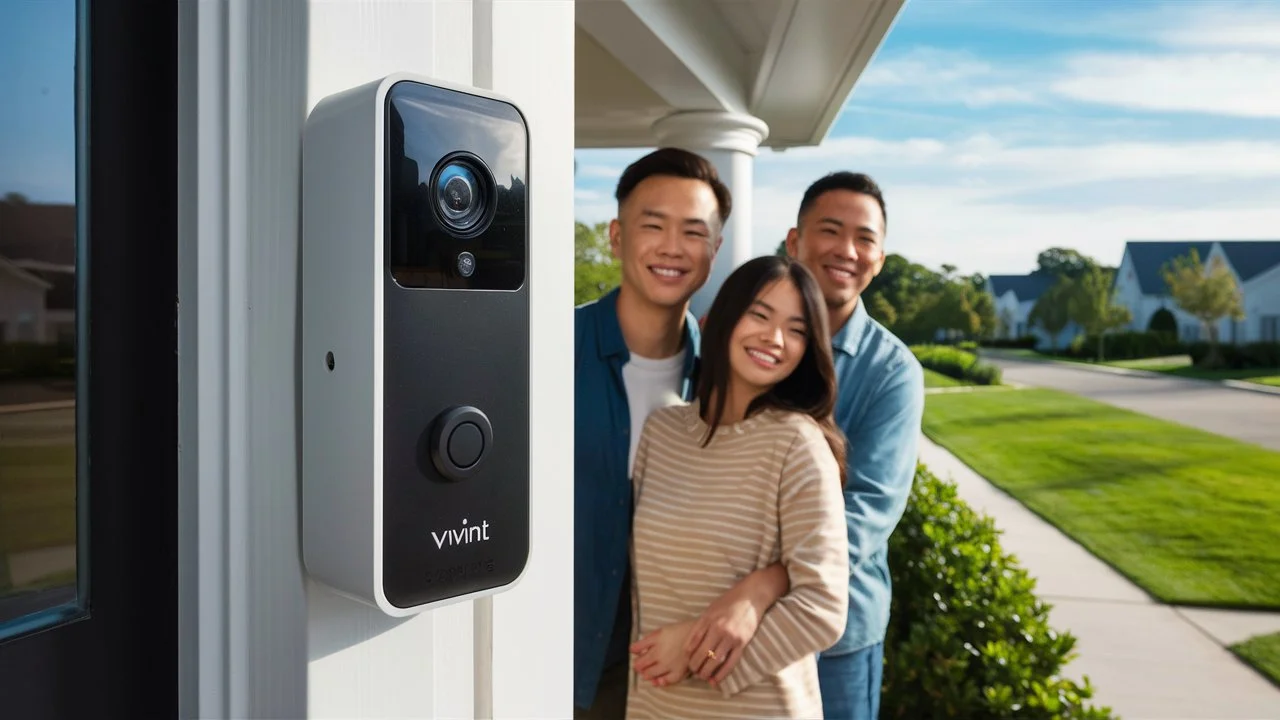
Thinking about upgrading your home security with a smart doorbell? This guide provides a comprehensive, step-by-step walkthrough on how to install your Vivint Doorbell Camera, ensuring a smooth process from unboxing to full functionality. We'll cover everything you need to know to get your new smart device up and running efficiently.
Introduction to Vivint Doorbell Installation
Installing a Vivint Doorbell Camera is a straightforward process designed for homeowners. This guide aims to demystify the installation, providing clear, actionable steps. By following this comprehensive tutorial, you'll be able to successfully mount, wire, and connect your Vivint doorbell, enhancing your home's security and convenience. We'll cover everything from necessary tools to troubleshooting common issues, ensuring you have all the information needed for a successful DIY installation.
Before You Begin: Essential Preparations
A successful installation starts with thorough preparation. Before you even touch a screwdriver, ensure you have all the necessary tools, understand your existing doorbell setup, and confirm your Wi-Fi network is ready. This section will walk you through these crucial preliminary steps.
Tools and Materials Checklist
Gathering the right tools beforehand will save you time and frustration during the installation process. Most of what you need is likely already in your toolbox.
- Vivint Doorbell Camera: Ensure you have the doorbell unit, mounting bracket, and any included screws and anchors.
- Screwdriver Set: You'll need a Phillips head screwdriver for most screws, and potentially a flathead for wire terminals.
- Drill and Drill Bits: For pre-drilling holes, especially if you're mounting to brick or stucco.
- Wire Strippers/Cutters: To expose the wire ends if necessary.
- Pliers: For gripping and manipulating wires.
- Level: To ensure your doorbell is mounted straight.
- Pencil: For marking screw hole locations.
- Safety Glasses: To protect your eyes while drilling.
- Chime Connector (if applicable): Some Vivint models may come with a chime connector that needs to be installed at your existing chime box.
- Smartphone or Tablet: With the Vivint app installed for setup.
- Your Wi-Fi Network Name (SSID) and Password.
Understanding Your Existing Doorbell Wiring
Vivint doorbell cameras are designed to work with existing low-voltage doorbell wiring. This typically involves two wires connected to your current doorbell button.
- Locate your existing doorbell button: This is usually near your front door.
- Check the voltage: Most doorbell systems operate on 16-24 volts AC. Vivint doorbells are compatible with this range. If your system uses higher voltage or is a wireless system, you may need a professional installation or a different solution.
- Identify the wires: When you remove your old doorbell, you'll see two wires connected to terminals. These are the wires that will power your new Vivint doorbell.
Important Note: If you have a digital chime, you might need to install a chime connector. This small device prevents the chime from being damaged by the doorbell's power draw. Consult your Vivint doorbell's specific manual for instructions on chime connector installation.
Checking Your Wi-Fi Strength
A strong Wi-Fi signal is critical for the reliable performance of your Vivint Doorbell Camera. Poor signal strength can lead to choppy video, delayed notifications, and connection issues.
- Use your smartphone: Stand at the exact location where you plan to mount the doorbell.
- Check the Wi-Fi indicator: Look at the Wi-Fi bars on your phone. You ideally want to see at least 3-4 bars for a stable connection.
- Consider a Wi-Fi extender: If the signal is weak, you may need to install a Wi-Fi extender or a mesh Wi-Fi system to boost coverage to your front door. Vivint recommends a minimum upload speed of 1.5 Mbps for each camera.
Downloading the Vivint App and Account Setup
The Vivint app is your command center for managing your doorbell and other smart home devices.
- Download the Vivint app: Available for both iOS and Android devices from their respective app stores.
- Create or log in to your Vivint account: If you are a new Vivint customer, you will set up your account during the initial service activation. If you are an existing customer, log in with your existing credentials.
- Familiarize yourself with the app: Before installation, take some time to navigate the app. This will make the final setup process smoother.
Removing Your Old Doorbell Button
This is the first physical step in the installation process. Take your time and ensure you disconnect the power safely.
- Turn off power: Locate your home's circuit breaker panel and turn off the power to your doorbell circuit. This is crucial for safety. If you're unsure which breaker controls your doorbell, you may need to turn off the main breaker or test each one until the doorbell stops working.
- Remove the old doorbell button: Most doorbell buttons are held in place by two screws. Gently pry the button away from the wall. Some may have a decorative plate that needs to be removed first.
- Disconnect the wires: Once the button is loose, you'll see two wires connected to terminals on the back. Loosen the terminal screws and carefully detach the wires. Ensure the wires do not fall back into the wall cavity; you can temporarily tape them to the wall or have someone hold them.
- Inspect the wires: Check the condition of the wires. They should be stripped at the ends and free from corrosion. If they are damaged, you may need to trim them and strip a fresh section.
Mounting the Vivint Doorbell Camera
Proper mounting ensures optimal viewing angles and secure placement of your new doorbell camera.
Choosing the Right Location
The placement of your doorbell camera impacts its effectiveness.
- Height: The ideal height is typically around 4 feet (1.2 meters) from the ground. This allows for a good view of visitors' faces and packages on the ground.
- Angle: Consider the approach to your door. If visitors approach from an angle, you might need to use a wedge mount (often included or available separately) to adjust the camera's field of view.
- Obstructions: Ensure there are no trees, bushes, or other objects that could obstruct the camera's view or trigger false motion alerts.
- Power Source: The location must be within reach of your existing doorbell wires.
Mounting Bracket Installation
Your Vivint doorbell comes with a mounting bracket that attaches to the wall.
- Position the bracket: Hold the mounting bracket against the wall at your chosen location. Use a level to ensure it's straight.
- Mark screw holes: Use a pencil to mark the locations of the screw holes through the bracket onto the wall.
- Drill pilot holes: If you're mounting to a hard surface like brick, stucco, or concrete, drill pilot holes at your marked locations. Use a drill bit appropriate for the included anchors. If mounting to wood, pilot holes may not be necessary but are recommended.
- Install anchors (if needed): Insert the plastic anchors into the drilled holes.
- Secure the bracket: Place the mounting bracket back over the holes and secure it to the wall using the provided screws. If using anchors, screw directly into them.
Wiring Connections
This is where you connect the power from your home to the Vivint doorbell.
- Prepare the wires: Ensure the ends of your existing doorbell wires are stripped clean, about 1/2 inch of insulation removed.
- Connect the wires to the doorbell: The Vivint doorbell has two terminals on the back. Connect one wire to each terminal. It doesn't matter which wire goes to which terminal.
- Secure the connections: Most Vivint doorbells have screw terminals. Insert the wire end under the screw and tighten firmly. Ensure no bare wire is exposed beyond the terminal.
- Mount the doorbell: Carefully slide the Vivint doorbell camera onto the mounted bracket. It should click or lock into place.
- Reinstall the faceplate (if applicable): Some models have a separate faceplate that snaps or screws on after the doorbell unit is mounted.
Powering Up and Connecting to Wi-Fi
Once the doorbell is physically installed, it's time to bring it to life and connect it to your network.
Initial Power On and Setup Mode
After connecting the wires and mounting the doorbell, it should power on automatically.
- Restore power: Go back to your circuit breaker panel and turn the power back on for the doorbell circuit.
- Observe the doorbell: The Vivint doorbell will typically have an LED indicator light that will illuminate, often flashing or changing color, to indicate it's powering up and ready for setup. This process can take a minute or two.
- Listen for audio cues: Some models may provide audio prompts to guide you through the setup.
Connecting to Your Wi-Fi Network
This step is usually initiated through the Vivint app.
- Open the Vivint app: Ensure your smartphone or tablet is connected to the same Wi-Fi network you want the doorbell to use.
- Follow in-app prompts: The app will guide you through the process of detecting and connecting the doorbell to your Wi-Fi. This may involve pressing a button on the doorbell or scanning a QR code.
- Enter Wi-Fi credentials: You will be prompted to enter your Wi-Fi network name (SSID) and password. Ensure these are entered accurately.
- Connection confirmation: The doorbell will attempt to connect to your network. The LED indicator light on the doorbell will change to a solid color (often green or blue) to indicate a successful connection.
Vivint App Configuration and Testing
With the doorbell connected, you'll configure its settings and test its functionality through the Vivint app.
Adding the Doorbell to Your Account
If this is your first Vivint device or you're adding it to an existing system, the app will guide you through adding it to your account.
- Device discovery: The app should automatically detect the new doorbell.
- Assign a name: Give your doorbell a descriptive name (e.g., "Front Doorbell").
- Link to your system: If you have other Vivint devices, the app will help you link the doorbell to your overall security system.
- Firmware updates: The app may prompt you to install any available firmware updates for the doorbell. It's always recommended to keep your devices updated for the latest features and security patches.
Testing Features
Thorough testing ensures everything is working as expected.
- Ring the doorbell: Have someone ring the doorbell from the outside. You should receive an alert on your phone and hear your chime (if connected).
- Two-way audio: Use the app to speak through the doorbell and listen to the audio.
- Video feed: Check the live video feed in the app. Ensure the picture is clear and the field of view is as you intended.
- Motion detection: Walk in front of the doorbell to test motion detection. You should receive a notification on your app. Adjust motion detection zones and sensitivity settings in the app as needed.
- Night vision: Test the night vision by covering the camera lens or waiting until it's dark. The infrared LEDs should activate, providing a black and white image.
- Package detection (if applicable): If your model supports package detection, place a package in front of the door and see if you receive a specific notification.
Troubleshooting Common Installation Issues
Even with careful preparation, you might encounter minor issues. Here's how to address them.
No Power to the Doorbell
- Check the circuit breaker: Ensure the breaker is firmly in the "ON" position. Try flipping it off and then on again.
- Verify wiring connections: Double-check that the wires are securely connected to the terminals on the back of the doorbell and that they are making good contact.
- Test voltage at the wires: If you have a multimeter, carefully test the voltage at the wires where they connect to the old doorbell. If there's no voltage, the problem might be further up the line (transformer, chime, or wiring itself).
- Check the chime connector: If you installed a chime connector, ensure it's wired correctly according to the instructions.
Wi-Fi Connectivity Problems
- Router proximity and signal strength: Ensure the doorbell is within range of your Wi-Fi router. Weak signals are a common cause of connection issues. Consider a Wi-Fi extender.
- Correct Wi-Fi password: Verify that you entered your Wi-Fi password correctly in the app. Passwords are case-sensitive.
- Router settings: Some router settings, like MAC filtering or firewall rules, might prevent the doorbell from connecting. Consult your router's manual or ISP.
- 2.4GHz vs. 5GHz: Most smart home devices, including doorbells, work best on the 2.4GHz band. Ensure your router is broadcasting a 2.4GHz network and that the doorbell is attempting to connect to it.
- Reboot your router and modem: Sometimes, a simple power cycle of your network equipment can resolve connectivity issues.
Doorbell Not Responding in App
- Check Wi-Fi connection: Ensure the doorbell is connected to Wi-Fi (check LED indicator).
- App permissions: Make sure the Vivint app has the necessary permissions on your phone (e.g., notifications, local network access).
- Log out and log back in: Sometimes, simply logging out of the Vivint app and logging back in can refresh the connection.
- Re-add the device: As a last resort, you may need to remove the doorbell from your Vivint account in the app and then go through the setup process again.
Poor Video Quality
- Wi-Fi signal strength: This is the most common culprit. Improve your Wi-Fi signal to the doorbell's location.
- Upload speed: Vivint recommends at least 1.5 Mbps upload speed per camera. Check your internet speed test results.
- Lighting conditions: Ensure the area around the doorbell is adequately lit, especially at night. Clean the lens.
- Camera lens: Make sure the camera lens is clean and free of smudges or debris.
Advanced Tips and Maintenance
Keep your Vivint Doorbell Camera performing optimally with these advanced tips and regular maintenance.
Optimizing Motion Detection
Motion detection settings are crucial for receiving timely alerts without being overwhelmed by false triggers.
- Adjust sensitivity: In the Vivint app, fine-tune the motion detection sensitivity. Lower sensitivity reduces false alerts from passing cars or blowing leaves, while higher sensitivity ensures it catches subtle movements.
- Set motion zones: Define specific areas within the camera's view where you want motion to be detected. This allows you to ignore high-traffic areas like sidewalks or driveways if they cause too many alerts.
- Schedule motion detection: You can often set schedules for when motion detection is active, such as only during certain hours or when you're away from home.
Firmware Updates
Vivint regularly releases firmware updates to improve performance, add new features, and patch security vulnerabilities.
- Automatic updates: Ensure your Vivint system is set to receive automatic firmware updates for your devices.
- Manual checks: Periodically check the Vivint app for any pending updates.
- Importance: Keeping firmware up-to-date is essential for the security and functionality of your smart doorbell.
Cleaning and Care
Regular cleaning will ensure your doorbell camera maintains clear video quality.
- Lens cleaning: Use a soft, lint-free microfiber cloth to gently wipe the camera lens. Avoid abrasive materials or harsh chemicals, which can scratch the lens.
- Exterior cleaning: For the doorbell's exterior, use a damp cloth to wipe away dirt and debris.
- Weather considerations: Vivint doorbells are designed to withstand various weather conditions, but extreme temperatures or prolonged exposure to direct sunlight can potentially affect longevity. Ensure it's mounted in a location that offers some protection if possible.
Conclusion: Enjoy Your Enhanced Security
You've successfully navigated the installation of your Vivint Doorbell Camera! By following these detailed steps, you've secured a vital component of your smart home security system. From understanding your wiring to configuring the app and testing all features, this guide has equipped you with the knowledge to perform a robust installation. Remember the importance of a strong Wi-Fi signal and regular maintenance for optimal performance. Your Vivint Doorbell Camera is now ready to provide peace of mind, deter potential intruders, and allow you to see and speak with visitors from anywhere. Enjoy the enhanced security and convenience it brings to your home. For any persistent issues, Vivint's customer support is readily available to assist.