How Should You Secure Your Home Wireless ?
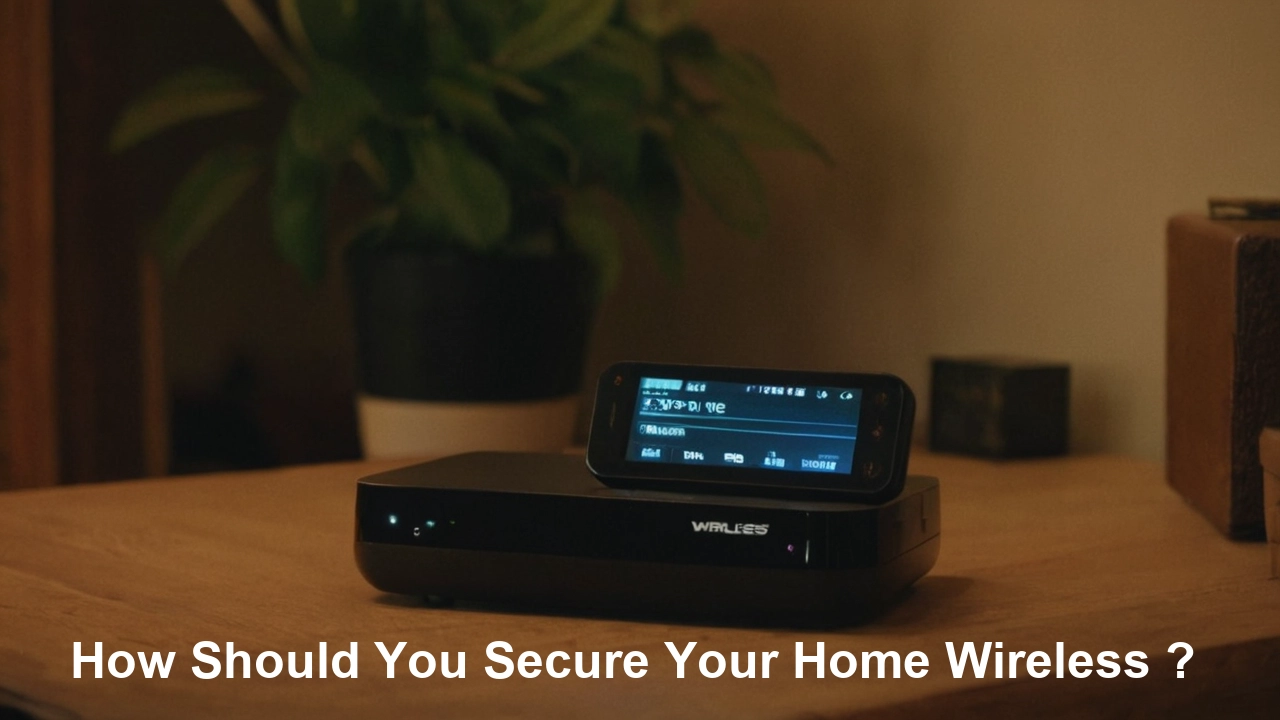
Securing your home wireless network is paramount in today's connected world. This guide provides actionable steps and insights to protect your Wi-Fi from unauthorized access, data breaches, and other cyber threats, ensuring your digital life remains private and safe. Learn how to fortify your network effectively.
Understanding Your Home Wireless Network
Before we delve into the intricacies of securing your home wireless network, it's crucial to understand the fundamental components and how they interact. Your home network typically consists of a router, which acts as the gateway to the internet, and your various devices (laptops, smartphones, smart TVs, etc.) that connect to this router wirelessly. The router broadcasts a Wi-Fi signal, allowing these devices to communicate with each other and access the internet. Understanding this basic architecture is the first step in identifying potential vulnerabilities and implementing effective security measures. In 2025-26, the average household has over 20 connected devices, each a potential entry point for threats if not properly secured.
The router itself is the central hub. It assigns IP addresses to each device on your network and directs internet traffic. Therefore, securing your router is akin to securing the front door of your digital home. If your router is compromised, all devices connected to it are at risk. This includes sensitive personal information, financial data, and even the ability for malicious actors to use your network for illicit activities, such as launching attacks on other systems or distributing illegal content.
Wireless networks operate on radio frequencies, making them inherently more susceptible to interception than wired connections. This is why robust security protocols and configurations are not just recommended but essential. The convenience of Wi-Fi comes with the responsibility of ensuring its safety. As cyber threats continue to evolve, staying informed about the latest security practices is a continuous process. The landscape of home networking is constantly changing, with new devices and technologies emerging regularly. Keeping pace with these changes is vital for maintaining a secure environment.
Key Network Components
Understanding the role of each component is vital:
- Router: The brain of your network. It manages traffic, assigns IP addresses, and connects your home network to the internet.
- Modem: Translates the signal from your Internet Service Provider (ISP) into a format your router can understand. Often, routers and modems are combined into a single device.
- Wireless Access Point (WAP): While routers usually have built-in WAPs, dedicated WAPs can extend Wi-Fi coverage in larger homes.
- Connected Devices: All your smartphones, laptops, tablets, smart TVs, gaming consoles, smart home devices (thermostats, cameras, speakers), and any other internet-enabled gadget.
How Data Travels
Data packets travel from your device, through the Wi-Fi signal, to the router. The router then sends these packets to the internet via the modem, and vice versa. Without encryption, these packets can be intercepted and read by anyone within range of your Wi-Fi signal. This is why strong encryption is a cornerstone of wireless security.
Router Security Essentials: Your First Line of Defense
Your router is the gateway to your home network, making its security paramount. Neglecting router security is like leaving your front door wide open. Fortunately, most routers offer a robust set of security features that, when properly configured, can significantly enhance your network's protection. This section will guide you through the essential steps to secure your router.
Changing Default Credentials
One of the most critical and often overlooked security steps is changing the default username and password for your router's administrative interface. Manufacturers often set easily guessable default credentials (e.g., "admin"/"password") to simplify setup. Cybercriminals actively scan for networks using these default credentials. By changing them to a strong, unique password, you immediately eliminate a major vulnerability.
Step-by-step guide:
- Find your router's IP address: This is usually printed on the router itself or can be found in your device's network settings. Common addresses include 192.168.1.1 or 192.168.0.1.
- Access the router's interface: Open a web browser and type the router's IP address into the address bar.
- Log in: Enter the default username and password.
- Navigate to security settings: Look for sections like "Administration," "System," or "Security."
- Change the password: Create a strong, unique password that includes a mix of uppercase and lowercase letters, numbers, and symbols. Avoid easily guessable information like birthdays or common words.
- Change the username (if possible): Some routers allow you to change the administrative username as well.
- Save changes: Apply the new settings. You may need to reboot your router.
Example: Instead of "admin/admin," use "MyH0meR0uter!2025" as your new credentials.
Disabling Remote Management
Remote management allows you to access your router's settings from outside your home network. While this can be convenient, it also presents a significant security risk if not properly secured. If enabled, attackers could potentially access your router's administrative interface from the internet. Unless you have a specific need for this feature and understand how to secure it, it's best to disable it.
Location: This setting is usually found in the "Administration," "System," or "Advanced Settings" section of your router's interface. Look for options like "Remote Management," "Web Access from WAN," or "Remote Administration."
Updating Router Firmware
Router firmware is the software that runs your router. Like any software, it can have bugs and security vulnerabilities. Manufacturers regularly release firmware updates to patch these vulnerabilities and improve performance. Keeping your router's firmware up-to-date is crucial for maintaining a secure network. Many modern routers offer automatic firmware updates, which is the most convenient option.
Step-by-step guide:
- Check for updates: Log in to your router's administrative interface and look for a "Firmware Update" or "Software Update" section.
- Manual update: If automatic updates aren't available or enabled, you may need to visit your router manufacturer's website, download the latest firmware for your specific model, and upload it through the router's interface.
- Enable automatic updates: If your router supports it, enable automatic firmware updates to ensure your router is always running the latest, most secure version.
Statistics (2025-26): According to a recent cybersecurity report, over 40% of home routers are running outdated firmware, leaving them vulnerable to known exploits.
Disabling Wi-Fi Protected Setup (WPS)
Wi-Fi Protected Setup (WPS) is a feature designed to simplify the process of connecting devices to your wireless network. It typically involves a button on the router or a PIN code. However, WPS has known security vulnerabilities that can allow attackers to brute-force their way into your network. For this reason, it's generally recommended to disable WPS, especially the PIN method.
Location: Look for WPS settings in the "Wireless" or "Security" section of your router's interface.
Wireless Encryption Protocols: Choosing the Strongest Shield
Encryption is the process of scrambling data so that it can only be read by authorized parties. In the context of wireless networks, encryption prevents unauthorized users from intercepting and understanding the data transmitted over your Wi-Fi. Different encryption protocols offer varying levels of security. As of 2025-26, understanding these protocols is vital for choosing the most robust protection for your home network.
Understanding Encryption Types
Here's a breakdown of the common wireless encryption protocols:
- WEP (Wired Equivalent Privacy): This is the oldest and weakest encryption protocol. It has significant security flaws and is easily crackable. Avoid WEP at all costs.
- WPA (Wi-Fi Protected Access): An improvement over WEP, but still considered outdated and vulnerable.
- WPA2 (Wi-Fi Protected Access II): The current standard for most home networks. It uses stronger encryption (AES-CCMP) and is significantly more secure than WEP or WPA. It has two modes:
- WPA2-Personal (PSK): Uses a pre-shared key (your Wi-Fi password) for authentication. This is the most common and recommended option for home users.
- WPA2-Enterprise: Uses a RADIUS server for authentication, which is more complex and typically used in corporate environments.
- WPA3 (Wi-Fi Protected Access III): The latest and most secure Wi-Fi security protocol. It offers several enhancements over WPA2, including stronger encryption, protection against brute-force attacks, and improved security for open networks. WPA3 is becoming more widely adopted in 2025-26, and if your router and devices support it, it's the preferred choice.
Choosing the Right Protocol
For most home users in 2025-26, the best choice is either WPA2-Personal (AES) or, if available and supported by all your devices, WPA3-Personal. When configuring your router's wireless security settings, select the strongest available option. Your router's interface will typically present these choices.
AES vs. TKIP
Within WPA2, you might see options for AES or TKIP. Always choose AES (Advanced Encryption Standard). TKIP (Temporal Key Integrity Protocol) was an interim solution to phase out WEP and is less secure than AES. WPA3 exclusively uses AES.
Setting a Strong Wi-Fi Password (PSK)
Your Wi-Fi password (Pre-Shared Key or PSK) is the key to your WPA2/WPA3 network. It's crucial to make this password strong and unique. A weak password can render even the strongest encryption protocol useless.
Best practices for Wi-Fi passwords:
- Length: Aim for at least 12-15 characters, but longer is better.
- Complexity: Use a mix of uppercase letters, lowercase letters, numbers, and symbols.
- Uniqueness: Do not reuse passwords from other accounts.
- Avoid personal information: Do not use names, birthdays, addresses, or common phrases.
- Consider a passphrase: A memorable phrase like "MyCatLovesTunaOnTuesdays!" is often easier to remember than a random string of characters but still very strong.
Example: Instead of "password123," use "Tr33sAr3Gr33n!@SunShine."
SSID Broadcasting
The SSID (Service Set Identifier) is the name of your Wi-Fi network. By default, routers broadcast their SSID, making them visible to anyone searching for Wi-Fi networks. While hiding your SSID (disabling broadcasting) might seem like a security measure, it's largely ineffective. Sophisticated tools can easily detect hidden SSIDs, and it can also cause connectivity issues for some devices. It's generally recommended to keep SSID broadcasting enabled but to use a unique and non-identifiable network name.
Recommendation: Change your SSID from the default (e.g., "Linksys12345") to something unique but not personally identifiable (e.g., "TheSmiths_HomeNet" or a random string like "XyZ789Abc").
Network Access Control: Who Gets In?
Beyond encryption, you can implement additional measures to control which devices are allowed to connect to your network. This adds another layer of security, ensuring that even if someone obtains your Wi-Fi password, they still can't access your network without further authorization.
MAC Address Filtering
Every network-enabled device has a unique Media Access Control (MAC) address, a hardware identifier. MAC address filtering allows you to create a list of approved MAC addresses that are permitted to connect to your Wi-Fi. Any device not on this list will be denied access.
How it works:
- Find MAC addresses: You'll need to find the MAC address for each device you want to connect. This is usually found in the device's network settings or on a sticker on the device itself.
- Access router settings: Log in to your router's administrative interface.
- Enable MAC filtering: Look for a "MAC Filtering" or "Access Control" section, typically under "Wireless" or "Security" settings.
- Create an allow list: Add the MAC addresses of your trusted devices.
- Set the mode: Ensure the filter is set to "Allow" or "Whitelist" mode, meaning only devices on the list can connect.
Limitations: While MAC filtering can be a deterrent, it's not foolproof. MAC addresses can be spoofed (faked) by attackers, meaning they can change their device's MAC address to match one on your allow list. Therefore, it should be used as a supplementary security measure, not your primary defense.
Statistics (2025-26): Despite its limitations, 25% of home users still employ MAC filtering as part of their security strategy.
Guest Networks
Most modern routers offer a guest network feature. This allows you to create a separate Wi-Fi network with a different SSID and password for visitors. The guest network is isolated from your main network, meaning guests can access the internet but cannot see or access your personal devices or files. This is an excellent way to provide Wi-Fi access to friends and family without compromising your network's security.
Benefits:
- Enhanced security: Isolates guest devices from your main network.
- Convenience: Easy to provide internet access to visitors.
- Controlled access: You can often set time limits or bandwidth restrictions for guest networks.
Configuration: In your router's settings, look for "Guest Network" or "Guest Wi-Fi" options. You can usually enable it, set a unique SSID and password, and configure its isolation settings.
Firewall Configuration
Your router has a built-in firewall that acts as a barrier between your home network and the internet, monitoring incoming and outgoing traffic and blocking unauthorized access. Most routers come with a firewall enabled by default, but it's worth checking and understanding its settings.
Key firewall features to check:
- Enable the firewall: Ensure the firewall is turned on.
- Port forwarding: Generally, avoid opening unnecessary ports on your firewall. Port forwarding is only needed for specific applications or devices that require direct external access (e.g., some gaming servers, remote access to a NAS). If you don't know why a port is open, it's safer to close it.
- SPI (Stateful Packet Inspection): Most modern routers use SPI, which tracks the state of active network connections and makes decisions about whether to allow or block traffic based on context. Ensure this is enabled.
Location: Firewall settings are usually found in the "Security" or "Advanced Settings" section of your router's interface.
Advanced Security Measures for Robust Protection
While the essentials cover the core of home wireless security, several advanced measures can further bolster your network's defenses. These steps require a bit more technical understanding but offer significant improvements in protection against sophisticated threats.
Using a VPN on Your Router
A Virtual Private Network (VPN) encrypts your internet traffic and routes it through a server in a location of your choice, masking your IP address and enhancing your online privacy. Installing a VPN directly on your router provides protection for all devices connected to your network, including those that don't natively support VPN clients (like smart TVs or gaming consoles).
Benefits:
- Whole-network encryption: All devices on your network are protected.
- IP address masking: Enhances anonymity and bypasses geo-restrictions.
- Protection for non-VPN-compatible devices: Extends VPN benefits to all connected gadgets.
Considerations:
- Router compatibility: Not all routers support VPN client configurations. You may need a router specifically designed for VPN use or one that allows custom firmware like DD-WRT or Tomato.
- Performance impact: Running a VPN on your router can sometimes reduce internet speeds due to the encryption overhead.
- Setup complexity: Setting up a VPN on a router can be more complex than on individual devices.
Statistics (2025-26): The adoption of router-level VPNs has seen a 30% increase in the past year, driven by growing privacy concerns.
DHCP Snooping and IP Spoofing Prevention
DHCP (Dynamic Host Configuration Protocol) is used by routers to assign IP addresses to devices on the network. DHCP snooping is a security feature that monitors DHCP messages and prevents malicious devices from acting as DHCP servers or assigning invalid IP addresses, which could lead to man-in-the-middle attacks.
IP spoofing prevention involves blocking packets with forged source IP addresses. These features are typically found in more advanced router settings or enterprise-grade equipment but are increasingly appearing in high-end consumer routers.
Location: These settings are often buried deep within the "Advanced Security" or "Network Settings" sections of your router's interface. If available, enabling them can provide an extra layer of defense against certain types of network attacks.
Intrusion Detection/Prevention Systems (IDS/IPS)
Some advanced routers or security appliances offer IDS/IPS capabilities. An IDS monitors network traffic for suspicious activity and alerts you, while an IPS actively blocks detected threats. These systems can identify and neutralize various types of attacks, from malware attempts to unauthorized access. While less common in standard home routers, they are a feature to look for in premium models or dedicated network security devices.
Network Segmentation
Network segmentation involves dividing your network into smaller, isolated subnets. For home users, this is most practically achieved through the use of guest networks, as discussed earlier. However, in more complex home setups (e.g., with extensive smart home devices or a dedicated home lab), advanced users might configure VLANs (Virtual Local Area Networks) to further segment their network, ensuring that a compromise in one segment doesn't easily spread to others.
Managing Connected Devices: The IoT Landscape
The proliferation of Internet of Things (IoT) devices – smart thermostats, cameras, speakers, appliances, and more – has dramatically expanded the attack surface of home networks. Each IoT device is a potential entry point for cybercriminals if not properly secured. Managing these devices effectively is a critical aspect of modern home wireless security.
Securing IoT Devices
IoT devices are often designed with convenience over security, making them particularly vulnerable. Here's how to mitigate risks:
- Change default passwords: Just like your router, IoT devices often come with default credentials. Always change them immediately upon setup.
- Keep firmware updated: Ensure your IoT devices receive and install firmware updates. Check the manufacturer's app or website regularly.
- Disable unnecessary features: Turn off any features or services you don't use, as they can represent potential vulnerabilities.
- Use strong, unique passwords: For devices that require account creation, use strong, unique passwords.
- Consider a separate network: If your router supports it, place IoT devices on a dedicated guest network or a separate VLAN to isolate them from your primary devices.
Statistics (2025-26): The average smart home contains over 15 IoT devices, and a significant percentage of these are found to have critical security flaws.
Common IoT Device Vulnerabilities
Be aware of common weaknesses:
- Weak or default passwords: The most common entry point.
- Unencrypted communication: Some devices transmit data without encryption.
- Outdated software: Lack of regular updates leaves them exposed.
- Insecure web interfaces: Vulnerable to web-based attacks.
- Lack of user control: Limited options for users to enhance security.
Network Monitoring for Unusual Activity
Keeping an eye on your network can help you detect potential compromises early. Look for:
- Unrecognized devices: Devices connecting to your network that you don't own or recognize.
- Unusual traffic patterns: Sudden spikes in data usage from specific devices, especially at odd hours.
- Slow network performance: Can sometimes be an indicator of malicious activity.
Many routers provide basic network activity logs. For more advanced monitoring, consider dedicated network security tools or software.
Physical Security of Your Router
Don't forget the physical security of your router. Ensure it's placed in a location where unauthorized individuals cannot easily access it to reset it or tamper with it. While less common in home environments, it's still a consideration.
Regular Maintenance and Updates: Staying Ahead of Threats
Securing your home wireless network isn't a one-time task; it's an ongoing process. Regular maintenance and timely updates are crucial to staying ahead of evolving cyber threats. Think of it like maintaining your car – regular check-ups prevent major breakdowns.
Periodic Security Audits
Schedule regular checks of your network security settings. This includes:
- Reviewing connected devices: Periodically check the list of devices connected to your network and ensure they are all authorized.
- Testing your Wi-Fi password strength: Use online tools to check if your password is still considered strong.
- Verifying firmware updates: Ensure your router and key IoT devices have the latest firmware installed.
- Checking guest network settings: Ensure they are still configured as intended.
Frequency: Aim to perform a basic security audit at least quarterly.
Staying Informed About Threats
The cybersecurity landscape is constantly changing. New vulnerabilities are discovered, and new types of attacks emerge regularly. Staying informed about these threats is essential for proactive security.
Resources:
- Follow reputable cybersecurity news websites and blogs.
- Subscribe to alerts from your router manufacturer or cybersecurity organizations.
- Educate yourself and your household members about common online threats like phishing and malware.
Password Management Best Practices
As you've seen, strong passwords are vital. Implementing good password management practices is key:
- Use a password manager: Tools like LastPass, 1Password, or Bitwarden can generate and store strong, unique passwords for all your accounts, including your router and IoT devices.
- Regularly change critical passwords: While not always necessary for every password, consider changing your router's administrative password and Wi-Fi password annually, or if you suspect a compromise.
- Enable Two-Factor Authentication (2FA): Wherever possible, enable 2FA for your online accounts and any device management portals that offer it. This adds an extra layer of security beyond just a password.
Network Performance and Security Balance
While strong security is essential, it's also important to strike a balance with network performance. Overly aggressive security settings or outdated hardware can sometimes hinder your internet speed. Regularly assess your network's performance and adjust settings if necessary, ensuring that security measures are effective without causing undue frustration.
Recognizing and Responding to Potential Threats
Even with the best security measures in place, it's important to know what to look for and how to react if you suspect your home wireless network has been compromised. Early detection and swift response can significantly minimize potential damage.
Signs of Compromise
Be vigilant for these indicators:
- Unexplained slowdowns: Your internet speed suddenly drops significantly without any apparent reason.
- Unfamiliar devices on your network: You see devices connected to your Wi-Fi that you don't recognize in your router's connected devices list.
- Changes to your router settings: You find that your router's settings have been changed without your knowledge (e.g., Wi-Fi password, DNS settings).
- Pop-up ads or redirects: You start seeing unusual pop-up ads or are redirected to suspicious websites, even when not actively browsing.
- Suspicious emails or messages: You receive alerts about unusual activity on your accounts or your ISP contacts you about suspicious traffic originating from your network.
- Inability to access your router: You can no longer log in to your router's administrative interface, or it appears to be locked out.
Immediate Steps to Take
If you suspect a compromise, act quickly:
- Change your Wi-Fi password: This is the first and most crucial step. Use a strong, unique password.
- Change your router's administrative password: If you haven't already, or if you suspect it might have been compromised, change the router's login credentials.
- Update router firmware: Ensure your router is running the latest firmware to patch any known vulnerabilities.
- Review connected devices: Disconnect any unrecognized devices immediately.
- Restart your router: A simple reboot can sometimes clear temporary issues or disrupt ongoing malicious activity.
- Scan your devices for malware: Run comprehensive antivirus and anti-malware scans on all your computers and mobile devices.
- Check for unusual activity on your ISP account: Contact your Internet Service Provider if you suspect they have detected unusual traffic from your network.
- Consider a factory reset: As a last resort, you can perform a factory reset on your router. This will erase all your custom settings, so you'll need to reconfigure your network from scratch, but it will remove any persistent malware or unauthorized configurations.
Preventing Future Incidents
After addressing an incident, reinforce your security practices:
- Implement all the security measures discussed in this guide.
- Educate all household members on safe internet practices and the importance of security.
- Consider network monitoring tools for continuous oversight.
- Stay informed about emerging threats.
By understanding the signs of a compromise and knowing how to respond, you can protect your home network and personal data effectively.
Comparison Table: Security Protocol Effectiveness (2025-26)
| Protocol | Security Level | Vulnerability | Recommendation |
|---|---|---|---|
| WEP | Very Low | Easily cracked | Avoid |
| WPA | Low | Outdated, vulnerable | Avoid |
| WPA2-Personal (AES) | High | Minor vulnerabilities (e.g., KRACK, largely patched) | Recommended (if WPA3 not available) |
| WPA3-Personal | Very High | Minimal, emerging | Best Choice (if supported) |
Securing your home wireless network is a multi-layered approach that involves understanding your network, configuring your router correctly, choosing strong encryption, managing connected devices, and maintaining vigilance. By implementing the strategies outlined in this comprehensive guide, you can significantly enhance your network's security and protect your digital life from the ever-growing threats of the online world. Stay informed, stay vigilant, and prioritize your network's safety.