How To Reset Doorbell Camera?
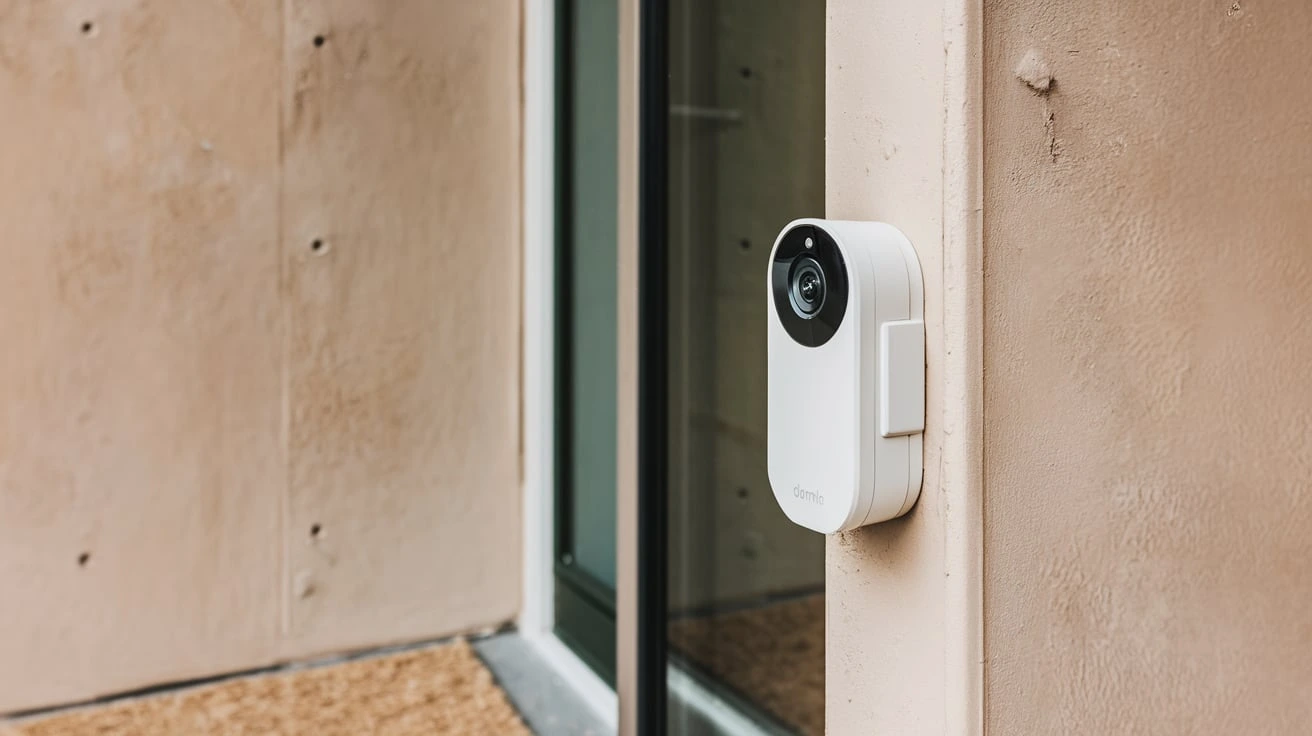
Experiencing issues with your smart doorbell camera? This comprehensive guide will walk you through exactly how to reset your doorbell camera, covering common reasons for resets, different methods for various brands, and troubleshooting tips to get your device back online and functioning optimally.
Why You Might Need to Reset Your Doorbell Camera
Smart doorbell cameras have become an indispensable part of modern home security, offering convenience, peace of mind, and enhanced awareness. However, like any electronic device, they can sometimes encounter glitches or require a fresh start. Understanding when and why to perform a reset is crucial for maintaining optimal performance. In 2025, the adoption of smart home devices, including video doorbells, is projected to reach over 60% of households in developed nations, according to the latest Smart Home Market Report. With this widespread use comes the inevitable need for troubleshooting, and a factory reset is often the first, and most effective, solution.
Common scenarios that necessitate a doorbell camera reset include:
- Connectivity Issues: Persistent Wi-Fi connection problems, frequent disconnections, or inability to connect to the network after setup are prime candidates for a reset. This is especially true if router settings have changed or if the device has been moved.
- Software Glitches: Freezing, unresponsiveness, failure to record, or incorrect motion detection alerts can all stem from minor software bugs that a reset can clear.
- Setup Problems: If you're struggling to set up the device initially, or if it failed to complete its initial configuration, a reset can clear any partial configurations and allow you to start fresh.
- Changing Network Credentials: When you update your Wi-Fi password or network name (SSID), your doorbell camera will lose its connection. A reset is often required to re-enter the new credentials.
- Selling or Gifting the Device: Before passing on your doorbell camera to a new owner, performing a factory reset is essential to remove your personal data and settings, ensuring privacy and a clean slate for the next user.
- Performance Degradation: Over time, even without obvious errors, some devices may experience a slowdown in performance. A reset can help restore it to its original operating state.
While a reset is a powerful tool, it's important to note that it will erase all your custom settings, including Wi-Fi configurations, motion detection zones, and any stored recordings (depending on the model and whether they are cloud-based or locally stored). Therefore, it's usually recommended to try less drastic troubleshooting steps first, such as restarting the device or checking your Wi-Fi signal, before resorting to a full factory reset. For more on initial troubleshooting, see our Troubleshooting Doorbell Camera Issues guide.
Understanding Different Types of Resets
Not all resets are created equal. Understanding the nuances between a soft reset and a factory reset can help you choose the appropriate action and avoid unnecessary data loss. In 2025, manufacturers are increasingly offering more granular control over device settings, but the core reset types remain consistent.
Soft Reset (Restart)
A soft reset, often referred to as a restart, is the least intrusive type of reset. It's akin to rebooting your computer or smartphone. This process temporarily powers down the device and then brings it back online. It can resolve minor software glitches, temporary connectivity hiccups, or unresponsiveness without erasing any of your personalized settings or data.
When to use a soft reset:
- The doorbell camera is frozen or unresponsive.
- You're experiencing minor, intermittent connectivity issues.
- The app is not communicating properly with the device.
- You've made recent settings changes and want to ensure they are applied correctly.
How to perform a soft reset:
The method for a soft reset varies by brand and model. It often involves:
- Disconnecting the power source (e.g., unplugging the adapter, removing the battery if applicable, or turning off the circuit breaker for wired doorbells) for a short period (30-60 seconds), then reconnecting it.
- Using a specific button combination on the device itself (less common for soft resets).
- Initiating a restart command through the device's companion mobile app.
Always refer to your specific doorbell camera's user manual for the exact procedure.
Factory Reset (Hard Reset)
A factory reset, also known as a hard reset or master reset, is a more drastic measure. It restores the doorbell camera to its original out-of-the-box state, erasing all user data, settings, and configurations. This includes Wi-Fi credentials, custom alert settings, paired devices, and any downloaded firmware updates. Essentially, it wipes the device clean, making it as if you just purchased it.
When to use a factory reset:
- Persistent and unresolvable connectivity issues.
- The device is not functioning correctly after a soft reset.
- You are experiencing severe software malfunctions or frequent crashes.
- You need to remove all personal data before selling, donating, or giving away the device.
- You are unable to access the device's settings through the app or other means.
How to perform a factory reset:
Factory resets typically involve a physical button on the device or a specific sequence of actions. These are often designed to prevent accidental resets.
- Physical Button: Many devices have a small, recessed reset button that requires a pin or paperclip to press and hold for a specific duration (usually 10-30 seconds).
- Power Cycle and Button Press: Some models require you to power cycle the device (turn it off and on) while simultaneously holding down a button.
- App-Based Reset: While less common for a full factory reset, some apps might offer an option to reset the device to factory defaults, though this often requires the device to be online and functional.
Important Considerations for Factory Resets:
- Data Loss: Be aware that all your settings will be lost. You will need to re-configure the device from scratch.
- Re-setup Required: After a factory reset, the doorbell camera will need to be set up again as if it were a new device, including reconnecting it to your Wi-Fi network and re-pairing it with your mobile app.
- Cloud Recordings: Cloud-based recordings are typically stored on the manufacturer's servers and are usually not affected by a device reset. However, local storage (e.g., on an SD card) might be erased depending on the model.
Always consult your device's manual for the precise instructions on how to perform a factory reset for your specific model. Incorrectly performing a reset can sometimes lead to further issues.
How to Reset Popular Doorbell Camera Brands
The process for resetting a doorbell camera can vary significantly between brands and even between different models within the same brand. Below, we outline the common methods for resetting some of the most popular smart doorbell cameras available in 2025. Remember to always refer to your device's official user manual for the most accurate and up-to-date instructions.
Ring Doorbell Reset
Ring offers a few ways to reset their devices, depending on the issue and the model.
Ring Video Doorbell (1st Gen)
Factory Reset:
- Locate the small reset button on the side of the doorbell, near the mounting holes.
- Use a paperclip or a small pin to press and hold the button for 15 seconds.
- The Ring light will flash, indicating the reset is in progress.
- Release the button. The doorbell will reboot.
Ring Video Doorbell 2, 3, 3 Plus, 4
Factory Reset:
- Remove the doorbell from its mount.
- Locate the small setup button on the side or top of the device (often recessed).
- Use a paperclip or pin to press and hold the setup button for 20 seconds.
- The Ring light will flash, and the device will reboot.
Ring Video Doorbell Pro, Pro 2
Factory Reset:
- These models are wired, so you'll need to locate the small reset button on the bottom of the doorbell.
- Use a paperclip or pin to press and hold the reset button for 20 seconds.
- The Ring light will flash, and the device will reboot.
Ring Peephole Cam
Factory Reset:
- Remove the battery pack from the doorbell.
- Locate the small setup button on the side of the doorbell.
- Use a paperclip or pin to press and hold the setup button for 20 seconds.
- The Ring light will flash, and the device will reboot.
After any Ring reset, you will need to go through the setup process again in the Ring app to reconnect it to your Wi-Fi and account. You can find more detailed guides on the official Ring support site.
Google Nest Doorbell Reset
Google Nest doorbells are designed for ease of use, and resets are typically managed through the Google Home app or a physical button.
Google Nest Doorbell (battery)
Factory Reset:
- Ensure the doorbell is charged or connected to power.
- Locate the reset button on the back of the doorbell, under the mounting plate. You may need to remove the doorbell from its mount to access it.
- Use a paperclip or pin to press and hold the reset button for about 10 seconds.
- The doorbell will chime or make a sound to indicate it's resetting.
Google Nest Doorbell (wired)
Factory Reset:
- This model is wired and does not have a user-accessible physical reset button for a full factory reset.
- To factory reset, you typically need to remove the device from your Google Home app.
- Open the Google Home app, select your Nest Doorbell, tap the Settings gear icon, then tap "Remove device."
- After removing it from the app, you will need to add it back as a new device, which will prompt a reset of its network settings.
- For persistent issues not resolved by app removal, contact Google Nest support.
A factory reset will remove the doorbell from your Google Home app, and you'll need to set it up again from scratch. For specific instructions, visit the Google Nest Help Center.
Eufy Doorbell Reset
Eufy doorbells often have a reset button accessible after removing the device from its mount.
Eufy Video Doorbell (2K, 1080p, etc.)
Factory Reset:
- Remove the doorbell from its mounting bracket.
- On the back of the doorbell, you will find a small reset button, often labeled "RESET."
- Use a paperclip or pin to press and hold this button for approximately 10 seconds.
- The doorbell will typically make an audible sound or a light indicator will change to confirm the reset.
After a factory reset, you will need to re-add the doorbell to your Eufy Security app and reconnect it to your Wi-Fi network. Refer to the Eufy support documentation for your specific model.
Blink Doorbell Reset
Blink doorbells, being battery-powered, often involve battery removal and a button press.
Blink Video Doorbell
Factory Reset:
- Remove the battery pack from the Blink Video Doorbell.
- Locate the reset button on the side of the doorbell.
- Use a paperclip or pin to press and hold the reset button for about 10 seconds.
- The device will reboot.
You will need to remove the doorbell from your Blink Home Monitor app and then add it back as a new device. Detailed instructions are available on the Blink support page.
Wyze Doorbell Reset
Wyze devices are known for their straightforward setup and reset procedures.
Wyze Doorbell / Wyze Doorbell v2
Factory Reset:
- Remove the Wyze Doorbell from its mounting bracket.
- On the back of the doorbell, you will find a small reset button.
- Use a paperclip or pin to press and hold the reset button for 10 seconds.
- The doorbell will reboot, and its status light will change.
After the reset, you'll need to remove the doorbell from your Wyze app and then set it up again as a new device. For more information, consult Wyze support.
Arlo Doorbell Reset
Arlo doorbells, especially those that connect to a base station, have specific reset procedures.
Arlo Essential Video Doorbell (Battery & Wired)
Factory Reset:
- For the battery version, remove the battery. For the wired version, ensure power is connected.
- Locate the reset button on the back or side of the doorbell.
- Use a paperclip or pin to press and hold the reset button for 15 seconds.
- The LED on the front of the doorbell will flash, indicating the reset.
Arlo Video Doorbell (Wired)
Factory Reset:
- Ensure the doorbell is powered.
- Locate the reset button on the side of the doorbell.
- Use a paperclip or pin to press and hold the reset button for 15 seconds.
- The LED will flash to indicate the reset is complete.
After resetting, you will need to remove the doorbell from your Arlo app and then add it back as a new device. Check the Arlo support website for model-specific details.
General Steps for Resetting Most Doorbell Cameras
While specific instructions vary by brand, most doorbell camera resets follow a general pattern. If your brand isn't listed above, or if you can't find your manual, these general steps can guide you.
Step 1: Identify the Reset Button
The reset button is typically a small, recessed button. It might be:
- On the back of the doorbell unit.
- On the side of the doorbell unit.
- Underneath the doorbell unit.
- Inside the battery compartment.
- Accessible only after removing the doorbell from its mount.
You will usually need a thin, pointed object like a paperclip, a pin, or a toothpick to press and hold it.
Step 2: Power Cycle the Device (If Necessary)
Some devices require the power to be on for the reset to work, while others might need to be powered off first. For battery-powered devices, this usually means removing and reinserting the battery. For wired devices, you might need to turn off the power at the circuit breaker, then turn it back on.
Step 3: Press and Hold the Reset Button
Using your pointed tool, press and hold the reset button. The duration required varies, but it's commonly between 10 and 30 seconds. Pay attention to any audible cues (beeps, chimes) or visual indicators (flashing lights) from the doorbell. These often signal that the reset process has begun.
Step 4: Release the Button and Wait for Reboot
Once the indicated time has passed or you've observed the device's reaction, release the button. The doorbell camera will typically reboot, which may take a few minutes. During this time, its status lights might cycle through various colors or patterns.
Step 5: Re-setup the Doorbell Camera
After a factory reset, the doorbell camera is essentially a blank slate. You will need to:
- Remove from App: If the device is still listed in your mobile app, you'll likely need to remove it first.
- Add as New Device: Open your device's companion app (e.g., Ring, Google Home, Eufy Security) and follow the prompts to add a new device.
- Connect to Wi-Fi: You'll be guided through reconnecting the doorbell to your Wi-Fi network, entering your network name (SSID) and password.
- Reconfigure Settings: Once reconnected, you'll need to set up your preferences again, such as motion detection zones, notification settings, and any other customizations.
If you encounter difficulties, consult the manufacturer's website for model-specific instructions or contact their customer support. For instance, if you're setting up a new doorbell, our guide on Setting Up Your Smart Doorbell can be helpful.
Troubleshooting After a Doorbell Camera Reset
Performing a reset often resolves issues, but sometimes new problems can arise, or the original issue might persist. Here's how to troubleshoot common scenarios after a doorbell camera reset.
Device Not Connecting to Wi-Fi
This is one of the most frequent issues. Ensure you are:
- Using the Correct Wi-Fi Password: Double-check for typos and case sensitivity.
- Within Wi-Fi Range: Move your router closer to the doorbell, or consider a Wi-Fi extender if the signal is weak. The average Wi-Fi range in a typical home is about 150 feet, but this can be significantly reduced by walls and interference.
- Using a 2.4GHz Network: Most smart home devices, including doorbell cameras, are designed to work with the 2.4GHz Wi-Fi band, not the 5GHz band. Ensure your router is broadcasting a 2.4GHz signal and that you're connecting to it.
- Checking Router Settings: Some advanced router settings (like MAC address filtering or firewall rules) might prevent new devices from connecting. Temporarily disabling these can help diagnose the issue.
App Not Detecting the Doorbell
If your app can't find the doorbell after setup:
- Ensure Bluetooth is On: Many doorbells use Bluetooth for initial setup and discovery.
- Check App Permissions: Make sure the companion app has necessary permissions (e.g., location, local network access) enabled in your phone's settings.
- Restart Your Phone: Sometimes, a simple phone reboot can resolve communication issues.
- Reinstall the App: A corrupted app installation can cause problems. Try uninstalling and reinstalling the app.
Device Offline or Unresponsive in the App
If the doorbell shows as offline after a successful setup:
- Check Power Source: For wired doorbells, ensure the transformer is providing sufficient voltage (typically 16-24V AC). For battery models, check the battery level.
- Verify Wi-Fi Connection: Confirm your home Wi-Fi is working and that the doorbell is still connected to it. You might need to re-enter Wi-Fi credentials if they were changed.
- Perform Another Soft Reset: Sometimes, a quick power cycle is all that's needed.
Motion Detection Not Working
If motion alerts aren't triggering:
- Check Motion Settings: Ensure motion detection is enabled in the app and that the sensitivity is set appropriately.
- Review Motion Zones: Make sure motion zones are configured correctly and cover the areas where you expect to detect motion.
- Obstructions: Ensure the camera lens is clean and free of obstructions.
- Firmware Update: Check if there's a pending firmware update for your doorbell, as these often include bug fixes.
Factory Reset Didn't Solve the Problem
If a factory reset doesn't resolve your issue, it might indicate a hardware problem. In such cases:
- Contact Manufacturer Support: Reach out to the device manufacturer's customer support. They can provide advanced troubleshooting steps or arrange for a warranty replacement if the device is faulty.
- Check for Physical Damage: Inspect the doorbell for any visible signs of damage.
Troubleshooting is a process of elimination. By systematically checking each component and setting, you can usually identify and resolve most issues. For more advanced network troubleshooting, consider reading our guide on Optimizing Your Home Network for Smart Devices.
Preventative Maintenance to Avoid Resets
While resets are sometimes necessary, regular maintenance can significantly reduce the need for them, ensuring your doorbell camera functions smoothly for longer. Proactive care is key to a reliable smart home experience. In 2025, with the increasing complexity of smart home ecosystems, preventative measures are more important than ever.
Maintain a Stable Wi-Fi Connection
The most common cause of doorbell camera issues is Wi-Fi instability. To ensure a strong and consistent connection:
- Router Placement: Position your Wi-Fi router in a central location in your home, away from obstructions like thick walls, metal objects, and other electronic devices that can cause interference (e.g., microwaves, cordless phones).
- Wi-Fi Extenders/Mesh Systems: If you have a large home or dead spots, consider using Wi-Fi extenders or a mesh Wi-Fi system to ensure strong signal coverage throughout your property.
- Band Steering: If your router supports band steering, ensure it's configured to direct devices to the appropriate band (2.4GHz for most smart devices).
- Regular Router Reboots: Occasionally rebooting your router (e.g., once a month) can help clear its cache and maintain optimal performance.
Keep Firmware Updated
Manufacturers regularly release firmware updates to fix bugs, improve performance, and enhance security. Ensure your doorbell camera's firmware is always up-to-date:
- Enable Automatic Updates: Many devices offer an option for automatic firmware updates. Enable this feature if available.
- Check Manually: If automatic updates aren't an option, periodically check the companion app for available updates and install them promptly.
Monitor Battery Levels (for Battery-Powered Models)
Low battery can lead to erratic behavior, connectivity issues, and failure to record. For battery-powered doorbells:
- Regular Charging: Keep a schedule for charging or replacing batteries. Many apps will notify you when the battery is low.
- Use High-Quality Batteries: If using replaceable batteries, opt for reputable brands known for their longevity.
Clean the Camera Lens
A dirty lens can obscure the view, affect motion detection accuracy, and reduce image quality. Regularly clean the lens with a soft, lint-free microfiber cloth. For stubborn smudges, a small amount of lens cleaner can be used sparingly.
Secure Mounting
Ensure your doorbell camera is securely mounted. A loose doorbell can shift its position, affecting its field of view and potentially leading to intermittent power connection issues for wired models.
Review App Settings Periodically
As your needs change, or after firmware updates, it's a good idea to review your doorbell camera's settings in the companion app. Ensure motion detection sensitivity, zones, and notification preferences are still aligned with your expectations.
Avoid Extreme Environmental Conditions
While most doorbell cameras are designed to withstand various weather conditions, extreme temperatures or direct, prolonged exposure to harsh elements can shorten their lifespan and cause malfunctions. Ensure your device is installed in a location that offers some protection if possible.
By implementing these preventative maintenance practices, you can significantly enhance the reliability and longevity of your doorbell camera, minimizing the need for disruptive resets and ensuring continuous security and convenience.
In conclusion, knowing how to reset your doorbell camera is an essential skill for any smart home owner. Whether it's a simple connectivity glitch or a more complex software issue, a reset can often be the quickest way to restore functionality. We've covered the common reasons for resets, the differences between soft and factory resets, and provided step-by-step guides for popular brands like Ring, Google Nest, Eufy, Blink, Wyze, and Arlo. Remember to always consult your device's manual for specific instructions and to back up any important settings or data if possible. By understanding these procedures and performing regular preventative maintenance, you can ensure your doorbell camera remains a reliable part of your home security system, offering peace of mind and convenience for years to come.