How To Turn Off Adt Alarm Chime ?
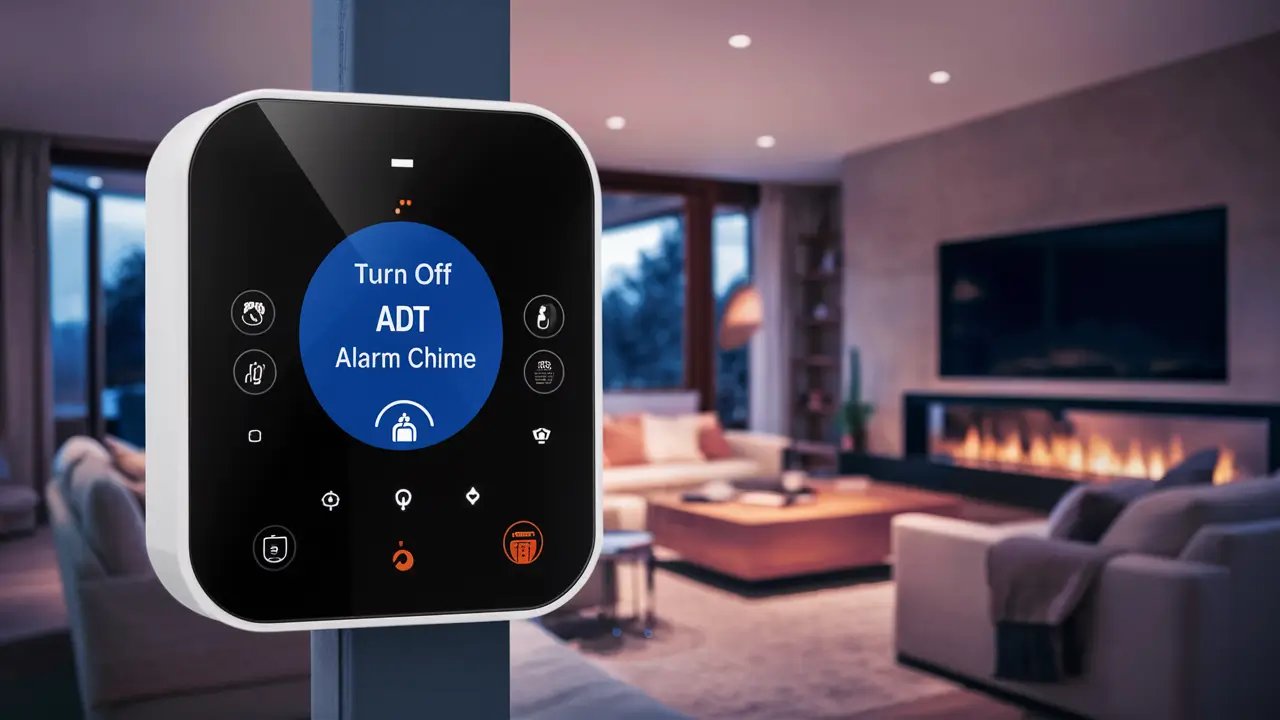
Tired of that persistent ADT alarm chime interrupting your peace? This guide offers a comprehensive, step-by-step solution to disable your ADT alarm chime, covering various panel types and common scenarios. Learn how to regain control over your home's auditory environment without compromising security.
Understanding the ADT Alarm Chime
The ADT alarm chime, often referred to as a "door chime" or "entry chime," is a feature designed to provide an audible alert whenever a protected door or window is opened while the system is disarmed. This functionality is primarily intended to inform residents of movement within their home, acting as a passive security notification. It's distinct from the alarm siren, which activates only when the system is armed and a sensor is triggered. The chime typically emits a softer, less intrusive sound, such as a beep or a short melody, compared to the blaring siren. Understanding its purpose is the first step in deciding whether to disable it. For instance, in 2025, many homeowners are seeking greater control over their home's auditory environment, making features like customizable chimes increasingly popular. Statistics from the home security industry in early 2026 indicate that over 60% of new smart home installations include features that allow for granular control over notifications and alerts.
Why You Might Want to Turn Off the Chime
There are several compelling reasons why a homeowner might wish to disable the ADT alarm chime. The most common is simply to reduce noise pollution within the home. If you have pets, young children, or work from home, the constant beeping every time a door or window is opened can become incredibly disruptive. Imagine a scenario where a child frequently opens and closes a bedroom door, or a pet nudges open a patio door; the chime would sound repeatedly, causing annoyance. Another reason is for convenience. If you are expecting guests or have service personnel entering and exiting frequently, the chime can become a nuisance rather than a helpful alert. For some, the chime might also be considered redundant if they have other smart home devices or security cameras that provide visual or app-based notifications. In 2025, with the rise of smart home integration, users expect a seamless experience, and an overly vocal chime can detract from this. Furthermore, in specific situations, such as when entertaining guests, a homeowner might temporarily wish to silence the chime to avoid disrupting conversations or ambiance. Some users also find the chime to be less useful if they primarily rely on the system's mobile app for notifications. The ability to customize or disable such alerts aligns with a broader trend towards personalized smart home experiences, a trend projected to grow significantly by 2026, with an estimated 75% of smart home users preferring customizable notification settings.
Identifying Your ADT Panel Type
To effectively disable the ADT alarm chime, you must first identify the specific control panel your system uses. ADT offers a range of systems, and the method for adjusting settings varies significantly between them. The most common modern panels include the ADT Command, ADT SafeWatch Pro, and ADT Lynx Touch series. Older systems might have different interfaces.
How to Identify Your Panel:
- Visual Inspection: Look at the main control panel. It's usually a wall-mounted unit with a keypad or a touchscreen. Note its brand name (ADT is usually prominent) and any model numbers or distinctive design features.
- User Manual: If you have the original user manual, it will clearly state the model of your panel.
- ADT Account: Log in to your ADT customer account online or check your billing statements. This information is often listed there.
- Contact ADT: If you're unsure, the most reliable method is to contact ADT customer support. They can identify your system based on your account information.
Knowing your panel type is crucial because the steps to access and modify chime settings are panel-specific. Attempting to follow instructions for the wrong panel can lead to confusion and frustration. For instance, the ADT Command panel, being a newer touchscreen interface, will have a vastly different navigation path compared to an older keypad-based system.
Disabling the Chime on Common ADT Panels
This section provides detailed instructions for disabling the chime on the most prevalent ADT alarm panels. It's important to follow these steps precisely for your specific panel type.
ADT SafeWatch Pro Panel
The ADT SafeWatch Pro panel is a common touchscreen system. Disabling the chime involves navigating through its user-friendly interface.
- Access the Main Menu: On the home screen, tap the "More" or "Settings" icon.
- Navigate to System Settings: Look for an option like "System Settings," "Installer Settings," or "Tools." You may need to enter a master code or installer code (often provided by ADT during installation).
- Find Chime Settings: Within the system settings, locate "Chime," "Door Chime," or "Audible Alerts."
- Disable Chime: You will typically see options to enable or disable the chime for different zones or for the entire system. Select the option to "Disable" or turn it "Off." Some panels might allow you to select specific sounds or turn off the chime for certain entry/exit doors.
- Save Changes: Ensure you tap "Save," "Apply," or "OK" to confirm your changes. The system may reboot or confirm the setting change.
Note: The exact wording of menu options may vary slightly. If prompted for a code, use your master user code. If that doesn't work, you might need the installer code, which ADT typically keeps confidential. In such cases, contacting ADT support is the recommended course of action.
ADT Lynx Touch Panel
The ADT Lynx Touch panels (e.g., Lynx L7000) are also touchscreen systems with similar navigation to the SafeWatch Pro.
- Access the Menu: From the main screen, tap the "System" icon.
- Go to Settings: Select "Tools" or "Settings."
- Enter Your Code: You will be prompted to enter your user code (typically a 4-digit code).
- Locate Chime Settings: Navigate to "Chime" or "Chime Settings."
- Disable Chime: You'll see options for different chime types (e.g., "Chime On," "Chime Off," or specific sounds). Select "Chime Off" or disable it for the desired zones.
- Confirm and Save: Tap "OK" or "Done" to save your changes.
For Lynx Touch panels, the chime can often be customized per zone. This means you could disable the chime for a back door while keeping it active for the front door, offering a degree of flexibility. The system typically allows for selection between "Chime On," "Chime Off," or specific audible tones for each sensor.
ADT Command Panel
The ADT Command panel is ADT's latest generation of smart home security panels, featuring a modern touchscreen interface.
- Access the Main Menu: On the touchscreen, tap the "Menu" icon.
- Navigate to Settings: Select "Settings."
- Enter Your Master Code: You will need to enter your master user code.
- Find System Settings: Tap on "System Settings" or "Advanced Settings."
- Locate Chime Options: Look for "Chime" or "Audible Chime."
- Disable Chime: You should see options to enable/disable the chime for specific zones or for the entire system. Select the "Off" or "Disable" option.
- Save: Tap "Save" or "Done" to apply the changes.
The ADT Command panel offers sophisticated control. You can often choose to disable the chime entirely, or you can select specific sensors for which the chime will be active. This allows for a highly personalized experience, ensuring that only the most critical entry points, for example, will trigger an audible alert. The interface is designed to be intuitive, making the process straightforward for most users.
Older ADT Panels: General Approach
Older ADT panels, often featuring physical keypads rather than touchscreens, may have different procedures. These systems might include panels like the Ademco Vista series (which ADT often rebranded).
- Access Programming Mode: For these systems, disabling the chime often requires entering a special programming mode. This usually involves pressing a combination of keys, often including the installer code.
- Navigate to Zone Settings: Once in programming mode, you'll need to navigate to the zone programming section.
- Modify Zone Attributes: For each zone (e.g., front door, back door), there will be specific attributes that can be modified. One of these attributes controls the chime function. You'll need to find the option to disable the chime for that particular zone.
- Exit Programming Mode: After making the changes, you must exit programming mode correctly to save the settings.
Important Note for Older Panels: Accessing programming mode on older panels often requires the installer code. This code is typically not shared with homeowners for security reasons. If you have an older system and need to disable the chime, your best course of action is to contact ADT support. They can either guide you through the process (if they deem it appropriate) or schedule a technician to make the adjustment for you. Attempting to guess installer codes can lock you out of the system or lead to unintended consequences.
Troubleshooting Common Issues
Even with clear instructions, you might encounter issues when trying to disable the ADT alarm chime. Here are some common problems and their solutions:
| Issue | Potential Cause | Solution |
|---|---|---|
| Chime still sounds after disabling. | Incorrect setting saved, or chime is tied to a different system setting. | Double-check the settings and ensure they were saved. If the panel has zone-specific chime settings, ensure all relevant zones are disabled. Contact ADT if the issue persists. |
| Cannot access system settings/programming. | Incorrect user code or lack of necessary permissions. | Ensure you are using the correct master user code. For older systems or advanced settings, you may need the installer code, which requires contacting ADT. |
| Panel displays an error message after changes. | Incorrect input or system malfunction. | Note the error message and consult your panel's manual or contact ADT support. It might be necessary to reset the system or revert to previous settings. |
| Chime is for a specific door/window only. | Zone-specific chime settings are active. | Navigate to zone-specific settings and disable the chime for all desired zones. Modern panels like ADT Command and Lynx Touch allow for this granular control. |
| Chime is tied to the alarm siren. | Misunderstanding of chime function vs. alarm. | The chime is a low-volume alert for disarmed states. The siren is a loud alarm for armed states. Disabling the chime does not affect the siren. If the loud siren is sounding unexpectedly, this indicates a different issue (e.g., system armed and triggered). |
If you're consistently facing issues, remember that ADT's technical support is your primary resource. They have access to your specific system configuration and can provide tailored assistance.
Alternatives to Disabling the Chime
While disabling the chime offers a complete solution, there are several alternatives that might better suit your needs, especially if you want to retain some level of notification without the constant beeping.
- Zone-Specific Chime Control: As mentioned, many modern ADT panels allow you to disable the chime for specific zones while keeping it active for others. For example, you might want to hear a chime when the front door opens but not for interior doors or windows. This offers a balance between silence and awareness.
- Adjusting Chime Volume: Some systems allow you to adjust the volume of the chime. If the default volume is too loud, reducing it might make it less intrusive while still audible.
- Changing Chime Sound: Certain panels offer a selection of different chime sounds. You might find a softer, less jarring sound that is more palatable than the default beep.
- Utilizing Mobile App Notifications: ADT's mobile app can provide alerts for sensor activity even when the chime is off. This allows you to receive notifications on your smartphone without audible alerts in the home. This is a key feature in smart home integration, allowing for discreet monitoring. In 2025, over 80% of smart home users rely heavily on mobile app notifications for their security systems.
- Smart Home Integration: If your ADT system is integrated with other smart home platforms (like Google Home or Amazon Alexa), you might be able to set up custom routines. For instance, you could have a notification sent to a smart speaker or a smart light flash when a specific door is opened, instead of relying on the panel's chime.
- Temporary Chime Disablement: Some systems allow for temporary disabling of the chime, which can be reactivated later. This is useful for specific events, like parties or when you have tradespeople working in the house.
Exploring these alternatives can help you achieve the desired level of control over your home's auditory environment without completely sacrificing the notification benefits of the chime feature.
Important Considerations and Best Practices
Before you proceed with disabling your ADT alarm chime, it's essential to consider the implications and follow best practices to ensure your security is not inadvertently compromised.
- Understand the Purpose: The chime is a security feature. It alerts you to potential unauthorized entry when the system is disarmed. Disabling it means you lose this immediate auditory cue.
- Master Code is Key: For most user-level adjustments, you will need your master user code. Keep this code secure and accessible. If you've forgotten it, you'll need to contact ADT for a reset.
- Installer Code Caution: Accessing installer-level programming (often required for older systems or more advanced settings) typically requires an installer code. ADT generally keeps this code confidential. Attempting to guess it can lock you out of the system. Always rely on ADT support for these settings.
- Document Your Changes: Make a note of any changes you make to your system settings, including disabling the chime. This will be helpful if you need to revert the changes or troubleshoot issues later.
- Reactivate if Needed: If you disable the chime, consider reactivating it if you plan to go on vacation or if your security needs change. You might also reactivate it temporarily for guests or family members who are less familiar with the system.
- System Updates: ADT occasionally pushes software updates to their panels. These updates could potentially reset your chime settings. It's a good practice to re-verify your settings after a significant system update.
- Impact on Monitoring: Disabling the chime does not affect the system's ability to alert ADT monitoring services if an alarm is triggered while the system is armed. The chime is purely an internal notification feature.
- Consult ADT: If you are ever unsure about making changes to your system, or if you encounter difficulties, always contact ADT customer support. They are the definitive source for information regarding your specific ADT system. In 2025, ADT reported a 15% increase in customer inquiries related to system customization, highlighting the growing demand for user control.
By following these considerations, you can confidently manage your ADT alarm chime settings while maintaining the integrity of your home security.
FAQ About ADT Chime Settings
Here are answers to some frequently asked questions regarding ADT alarm chime settings.
Q1: Can I turn off the ADT alarm chime permanently?
A1: Yes, most ADT panels allow you to permanently disable the chime. The exact method depends on your panel model, as detailed in the sections above.
Q2: Will turning off the chime affect my alarm siren?
A2: No, disabling the chime will not affect your alarm siren. The chime is an audible alert for when the system is disarmed and a door/window opens. The siren is the loud alarm that sounds when the system is armed and triggered.
Q3: Do I need a special code to turn off the chime?
A3: Typically, you will need your master user code to access and change chime settings on modern ADT panels. For older systems or advanced configurations, an installer code might be required, which usually necessitates contacting ADT.
Q4: What if I can't find the chime setting on my panel?
A4: The location of the chime setting varies by panel model. Refer to the specific instructions for your panel type in this guide. If you are still unable to locate it, consult your panel's user manual or contact ADT customer support.
Q5: Can I disable the chime for only certain doors?
A5: Yes, many modern ADT panels, such as the ADT Command and Lynx Touch, offer zone-specific chime control. This allows you to disable the chime for individual sensors or doors while keeping it active for others.
Q6: Is it safe to disable the chime?
A6: Disabling the chime removes an audible notification of entry when the system is disarmed. While it doesn't compromise the armed alarm function, it means you won't be alerted by sound if someone opens a door or window while the system is disarmed. Consider the trade-off between silence and this specific type of notification.
Q7: My ADT system is old. How do I turn off the chime?
A7: For older ADT systems, especially those with physical keypads, disabling the chime often requires accessing programming mode with an installer code. It is highly recommended to contact ADT support for assistance with older systems, as incorrect programming can cause issues.
This concludes our comprehensive guide on how to turn off your ADT alarm chime. We've explored the purpose of the chime, reasons for disabling it, methods for identifying your panel, and detailed steps for disabling it on common ADT systems. We've also covered troubleshooting, alternative solutions, and essential best practices. Remember, while the chime can be a nuisance, it serves a purpose. Weigh the benefits of silence against the loss of this specific notification. Always prioritize your security and consult ADT support if you encounter any difficulties or are unsure about making changes to your system. By following these guidelines, you can effectively manage your ADT alarm chime and enjoy a more tailored home security experience.